

Snipping Tool’s quiet evolution from a one‑trick screenshot utility into a compact visual productivity suite has produced some surprises: a built‑in GIF exporter, a color pPicker that reports HEX/RGB/HSL values, a Bing‑powered Visual Search pathway (with Copilot hooks), and a richer OCR/Text Actions toolset that can extract tables, redact sensitive text, and more — four features many Windows users likely missed but should add to their everyday toolbox. Snipping Tool shipped with Windows for years as a basic screenshot utility. Over the last 18–24 months Microsoft has shifted development into a fast cadence, adding features through Microsoft Store updates and staged Insider rollouts rather than single OS service packs. That delivery model means new capabilities can appear in preview channels before they reach general availability, and feature availability can be gated by region or account.
Microsoft’s own informed many of the changes: the Snipping Tool’s Text Extractor (OCR) and related text actions were announced as an Insider preview, and more recent updates added a GIF export for short recordings and a built‑in color picker. Those posts are the authoritative confirmation of the headline features covered here.
The four features that are easy to overlook — but useful in practice — are:
Benefits:
Key points:
Benefits:
Key considerations:
Microsoft’s own informed many of the changes: the Snipping Tool’s Text Extractor (OCR) and related text actions were announced as an Insider preview, and more recent updates added a GIF export for short recordings and a built‑in color picker. Those posts are the authoritative confirmation of the headline features covered here.
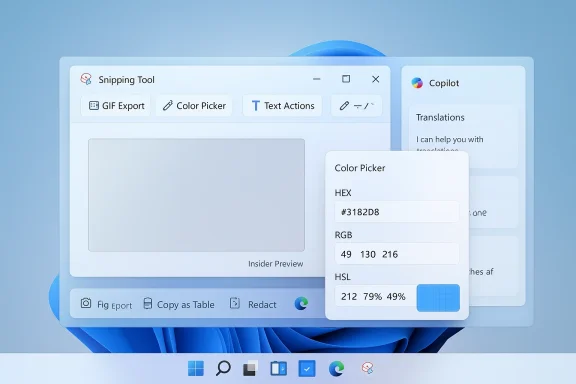 Overview: the four lesser‑noticed features
The four features that are easy to overlook — but useful in practice — are:- **GIFort Snipping Tool recordings to animated GIFs (capped at 30 seconds).
- Color picker: a simple eyedropper that reports color values in HEX, RGB, and HSL and supports zoomed selection for pixel accuracy.
- Visual Search with Bing (and Copilot assist): send a snip to Bing Visual Search for object recognition, OCR/translation, product matches, or use Copilot to ask questions about the image. The Snipping Tool hand‑offs analysis to Bing (in a browser) or Copilot.
- Enhanced OCR / Text Actions: extract text, copy as table for structured data, quick redact to hide emails/phones, and QR code scanning — all accessible from the Snipping Tool’s Text Actions menu.
GIF export: how it works, when to use it
What it does
The Snipping Tool can record a selected region of the screen (video) and then export that recording as an animated GIF. The feature gives two quality choices — Low and High — and is intentionally limited to the first 30 seconds of the recording when exporting to GIF. That 30‑second cap is documented by Microsoft and confirmed by hands‑on reporting.Why it matters
Animated GIFs are the universal lightweight medium for short demonstrations, chat‑friendly micro‑tutorials, and visual bug reports. They play inline in email clients and many chat apps, and they avoid the encoding or bandwidth overhead of MP4s when sound is not required.Benefits:
- Fast: create shareable visuals without a second app.
- Portable: GIFs paste into many editors or can be copied to the clipboard from Snipping Tool.
- Convenient: built into the same capture/editor workflow you already use.
Practical steps
- Open Snipping Tool and switch to the recording mode (or press Win + Shift + R where supported).
- Record the area you want; stop when finished.
- From the playback preview window choose Export GIF (or the GIF button). Select Low or High quality, then Save or Copy.
Limits and verification
- The 30‑second maximum for GIF export is explicit in Microsoft’s announcement; if your recording exceeds 30 seconds the tool will only use the first 30 seconds when creating the GIF. This is a designed limit to keep GIF sizes reasonable.
- GIFs do not carry audio. If you need sound or higher fidelity, export/save the recording as MP4 and edit in Clipchamp if needed.
Color picker: small feature, big convenience
What it does
icker lets you sample any pixel on any display and immediately get the color value in HEX, RGB, or HSL**. It includes a zoomed view for precision selection and copies the selected code to the clipboard. Laptop Mag and other outlets document the formats and the workflow.Why it matters
Designers, front‑end devs, and anyone trying to match styles between apps will appreciate a native eyedropper. Previously, users installed PowerToys’ Color Picker or third‑party apps. Having this inside Snipping Tool reduces tool‑hopping.Key points:
- Pixel‑level precision often matters when matching brand colors.
- Ability to switch between HEX, RGB, and HSL covers most workflows.
- Because Snipping Tool is updated through the Microsoft Store, the feature reaches a broad user base without extra installs.
Verificatiolor Picker implementation in Snipping Tool is distinct from PowerToys’ Color Picker (PowerToys remains a superset with advanced formatting options), but Snipping Tool’s version is intentionally lightweight and built for quick sampling. For professional color workflows involving wide color gamut or HDR content, specialized tools remain necessary.
Visual Search with Bing and Copilot: what’s happening behind the scenes
What the Snipping Tool actually does
When you capture a snip and select Visual Search with Bing (or use the “See more” / three‑dot menu), Snipping Tool uploads the image to Bing Visual Search. The heavy image analysis and context generation happen server‑side; results open in your default browser. That hand‑off behavior is documented and differentiates Microsoft’s approach from overlay‑style tools that keep results in an in‑app floating widget. If you opt to use Copilot to ask about the image, the Snipping Tool can open a Copilot pane or hand results to Copilot for further, conversational analysis. Availability and behavior vary with Copilot versions, subscription tiers, and whether you’re on a Copilot+ PC — rollout is staggered.What Visual Search can do
- Identify landmarks, products, or visually similar images.
- Extract and translate text via Bing’s OCR/Translate actions.
- Offer product shopping cards or math solving for detected equations.
Strengths
- Fast reverse image lookup from the same capture flow you already use (Win + Shift + S).
- Useful for research, troubleshooting errors, and product ID without manually saving and uploading an image.
Practical verification
- Multiple hands‑on reports and Mies confirm the flow and the browser hand‑off. Users should expect the image to leave the device for cloud analysis.
UX tradeoffs
- The browser hand‑off causes a context switch; Google’s desktop Lens overlays keep results in a floating window which some find more seamless. Either approach has tradeoffs between integration and privacy.
Enhanced OCR / Text Actions: extraction, tables, redaction, QR codes
What’s included
Snipping Tool’s Text Actions (also called Text Extractor in some announcements) is a pragmatic OCR tool that can:- Copy recognized text to the clipboard (including a “Copy all text” option).
- Copy as table: when the selected region contains a structured table, the tool can convert table contents to a format suitable for pasting into Excel or other spreadsheet apps. This Copy as table function appeared in Insider builds and is documented by Microsoft.
- Quick redact: automatically identify and hide specific types of sensitive data (email addresses and phone numbers) or let you manually redact text.
- QR code detection: reads QR codes from the screenshot and presents actionable links.
Why this matters
This transforms screenshots from static images into actionable data. Capture a table in a web dashboard and paste it into Excel; capture a receipt and extract screenshot with a phone number and quickly redact it before sharing.Benefits:
- Speeds documentation and data collection workflows.
- Reduces reliance on separate OCR tools for quick jobs.
- Built‑in redaction reduces accidental exposure of PII when sharing screenshots.
Verification and caveats
- Microsoft’s Text Extractor announcement documents the “Copy all text” and related settings (Remove line breaks, Automatically copy). The Copy as table addition and Quick Redact appeared in later Insider build release notes and were corroborated by multiple outlets and hands‑on testing. These features first arrived in Insider channels and then rolled out more broadly.
- OCR accuracy depends heavily on font clarity, contrast, and layout. Snipping Tool’s OCR performs well on screen text but is not a drop‑in replacement for dedicated, high‑precision OCR suites used for archival or legal‑grade digitization. Treat it as a productivity convenience rather than an archival tool.
Security, privacy, and enterprise considerations
The most important operational nuance: some Snipping Tool features perform cloud processing. Visual Search sends images to Bing; Copilot interactions and some advanced analysis run on Microsoft cloud services. That matters for privacy, compliance, and regulated environments.Key considerations:
- Cloud upload: Visual Search and Copilot analysis transmit screenshots to Microsoft services. If the screenshot contains sensitive personal data, proprietary code, patient records, or other regulated material, uploading it may violate policy or increase exposure.
- Retention and use: Microsoft’s published docs do not always surface detailed retention or model‑training language in the Snipping Tool UI. Administrators should assume telemetry and metadata can be retained unless Microsoft explicitly states otherwise.
- Administrative controls: organizations should pilot and inspect network flows before enabling Visual Search broadly. Where required, disable Snipping Tool or bdpoints via network policies or endpoint management until contractual or policy clarifications are obtained.
Where Snipping Tool replaces third‑party tools — and where it doesn’t
Snipping Tool now absorbs many tasks users historically solved with ShareX, Greenshot, Snagit, or PowerToys. Which tasks it can replace:- Quick OCR / text copy for on‑screen content. ([blogs.windows.com](Snipping Tool has these 4 new features you probably missed
