

Every time I set up a new Windows 11 PC I install Microsoft PowerToys within the first half-hour — not because it bakes in cosmetic tweaks, but because it injects useful, system-level convenience that Windows still lacks. The PowerToys suite is acting as Microsoft’s public incubator for features that should plausibly live inside Windows itself, and five modules in particular — Command Palette, Light Switch, Peek, Awake, and Mouse Without Borders — do more than just scratch power‑user itches: they solve real ergonomics, productivity, and cross‑device problems that ordinary users run into every day. The case for folding these tools into Windows 11 isn’t theoretical: PowerToys is an official, open‑source Microsoft project and has repeatedly shipped functionality that later shaped expectations for the OS.
PowerToys began as an experimental toolkit decades ago and has been reimagined in recent years as a community‑driven, Microsoft‑backed open‑source project that ships modular utilities for Windows 10 and Windows 11. The project lives on GitHub and through the Microsoft Store, and each release is publicly documented — which makes PowerToys a transparent channel for adding, iterating, and stress‑testing features before, potentially, moving them into Windows proper. Why that matters: building features in PowerToys allows Microsoft to try different UX models, gather telemetry and community feedback, and iterate rapidly without the risk of destabilizing the core OS for everyone. In practice that has meant utilities such as FancyZones and PowerRename have matured in PowerToys and become de‑facto standards for power users before the company considered larger OS‑level changes.
PowerToys has become Microsoft’s pragmatic R&D lab for polishing productivity features before committing them to the OS. Command Palette, Light Switch, Peek, Awake, and Mouse Without Borders each solve persistent user problems in elegant ways, and each would measurably improve the out‑of‑box Windows 11 experience if integrated thoughtfully. The path forward requires careful defaults, explicit permissions, and robust handling of corner cases — but the payoff is a more capable, less fiddly Windows that respects both power users and mainstream workflows.
Source: Pocket-lint 5 useful PowerToys that deserve to be part of Windows 11
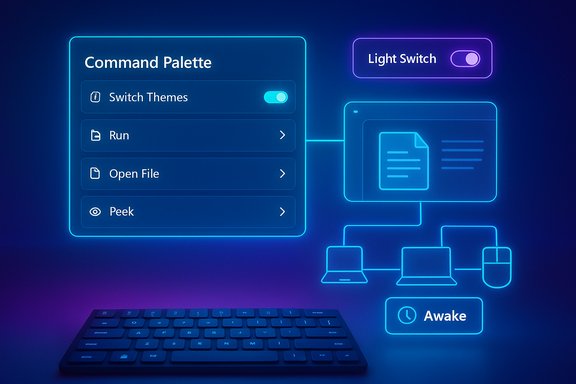 Overview: PowerToys as Microsoft’s feature lab
PowerToys began as an experimental toolkit decades ago and has been reimagined in recent years as a community‑driven, Microsoft‑backed open‑source project that ships modular utilities for Windows 10 and Windows 11. The project lives on GitHub and through the Microsoft Store, and each release is publicly documented — which makes PowerToys a transparent channel for adding, iterating, and stress‑testing features before, potentially, moving them into Windows proper. Why that matters: building features in PowerToys allows Microsoft to try different UX models, gather telemetry and community feedback, and iterate rapidly without the risk of destabilizing the core OS for everyone. In practice that has meant utilities such as FancyZones and PowerRename have matured in PowerToys and become de‑facto standards for power users before the company considered larger OS‑level changes.1) Command Palette — the Spotlight Windows deserves
What it is
Command Palette is PowerToys’ modern launcher: a keyboard‑invoked, minimal search/command interface that finds apps, settings, files, runs calculations, and executes system commands with plugin support. It’s the natural evolution of PowerToys Run and is explicitly designed to be fast, extensible, and keyboard‑centric.Why it matters
Windows Search and the taskbar search box have improved, but many power users still prefer a focused, keyboard‑first launcher (à la macOS Spotlight). Command Palette gives:- Instant, fuzzy search for applications and files.
- Inline actions (calculations, unit conversions, shell commands).
- Plugin extensibility (search package managers, run scripts, interact with system utilities).
How it compares to Ask Copilot / Windows AI search
Microsoft has been pushing AI into Windows with a unified Copilot/“Ask Copilot” search experience that blends local search with conversational, cloud‑backed assistance. Copilot’s file‑search and vision features are powerful for natural‑language queries and contextual assistance, but they are a different product category: AI‑driven, permissioned, and often cloud‑augmented. Command Palette remains superior for deterministic, local, keyboard‑first operations (fast app launches, quick calculations, local shell commands) where an AI assistant’s overhead and network dependency are unnecessary. Both can co‑exist — one as a lightning‑fast local launcher, the other as a conversational assistant that can analyze documents and perform higher‑level tasks.Why it should ship in Windows
- Low‑risk: it’s a classic input model that doesn’t require cloud permissions.
- High impact: reduces friction for everyday tasks.
- Complementary: can live alongside Copilot as a specialist tool for power users.
2) Light Switch — finally, automated theme switching
What it is
Light Switch is PowerToys’ theme scheduler — a simple, configurable utility that flips Windows between Light and Dark themes on a schedule or based on local sunrise/sunset times. It lets you target System UI, Apps, or both, and supports manual toggles and time offsets. Microsoft built Light Switch into PowerToys to fill a long‑standing gap in Windows settings.The user pain it solves
Timed or sunset/sunrise theme switching is standard on macOS, iOS, and Android. Windows users lacking a native scheduler have long relied on third‑party utilities or registry/Task Scheduler hacks. Light Switch brings an official, configurable option that respects battery and ambient light expectations (useful for OLED displays and evening comfort).Real‑world caveat: rollout issues and a hotfix
When Light Switch shipped in PowerToys v0.95 it introduced a usability problem: a bug caused the module to be unintentionally enabled by default for some users, which created unexpected theme toggles for people who never opted in. Microsoft and community outlets documented the issue and a follow‑up hotfix addressed the problem. The incident is informative: shipping new system‑affecting behavior from a userland, albeit official, app can still impact users in surprising ways. Any feature that toggles shell visuals should default to opt‑in and include clear undo/override controls.Alternatives and why integration still makes sense
Third‑party apps like Auto Dark Mode have filled this gap for years and remain excellent, lightweight options for users who only want theme scheduling. But Light Switch’s advantage is direct Microsoft maintenance, OS awareness, and the ability to coordinate system and app theme settings more reliably than third‑party tools. For broad adoption, Windows should offer Light Switch‑style scheduling natively in Settings — but until then PowerToys provides an authoritative, supported approach.3) Peek — QuickLook for Windows, but official
What it is
Peek is PowerToys’ preview tool: select a file in File Explorer and press the activation key (Space by default) to get an instant, system‑level preview of the file’s content — images, Office files, PDFs, markdown, code snippets, audio, video, and more. It’s the functional equivalent of macOS QuickLook but implemented as a native Windows utility.Why Peek is valuable
Opening a file’s host app just to check content is slow. Peek provides:- A fast, transient preview window that doesn’t spawn full applications.
- Keyboard navigation between files in the same folder or a selection.
- Contextual actions (open with, pin position) without leaving File Explorer.
Third‑party alternatives
There are excellent third‑party alternatives such as the community QuickLook app available in the Microsoft Store. Those options work well for users who want a single small tool. However, Peek’s value is being bundled, maintained, and documented by Microsoft — advantages when compatibility and updates matter. The onus for Microsoft is to make Peek discoverable and non‑intrusive (spacebar activation should not conflict with text fields or other keyboard workflows).4) Awake — keep work flowing without fiddling with power plans
What it is
Awake is a lightweight utility that keeps your PC awake (or the display on) for presentations, long downloads, builds, or render jobs — without changing the system’s configured power plan. It’s controllable via the PowerToys UI, the system tray, and even command line arguments for automation. Awake does not alter power plan settings; it asserts temporary power requests and relinquishes them when finished.Why it’s useful
- Keeps background tasks running without side‑effects to default power plans.
- Useful for timed keep‑awake periods, expirable sessions (e.g., “keep awake until 17:00”).
- It’s scriptable via CLI, which is handy for automation or integration into build/test flows.
Risks and responsible use
Awake is a convenience, not a substitute for appropriate power policies. Users with OLED displays should avoid leaving static images on screen for long periods to reduce burn‑in risk. The tool should be visible in the system tray and defaults should avoid indefinite, unattended display‑on behavior. Microsoft’s own documentation makes these behaviors clear and provides options for timed and expirable modes.5) Mouse Without Borders — multi‑PC input continuity
What it is
Mouse Without Borders lets a single mouse and keyboard control up to four Windows PCs, sharing clipboard content and simplifying file transfer between machines on the same network. Historically a Microsoft Garage app, the feature has been folded into PowerToys as a first‑party, supported module. Setup requires a generated security key and local network connectivity between machines.Why it’s transformative
The productivity gains are obvious for people who work across multiple desktops or dedicated machines: no repeated Bluetooth pairing, no KVM switch boxes, and seamless copy‑paste and drag/drop across screens. The feature effectively makes multiple devices feel like a single workspace. For developers, sysadmins, and content creators who routinely jump between machines, that’s priceless.Known issues and caveats
While the concept is compelling, real‑world usage has revealed reliability and setup friction in some environments. Reports in GitHub issues and community forums show connectivity failures (firewall rules, machine‑ID conflicts, backup/restore oddities), and some users continue to prefer the standalone Microsoft Garage release for stability in particular network configurations. Integrating this as an optional service inside Windows would require careful attention to:- Security model (how keys are stored and exchanged; whether transfers are encrypted).
- Network discovery and firewall rules (clear guidance and automatic rule creation where appropriate).
- Robust handling of machine‑identity changes (backups, restores, or disk clones).
Cross‑cutting strengths and platform risks
Strengths these five bring to Windows
- Immediate productivity wins for many users (less context switching, fewer clicks).
- Low barrier to adoption: PowerToys is modular and optional, so these tools can be trialed before being considered for OS integration.
- They address long‑standing UX gaps (theme scheduling, fast previews, multi‑PC control) that users have filled with third‑party apps for years.
Risks and integration challenges
- System scope and default behavior: features that alter shell appearance (Light Switch) or global input handling (Mouse Without Borders, Command Palette hotkeys) must not surprise users. Default opt‑out, clear prompts, and safe‑mode behavior are essential. The Light Switch shipping incident — where a theme toggler affected users unexpectedly — is a cautionary example.
- Security and privacy: Mouse Without Borders transfers clipboard contents and files across machines; Copilot touches local files; Command Palette can run commands. If any of these become OS‑level features, Microsoft needs robust permissioning, clear audit controls, encryption in transfer, and granular consent dialogs.
- Stability and support surface: integrating experimental features into the OS increases the surface area Microsoft must support and test across far more hardware combinations. PowerToys’ modular, GitHub‑centric development lets the team iterate quickly; bringing the code into the OS proper raises expectations for long‑term compatibility.
- Hotkey conflicts: PowerToys already includes conflict detection, but adding system‑level shortcuts risks interfering with other apps. Any system integration must include conflict detection and user‑friendly remapping options.
Implementation recommendations for Microsoft
If these tools move into Windows 11 proper, here’s a practical rollout blueprint that balances usefulness with safety:- Default‑off model for visual/system‑wide changes
- Light Switch should default to disabled; prompt users on first run with an opt‑in flow and clear “preview” toggles.
- Permissioned capabilities and explicit consent
- Mouse Without Borders should require an explicit “Allow cross‑device control” workflow, with per‑session keys and optional end‑to‑end encryption.
- Safe hotkey registration and conflict UI
- Make Command Palette and Peek shortcuts customizable during first‑run setup, and keep a persistent, searchable shortcuts help overlay.
- Gradual integration with telemetry and compatibility flags
- Use existing PowerToys release channels to gather opt‑in diagnostic data, and only flip stable features into Settings after a broad compatibility baseline is met.
- Expose standalone installers/Store apps for edge users
- Keep the option for a lightweight, standalone app (e.g., QuickLook‑style Peek) for people who don’t want the whole suite. This lowers friction and respects diverse workflows.
Ranking the five: which should go first?
- Command Palette — biggest daily productivity payoff with minimal surface risk (keyboard launcher, local).
- Peek — low technical risk, immediate UX quality-of-life improvement for file previewing.
- Awake — straightforward, well‑scoped functionality that complements power‑user tasks.
- Light Switch — high value but needs conservative rollout and defaults due to system‑wide visual impact.
- Mouse Without Borders — massive utility but raises the most security and stability challenges; integration should wait until network/identity edge cases are addressed.
Final analysis: what Microsoft stands to gain (and lose)
Incorporating these five PowerToys modules into Windows 11 would squarely answer a set of frequent user requests: faster local search and launching, previewing without opening apps, meaningful theme scheduling, safe temporary keep‑awake behavior, and seamless multi‑PC workflows. Each feature has demonstrable user value and is already battle‑tested in the wild via PowerToys and community feedback channels. GitHub release notes and Microsoft Learn documentation show the company is actively improving these modules and tracking real‑world issues. That said, integration is not a purely technical decision — it’s a product‑design and trust decision. Microsoft must balance convenience with predictability, security, and user control. The Light Switch rollout bug and the occasional Mouse Without Borders reliability reports are instructive: system‑level behavior must be transparent, opt‑in by default, and backed by solid diagnostics and rollback options.Practical takeaways for Windows users today
- Install PowerToys if you want immediate access to these tools; it’s free, open‑source, and available via the Microsoft Store or GitHub releases.
- If you only want auto theme switching and prefer a tiny footprint, consider Auto Dark Mode as a focused alternative until Microsoft baked Light Switch into Settings — but be mindful of default behavior after any PowerToys update.
- For multi‑PC control, test Mouse Without Borders in your network environment and keep the standalone Microsoft Garage version as a fallback if you hit reliability issues in PowerToys. Be prepared to tweak firewall rules and check machine identity if you restore from backups.
PowerToys has become Microsoft’s pragmatic R&D lab for polishing productivity features before committing them to the OS. Command Palette, Light Switch, Peek, Awake, and Mouse Without Borders each solve persistent user problems in elegant ways, and each would measurably improve the out‑of‑box Windows 11 experience if integrated thoughtfully. The path forward requires careful defaults, explicit permissions, and robust handling of corner cases — but the payoff is a more capable, less fiddly Windows that respects both power users and mainstream workflows.
Source: Pocket-lint 5 useful PowerToys that deserve to be part of Windows 11
