

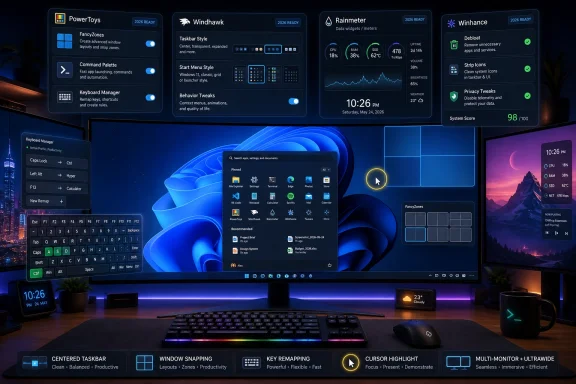
Windows 11 users frustrated by Microsoft’s limited customization options are increasingly turning to PowerToys, Windhawk, Rainmeter, Winhance, and similar utilities to restore missing workflow controls, reshape the Start menu and taskbar, and make the operating system feel less rigid in 2026. The irony is hard to miss: the best argument for staying on Windows is now a constellation of tools that exist because Windows itself refuses to bend. That should worry Microsoft, because customization is not decoration for this audience; it is the contract that made Windows the default platform for decades. The new power-user stack makes Windows 11 better, but it also exposes how much of the operating system’s flexibility has migrated outside the operating system.
Windows 11 has improved since its 2021 launch. The Start menu is less jarring than it was at release, the Settings app has absorbed more of the old Control Panel’s territory, and Microsoft has spent years sanding down the early rough edges that made the first builds feel like a public beta wearing a retail badge. For mainstream users who live in Edge, Office, Teams, Spotify, and a handful of pinned apps, the system is often fine.
But “fine” is not the same thing as yours. Windows used to be the operating system that tolerated eccentricity: odd workflows, strange input devices, vertical taskbars, custom launchers, elaborate window layouts, and a hundred tiny accommodations that let one PC feel different from another. Windows 11, by contrast, often feels like a system designed around the assumption that the cleanest interface is the one with the fewest knobs.
That is not inherently irrational. Microsoft has to ship Windows to hundreds of millions of machines, across every conceivable hardware configuration, with support burdens that dwarf those of boutique Linux desktops or Apple’s tightly controlled Mac line. Every exposed option becomes another path that can break, confuse, or complicate testing.
The problem is that Windows’ historical advantage was never elegance. It was adaptability. When Microsoft removes or buries the affordances that power users relied on, it does not make those users simpler; it sends them looking for replacement parts.
The strange part is how many PowerToys utilities feel less like optional extras and more like features that should have graduated into Windows years ago. FancyZones, Keyboard Manager, Image Resizer, Command Palette, and the mouse utilities do not merely add novelty. They solve obvious daily annoyances in the shell, the file manager, and the input layer.
FancyZones is the clearest example. Windows snapping is competent for simple layouts, especially on a laptop screen, but it still treats modern desktop setups too conservatively. A 34-inch ultrawide monitor, a portrait side display, or a multi-monitor workstation does not need the same handful of snap arrangements as a basic 13-inch notebook. FancyZones lets users define the geometry of their work instead of accepting Microsoft’s defaults.
That matters because window management is not cosmetic. It is the difference between a system that supports concentration and one that constantly asks the user to tidy up after it. If you spend the day comparing documents, watching logs, writing code, monitoring chat, and moving between browsers, a reliable custom layout can feel like a second memory.
Command Palette cuts through that. A keyboard shortcut brings up a launcher that can open apps, search files, run commands, calculate, and route actions through extensions. For many users, that is not a convenience; it is a declaration of independence from the Start menu’s clutter and ambiguity.
The comparison to macOS Spotlight is obvious, but the Windows context is different. On the Mac, Spotlight complements a system that already has a coherent launcher and menu model. On Windows 11, Command Palette often feels like a rescue hatch from a Start experience that cannot decide whether it is a launcher, a search box, a document recommender, or an advertising surface.
That is why the utility resonates with power users. They are not asking for nostalgia. They are asking for speed, predictability, and a way to tell the computer what to do without being routed through a UI designed for engagement metrics.
Windows has accumulated more global shortcuts over time, and not all of them are welcome. Copilot-era Windows in particular has made some users feel that their keyboards are being quietly rezoned for Microsoft’s strategic ambitions. If a key or chord summons a feature you do not use, that is not convenience. It is occupation.
Keyboard Manager lets users reclaim that territory. It can remap individual keys, redirect shortcuts, and even apply mappings on a per-app basis. That last point is important because modern computing is context-heavy. The same shortcut might mean one thing in a code editor, another in an audio tool, and something else in a browser.
This is the old Windows bargain at its best: the system may ship with defaults, but the user gets the final word. The fact that the bargain now requires a separate Microsoft utility is both reassuring and embarrassing.
This is not a professional imaging workflow. It is ordinary computing. People resize screenshots for posts, compress photos for forms, prepare images for email, and convert messy camera output into something manageable. A modern operating system should understand that file operations do not stop at copy, paste, rename, and delete.
Microsoft has been rebuilding and modernizing File Explorer for years, but the pace has been uneven. The app looks more contemporary than it once did, and tabs were a welcome addition, but the context menu redesign also hid many legacy commands behind an extra click. That made the shell feel cleaner while making some everyday actions slower.
Image Resizer succeeds because it lives exactly where the task begins: on the file. It is the kind of small, grounded feature that operating system teams sometimes overlook because it lacks keynote glamour. Power users notice because their day is made of these small tasks.
These features sit at the intersection of accessibility, ergonomics, and power use. A person with low vision, a streamer recording a tutorial, a sysadmin jumping between remote desktops, and a user with a three-monitor setup may all need the same thing: a clearer indication of where the pointer is and what it is doing. The use cases differ, but the design principle is identical.
The broader lesson is that customization is not merely about taste. It is about reducing friction between the human body and the machine. The more Microsoft frames customization as optional personalization, the more it misses why these tools matter.
A cursor locator will not sell a Windows upgrade. It will not anchor a hardware event. But it can make a PC feel less hostile, and that is exactly the sort of detail that determines whether users love or merely tolerate an operating system.
That makes Windhawk powerful and inherently more precarious. It operates in the realm of mods, not officially supported settings. Its appeal comes from precisely the fact that Microsoft does not provide the switches users want. Its risk comes from the fact that Windows updates can change the underlying components those mods depend on.
For a certain kind of user, that trade-off is acceptable. If the stock taskbar refuses to move, resize, behave, or display information the way they want, a mod marketplace becomes less of a hobby and more of a restoration project. Windhawk does not have to be perfect to be compelling. It only has to be more responsive to user demand than Windows itself.
That is the uncomfortable contrast. Microsoft controls the platform, the telemetry, the design language, and the update cadence. Yet a third-party mod ecosystem can sometimes feel more attentive to what desktop users actually ask for.
That might work if the design satisfied most power users. It does not. The inability to freely move the taskbar, the reduced right-click behavior, the limited visual choices, and the slow restoration of older capabilities all turned a familiar tool into a reminder that Windows 11 is less permissive than its predecessors.
Windhawk’s taskbar mods are popular because they attack that rigidity directly. Some change the look. Others alter behavior. A mod that allows volume control by scrolling over the taskbar may sound minor, but it speaks to a larger truth: users want the shell to respond to muscle memory, not force a trip through panels and flyouts.
The taskbar is not just a row of icons. It is the dashboard of the desktop. When Microsoft narrows what it can be, users who live at their PCs all day feel the loss immediately.
Windhawk’s Start Menu Styler mod, with its many visual and layout options, succeeds because it recognizes that one Start menu cannot serve every user equally well. Some want a cleaner search-first interface. Some want a dense app list. Some want the Recommended section minimized or gone. Some want the layout to evoke older Windows versions not out of sentimentality, but because those versions exposed information more efficiently.
Microsoft’s default Start menu is optimized for a broad median user and for Microsoft’s own service priorities. That is understandable, but it leaves little room for people who treat the Start menu as infrastructure rather than decoration. A launcher that wastes space or surfaces unwanted suggestions is not neutral. It changes how quickly work begins.
This is where third-party customization becomes more than skinning. It becomes an argument about ownership. If the Start menu is the front door to the PC, users reasonably expect to decide where the furniture goes.
In 2026, that sounds almost quaint. Microsoft, Apple, Google, and the major Linux desktop environments have all moved toward cleaner, more controlled visual systems. The desktop is no longer treated as the center of the computing experience; it is often a staging area for apps, search, and cloud-connected services.
Rainmeter persists because some users still want the desktop to be active territory. They want clocks, system monitors, launchers, weather panels, media controls, calendars, and custom visual themes that reflect how they think. They want the PC to show state at a glance, not hide everything behind widgets panels and notification centers.
There is a legitimate critique here. Heavy theming can become fragile, distracting, or performative. But that is the user’s choice. The point of a personal computer is not that every configuration is tasteful; it is that the machine can become personal in the first place.
That impulse has grown stronger as Windows has become more entangled with Microsoft accounts, cloud prompts, bundled apps, Copilot branding, recommendations, and consumer services. One user’s helpful integration is another user’s bloat. The line between operating system and marketing channel has become harder to ignore.
Tools that debloat Windows are controversial because they can remove dependencies, break assumptions, or leave users with systems that are harder to support. Enterprise admins have long understood this tension. A leaner image is attractive until a feature update, helpdesk ticket, or application dependency reveals what was cut too aggressively.
Still, the popularity of these tools is a signal. Users are not only asking for more ways to customize Windows’ appearance. They are asking for more ways to say no. In a healthy platform relationship, refusal is a first-class option.
But Microsoft should not mistake that enthusiasm for absolution. When users have to assemble a parallel customization layer to make Windows feel complete, the platform has ceded part of its identity. The community is not merely extending Windows; it is compensating for it.
There is also a support and security dimension. PowerToys is official and open source, which makes it a relatively comfortable recommendation. Windhawk is more invasive by design. Rainmeter skins and debloating scripts vary in quality. Any ecosystem built around modifying shell behavior and trimming OS components will carry risk, especially after cumulative updates and annual feature releases.
That does not mean users should avoid these tools. It means they should understand the trade. The closer a utility gets to Windows internals, the more likely it is to break when Microsoft changes the plumbing. The more aggressively a tool removes built-in components, the more carefully users should document what they changed.
The more important competition, though, is Windows versus the memory of Windows. Longtime users remember when the platform felt less prescriptive. They remember taskbars that moved, Start menus that could be replaced, shell behaviors that could be adjusted, and a general sense that Windows might be messy but would usually let you get your way.
Some of that memory is idealized. Old Windows was inconsistent, registry-dependent, and full of sharp edges. Nostalgia tends to skip the driver conflicts, shell crashes, and control panels that looked like archaeological layers.
Even so, the emotional truth remains. Windows became dominant not because it was the most beautiful operating system, but because it was the most accommodating. The current customization renaissance is powered by users trying to restore that accommodation on top of a more controlled Windows 11 base.
Windhawk is the next step for users who know exactly what bothers them about the shell and are willing to accept the maintenance burden. It can make the taskbar and Start menu feel dramatically more personal, but it should be treated as a modding platform rather than a normal settings panel. If a Windows update breaks something, that is not shocking; it is part of the bargain.
Rainmeter is for users who want the desktop itself to become an information surface or aesthetic project. Winhance and similar tools are for those who want to remove Microsoft’s defaults as much as add their own. Both categories reward patience and punish carelessness.
This layered approach says a lot about Windows in 2026. The best experience often comes not from choosing one tool, but from understanding which layer of frustration each tool addresses. PowerToys fixes missing utilities. Windhawk fixes shell rigidity. Rainmeter fixes visual sameness. Winhance fixes unwanted baggage.
Source: How-To Geek I was ready to quit Windows—until I found these powerful customization tools
 Windows 11’s Smooth Surface Still Hides a Stiff Machine
Windows 11 has improved since its 2021 launch. The Start menu is less jarring than it was at release, the Settings app has absorbed more of the old Control Panel’s territory, and Microsoft has spent years sanding down the early rough edges that made the first builds feel like a public beta wearing a retail badge. For mainstream users who live in Edge, Office, Teams, Spotify, and a handful of pinned apps, the system is often fine.But “fine” is not the same thing as yours. Windows used to be the operating system that tolerated eccentricity: odd workflows, strange input devices, vertical taskbars, custom launchers, elaborate window layouts, and a hundred tiny accommodations that let one PC feel different from another. Windows 11, by contrast, often feels like a system designed around the assumption that the cleanest interface is the one with the fewest knobs.
That is not inherently irrational. Microsoft has to ship Windows to hundreds of millions of machines, across every conceivable hardware configuration, with support burdens that dwarf those of boutique Linux desktops or Apple’s tightly controlled Mac line. Every exposed option becomes another path that can break, confuse, or complicate testing.
The problem is that Windows’ historical advantage was never elegance. It was adaptability. When Microsoft removes or buries the affordances that power users relied on, it does not make those users simpler; it sends them looking for replacement parts.
PowerToys Is Microsoft’s Quiet Admission That Windows Is Incomplete
PowerToys is the safest place to start because it is Microsoft’s own answer to the problem Microsoft created. The suite is free, open source, and explicitly aimed at power users and developers who want more control than stock Windows provides. That official blessing matters. It gives users permission to customize without feeling as if they are crossing into registry-hack territory.The strange part is how many PowerToys utilities feel less like optional extras and more like features that should have graduated into Windows years ago. FancyZones, Keyboard Manager, Image Resizer, Command Palette, and the mouse utilities do not merely add novelty. They solve obvious daily annoyances in the shell, the file manager, and the input layer.
FancyZones is the clearest example. Windows snapping is competent for simple layouts, especially on a laptop screen, but it still treats modern desktop setups too conservatively. A 34-inch ultrawide monitor, a portrait side display, or a multi-monitor workstation does not need the same handful of snap arrangements as a basic 13-inch notebook. FancyZones lets users define the geometry of their work instead of accepting Microsoft’s defaults.
That matters because window management is not cosmetic. It is the difference between a system that supports concentration and one that constantly asks the user to tidy up after it. If you spend the day comparing documents, watching logs, writing code, monitoring chat, and moving between browsers, a reliable custom layout can feel like a second memory.
The Command Palette Is the Start Menu for People Who Stopped Trusting the Start Menu
The most revealing PowerToys utility may be Command Palette, because it competes with one of the most symbolically important pieces of Windows: the Start menu. The Start menu used to be a map of the machine. In Windows 11, it is often a negotiated space between pinned apps, recommended files, search, Microsoft services, and whatever product priority is floating through Redmond that quarter.Command Palette cuts through that. A keyboard shortcut brings up a launcher that can open apps, search files, run commands, calculate, and route actions through extensions. For many users, that is not a convenience; it is a declaration of independence from the Start menu’s clutter and ambiguity.
The comparison to macOS Spotlight is obvious, but the Windows context is different. On the Mac, Spotlight complements a system that already has a coherent launcher and menu model. On Windows 11, Command Palette often feels like a rescue hatch from a Start experience that cannot decide whether it is a launcher, a search box, a document recommender, or an advertising surface.
That is why the utility resonates with power users. They are not asking for nostalgia. They are asking for speed, predictability, and a way to tell the computer what to do without being routed through a UI designed for engagement metrics.
Keyboard Manager Restores the Old Windows Bargain
Keyboard Manager looks modest next to flashier customization tools, but it gets at something fundamental: the user should be able to decide what their hardware does. Remapping keys and shortcuts is the kind of feature that sounds niche until the day one shortcut collides with your workflow, your keyboard layout, or a vendor’s idea of helpfulness.Windows has accumulated more global shortcuts over time, and not all of them are welcome. Copilot-era Windows in particular has made some users feel that their keyboards are being quietly rezoned for Microsoft’s strategic ambitions. If a key or chord summons a feature you do not use, that is not convenience. It is occupation.
Keyboard Manager lets users reclaim that territory. It can remap individual keys, redirect shortcuts, and even apply mappings on a per-app basis. That last point is important because modern computing is context-heavy. The same shortcut might mean one thing in a code editor, another in an audio tool, and something else in a browser.
This is the old Windows bargain at its best: the system may ship with defaults, but the user gets the final word. The fact that the bargain now requires a separate Microsoft utility is both reassuring and embarrassing.
The File Explorer Context Menu Became a Place Where Common Sense Went Missing
Image Resizer is one of those utilities that makes users angry only after they discover it. Once you can right-click a group of images and resize them without opening a full editor, exporting through a web app, or building a batch process, the absence of that feature in stock Windows feels absurd.This is not a professional imaging workflow. It is ordinary computing. People resize screenshots for posts, compress photos for forms, prepare images for email, and convert messy camera output into something manageable. A modern operating system should understand that file operations do not stop at copy, paste, rename, and delete.
Microsoft has been rebuilding and modernizing File Explorer for years, but the pace has been uneven. The app looks more contemporary than it once did, and tabs were a welcome addition, but the context menu redesign also hid many legacy commands behind an extra click. That made the shell feel cleaner while making some everyday actions slower.
Image Resizer succeeds because it lives exactly where the task begins: on the file. It is the kind of small, grounded feature that operating system teams sometimes overlook because it lacks keynote glamour. Power users notice because their day is made of these small tasks.
The Mouse Utilities Prove That Accessibility and Power Use Often Meet
Cursor location sounds trivial until you lose the pointer across multiple displays or a bright background. Then it becomes a tiny tax paid dozens of times a week. PowerToys’ mouse utilities, including pointer-highlighting tools, solve that problem with the kind of blunt practicality Windows often needs more of.These features sit at the intersection of accessibility, ergonomics, and power use. A person with low vision, a streamer recording a tutorial, a sysadmin jumping between remote desktops, and a user with a three-monitor setup may all need the same thing: a clearer indication of where the pointer is and what it is doing. The use cases differ, but the design principle is identical.
The broader lesson is that customization is not merely about taste. It is about reducing friction between the human body and the machine. The more Microsoft frames customization as optional personalization, the more it misses why these tools matter.
A cursor locator will not sell a Windows upgrade. It will not anchor a hardware event. But it can make a PC feel less hostile, and that is exactly the sort of detail that determines whether users love or merely tolerate an operating system.
Windhawk Crosses the Line PowerToys Will Not
If PowerToys is Microsoft’s polite supplement to Windows, Windhawk is the sharper instrument. It is not trying to add a few utilities around the edges. It modifies how Windows itself behaves, particularly in the places where Microsoft has been most restrictive: the taskbar, Start menu, notification area, and other shell components.That makes Windhawk powerful and inherently more precarious. It operates in the realm of mods, not officially supported settings. Its appeal comes from precisely the fact that Microsoft does not provide the switches users want. Its risk comes from the fact that Windows updates can change the underlying components those mods depend on.
For a certain kind of user, that trade-off is acceptable. If the stock taskbar refuses to move, resize, behave, or display information the way they want, a mod marketplace becomes less of a hobby and more of a restoration project. Windhawk does not have to be perfect to be compelling. It only has to be more responsive to user demand than Windows itself.
That is the uncomfortable contrast. Microsoft controls the platform, the telemetry, the design language, and the update cadence. Yet a third-party mod ecosystem can sometimes feel more attentive to what desktop users actually ask for.
The Taskbar Became the Battlefield Because Microsoft Made It One
The Windows 11 taskbar remains one of the most contentious parts of the operating system because it is both constantly visible and unusually constrained. Microsoft simplified it, centered it, rebuilt it, and removed or delayed features users had taken for granted. Some functionality returned over time, but the message was clear: the taskbar was no longer a user-shaped strip of real estate. It was a designed object.That might work if the design satisfied most power users. It does not. The inability to freely move the taskbar, the reduced right-click behavior, the limited visual choices, and the slow restoration of older capabilities all turned a familiar tool into a reminder that Windows 11 is less permissive than its predecessors.
Windhawk’s taskbar mods are popular because they attack that rigidity directly. Some change the look. Others alter behavior. A mod that allows volume control by scrolling over the taskbar may sound minor, but it speaks to a larger truth: users want the shell to respond to muscle memory, not force a trip through panels and flyouts.
The taskbar is not just a row of icons. It is the dashboard of the desktop. When Microsoft narrows what it can be, users who live at their PCs all day feel the loss immediately.
The Start Menu Fight Was Never Really About Rounded Corners
The Windows 11 Start menu controversy is often treated as a taste dispute: some people like the new centered grid, others miss Windows 10 or Windows 7. But the deeper issue is control. The Start menu is where the user’s mental model of the system becomes visible, and Windows 11 gives users surprisingly little say in how that model should be arranged.Windhawk’s Start Menu Styler mod, with its many visual and layout options, succeeds because it recognizes that one Start menu cannot serve every user equally well. Some want a cleaner search-first interface. Some want a dense app list. Some want the Recommended section minimized or gone. Some want the layout to evoke older Windows versions not out of sentimentality, but because those versions exposed information more efficiently.
Microsoft’s default Start menu is optimized for a broad median user and for Microsoft’s own service priorities. That is understandable, but it leaves little room for people who treat the Start menu as infrastructure rather than decoration. A launcher that wastes space or surfaces unwanted suggestions is not neutral. It changes how quickly work begins.
This is where third-party customization becomes more than skinning. It becomes an argument about ownership. If the Start menu is the front door to the PC, users reasonably expect to decide where the furniture goes.
Rainmeter Keeps the Desktop Weird in a World of Locked Surfaces
Rainmeter belongs to an older lineage of Windows customization, one that predates the current argument over Windows 11 and connects back to the era when desktops were canvases. It allows users to create widgets, skins, meters, and visual systems that can make Windows look restrained, futuristic, chaotic, minimal, or anything in between.In 2026, that sounds almost quaint. Microsoft, Apple, Google, and the major Linux desktop environments have all moved toward cleaner, more controlled visual systems. The desktop is no longer treated as the center of the computing experience; it is often a staging area for apps, search, and cloud-connected services.
Rainmeter persists because some users still want the desktop to be active territory. They want clocks, system monitors, launchers, weather panels, media controls, calendars, and custom visual themes that reflect how they think. They want the PC to show state at a glance, not hide everything behind widgets panels and notification centers.
There is a legitimate critique here. Heavy theming can become fragile, distracting, or performative. But that is the user’s choice. The point of a personal computer is not that every configuration is tasteful; it is that the machine can become personal in the first place.
Winhance Shows the Other Half of Customization: Removing, Not Adding
Not every customization tool exists to add features. Some exist to subtract them. Winhance fits into a growing category of utilities for users who want to strip Windows down, disable unwanted components, adjust defaults, and in some cases create a cleaner Windows installation image before the operating system ever lands on the machine.That impulse has grown stronger as Windows has become more entangled with Microsoft accounts, cloud prompts, bundled apps, Copilot branding, recommendations, and consumer services. One user’s helpful integration is another user’s bloat. The line between operating system and marketing channel has become harder to ignore.
Tools that debloat Windows are controversial because they can remove dependencies, break assumptions, or leave users with systems that are harder to support. Enterprise admins have long understood this tension. A leaner image is attractive until a feature update, helpdesk ticket, or application dependency reveals what was cut too aggressively.
Still, the popularity of these tools is a signal. Users are not only asking for more ways to customize Windows’ appearance. They are asking for more ways to say no. In a healthy platform relationship, refusal is a first-class option.
The Modded Windows Desktop Is Powerful, but It Is Also a Warning
A Windows 11 setup with PowerToys, Windhawk, Rainmeter, and a careful debloating utility can be excellent. It can be faster, denser, more legible, more keyboard-driven, and more respectful of the user’s habits than stock Windows. For enthusiasts, building that environment is part of the fun.But Microsoft should not mistake that enthusiasm for absolution. When users have to assemble a parallel customization layer to make Windows feel complete, the platform has ceded part of its identity. The community is not merely extending Windows; it is compensating for it.
There is also a support and security dimension. PowerToys is official and open source, which makes it a relatively comfortable recommendation. Windhawk is more invasive by design. Rainmeter skins and debloating scripts vary in quality. Any ecosystem built around modifying shell behavior and trimming OS components will carry risk, especially after cumulative updates and annual feature releases.
That does not mean users should avoid these tools. It means they should understand the trade. The closer a utility gets to Windows internals, the more likely it is to break when Microsoft changes the plumbing. The more aggressively a tool removes built-in components, the more carefully users should document what they changed.
Microsoft’s Real Competition Is the Memory of Windows Itself
It is tempting to frame this as Windows versus macOS or Windows versus Linux. There is some truth there. macOS still offers a more coherent out-of-box experience for many users, while Linux desktops can offer extraordinary customization for those willing to accept the trade-offs. Windows 11 sits awkwardly between them: broader and more compatible than either, but often less elegant than one and less malleable than the other.The more important competition, though, is Windows versus the memory of Windows. Longtime users remember when the platform felt less prescriptive. They remember taskbars that moved, Start menus that could be replaced, shell behaviors that could be adjusted, and a general sense that Windows might be messy but would usually let you get your way.
Some of that memory is idealized. Old Windows was inconsistent, registry-dependent, and full of sharp edges. Nostalgia tends to skip the driver conflicts, shell crashes, and control panels that looked like archaeological layers.
Even so, the emotional truth remains. Windows became dominant not because it was the most beautiful operating system, but because it was the most accommodating. The current customization renaissance is powered by users trying to restore that accommodation on top of a more controlled Windows 11 base.
The Best Windows Setup Now Lives in the Gap Between Official and Unofficial
The practical advice is simple: start with PowerToys. It is the rare Microsoft project that feels both experimental and grounded in real desktop use. FancyZones, Command Palette, Keyboard Manager, Image Resizer, and the mouse utilities can improve Windows 11 without pushing users into fragile territory.Windhawk is the next step for users who know exactly what bothers them about the shell and are willing to accept the maintenance burden. It can make the taskbar and Start menu feel dramatically more personal, but it should be treated as a modding platform rather than a normal settings panel. If a Windows update breaks something, that is not shocking; it is part of the bargain.
Rainmeter is for users who want the desktop itself to become an information surface or aesthetic project. Winhance and similar tools are for those who want to remove Microsoft’s defaults as much as add their own. Both categories reward patience and punish carelessness.
This layered approach says a lot about Windows in 2026. The best experience often comes not from choosing one tool, but from understanding which layer of frustration each tool addresses. PowerToys fixes missing utilities. Windhawk fixes shell rigidity. Rainmeter fixes visual sameness. Winhance fixes unwanted baggage.
The Customization Stack That Keeps Windows Loyalists From Leaving
The lesson from this new customization stack is not that every Windows user should install every tool. It is that Microsoft’s default experience leaves too many capable users feeling boxed in, and the community has built an escape route wide enough to become part of the platform’s identity.- PowerToys is the first recommendation because it adds serious workflow features while staying inside Microsoft’s own ecosystem.
- FancyZones and Command Palette are the most persuasive evidence that stock Windows still underserves large-screen, keyboard-heavy, power-user workflows.
- Windhawk is powerful precisely because it changes the parts of Windows 11 that Microsoft has made least flexible, especially the taskbar and Start menu.
- Rainmeter remains relevant because some users still want the desktop to be an expressive, information-rich workspace rather than a blank app launcher.
- Debloating and image-customization tools reflect a growing desire not just to personalize Windows, but to remove features users never asked for.
- The more deeply a tool modifies Windows, the more users should expect occasional breakage after major updates and keep a path back to the default configuration.
Source: How-To Geek I was ready to quit Windows—until I found these powerful customization tools
