

AI tools are no longer curiosities on the office floor — they are practical, everyday aids that can speed work, spark ideas, and protect time for higher‑value thinking, if you use them with intention and basic safeguards.
Generative AI—chatbots, copilots, and customizable assistants—has quickly moved from lab demos into mainstream workflows. Employers and individual users alike report time savings and productivity uplifts; industry surveys and academic studies suggest those gains are real, but unevenly distributed. The Consumer Technology Association found broad workplace AI use and big potential time savings, and a National Bureau of Economic Research randomized study published in February 2026 shows generative AI can substantially reduce productivity gaps between higher‑ and lower‑educated workers. Those findings together sketch a pragmatic opportunity: AI can be a leveler and an accelerant, but only when paired with user judgment and verification.
This feature walks through practical, job‑ready AI uses — drawn from real workers’ examples — explains how major products behave today, identifies where AI most reliably helps, and flags the governance, accuracy, and privacy steps every professional should take before relying on machine output.
Source: AARP How AI Can Help You Get Ahead at Work
 Background
Generative AI—chatbots, copilots, and customizable assistants—has quickly moved from lab demos into mainstream workflows. Employers and individual users alike report time savings and productivity uplifts; industry surveys and academic studies suggest those gains are real, but unevenly distributed. The Consumer Technology Association found broad workplace AI use and big potential time savings, and a National Bureau of Economic Research randomized study published in February 2026 shows generative AI can substantially reduce productivity gaps between higher‑ and lower‑educated workers. Those findings together sketch a pragmatic opportunity: AI can be a leveler and an accelerant, but only when paired with user judgment and verification.This feature walks through practical, job‑ready AI uses — drawn from real workers’ examples — explains how major products behave today, identifies where AI most reliably helps, and flags the governance, accuracy, and privacy steps every professional should take before relying on machine output.
Overview: What people actually use AI for at work
Real users report four broad, repeatable ways AI boosts day‑to‑day productivity:- Editing and validation — treating generative AI like a fast editorial pass to diagnose clarity, tone, and structure in writing. (aarp.org)
- Brainstorming and idea generation — using chat assistants to widen the set of possibilities for career matches, creative approaches, or tactical options.
- Quick research and learning — getting a coherent, interactive overview of an unfamiliar topic before drilling down to primary sources. ([aarp.org/personal-technology/how-ai-can-help-at-work/)
- Handling repetitive or formatting tasks — automating email replies, converting messy PDFs into structured spreadsheets, and assembling curated resource links.
Editing and validating communications
Why it helps
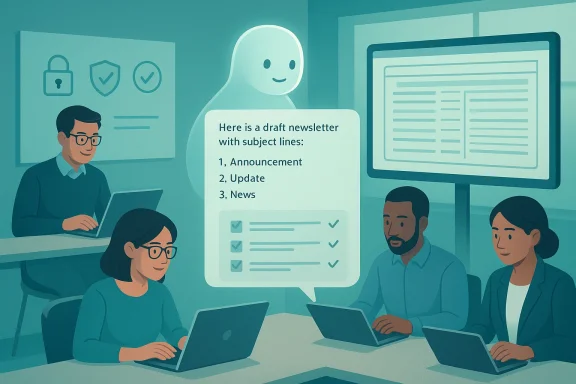
Writing is the currency of most modern jobs. AI can provide instant feedback on tone, clarity, length, and organization without waiting for a colleague to review a draft. For many professionals — from nonprofit program directors to communications directors — that immediate second pair of eyes speeds the cycle of sending and iterating. One user example: uploading a weekly newsletter into Microsoft Copilot, which confirmed the piece was well written, suggested email subject lines, and offered to turn the content into a reusable template — saving time and generating draft subject lines that the user could tweak.How to use it (practical workflow)
- Paste the draft into your AI assistant and ask for:
- A one‑sentence summary, and
- Three alternative subject lines tuned to different tones (formal, casual, urgent).
- Accept the assistant’s suggestions selectively; explicitly ask it to explain why a suggested subject line might work (this helps surface the underlying assumptions).
- Use the assistant to generate a short “template” version of the newsletter: boilerplate intro, variable placeholders (e.g., {{NAME}}, {{EVENT_DATE}}), and a short CTA. Save that template in your content library.
Pitfalls and guardrails
- AI systems can confidently produce plausible but incorrect facts; never allow assistants to invent attributions, quotes, or policy statements without verifying sources. AARP and other outlets have already recorded cautionary examples of legal filings that included fabricated citations when people relied on AI output uncritically. Always confirm claims that carry legal, financial, or reputational risk.
- Keep a clear edit log when you use AI to help draft official communications; document what you asked the tool to do and which parts you edited.
Brainstorming and career advising: expanding the idea set
Real example
A career development specialist used ChatGPT to expand the results of a standard personality assessment into unexpected job matches. The AI suggested careers the assessment alone had not surfaced — for instance, recommending respiratory therapy based on a student’s interest in healthcare and preference for structured, hands‑on roles. This widened the options the counselor could offer the student.Why generative AI is useful here
AI shines at associative thinking: it recombines inputs in ways humans might not immediately consider, producing a larger set of hypotheses to test. That makes it an effective rapid ideation partner for career counselors, project planners, product teams, and anyone who benefits from a diversity of potential approaches.How to prompt effectively
- Provide context: role, skills, constraints, and non‑negotiables.
- Ask for ranked lists and why each item is a fit.
- Ask the model to flag what information would make the recommendation stronger (this helps you identify missing data you should gather from the client).
Quick research and fact‑finding — use AI to accelerate learning, not replace sources
The promise
As a practical learning shortcut, chat assistants let you ask an initial, plain‑language question — “Tell me about ethanol production in the U.S.” — then follow up with deeper queries informed by the model’s answers. That conversational approach can compress hours of searching into an interactive primer that points you to topics and terms to explore next. One finance executive described the experience as “having an expert you can ask basic questions of, and then drill down.”The reality check
Generative models can hallucinate: inventing facts, misquoting studies, or creating plausible‑sounding but false organizational names. The correct pattern is to treat the assistant as a guide to the questions and sources you need, not the last word on a subject.A defensible research routine
- Ask for a plain‑English summary and a short list of primary sources (papers, industry reports, or regulatory documents) you should read next.
- For each primary source named, independently verify the citation — find the original paper or official publication.
- When a model makes numeric claims (hours saved, market size, rates), ask for the original data point and then verify the data from the primary source.
Handling repetitive, transactional tasks
Use case: triaging and replying to routine email requests
Some professionals use “customizable GPTs” or Copilot workflows to automate repetitive email responses — assembling links, pulling attachments, and producing a curated reply that the user then reviews. Financial therapist Rick Kahler described using GPTs to process inbound requests and prepare personalized starter replies, which he then edits before sending. This saves the repetitive composition work and preserves human oversight for tone and appropriateness.Tools and access nuances
- OpenAI’s GPT ecosystem allows creators to build custom “GPTs” — task‑specific versions of the assistant. Official documentation explains that creating GPTs and some advanced builder features have traditionally been gated to paid tiers (Plus, Team, Enterprise) while free users may have limited access to use certain GPTs. Policy changes over 2024–2025 moved parts of this model toward broader availability, but there remain limits and tiered capabilities. Check your account plan and the provider’s current documentation before assuming feature parity.
- Microsoft’s Copilot integrates with Power Automate and Outlook to surface automations for email handling, saving attachments, or launching templated drafts — including features that suggest subjects and open drafts directly in Outlook. Those integrations are rolling out and may appear under different names (Copilot Chat, Copilot for Microsoft 365, Copilot Studio, etc.) depending on your tenant and update cadence.
Practical recipe
- Map the common inbound requests you get (e.g., “send sample,” “schedule a call,” “policy FAQ”).
- Build a canned response template that can take variables (name, date, document link).
- Train or configure a GPT/Copilot flow to:
- Identify which template to use,
- Pull the correct link(s) or attachment,
- Produce a draft for final human review.
- Always keep a human in the loop for requests that carry legal, financial, or sensitive personal data.
Converting messy files and extracting structured data
The everyday miracle
Users routinely report that AI accelerates clerical chores that used to cost hours — turning poorly formatted PDFs into searchable spreadsheets, extracting tables, or creating a sortable directory from a messy source file. The trick is being specific: tell the model exactly which columns you need, how to handle missing data, and how to treat ambiguous fields. That specificity produces far more usable outputs than broad, generic prompts. One consultant described iterating prompts until ChatGPT created a clean, columned spreadsheet suitable for sorting and filtering.How to do it safely and reliably
- Start by asking the tool to list the steps it will take before you hand over sensitive data.
- If possible, do the conversion on a local or enterprise instance that complies with your organization’s data governance policies; avoid uploading confidential client lists to consumer chatbots without approval.
- Validate the resulting spreadsheet by spot‑checking rows, running simple counts, and comparing the extracted counts with the original document.
Practical security, privacy and governance rules
No single AI vendor solves governance for you. Here are minimum controls every professional should insist on:- Data classification first: Never paste highly sensitive personal data, legal pleadings, or proprietary code into a public chatbot unless your organization’s policy expressly allows it.
- Use approved environments: When working with customer data, use enterprise‑provisioned AI services (Copilot for Microsoft 365, a sanctioned LLM with data residency controls, or an internal model) rather than consumer instances. Microsoft describes several capabilities for grounding Copilot in user email and file data when used inside the enterprise — a useful pattern, but one that must be configured by IT.
- Retain human final‑signoff: Any output that will be shared externally should be reviewed by a person responsible for accuracy.
- Log prompts and outputs for auditing: Keep a lightweight trail that links prompts to final edits so you can explain decisions if a problem arises.
Limitation spotlight: hallucinations, bias, and stale knowledge
Generative models can produce authoritative‑sounding but false content. They also reflect the biases in their training data. Several high‑profile legal mistakes and fabricated citations have already underscored the danger of trusting raw output without verification. The responsible pattern is to treat AI as an assistant that accelerates drafting and discovery, not as a final authority. When a model gives you a statistic or cites a source, verify it before you repeat it in a client deliverable or filing.How vendors are balancing capability and control
- OpenAI continues to iterate on access, allowing broader use of GPTs while gating creation capabilities for higher tiers; official docs explain feature and rate‑limit differences between free and paid plans. That tiering affects whether you can build, publish, or monetize a custom GPT.
- Microsoft is embedding Copilot into Outlook, Teams, and Power Automate and adding buttons like “Edit in Outlook” to move generated drafts directly into mail composition windows with suggested subject lines and bodies — a feature meant to reduce context switching for writers and knowledge workers. These integrations speed common euire enterprise administration to meet data governance policies.
A short playbook: how to start using AI at work this week
- Pick a single low‑risk task (subject line generation, newsletter template, meeting summary).
- Define the acceptance test: how will you measure whether AI saved time or improved quality? (E.g., “Create three subject lines in under two minutes, one of which scores higher in A/B testing.”)
- Choose the right tool for the job: Copilot in Outlook for email workflows; ChatGPT or a custom GPT for brainstorming and file conversions. Confirm your account’s feature set — free vs. paid tiers differ.
- Run the workflow, document the edits you make to AI output, and iterate the prompt to improve quality.
- If results are promising, expand to a second workflow (automating recurring replies, converting regular reports into spreadsheets).
Risks employers and teams must address
- Regulatory and compliance risk: In regulated industries (finance, healthcare), allowable data use is strictly constrained. Don’t assume AI vendors’ default settings meet those rules; require review by compliance teams.
- Skill inequality: While NBER evidence shows AI can narrow productivity gaps across education levels, organizations must still invest in training so gains are shared rather than concentrated. A thoughtful rollout that includes hands‑on coaching produces both higher adoption and fewer errors.
- Operational risk from over‑automation: Relying on AI to make contextual judgments without human oversight can produce reputational harm (e.g., in client communications). Keep humans accountable for final outputs.
Why this matters now: the economic and workforce picture
Surveys show widespread adoption and measurable time savings; academic work shows AI’s capacity to compress productivity gaps if deployed with care. Firms are experimenting rapidly, but outcomes will depend on governance, training, and measured piloting. For individuals, the calculus is straightforward: learning to use these assistants — prompting well, verifying outputs, and integrating AI into your workflow — is a professional multiplier. Those who master AI literacy gain a competitive advantage; those who don’t risk falling behind.Final checklist: safe, productive AI use at work
- Start small: Pilot one use case for 2–4 weeks and measure time saved.
- Control data: Use enterprise environments for sensitive data; treat consumer chatbots as research tools only.
- Verify: Confirm facts, citations, and numbers with primary sources.
- Document: Keep a record of prompts and final edits for auditability.
- Train: Run short, practical training sessions that teach prompt design, verification workflows, and privacy rules.
Conclusion
Generative AI is a practical assistant for modern work: it edits, ideates, summarizes, and automates chores that used to erode time for higher‑value tasks. That promise is already visible in everyday stories — a nonprofit director using Copilot to validate newsletters and generate subject lines, a counselor expanding career options with ChatGPT, and consultants converting messy PDFs into searchable spreadsheets. But the gains come with discipline: verify the machine’s claims, guard sensitive data, and keep humans accountable for judgment calls. When organizations and individuals combine AI fluency with responsible governance, the result is not a replacement of people but an amplification of human productivity and creativity.Source: AARP How AI Can Help You Get Ahead at Work
