

Process Lasso arrived on my laptop in under 10 seconds and, for the first time in months, the machine felt like the one I bought — not the one I’d slowly fallen out of love with. The small, freemium utility quietly adjusted a few process priorities, nudged a misbehaving background job aside, and stopped the cursor from juddering; the effect was immediate and durable without forcing app closures or heavy-handed throttling. This isn’t hype: the behaviour and benefits the MakeUseOf writer described mirror what Process Lasso is engineered to do, and the product’s documentation and independent hands‑on writeups back up the basics of that claim.
Background / Overview
Process Lasso has been a niche but persistent tool in the Windows ecosystem for over a decade. It sits between casual “one‑click optimizer” utilities and low‑level sysadmin tooling, offering automation and persistent rules around process priority, CPU affinity, and power plan selection. The core idea is simple: Windows sometimes lets background processes behave badly — eating CPU, spiking I/O, or otherwise blocking responsive foreground work — and Process Lasso’s suite of algorithms aims to reduce the real‑world impact of that behaviour without terminating applications. The vendor describes its flagship algorithm as ProBalance; independent coverage has repeatedly demonstrated how such an approach can restore responsiveness when a single process threatens system usability. The MakeUseOf feature that prompted this deeper look is a practical, user‑level account: a modest laptop, a crowded drive, and a pattern of “stuttering” that was solved not by reinstalling Windows or buying new hardware, but by letting Process Lasso temporarily rotate process priorities and persist a few rules for affinity and power. That specific user experience is representative — not universal — but it’s backed by the feature set Process Lasso exposes and by third‑party tests.What Process Lasso actually does
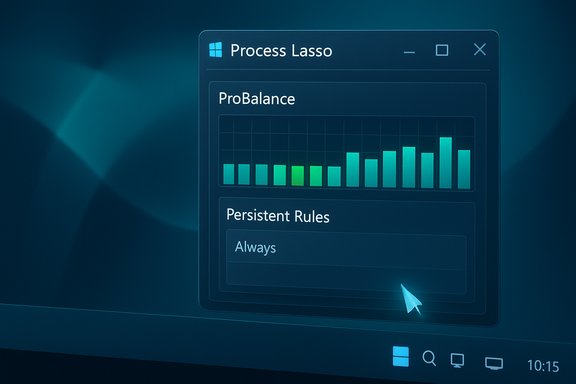
ProBalance — the soft throttle that keeps your PC responsive
- ProBalance monitors active processes and dynamically adjusts their priority class to prevent aggressive background tasks from stealing CPU time away from interactive foreground work.
- Unlike simple “kill the greedy process” approaches, it reduces priority temporarily and restores it once the spike subsides; the goal is responsiveness, not process termination.
- Bitsum (the developer) documents ProBalance as an automatic feature that “just works” out of the box and provides advanced options and exclusions for edge cases. Independent guides and hands‑on testers have reproduced notable responsiveness improvements in CPU‑starved test cases.
Persistent process rules — controlling what Windows forgets
- Windows lets you set process priority and CPU affinity manually, but those changes usually vanish when the process exits.
- Process Lasso lets you make rules “stick”: permanently assign CPU affinity, set I/O or memory priority, and specify behavior for particular executables.
- For long‑running or repeat offenders — backup tools, heavy sync clients, or indexing daemons — persistent rules remove the need to manually correct priority every launch and reduce interaction surprises.
CPU affinity, core separation, and the “Core 0” trick
- Process Lasso exposes tools to assign processes to specific cores or exclude them from particular cores (for example, reserving core 0 for OS and system tasks).
- On older or less well‑threaded applications, spreading work across every logical CPU can cause contention and hyper‑local spikes; selective affinity can reduce jitter by segregating background work to different cores.
- Use affinity sparingly and deliberately: it’s a surgical tool, not a silver bullet. Aggressively forcing affinity on many apps can create new contention points and reduce overall throughput.
Power profile automation and Performance Mode
- Process Lasso can switch Windows power plans automatically when specified applications launch, inducing a higher‑performance power profile while the app runs and reverting afterwards.
- Bitsum offers a “Bitsum Highest Performance” plan intended for temporary induction — it disables core parking and keeps frequencies higher so latency‑sensitive workloads ramp instantly. This is helpful on laptops and low‑power systems where Windows power policies can downclock CPUs to conserve battery.
Other capabilities
- CPU Limiter, Watchdog rules, SmartTrim memory trimming, GPU priority adjustments, and auditing/logging of process activity.
- Many of these functions are optional; Process Lasso’s background service can run with the GUI closed for minimal footprint.
Installation footprint, licensing, and basic verification
- The installer is tiny — typically around 2–3 MB for the 64‑bit executable, which explains the “tiny” claim in the MakeUseOf piece. Independent scans of common installer files show sizes in the ~2.4–2.6 MB range. That small download size makes Process Lasso convenient for machines with limited free space.
- Process Lasso is freemium: a free edition with core features is available, and a Pro tier unlocks advanced automation and convenience functions for a modest fee (monthly, annual, or lifetime options). The vendor states that Pro purchases fund continued development.
Why this actually helps many “old” PCs
- Perceived slowness is often about responsiveness, not raw throughput. A browser tab or background indexer that spikes CPU can make the mouse and keyboard feel sluggish even when the overall CPU is not saturated.
- ProBalance does one thing well: it reduces the priority of the offending process so interactive threads get timely CPU access. That’s a measured, reversible intervention — precisely the behaviour the MakeUseOf writer praised.
- Persistent affinity and power rules prevent recurring scenarios where background tasks or a specific heavy app repeatedly degrade the session; automating the fix removes friction for non‑technical users.
Where Process Lasso can disappoint or cause trouble
Process Lasso is powerful and, in some complex systems, intrusive. Here are documented caveats and risk areas:- Hybrid CPU schedulers (P‑cores and E‑cores): Modern Intel hybrid architectures and the Windows 11 scheduler (with Intel Thread Director) are designed to allocate threads intelligently between performance and efficiency cores. For many new systems the OS does a very good job; forcing affinities or overly aggressive priority changes can fight the OS scheduler and produce worse performance or instability. In short: newer hardware + Windows 11 reduces the need for aggressive manual interventions and increases the chance of contention when misconfigured.
- User reports of conflict: community threads record mixed outcomes. Many users report smooth results and measurable improvements in 1% lows and input latency; others report stuttering after misapplied rules, odd affinities not sticking, or interactions with anti‑cheat systems and games. Several Reddit threads document troubleshooting where disabling Process Lasso resolved new stutters or crashes after incorrect rule application. These reports emphasize cautious configuration and good logging.
- Power plan side effects: automated high‑performance power plans can raise temperatures and noise on laptops; if misused they can turn a quiet machine into a hot, loud one for extended periods. Bitsum intentionally automates induction and reversion, but users should avoid assigning permanent “always on” high‑power profiles unless they understand the trade‑offs.
- False positives & AV detections: on rare occasions third‑party antivirus scanners or upload portals flag the installer as PUP/heuristic detection; virus‑scan aggregators have generally cleared Process Lasso installers as benign, but checks are prudent. The installer size is small and many community mirrors list a size near what the MakeUseOf author reported; that consistency reduces the risk of malicious imposters — but users should always download from the official vendor or trusted mirrors and verify checksums if available.
- Misconfiguration risk: affinity and priority changes can break delicate service chains or real‑time workloads if applied incorrectly (e.g., setting a required service to low priority or excluding necessary threads from responsive cores). Document changes and use built‑in logging to detect unintended side effects.
Practical setup: how to get the MakeUseOf experience without the risks
Follow these steps to safely test Process Lasso and replicate the “it felt like a new PC” result while minimizing downside:- Download from the official site and verify the installer size/checksum if offered (expect ~2–3 MB). Install the free edition.
- Keep the GUI open for the first session. Watch the ProBalance notifications in the tray when it acts and consult the log to learn which processes it touched. If nothing appears in the log, ProBalance likely didn’t intervene.
- Don’t flip every switch. Start with:
- ProBalance enabled (default)
- No affinity or priority rules yet
- Power automation disabled initially
- Reproduce the lag event (open the task or browser tab that previously stuttered) and watch if ProBalance logs an action. If the problem resolves, review the process the tool targeted and create a tailored, temporary rule (for example, Set CPU affinity to avoid core 0 for that background process).
- If you have a hybrid CPU (P/E cores), avoid broad affinity rules. Use Bitsum’s guidance for keeping processes off E‑cores or consult specific “How To Keep Processes Off E‑Cores” guidance before changing affinity. Default to letting Windows Thread Director manage scheduling on Windows 11 unless you have a measurable reason to intervene.
- If you want high performance only during a given app, use Process Lasso’s Performance Mode to induce a high‑performance power plan only while the app runs, then verify temperatures and battery impact. Avoid keeping high‑power profiles permanently on laptops.
- Measure, rollback, and iterate. Take one change at a time and keep a restore point or documented list so you can revert if you hit a regression. Use Task Manager, Resource Monitor, or a small frametime tool for games to quantify the improvement.
Critical analysis — strengths, limitations, and final verdict
- Strengths
- Surgical responsiveness improvements. For many systems with intermittent background spikes, ProBalance provides a graceful, temporary mitigation that restores interactive responsiveness without killing processes. That behaviour matches the MakeUseOf account and vendor documentation.
- Small install footprint and low overhead. The installer is tiny and the background service is lightweight; it’s a low‑risk experiment for most users.
- Useful automation for repetitive problems. Persistent affinity, priority, and power rules remove friction for recurring conflicts (backup windows, scheduled indexing, etc..
- Limitations and risks
- Not a universal performance booster. It won’t replace hardware upgrades and may show little difference on high‑core, high‑headroom rigs where spikes are absorbed by spare capacity. The tool fixes responsiveness, not raw throughput.
- Can conflict with modern schedulers. On new hybrid CPUs and Windows 11, letting the OS/hardware scheduler handle core selection may be preferable; manual interventions can backfire if applied broadly.
- Potential for misconfiguration. Aggressive rules (affinity or priority applied across many apps) create real risk of instability. Community reports show both success stories and cases where disabling Process Lasso resolved new stuttering — underscoring the need for careful testing.
Quick troubleshooting and safety checklist
- If you see new stutters after installing: temporarily disable Process Lasso and see if behaviour returns to the previous state; use the logs to identify recent changes.
- Avoid blanket affinity rules on systems with P/E cores unless you really understand the interactions with the OS scheduler.
- Use the free edition first; enable only the features you need, and consider buying Pro only when the automation saves demonstrable time.
- Monitor temps on laptops if you enable Performance Mode; automatic power plan changes increase fan usage and heat.
Process Lasso isn’t magic — it won’t increase raw CPU benchmarks or substitute for more RAM or a faster SSD — but it is a finely tuned tool for a specific class of problems: system responsiveness in the face of misbehaving background processes. In the real world that often reads as “my PC feels new again,” and in that respect the MakeUseOf author’s experience aligns with the tool’s design and independent reviews. For anyone fighting intermittent stuttering, blurred cursors, or background hogs on a machine that otherwise has life left in it, Process Lasso is worth the tiny download and a careful trial.
Source: MakeUseOf This tiny, free Windows tool made my old PC feel surprisingly fast again
