

Windows 11 ships with sensible defaults, but a handful of targeted tweaks—covering storage, startup and background apps, visual effects, and power settings—can deliver immediate, measurable improvements in responsiveness without buying new hardware.
Windows 11 was designed for a wide range of PCs, from high-end desktops to budget laptops, so Microsoft sets defaults that favor reliability and broad compatibility rather than peak responsiveness. That means many day‑to‑day sluggishness issues are not hardware failures but configuration and maintenance opportunities: unused startup processes, background apps, full system drives, and visual effects that cost CPU/GPU cycles. Practical optimization focuses on four low‑risk areas: freeing storage, trimming startup/background tasks, reducing visual work for the shell, and using the right power profile. Community audits and vendor guides consistently highlight these as the highest-impact, lowest-risk changes.
How to change (two safe ways):
Tradeoffs: You lose some polish. On modern hardware the difference is often tiny; reserve aggressive visual stripping for low‑end laptops or when troubleshooting perceived sluggishness.
How to audit and disable:
How:
Steps:
Caveat: Review what Storage Sense will remove and exclude folders where you keep large downloads you want to keep. Always double‑check before mass deletion.
Practical next steps: run the checklist above, record boot and app launch times, and adjust one setting at a time to isolate what gives you the biggest win.
Source: Windows Report Windows 11 Best Performance Settings: Storage, Background Apps & More
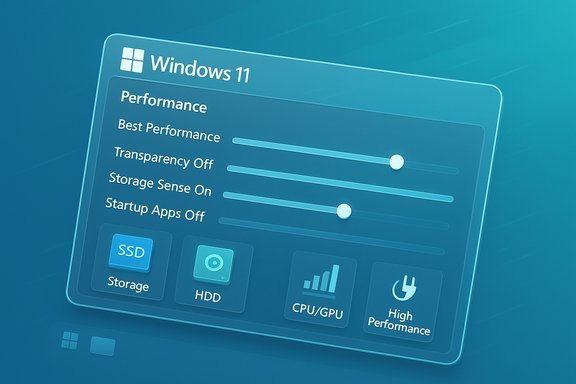 Background / Overview
Windows 11 was designed for a wide range of PCs, from high-end desktops to budget laptops, so Microsoft sets defaults that favor reliability and broad compatibility rather than peak responsiveness. That means many day‑to‑day sluggishness issues are not hardware failures but configuration and maintenance opportunities: unused startup processes, background apps, full system drives, and visual effects that cost CPU/GPU cycles. Practical optimization focuses on four low‑risk areas: freeing storage, trimming startup/background tasks, reducing visual work for the shell, and using the right power profile. Community audits and vendor guides consistently highlight these as the highest-impact, lowest-risk changes.What the Windows Report tip list recommends (summary)
The widely circulated Windows Report checklist condenses the most useful toggles into an actionable list. Key items include:- Adjust Performance Options to “Adjust for best performance” to minimize visual effects.
- Disable unnecessary startup apps via Settings → Apps → Startup.
- Turn off background app execution for unneeded Store apps.
- Enable Storage Sense and remove temporary files.
- Switch to a High performance / Best performance power plan when plugged in.
- Disable transparency effects to reduce GPU/CPU overhead.
- Use defragmentation only for HDDs; SSDs are managed differently.
- Optional: enable ReadyBoost on older PCs with HDDs for a small boost.
Deep dive: The tweaks, how they work, and when to use them
1. Adjust Visual Effects for snappier UI
Windows 11 uses animations, shadows, and transparency to create a smooth, modern interface. On older or constrained systems those effects add measurable latency when opening windows or switching apps.How to change (two safe ways):
- Open Settings → System → About → Advanced system settings → Performance Settings.
- Choose Adjust for best performance, or selectively disable only the effects you don’t want (for example, uncheck “Animate windows when minimizing and maximizing” while keeping “Smooth edges of screen fonts” if text readability matters).
Tradeoffs: You lose some polish. On modern hardware the difference is often tiny; reserve aggressive visual stripping for low‑end laptops or when troubleshooting perceived sluggishness.
2. Clean your startup — fastest high‑impact fix
Why it matters: Startup apps launch at sign‑in and immediately consume RAM and CPU. Reducing that initial set shortens boot time and reduces early session resource contention.How to audit and disable:
- Press Ctrl+Shift+Esc → Startup tab (Task Manager) to see measured “Startup impact.”
- Or go to Settings → Apps → Startup and toggle off nonessential entries.
3. Stop unnecessary background apps and services
Windows differentiates Store (UWP) apps and traditional Win32 apps. For Store apps you can set background permissions directly.How:
- Settings → Apps → Installed apps → click the three‑dots next to an app → Advanced options → Background app permissions → set to Never (or Power optimized if you want some notifications).
4. Storage Sense and temporary file cleanup
Low free space, especially on the system drive, causes heavy paging and I/O thrashing. Storage Sense automates safe cleanup.Steps:
- Settings → System → Storage → toggle Storage Sense on.
- Click Storage Sense to schedule runs and select which temporary files to remove.
- Manually clear Temporary files → select categories → Remove files.
Caveat: Review what Storage Sense will remove and exclude folders where you keep large downloads you want to keep. Always double‑check before mass deletion.
5. Power plan: Best performance vs Balanced
Windows 11 exposes Power Mode in Settings → System → Power & battery. Desktop users can also select the classic High performance or Ultimate Performance plans in Control Panel.- Best performance / High performance prevents aggressive CPU downclocking and can improve benchmarks and responsiveness.
- On laptops this increases power draw and heat; use when plugged in and monitor thermals.
6. Defragmentation, TRIM and SSD advice
- If you’re on an HDD, periodic defragmentation helps reduce read/write head travel and speeds up load times.
- If you’re on an SSD or NVMe, Windows enables TRIM automatically and runs optimization tasks; do not defragment SSDs manually—Windows will manage them. Moving from HDD to an SSD remains the single largest hardware upgrade for responsiveness.
7. ReadyBoost and paging file (when useful)
- ReadyBoost: a USB flash drive used as cache—useful only for older systems still running on HDDs with little RAM. Benefits are modest; on modern systems with SSDs and 8+ GB RAM, it’s irrelevant.
- Paging file / virtual memory: Windows usually manages this well. For low‑RAM systems (4–8 GB), increasing pagefile can help, but adding physical RAM is a superior and long‑term fix. Leave paging file automatic unless you have a specific reason and understand the implications.
Testing and verifying performance gains
Measuring before and after is essential because perceptions can be misleading. Recommended tools and methods:- Built‑in Game Bar performance overlay (Win+G) for quick FPS/CPU/GPU/RAM overlays during gaming.
- Task Manager and Resource Monitor for live CPU, memory, disk and network I/O.
- Windows Performance Monitor or third‑party benchmarking tools (MSI Afterburner, FRAPS) for sustained tests.
- Run a boot‑time stopwatch (from power on to desktop usability) and compare after tweaks.
Critical analysis: strengths, limitations, and risks
Strengths of the built‑in approach
- Low risk, reversible: All core tweaks live in Settings or Performance Options and can be reverted quickly.
- No third‑party dependency: Storage Sense, power modes, and startup controls are native and safe.
- Measurable wins: Startup reduction and SSD upgrades yield the largest real‑world gains. Multiple independent community audits corroborate these as the best first steps.
Limitations and diminishing returns
- On modern, well‑spec’d machines the perceptual gains from disabling animations or background Store apps are small.
- Some performance bottlenecks (GPU‑bound games, slow CPU, or saturated network) require hardware changes or targeted driver updates rather than blanket OS tweaks.
Potential risks and cautions
- Third‑party “cleaners” and one‑click optimizers: These can bundle unwanted software or make unsafe registry changes. Experts advise against routine use. Use Microsoft’s Storage Sense and vetted tools like WizTree for disk analysis.
- Disabling security or virtualization features: Turning off Memory Integrity, Core Isolation, or virtualization for performance testing can reduce protection. Treat such changes as temporary troubleshooting, not permanent settings.
- Power plan heat and battery effects: Using Best/High performance on a laptop without adequate cooling may cause thermal throttling and reduce component lifespan. Use on AC power and monitor temps.
- Unverified third‑party claims in ads: The Windows Report excerpt included a promotional recommendation for a third‑party fixer tool. Those marketing claims (download counts, TrustPilot scores) should be treated with caution and verified independently before installing any software. Unsolicited “one‑click repair” promises are a red flag—prefer manual, well‑documented steps and official vendor utilities. Flagged as unverifiable until validated by the user via trusted reviews and the vendor’s official channels.
Practical, safe checklist you can apply today
- Update Windows and drivers (especially GPU and storage drivers) and reboot.
- Disable nonessential startup apps: Ctrl+Shift+Esc → Startup tab → Disable.
- Turn off background permissions for unused Store apps: Settings → Apps → Installed apps → Advanced options → Background app permissions → Never.
- Enable Storage Sense and run Temporary files cleanup: Settings → System → Storage → Temporary files → Remove files.
- Adjust Visual Effects: System → Advanced system settings → Performance → Adjust for best performance (or selectively choose). Toggle Transparency off if needed.
- Set Power Mode to Best performance when plugged in (Settings → System → Power & battery) or choose High performance in Control Panel on desktops. Monitor temps.
- If on an HDD, schedule Optimize Drives (defrag). If on SSD, trust Windows’ TRIM/optimization and avoid manual defrag.
- Benchmark before/after with Task Manager / Game Bar / Performance Monitor and keep a changelog.
Advanced notes for power users
- Per‑app GPU preference: Settings → System → Display → Graphics settings → add app → choose High performance to force discrete GPU use for a given title. Useful for laptop hybrid GPU setups. Test stability after making changes.
- Hardware‑accelerated GPU scheduling (HAGS) and DirectStorage can help but depend on driver and hardware compatibility; enable and test carefully and be ready to roll back drivers if regressions appear.
- Registry or Group Policy edits for persistent disabling of telemetry or UI features are possible but riskier and may be overridden by updates; create a restore point first and document changes.
When to consider a “clean slate”
If the machine remains sluggish after the checklist and hardware checks (SSD vs HDD, RAM limits), consider:- Reset this PC (Settings → System → Recovery → Reset this PC) with Keep my files to remove accumulated cruft.
- Full clean install if you need the cleanest baseline.
Conclusion — optimize safely and measure everything
Optimizing Windows 11 for performance is largely a matter of sensible housekeeping and selective configuration: free up storage with Storage Sense, stop unnecessary startup/background apps, reduce unnecessary visual effects, and use the correct power profile when you need responsiveness. These changes are built into the OS, reversible, and supported by multiple independent community audits. For most users the greatest single improvements come from disabling unused startup apps and migrating the OS to an SSD. Use measurement tools to verify gains, avoid risky “one‑click” cleaners, and treat security or virtualization‑related disables as temporary troubleshooting steps rather than permanent solutions.Practical next steps: run the checklist above, record boot and app launch times, and adjust one setting at a time to isolate what gives you the biggest win.
Source: Windows Report Windows 11 Best Performance Settings: Storage, Background Apps & More
