

Shopping for a new PC should feel like choosing the right tool for the job, not deciphering a spreadsheet of specs—and Microsoft’s “What to look for in a new PC” guidance codifies that approach by focusing on real-world use cases, Windows 11’s role (including Copilot), and the hardware trade‑offs that matter most for longevity and value. The key takeaway: know your workload, prioritize respresponsiveness (NVMe SSD + adequate RAM), confirm upgradeability, and understand which Windows 11 features will actually benefit you—while being wary of marketing claims about on‑device AI and “Copilot+” performance boosts. overview
Microsoft’s shopping guidance frames buying decisions around four buyer profiles—everyday users, creators, gamers, and multitaskers—and then maps those needs onto hardware and Windows 11 features. The advice centers on three practical priorities: responsiveness (fast SSD and enough RAM), compatibility/security (UEFI, Secure Boot, TPM 2.0), and feature matching (does the PC have an NPU or Copilot support that you’ll actually use?. That framework keeps the shopping process centered on outcomes rather than specs alone.
Windows 11 is positioned as the software foundation recommendations: its modern UI, multitasking tools (Snap Layouts, multiple desktops), gaming features (DirectStorage, Auto HDR), and built-in AI assistant Copilot are cited as reasons to choose a Windows 11 PC today. At the same time, Microsoft and independent reviewers acknowledge hardware gating: features like some on‑device AI capabilities require specific silicon (an NPU) and the OS itself expects TPM 2.0 and UEFI/Secure Boot where applicable.
Before you wander into product pages, answer three short questions:
The smartest purchases come from checking SKUs, demanding clear upgrade paths, and treating AI marketing claims with healthy skepticism unless backed by app‑level support. Follow the practical checklist here, and you’ll end up with a PC that feels fast on day one and stays useful for years.
Source: Microsoft What to Look for in a New PC | Microsoft Windows
Microsoft’s shopping guidance frames buying decisions around four buyer profiles—everyday users, creators, gamers, and multitaskers—and then maps those needs onto hardware and Windows 11 features. The advice centers on three practical priorities: responsiveness (fast SSD and enough RAM), compatibility/security (UEFI, Secure Boot, TPM 2.0), and feature matching (does the PC have an NPU or Copilot support that you’ll actually use?. That framework keeps the shopping process centered on outcomes rather than specs alone.
Windows 11 is positioned as the software foundation recommendations: its modern UI, multitasking tools (Snap Layouts, multiple desktops), gaming features (DirectStorage, Auto HDR), and built-in AI assistant Copilot are cited as reasons to choose a Windows 11 PC today. At the same time, Microsoft and independent reviewers acknowledge hardware gating: features like some on‑device AI capabilities require specific silicon (an NPU) and the OS itself expects TPM 2.0 and UEFI/Secure Boot where applicable.
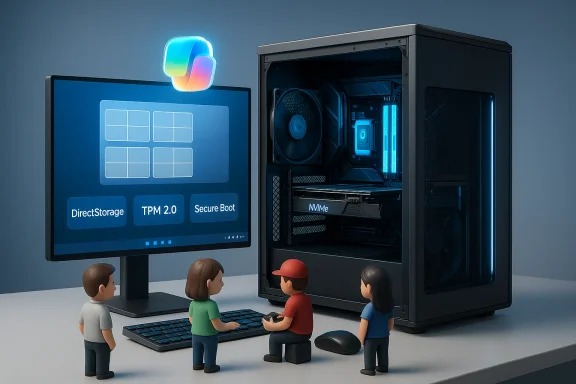 How to determine your needs before buying
Before you wander into product pages, answer three short questions:- What’s the primary workload? (browsing & streaming, office multitasking, content creation, or gaming)
- Where will you use the device? (desktop at a desk, living‑room media center, travel‑heavy laptop)
- How long do you want the PC to remain useful? (1 year of light use vs. 3–5 years for serious workflows)
- Everyday users: Integrated graphics, 16 GB recommended for future comfort, 512 GB NVMe is a practical baseline.
- Creators: Prefer 16–32 GB RAM, a fast NVMe (1 TB+ if working with media), and a discrete GPU if you do GPU‑accelerated editing.
- Gamers: Spend on the GPU first, look for DirectStorage and NVMe to reduce load times, and ensure the PSU & case support a discrete card upgrade.
- Multitaskers / remote workers: More RAM (16–32 GB), a performance, Wi‑Fi 6E/7 for stable connectivity and at least one fast USB‑C port.
Windows 11: what it gives you — and what it demands
What Windows 11 adds to the buying equation
Windows 11 brings a cleaner UI, improved window management (Snap Layouts), gaming optimizations, and Copilot—Microsoft’s integrated AI assistant. Copilot aims to speed common tasks (summaries, drafting, file search) and offers hands‑free voice interactions in supported builds. Windows 11 also bundles gaming features such as DirectStorage (faster asset streaming from NVMe drives) and Auto HDR (wider color/brightness for supported displays). These are meaningful differentiators for users who will actually use them.The system requirements you should confirm
Microsoft’s published minimums are modest on paper—4 GB RAM and 64 GB storage—but practical use and long‑term value push recommendations higher. The formal requirements you should verify before purchasing or upgrading include:- UEFI firmware with Secure Boot capable.
- Trusted Platform Module (TPM) version 2.0 enabled (hardware or firmware TPM).
- A compatible 64‑bit CPU (Microsoft maintains an approved list).
- DirectX 12 compatible GPU with WDDM 2.0.
- For Windows 11 Home, internet connectivity and a Microsoft account are required during initial setup in many scenarios.
Windows 10 end of support — timing matters
Support for Windows 10 ended on October 14, 2025. That means security and feature updates stopped on that date; extended security update programs exist for those who need extra time, but buying new hardware that runs Windows 11 is the safer long‑term move if you want ongoing updates and compatibility. If your existing PC meets Windows 11 requirements, upgrading can be free; if not, part of the cost of migration is new hardware.Copilot and on‑device AI: promise vs. reality
What Copilot does today
Copilot in Windows is an AI assistant integrated into the desktop experience for summarizing, drafting, searching, and, in some builds, voice interactions and “AI vision” that can analyze on‑screen content. Microsoft markets Copilot as an assistive layer for everyday tasks, and some features (voice wake word, local transcription) are optimized for accessibility and hands‑free workflows.Distinguish cloud vs. local AI features
- Cloud‑powered Copilot features can be powerful without special hardware but send data off‑device for processing.
- Some local AI features (on Copilot+ PCs) depend on a Neural Processing Unit (NPU) or other silicon. These features may run faster and keep data local, but they are only useful if the apps you use are optimized to leverage them. Marketing TOPS numbers (tera‑operations per second) are not a substitute for real app support. Users should verify whether their preferred tools have on‑device AI paths before paying a premium for NPU hardware.
Practical caveats and privacy notes
Copilot settings allow you to control voice activation and data‑sharing preferences, but the presence of AI features does introduce additional telemetry and cloud‑interaction surfaces. For privacy‑sensitive users and enterprises, audit the default settings and prefer local or opt‑out workflows where possible. Also note that Copilot’s integration model has shifted over time and Microsoft has been updating how CopilotOS sidebar), so expect changes in packaging and settings.Key hardware decisions, explained
CPU: balance cores, IPC, and efficiency
For most buyers, a modern Intel Core i5/Core i7 (recent generations) or AMD Ryzen 5/Ryzen 7 yields the best balance onsiveness and multicore capacity. For everyday use, prioritize architecture (IPC improvements) and generation over raw core counts; for creators, more cores help parallel exports and renders. Hybrid CPU designs (P‑cores + E‑cores) improve background task scheduling in Windows 11.RAM: aim for 16 GB baseline
8 GB is usable for very light tasks, but modern browsers and colme memory quickly. 16 GB is the practical baseline for a multitasking, future‑proof laptop or desktop; 32 GB is appropriate for heavier creative work, VMs, or large datasets. Confirm whether RAM is user‑upgradeable (SO‑DIMM slots on laptops, DIMM slots on desktops) before buying.Storage: NVMe SSDs change the experience
An NVMe PCIe SSD for the OS is the to improve perceived speed—fast boot, snappier app launches, and reliable updates. Aim for 512 GB NVMe at a minimum; 1 TB or larger is better for gamers and creators. If a system ships with a small SSD or an HDD, plan to add a larger NVMe as the first post‑purchase upgrade.GPU: buy for the workload, not the sticker
- Integrated graphics handle streaming, office apps, and light editing.
- Discrete GPUs matter for gaming and GPU‑accelerated creative workloads (DaVinci Resolve, Premiere, Blender).
- For gaming, allocate budget to the GPU first; verify PSU wattage and case fit before assuming you can add or upgrade a card later.
Display: prioritize resolution and panel type by use case
Creators benefit LED or IPS panels with wide gamut coverage; gamers look for high refresh rate (120 Hz+) panels and low latency; general users will be satisfied with 1080p at 60 Hz. For mobility, battery life and brightness matter more than pixel density beyond 1080p on small screens.Connectivity & ports
Look for at least one high‑speed USB‑C port (with DisplayPort or PD), multiple USB‑A ports, HDMI/DisplayPort for external monitors, and modern Wi‑Fi (Wi‑Fi 6E or Wi‑Fi 7 on premium models). A 2.5GbE port is useful if you work with large local NAS transfers. Confirm these before buying—SKU variants can differ significantly.Gaming-specific features: DirectStorage and Auto HDR
- DirectStorage reduces game load times by enabling high‑throughput transfers from NVMe drives directly into GPU memory. It requires NVMe storage and a GPU compatible with DirectX 12 Ultimate in many cases; DirectStorage benefits are real for load times, but they won’t magically increase FPS. Verify a game’s support and your hardware compatibility first.
- Auto HDR can convert SDR titles to HDR on the fly for richer color on HDR displays. It’s brr DirectX 11/12 games, but results vary by title and display. You’ll need an HDR‑capable monitor/TV and correct Windows HDR settings.
Upgradeability, repairability, and hie recurring traps is SKU fragmentation: the same model name may ship with different CPUs, RAM configurations, or even soldered components across retailers. Always confirm the exact SKU string and internal component list before purchase. Cheap prebuilt towers sometimes use proprietary PSUs or soldered components that block future upgrades; if you care about extending life, choose a tower or a laptop with user‑accessible SO‑DIMM/M.2 slots and a standard PSU.
Practical upgrade ladder for a budget desktop:- Install an NVMe SSD for the OS if the system ships with HDD.
- Add a second RAM stick to reach 16 GB if shipped with 8 GB.
- Check PSU wattage and connectors before adupgrade PSU first if needed.
Shopping checklist: what to inspect before you click Buy
- Confirm the exact SKU (CPU model, RAM capacity & configuration, SSD type/interface, GPU model).
- Verify TPM 2.0, UEFI/Secure Boot support, and Windows 11 eligibility if you plan to upgrade or stay current.
- Check for at least one free M.2 slot and free DIMM slots if you plan upgrades.
- Inspect PSU wattage and connectors for futusktops.
- Confirm return/warranty terms and check whether the seller allows easy returns (important for holiday gifts).
- Budget for essentials that may not be included: monitor, keyboard/mower bank for portable devices.
Risks, overstated claims, and where to be cautious
- Marketing for on‑device AI (NPUs, TOPS figures, “Copilot+” •speed claims) can be aspirational. These numbers mean little without software that actually uses the hardware; verify application support before paying a premium. Flag this as conditional and unverifiable unless the vendor lists supported apps and benchmarks.
- SKU fragmentation is real: the same product name may hide different panels, RAM sizes, or NPUs across retailers. Always open the spec sheet.
- Proprietary PSUs, soldered memory, or nonstandard chassis can kill upgrade paths and increase total lifecycle cost. Pay attention to serviceability and modularity if you want longevity.
- Windows 10 end of support imposes real security and compatibility pressure. If you must stay on older hardware, plan for Encreased risk; otherwise, factor the cost of a new Windows 11‑capable PC into your budget.
Quick recommendations by profile (buying shortlists)
- Everyday user (web, streaming, email): modern Core i3/i5 or Ryzen 3/5, 16 GB RAM, 512 GB NVMe, integrated graphics, good battery life for laptops.
- Creator (photo/video): Core i5/i7 or Ryzen 7, 32 GB RAM preferred, 1 TB NVMe, discrete GPU for GPU‑accelerated workloads, color‑accurate display.
- Gamer: mid‑to‑high discrete GPU (allocate most budget here), NVMe SSD, 16–32 GB RAM, robust PSU and airflow.
- Multitasker / Remote worker: hybrid CPU with efficient core scheduling, 16 GB RAM, NVSB‑C with PD.
Step‑by‑step pre‑purchase and post‑purchase actions
- Define workload and budget.
- Confirm SKU details on the retailer’s page (CPU model, RAM config, SSD type).
- Run the vendor’s compatibility checklist and Microsoft’s PC Health Check if upgrading an existing device.
- Purchase with a return window and keep packaging in case you need to return.
- After purchase: update firmware/BIOS, install latest OEM drivers, enable Secure Boot and TPM in UEFI if not already configured, and run Windows Update.
Conclurpose, not hype
Buying a new PC in the Windows 11 era is less about chasing every headline feature and more about matching hardware to real needs. Prioritize responsiveness (NVMe SSD + 16 GB RAM), confirm Windows 11 compatibility (TPM 2.0, UEFI/Secure Boot), and evaluate whether Copilot and on‑device AI will tangibly help your workflows before paying a premium. For gamers and creators, invest in the GPU and display respectively; for everyday users, aim for a comfortable 16 GB/512 GB NVMe baseline and a reliable vendor return policy.The smartest purchases come from checking SKUs, demanding clear upgrade paths, and treating AI marketing claims with healthy skepticism unless backed by app‑level support. Follow the practical checklist here, and you’ll end up with a PC that feels fast on day one and stays useful for years.
Source: Microsoft What to Look for in a New PC | Microsoft Windows
