

PS5 Remote Play turns a PlayStation 5 into a flexible home gaming system rather than a console tied permanently to one television. With the right setup, a PS5 game can run on a Windows PC, Mac, iPhone, iPad, Android phone or tablet, Android TV device, PlayStation Portal, PS4, or another PS5. The experience is not magic, however: the host console, account, controller, and network all need to be configured correctly before Remote Play becomes reliable.
For Windows users in particular, PS Remote Play is a useful way to reclaim a gaming setup when the living-room TV is occupied, continue a session from a laptop in another room, or play from a home office without moving the console. It also works over the internet, making it possible to access a PS5 away from home, provided the connection at both ends is sufficiently stable.
The key principle is simple: the PS5 remains the machine running the game, while the client device displays compressed video and sends controller input back to the console. That means the quality of the experience depends far more on network conditions than the raw power of the phone, PC, Mac, or handheld screen in front of you.
PS Remote Play streams the PS5 interface, games, and supported apps from the console to another device. You can navigate the PS5 home screen, launch compatible installed games, use the controller normally, and put the console into Rest Mode when the session ends.
It is especially valuable in households with one shared television. Instead of disconnecting cables or relocating a console, a player can move to a phone, laptop, desktop monitor, or PlayStation Portal and resume the same session.
Remote Play is not the same as cloud gaming. A PS5 must be powered on or placed in correctly configured Rest Mode, and the installed game still runs on that console. Internet cloud streaming on PlayStation Portal is a separate feature with its own account, subscription, region, and game-catalog requirements.
Common restrictions include:
On the PS5, follow these steps:
To allow wake-up over the network:
There is a practical trade-off. Rest Mode provides convenience, but the PS5 must remain connected to power and to the network. If a router is restarted, the console loses power, or the PS5 has been fully shut down, Remote Play cannot wake it remotely.
The Remote Play app on the client device should also be current. Older app builds can create confusing issues, including failed sign-ins, missing quality settings, or unreliable device detection.
The official PS Remote Play app supports:
A wired Ethernet connection for the PC is strongly recommended. Remote Play has to manage both video delivery and input response in real time, and even good Wi-Fi can introduce intermittent packet loss, radio interference, or latency spikes.
Mac Remote Play is ideal for a MacBook in another part of the house, but the same networking advice applies. A Mac connected through Ethernet, or located close to a strong 5 GHz or Wi-Fi 6 access point, will generally produce more dependable results than a laptop relying on weak apartment or hotel Wi-Fi.
A physical controller transforms the mobile experience. Compatible options include:
Supported hardware can include devices such as:
Android TV Remote Play has one important limitation: voice chat and microphone features are not supported. That does not make it a poor option for single-player games, but it can be a deal-breaker for party-based online sessions.
To prepare Portal for PS5 Remote Play:
Portal is more convenient than mounting a phone to a controller, but its quality still depends on Wi-Fi. Buying Portal does not eliminate the need for a well-configured home network. In a house with poor router placement or congested wireless channels, Portal can display the same compression artifacts and latency that affect every other Remote Play client.
Another PS5 can also act as a Remote Play client. On the client console, open Remote Play from the Games home area, select the host PS5, and sign in with the required account when prompted.
This setup is especially useful for homes with two televisions and two PlayStation consoles. It is not a way to merge two PS5 systems into one; the host console continues to run the game, while the client PS5 displays the stream.
This is valuable when traveling or away from home, but it comes with real risks:
These features are convenient for short interruptions, but they should not be treated as a reliable way to leave a game unattended. Network interruptions, system battery rules, and app behavior can still end the session.
For fast-paced games, prioritize stability over image sharpness. A slightly softer image with low input delay feels better than a crisp stream that freezes during combat or introduces delayed button presses.
For a compatible Windows HDR setup:
For the initial pairing process, keep the PS5 and Remote Play device on the same network.
On the PS5:
The PS5 also includes Connection History under the Remote Play settings. This is useful for reviewing devices that have previously connected and for spotting unfamiliar access attempts.
For privacy in shared households, PS5 can hide Remote Play connection status notifications. This prevents an on-screen message from appearing during gameplay when another user logs in remotely.
A device in the same room as the router may perform beautifully on 5 GHz, while a device two floors away may be more stable on a carefully configured mesh node or wired access point.
Before changing advanced router settings, test the simple variables:
The PS Remote Play app can display NAT information in its settings or information area. In more difficult cases, router configuration may require UDP port 8572 to be available.
Port changes should be approached carefully. Manual port forwarding can introduce security and maintenance concerns if configured incorrectly, and some ISP-supplied routers offer limited control. It is often better to verify basic network stability and account setup before changing router rules.
If connecting from away from home, test Remote Play first while near the PS5. This establishes that the account, host settings, and local network are working before remote internet variables are introduced.
Do not assume higher resolution is always better. In Remote Play, consistent frame delivery and responsive controls matter more than a maximum-quality image.
Its biggest strengths are flexibility, broad device support, and the ability to reuse hardware already in the home. A Windows PC, MacBook, Android tablet, old PS4, or spare Google TV device can become another PS5 screen with very little extra cost.
Its biggest risks are equally clear: inconsistent Wi-Fi, high latency, cellular data use, restricted content, and unrealistic expectations about streaming quality. The best Remote Play experience begins with a wired PS5, a strong router, sensible video settings, and a physical controller.
Once those foundations are in place, PS5 Remote Play becomes one of the most practical features in the PlayStation ecosystem—especially for players who want their games to follow them beyond the living-room television.
For Windows users in particular, PS Remote Play is a useful way to reclaim a gaming setup when the living-room TV is occupied, continue a session from a laptop in another room, or play from a home office without moving the console. It also works over the internet, making it possible to access a PS5 away from home, provided the connection at both ends is sufficiently stable.
The key principle is simple: the PS5 remains the machine running the game, while the client device displays compressed video and sends controller input back to the console. That means the quality of the experience depends far more on network conditions than the raw power of the phone, PC, Mac, or handheld screen in front of you.
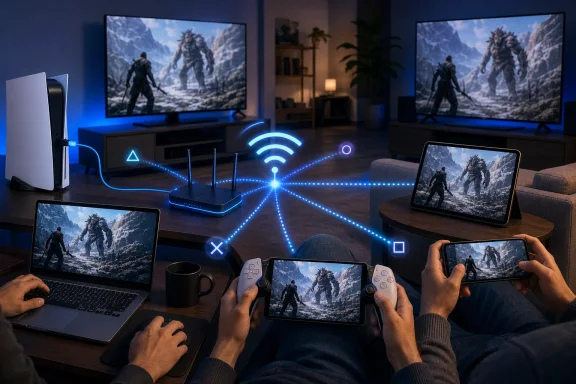 What PS5 Remote Play Does — and Does Not Do
PS Remote Play streams the PS5 interface, games, and supported apps from the console to another device. You can navigate the PS5 home screen, launch compatible installed games, use the controller normally, and put the console into Rest Mode when the session ends.It is especially valuable in households with one shared television. Instead of disconnecting cables or relocating a console, a player can move to a phone, laptop, desktop monitor, or PlayStation Portal and resume the same session.
Remote Play is not the same as cloud gaming. A PS5 must be powered on or placed in correctly configured Rest Mode, and the installed game still runs on that console. Internet cloud streaming on PlayStation Portal is a separate feature with its own account, subscription, region, and game-catalog requirements.
What you need before starting
A successful PS5 Remote Play setup requires:- A PS5 console connected to the internet
- A PlayStation account signed in on the PS5
- The same PlayStation account signed in on the Remote Play client
- A compatible device running the official PS Remote Play app, or a supported PlayStation device
- A stable home network
- A compatible controller where touch controls are not practical
- The latest PS5 system software and current Remote Play app version
The important limitations
PS5 Remote Play is powerful, but it is not universal. Certain console activities cannot be used during a Remote Play session, and some games will refuse to launch.Common restrictions include:
- Games that do not support Remote Play
- Titles requiring PlayStation VR2, PlayStation VR, or PlayStation Camera hardware
- Blu-ray Disc and DVD playback
- Some media apps and protected video services
- Broadcasting from the PS5
- Share Play sessions on PS5
- Certain Share Screen and streaming scenarios
Prepare the PS5 First
The most common Remote Play mistake is installing an app on a phone or PC before the PS5 itself has been authorized to accept Remote Play connections. Configure the host console first.On the PS5, follow these steps:
- Open Settings from the PS5 home screen.
- Go to System.
- Select Remote Play.
- Turn on Enable Remote Play.
Enable wake-up from Rest Mode
Remote Play is much more useful when the PS5 can wake itself remotely. Without Rest Mode settings enabled, the console must already be fully powered on before connecting.To allow wake-up over the network:
- Open Settings.
- Go to System > Power Saving.
- Select Features Available in Rest Mode.
- Turn on Stay Connected to the Internet.
- Turn on Enable Turning On PS5 from Network.
There is a practical trade-off. Rest Mode provides convenience, but the PS5 must remain connected to power and to the network. If a router is restarted, the console loses power, or the PS5 has been fully shut down, Remote Play cannot wake it remotely.
Update the console before troubleshooting
Before diagnosing a failed connection, confirm that the PS5 has current system software. Remote Play compatibility, device support, security behavior, and Portal functionality can all depend on firmware updates.The Remote Play app on the client device should also be current. Older app builds can create confusing issues, including failed sign-ins, missing quality settings, or unreliable device detection.
Choose the Right Remote Play Device
Remote Play works across a wide collection of screens, but each option has different strengths. Choosing the right device matters as much as enabling the feature.Windows PC
A Windows PC is often the best PS5 Remote Play option for a desk, home office, or gaming monitor. It provides a larger display than a phone, makes it easier to use a wired Ethernet connection, and can work well with a USB-connected controller.The official PS Remote Play app supports:
- Windows 10 64-bit
- Windows 11
- DualSense wireless controller
- DualSense Edge wireless controller
- DUALSHOCK 4 wireless controller
A wired Ethernet connection for the PC is strongly recommended. Remote Play has to manage both video delivery and input response in real time, and even good Wi-Fi can introduce intermittent packet loss, radio interference, or latency spikes.
Mac
Mac users can also use the official PS Remote Play app. Supported macOS versions include:- macOS Big Sur
- macOS Monterey
- macOS Ventura
- macOS Sonoma
- macOS Sequoia
- macOS Tahoe
Mac Remote Play is ideal for a MacBook in another part of the house, but the same networking advice applies. A Mac connected through Ethernet, or located close to a strong 5 GHz or Wi-Fi 6 access point, will generally produce more dependable results than a laptop relying on weak apartment or hotel Wi-Fi.
iPhone, iPad, Android phone, and Android tablet
Phones and tablets offer the most portable path to PS5 Remote Play. The official app supports modern Android devices and iPhone or iPad hardware, with current requirements including:- Android 10 or later
- iOS or iPadOS 15 or later
A physical controller transforms the mobile experience. Compatible options include:
- DUALSHOCK 4 over Bluetooth on supported Android devices
- DualSense over Bluetooth on supported Android devices
- DUALSHOCK 4 on iPhone and iPad
- DualSense on iPhone and iPad
- Dedicated mobile controller mounts or grips for better ergonomics
Android TV and Google TV
PS Remote Play also supports selected Android TV and Google TV devices running Android TV OS 12 or later. This route is useful for extending a PS5 setup to a bedroom or secondary television without moving the console.Supported hardware can include devices such as:
- Google TV Streamer 4K
- Chromecast with Google TV
- Compatible BRAVIA televisions
- Other Android TV OS 12-or-later devices with app availability
Android TV Remote Play has one important limitation: voice chat and microphone features are not supported. That does not make it a poor option for single-player games, but it can be a deal-breaker for party-based online sessions.
PlayStation Portal
PlayStation Portal is the most focused Remote Play device because it is designed specifically around the PS5. It combines an integrated screen with DualSense-style controls, adaptive triggers, haptic feedback support, a microphone, a headphone jack, and a touchpad interface built into the display.To prepare Portal for PS5 Remote Play:
- Enable Remote Play on the PS5
- Enable Rest Mode networking options
- Sign in with the same account used on the PS5
- Make sure the PS5 is online and updated
- Connect Portal to a stable Wi-Fi network
Portal is more convenient than mounting a phone to a controller, but its quality still depends on Wi-Fi. Buying Portal does not eliminate the need for a well-configured home network. In a house with poor router placement or congested wireless channels, Portal can display the same compression artifacts and latency that affect every other Remote Play client.
A PS4 or another PS5
A PS4 can connect to and control a PS5 through the PS5 Remote Play app. This is a practical reuse case for an older console connected to a secondary TV.Another PS5 can also act as a Remote Play client. On the client console, open Remote Play from the Games home area, select the host PS5, and sign in with the required account when prompted.
This setup is especially useful for homes with two televisions and two PlayStation consoles. It is not a way to merge two PS5 systems into one; the host console continues to run the game, while the client PS5 displays the stream.
How to Start Remote Play on Phones and Tablets
The mobile setup is simple once the host PS5 is prepared.- Install PS Remote Play from the appropriate mobile app store.
- Put the PS5 into Rest Mode or turn it on.
- Open PS Remote Play.
- Select Sign In.
- Sign in with the same PlayStation account used on the PS5.
- Select PS5.
Using the mobile controls
Tap the screen while connected to display the virtual controller. The on-screen panel includes important functions such as:- Create button
- PS button
- Options button
- Microphone status
- Settings
- Disconnect controls
Enable mobile data carefully
PS Remote Play can operate over mobile data, not just Wi-Fi. In the mobile app, open the settings area and enable Use Mobile Data.This is valuable when traveling or away from home, but it comes with real risks:
- Remote Play can consume a significant amount of data
- Carrier restrictions may interfere with the connection
- Public cellular networks can create unpredictable latency
- Battery drain can be substantial
- Video quality may fluctuate rapidly while moving between coverage areas
Background Remote Play features
Android devices can use Picture-in-Picture mode, allowing the Remote Play window to remain visible while other tasks are handled. On iPhone and iPad, Background Streaming can keep Remote Play active temporarily when switching away from the app.These features are convenient for short interruptions, but they should not be treated as a reliable way to leave a game unattended. Network interruptions, system battery rules, and app behavior can still end the session.
How to Use PS5 Remote Play on Windows PC and Mac
The PC and Mac workflow follows the same basic logic as mobile Remote Play.- Install the official PS Remote Play application.
- Connect a supported controller.
- Turn on the PS5 or leave it in Rest Mode.
- Open PS Remote Play.
- Select Sign In.
- Use the same PlayStation account as the PS5.
- Select PS5.
Tune video quality before connecting
Open the Remote Play settings before selecting the console if you want to adjust video quality. Lowering resolution can help on unstable networks, while a stronger wired network can justify higher quality settings.For fast-paced games, prioritize stability over image sharpness. A slightly softer image with low input delay feels better than a crisp stream that freezes during combat or introduces delayed button presses.
HDR on Windows
Windows HDR Remote Play requires more than simply owning an HDR monitor. The PS5, PC display, Windows settings, and Remote Play app must all be configured correctly.For a compatible Windows HDR setup:
- On PS5, open Settings > Screen and Video > Video Output.
- Set HDR to Always On or On When Supported.
- Install the HEVC Video Extensions from the Microsoft Store.
- Open Windows Settings > System > Display.
- Select the HDR-capable display.
- Turn on Use HDR.
- In PS Remote Play, open Settings > Video Quality for Remote Play.
- Enable HDR.
Manual Pairing When the PS5 Is Not Found
Automatic discovery usually works, but manual pairing is the correct fallback when the app cannot find the PS5.For the initial pairing process, keep the PS5 and Remote Play device on the same network.
On the PS5:
- Open Settings > System > Remote Play.
- Select Pair Device.
- Note the number displayed on screen.
The PS5 also includes Connection History under the Remote Play settings. This is useful for reviewing devices that have previously connected and for spotting unfamiliar access attempts.
For privacy in shared households, PS5 can hide Remote Play connection status notifications. This prevents an on-screen message from appearing during gameplay when another user logs in remotely.
Network Setup: The Difference Between Good and Bad Remote Play
Remote Play is often blamed for problems caused by a weak network. The app may work perfectly one minute and become unusable the next if Wi-Fi interference, household traffic, or poor upload performance disrupts the video stream.Use Ethernet where possible
The best arrangement is:- PS5 connected to the router by Ethernet
- Windows PC or Mac connected to the router by Ethernet
- Client devices on modern 5 GHz or Wi-Fi 6 wireless networking when wired access is unavailable
Prefer 5 GHz Wi-Fi
If Ethernet is not possible, use the 5 GHz band instead of 2.4 GHz where signal strength allows. The 5 GHz band generally has more available bandwidth and less congestion, although it does not travel through walls as effectively.A device in the same room as the router may perform beautifully on 5 GHz, while a device two floors away may be more stable on a carefully configured mesh node or wired access point.
Avoid overloaded networks
Remote Play has to compete with every other device using the connection. Problems may appear when someone begins downloading a large game, uploading cloud backups, streaming high-bitrate video, or joining a video call.Before changing advanced router settings, test the simple variables:
- Pause large downloads
- Move closer to the router
- Disconnect unnecessary devices
- Restart the router
- Test Remote Play at a different time of day
- Try the client on another network
- Use a wired connection temporarily
NAT type and router issues
If Remote Play works inside the home but fails outside it, the issue may be related to router behavior, NAT configuration, or internet service provider restrictions.The PS Remote Play app can display NAT information in its settings or information area. In more difficult cases, router configuration may require UDP port 8572 to be available.
Port changes should be approached carefully. Manual port forwarding can introduce security and maintenance concerns if configured incorrectly, and some ISP-supplied routers offer limited control. It is often better to verify basic network stability and account setup before changing router rules.
Common PS5 Remote Play Problems and Fixes
The PS5 will not wake from Rest Mode
Confirm all three host settings:- Enable Remote Play is on
- Stay Connected to the Internet is on
- Enable Turning On PS5 from Network is on
The app cannot find the console
Check that the same PlayStation account is signed in on both sides. Then try manual pairing using the PS5’s Pair Device screen.If connecting from away from home, test Remote Play first while near the PS5. This establishes that the account, host settings, and local network are working before remote internet variables are introduced.
Video is blurry or keeps dropping quality
This usually indicates insufficient bandwidth, unstable Wi-Fi, packet loss, or network congestion. Lower the Remote Play video quality, use Ethernet for the PS5, and move the client closer to the access point.Do not assume higher resolution is always better. In Remote Play, consistent frame delivery and responsive controls matter more than a maximum-quality image.
Controller input feels delayed
Input delay has several possible causes:- Slow client Wi-Fi
- Congested home network
- Long-distance internet routing
- Bluetooth interference
- Display processing delay on the client screen
- High video quality settings on an unstable connection
A game will not launch
The title may not support Remote Play, or the PS5 may be performing an incompatible activity. Stop broadcasting, close disc playback or media apps, end Share Play, and return to the PS5 home screen before trying again.The Best Way to Think About PS5 Remote Play
PS5 Remote Play is at its best when treated as an extension of the console rather than a universal replacement for local play. It excels at continuing a single-player game from another room, using a Windows laptop while the main television is occupied, playing through Portal around the house, or accessing the PS5 while traveling on a strong connection.Its biggest strengths are flexibility, broad device support, and the ability to reuse hardware already in the home. A Windows PC, MacBook, Android tablet, old PS4, or spare Google TV device can become another PS5 screen with very little extra cost.
Its biggest risks are equally clear: inconsistent Wi-Fi, high latency, cellular data use, restricted content, and unrealistic expectations about streaming quality. The best Remote Play experience begins with a wired PS5, a strong router, sensible video settings, and a physical controller.
Once those foundations are in place, PS5 Remote Play becomes one of the most practical features in the PlayStation ecosystem—especially for players who want their games to follow them beyond the living-room television.