

Running custom PowerShell tools as RemoteApp is a practical way to deliver lightweight utilities to end users, but the technique brings a cluster of real-world surprises: RemoteApp won’t publish .PS1 files natively; the Publish RemoteApp wizard and RDP client behave differently than desktop users expect; Windows execution policy and file-blocking mechanisms get in the way; and high‑DPI display scaling can completely break GUI layouts created with Windows Forms. The good news: each problem has pragmatic workarounds. The bad news: several of those workarounds carry security and manageability trade‑offs that IT teams must weigh carefully. This feature piece pulls the lessons together, verifies the technical details, and offers a conservative, operationally safe playbook for hosting PowerShell-based tools via RemoteApp.
RemoteApp (Microsoft Remote Desktop Services’ ability to publish single applications rather than full desktops) is a useful way to centralize tools that would otherwise be installed on many endpoints. Administrators increasingly want to publish short PowerShell utilities that present a Windows forms GUI or run administrative tasks without distributing full installers. But RemoteApp was built around publishing executables — not scripts — and the RDP protocol and Windows policy layers make that mismatch visible in several predictable and a few surprising ways. Brien Posey’s recent hands‑on report details a compact set of issues and fixes encountered when he published PowerShell scripts as RemoteApp programs, and those observations form the starting point for the analysis that follows.
Example launcher (minimal):
Operational checklist when publishing:
Use Unblock‑File to remove the Zone.Identifier stream programmatically:
Security reminder: unblocking files should only be done when you have a verifiable chain of custody or a trusted source. If a remote user, helpdesk, or unmanaged process can drop files into the script folder and those files are unblocked automatically or executed with ExecutionPolicy Bypass, you’ve created a high‑risk execution path.
RemoteApp is still a valuable delivery model for small admin tools and internal utilities, but the “last mile” around publishing, execution policy, file unblocking, and DPI behavior is where most deployments get stuck. The fixes are straightforward, repeatable, and verifiable — but they must be implemented as part of an auditable, secure deployment process. If you follow the launcher + controlled execution + deployment pipeline pattern and treat RDP scaling edits as an exception to be tested rather than a standard practice, you’ll get the benefits of centralization without paying an outsized maintenance or security tax.
Conclusion
Publishing PowerShell applications as RemoteApp programs requires an operational mindset: wrap scripts in launchers, manage execution policy and file unblocking through deployment automation, and treat display scaling fixes as tested exceptions or, better, refactor GUIs to be DPI‑aware. When you combine those practices with strong access controls and a deployment pipeline, RemoteApp can reliably deliver PowerShell‑based utilities without exposing your environment to unnecessary risk.
Source: Redmondmag.com Challenges With Using RemoteApp to Host Custom Applications Part 2 -- Redmondmag.com
 Background
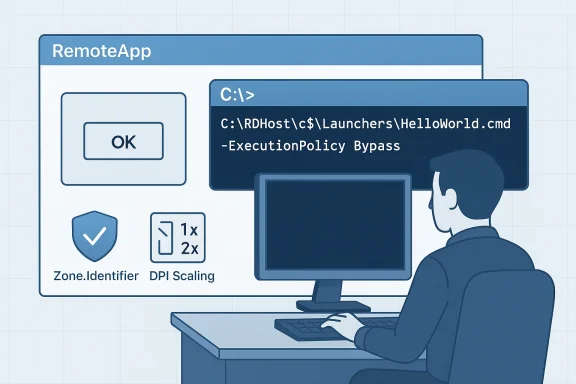
RemoteApp (Microsoft Remote Desktop Services’ ability to publish single applications rather than full desktops) is a useful way to centralize tools that would otherwise be installed on many endpoints. Administrators increasingly want to publish short PowerShell utilities that present a Windows forms GUI or run administrative tasks without distributing full installers. But RemoteApp was built around publishing executables — not scripts — and the RDP protocol and Windows policy layers make that mismatch visible in several predictable and a few surprising ways. Brien Posey’s recent hands‑on report details a compact set of issues and fixes encountered when he published PowerShell scripts as RemoteApp programs, and those observations form the starting point for the analysis that follows.Overview: the core issues you will hit
- RemoteApp cannot, by itself, publish a raw PowerShell script file (.PS1). You must present an executable entry point (for example, a .CMD or .EXE launcher) to RemoteApp.
- The Publish RemoteApp Programs wizard behaves differently about paths: the app path you supply must reference a file accessible to the RD Session Host and is commonly supplied as a UNC path during the publishing process. There are documented examples and Microsoft community guidance that emphasize using UNC paths when adding manual programs.
- PowerShell script execution gets blocked by execution policy and by Windows’ “downloaded file” markers (Zone.Identifier). Two practical fixes are frequently used: invoke PowerShell with the -ExecutionPolicy Bypass flag for per‑process override, and remove Zone.Identifier streams with Unblock‑File. These approaches work but reduce safety if applied indiscriminately.
- GUI apps built with Windows Forms (or other fixed‑pixel layouts) may render poorly in RDP sessions on high‑DPI clients. Administrators have successfully corrected this by editing the generated .RDP file to change scaling/smart‑sizing settings, but the exact edits and a step to remove the RDP file signature before saving are reported from practitioner experience and are not broadly documented in Microsoft’s public reference material. Treat that particular change as experimental and test carefully.
Publishing PowerShell apps as RemoteApp: launcher patterns and path quirks
Why RemoteApp won’t accept a .PS1 directly
RemoteApp expects an executable program — a binary or a script wrapper that the shell can run as a program entry point. A raw .PS1 file is not an executable in the Windows sense, so the Publish RemoteApp Programs wizard will not recognize it as a valid program to publish. The practical solution is to publish a launcher file (for example, a .CMD or .BAT) that calls powershell.exe and points at the script file you want to run. This is an established, repeatable workaround used in practice.Example launcher (minimal):
- powershell.exe -File "E:\Scripts\HelloWorld.ps1"
- powershell.exe -ExecutionPolicy Bypass -File "E:\Scripts\HelloWorld.ps1"
UNC paths and the Publish RemoteApp wizard — nuance and practical guidance
When you manually add a program in the Publish RemoteApp Programs wizard, many administrators discover the wizard wants a path formatted as a UNC path rather than a “C:\…” local path. Community guidance and Microsoft Q&A posts show examples where the wizard demands a UNC path pointing at the RD Session Host — administrators often use the administrative share format (\RDHost\c$\path\launcher.cmd) when supplying custom launchers. That behavior is longstanding and appears across RDS documentation and how‑to guides; however, documentation and third‑party guides occasionally disagree about whether the field accepts only locally installed executables or will accept UNC paths, so expect to test on your target server collection.Operational checklist when publishing:
- Place the launcher on the RD Session Host (or a share that the host can access).
- If the wizard rejects a local C: path, try the UNC form that points to the session host’s administrative share (for example, \RDHost\c$\launchers\MyLauncher.cmd).
- Ensure the account you use (and the RDS service) has access to the launcher path.
- Keep your launcher and scripts on durable storage and visible to the same host that will run them.
Script launching pitfalls: working directory and multi‑file scripts
PowerShell scripts often rely on relative paths or companion modules stored beside the primary script. When a .CMD launcher calls powershell.exe, the working directory that PowerShell uses may not be the script’s folder. Two problems appear in the field:- The script launches but cannot locate helper .PS1 files or modules.
- The script executes with the wrong working directory and fails when it attempts operations that assume a local path.
- In the .CMD file, switch to the script drive and folder before invoking PowerShell.
- @echo off
- E:
- CD\
- CD scripts
- powershell.exe -ExecutionPolicy Bypass -File "E:\Scripts\HelloWorld.ps1"
Execution policy, blocked files, and safe operation
Execution policy: per‑process override is common — but don’t misinterpret what it protects
PowerShell’s execution policy is a client-side safety setting designed to help prevent accidental execution of untrusted scripts. It is not a full security boundary. Microsoft’s documentation describes the available policies and the precedence rules (MachinePolicy → UserPolicy → Process → LocalMachine → CurrentUser). The most practical way to run a single script from a launcher without changing machine‑wide policy is to call powershell.exe with an explicit process‑level override:- powershell.exe -ExecutionPolicy Bypass -File "C:\Path\MyScript.ps1"
Unblock‑File and Zone.Identifier: dealing with “downloaded” scripts at scale
When you retrieve scripts from the internet, Windows and many clients add an alternate data stream called Zone.Identifier to mark the file as downloaded. PowerShell will warn or block running these files depending on execution policy. For a single file you can right‑click → Properties → click Unblock on the General tab; for dozens or hundreds of files you’ll want an automated approach.Use Unblock‑File to remove the Zone.Identifier stream programmatically:
- Get-ChildItem -Path 'E:\Scripts' -Recurse | Unblock-File
Security reminder: unblocking files should only be done when you have a verifiable chain of custody or a trusted source. If a remote user, helpdesk, or unmanaged process can drop files into the script folder and those files are unblocked automatically or executed with ExecutionPolicy Bypass, you’ve created a high‑risk execution path.
GUI rendering and High‑DPI problems in RemoteApp sessions
The symptom: forms that are too large, clipped, or mis-scaled
PowerShell GUIs created with Windows Forms are often designed at a specific resolution or DPI. When the RDP client’s DPI and the server’s DPI don’t align, user controls can be incorrectly scaled, windows can be larger than the visible remote app window, and the result is a broken user experience. This is particularly frequent when the admin’s development machine is a 4K display but end users connect with different scaling settings. Brien Posey documented an instance where a Windows Forms GUI rendered outside the visible viewport in RemoteApp and conventional attempts to force the RDP resolution failed.Practical fixes: RDP smart sizing and disabling dynamic DPI behavior
Administrators and platform guides recommend a few approaches:- Prefer programmatic DPI‑aware GUI design. Where possible, rewrite forms to use layout containers, anchors, and DPI‑aware font handling. This is the most future‑proof approach but may be costly for large, older scripts.
- Use RemoteApp/rdp session settings to control scaling behavior. The RDP file supports a "smart sizing" flag (smart sizing:i:0 or smart sizing:i:1) that controls whether the remote content should scale to the client window. Azure desktop virtualization tooling and many RDP authoring tools expose this setting. Setting smart sizing to 0 disables client-side scaling and preserves pixel‑perfect rendering (at the cost of requiring a matching resolution).
- In practice, administrators sometimes edit the generated .RDP file and add or change lines such as:
- smart sizing:i:0
- disable remote desktop scaling:i:1
Which approach should you use?
- Short term (fast): Edit the .RDP file for a small, curated set of RemoteApp entries and add smart sizing:i:0 or the appropriate custom RDP property. Test thoroughly across client platforms.
- Mid term: If you control client images, pick a standard DPI and force the RDP client to use matching settings or a packaged RemoteApp manifest that includes DPI hints.
- Long term: Make the GUI DPI‑aware and use layout managers; this eliminates the need for RDP hacks and handles fractional scaling more reliably.
Security and operational risks: what the fixes change
Every workaround reduces friction — and many reduce safety. Be explicit about the consequences:- ExecutionPolicy Bypass: Running powershell.exe -ExecutionPolicy Bypass removes a guardrail. Use it only when scripts are stored in secure locations, are code‑reviewed, or are signed and versioned in a repository. Consider alternatives such as code signing (AllSigned or RemoteSigned with a trusted certificate), constrained endpoints, or signing your deployment pipeline.
- Unblock‑File en masse: If you automate Unblock‑File over a directory that user accounts can write to, you open an attack surface. Prefer file system ACLs that prevent unauthorised modification and a deployment process (CI/CD, SCCM, Intune, or GPO) that stages the scripts into the run folder with the correct attributes and ownership.
- Launcher scripts in c$ and UNC paths: Administrative shares (\host\c$) are powerful but should be limited to administrative channels. Prefer placing launchers in a controlled folder such as %ProgramData%\RemoteAppLaunchers or a network share with strict ACLs accessible only to the RDS hosts and management accounts.
- Editing .RDP files and removing signatures: This can break integrity checks that the RDWeb portal or client might rely on. If you rely on automatic RDP generation (for RDWeb or remote management portals), find out whether the publishing mechanism supports custom RDP properties or a managed template before editing files manually.
Best practices checklist for production RemoteApp PowerShell deployments
- Use a launcher executable (CMD/BAT/EXE) as the RemoteApp entry point. Do not attempt to publish raw .PS1 files.
- Place launchers and scripts on server storage that is:
- Owned and writable only by administrators or the deployment system.
- Backed up and versioned.
- Consistent across RD Session Hosts in a collection (or use centralized file shares with predictable access).
- Handle execution policy safely:
- Prefer code signing and restricted execution policies.
- If per‑launch bypass is necessary, document the reason and scope.
- Avoid setting machine‑wide Unrestricted policy.
- Unblock files securely:
- Unblock during deployment in a controlled pipeline, not as an ad‑hoc user action.
- Use Unblock‑File in the deployment step and verify Zone.Identifier streams are removed.
- Plan GUIs for DPI:
- If you can, refactor Windows Forms to be DPI‑aware.
- If not, test RDP smart sizing settings and RDP custom properties across representative client platforms.
- Test extensively:
- Use a test group of users across multiple display types and client versions.
- Measure helpdesk impact; map which fixes reduce tickets and which introduce new support work.
- Document and automate:
- Make your launcher creation, script deployment, and RDP property edits part of an automated runbook.
- Record exactly which RDS host, path, and ACLs are used so future admins don’t inadvertently weaken security.
Step‑by‑step example: from script to published RemoteApp (concise)
- Prepare your script repository and verify code signing or source control review.
- Create a launcher on the RD Session Host:
- Create a folder (for example, C:\Launchers) and restrict ACLs to administrators and the RDS service account.
- Place HelloWorld.cmd with content:
- @echo off
- E:
- CD \scripts
- powershell.exe -NoProfile -ExecutionPolicy Bypass -File "E:\Scripts\HelloWorld.ps1"
- If the Publish RemoteApp wizard requires a UNC path, publish the launcher using a path such as:
- \RDHost\c$\Launchers\HelloWorld.cmd (test whether your environment accepts the local C: path first).
- Unblock files during deployment:
- From your deployment host: Get-ChildItem 'E:\Scripts' -Recurse | Unblock-File
- Test the published RemoteApp as a user with the expected privileges and on representative client DPI settings. If GUI scaling fails, test smart sizing and custom RDP properties in a lab environment first.
What I verified, and where caution is still merited
This article verifies the most load‑bearing technical claims with multiple sources:- The launcher pattern and the RemoteApp limitation regarding raw .PS1 files are documented by practitioner reporting and match guidance found in RemoteApp publishing procedures.
- The Publish RemoteApp wizard’s requirement for UNC‑formatted paths when adding programs manually is corroborated by Microsoft community Q&A and multiple step‑by‑step guides; behavior can vary across tooling and must be validated in your environment.
- PowerShell ExecutionPolicy behavior and the recommended per‑process bypass pattern are explained in Microsoft’s PowerShell documentation; the Unblock‑File cmdlet and its behavior with Zone.Identifier streams are likewise documented and used widely. Both patterns are common, but both reduce guardrails and require operational compensations (signing, ACLs, controlled deployment).
- RDP smart sizing and related properties are a supported RDP file attribute in many toolchains; the practical edit of an .RDP file to remove scaling behavior is widely used. The specific instruction to remove the signature block appended to .RDP files before editing comes from practitioner experience (Brien Posey’s account) and is not something we found documented on Microsoft’s public docs; treat it as an empirical workaround that requires careful testing.
Final recommendations for IT teams
- Treat PowerShell RemoteApp hosting as an application deployment problem, not a scripting trick. Use standard application lifecycle controls: source control, code signing, automated deployment, ACLs, and least privilege.
- Use the launcher pattern to publish PowerShell tools but avoid “system‑wide shortcuts” that let any user or developer drop scripts into the execution path.
- Test DPI behavior and RDP file edits on every client platform you support. If possible, prefer DPI‑aware GUI design over client hacks.
- Document every exception to security posture (for example, where you use ExecutionPolicy Bypass) and limit the scope and lifetime of each exception.
- Build an automated deployment pipeline that:
- Copies files to the RD Session Host under controlled ACLs.
- Runs Unblock‑File as a deployment step (not ad hoc).
- Registers the launcher with RemoteApp via the expected UNC or local path, and verifies the published app in RDWeb or the RDP feed.
- Runs functional and UI tests across representative DPI scenarios.
RemoteApp is still a valuable delivery model for small admin tools and internal utilities, but the “last mile” around publishing, execution policy, file unblocking, and DPI behavior is where most deployments get stuck. The fixes are straightforward, repeatable, and verifiable — but they must be implemented as part of an auditable, secure deployment process. If you follow the launcher + controlled execution + deployment pipeline pattern and treat RDP scaling edits as an exception to be tested rather than a standard practice, you’ll get the benefits of centralization without paying an outsized maintenance or security tax.
Conclusion
Publishing PowerShell applications as RemoteApp programs requires an operational mindset: wrap scripts in launchers, manage execution policy and file unblocking through deployment automation, and treat display scaling fixes as tested exceptions or, better, refactor GUIs to be DPI‑aware. When you combine those practices with strong access controls and a deployment pipeline, RemoteApp can reliably deliver PowerShell‑based utilities without exposing your environment to unnecessary risk.
Source: Redmondmag.com Challenges With Using RemoteApp to Host Custom Applications Part 2 -- Redmondmag.com
