

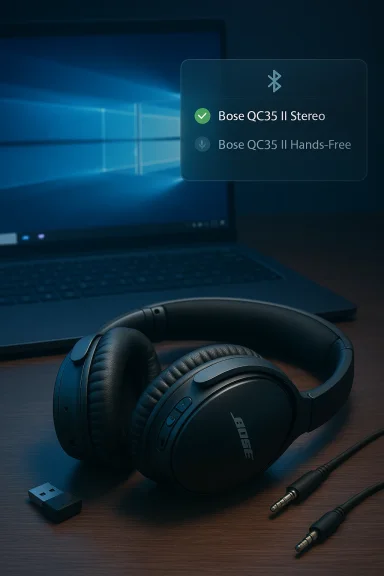
If your Bose QuietComfort 35 II pairs with Windows 10 but only ever connects as “Hands‑Free” or “Headset” and the high‑quality “Stereo” endpoint is missing, grayed out, or disconnects the moment an app tries to use the microphone, you’re running into a long‑standing interaction between Bluetooth audio profiles, Windows’ audio stack, and how headsets historically expose mic + playback capabilities.
Bluetooth audio has always offered two very different capabilities: high‑fidelity playback for music and two‑way voice for calls. Historically these were implemented as separate profiles—A2DP for stereo music and HFP/HSP (Hands‑Free / Headset Profile) for voice and mic. Windows creates different audio endpoints for each profile, and when a microphone is opened by the system or an application the platform typically switches to the hands‑free profile, which dramatically reduces playback fidelity. This is not a Bose quirk: it’s how Bluetooth Classic profiles were designed and how Windows has implemented them for years. Microsoft’s documentation clearly spells out that A2DP is output‑only and that using a headset mic requires HFP; in Windows 10 the platform will switch to HFP and may discard stereo streams sent to the A2DP endpoint.
Community threads and troubleshooting logs confirm that QC35 II owners frequently encounter exactly this symptom on Windows 10: the stereo/A2DP device exists in Control Panel → Sound but shows as “Disconnected,” while the Hands‑Free endpoint is active and usable for calls — at the cost of headphone audio quality. Those threads also document ons and driver interactions where the stereo endpoint disappears or the mic endpoint is muted.
pick Stereo as default when you only need music
This is not a Bose‑only problem nor a Windows “bug” in the typical sense; it’s the inevitable consequence of how Bluetooth Classic profiles were specified and how Windows 10 implements them. Microsoft’s newer LE Audio work in Windows 11 points to a cleaner future where stereo and voice can coexist, but until LE Audio and LC3 are broadly supported by PC radios and headsets, the practical workarounds above are the fastest path to predictable stereo playback on Windows 10.
Source: Born2Invest https://born2invest.com/?b=style-303350312/
 Background
Bluetooth audio has always offered two very different capabilities: high‑fidelity playback for music and two‑way voice for calls. Historically these were implemented as separate profiles—A2DP for stereo music and HFP/HSP (Hands‑Free / Headset Profile) for voice and mic. Windows creates different audio endpoints for each profile, and when a microphone is opened by the system or an application the platform typically switches to the hands‑free profile, which dramatically reduces playback fidelity. This is not a Bose quirk: it’s how Bluetooth Classic profiles were designed and how Windows has implemented them for years. Microsoft’s documentation clearly spells out that A2DP is output‑only and that using a headset mic requires HFP; in Windows 10 the platform will switch to HFP and may discard stereo streams sent to the A2DP endpoint.Community threads and troubleshooting logs confirm that QC35 II owners frequently encounter exactly this symptom on Windows 10: the stereo/A2DP device exists in Control Panel → Sound but shows as “Disconnected,” while the Hands‑Free endpoint is active and usable for calls — at the cost of headphone audio quality. Those threads also document ons and driver interactions where the stereo endpoint disappears or the mic endpoint is muted.
Overview: what’s happening, in plain English
- When your QC35 II connects, Windows often creates two audio devices: “{Device} Stereo” (A2DP) and “{Device} Hands‑Free” (HFP). One is for music, one is for calls.
- If any application (Teams, Zoom, Skype, a game voice chat, or even the OS opening the mic) opens the headset’s microphone, Windows negotiates and activates the HFP pathway.
- HFP is mono and low sample‑rate in many Windows 10 setups, so music becomes muffled and telephony‑like while In some systems the stereo device may appear as “Disconnected” until the Bluetooth stack explicitly reconnects A2DP, or Windows will discard A2DP audio while HFP is active. Users report that this behavior can be flaky and sometimes depends on Bluetooth radio drivers, firmware, or even specific Windows 10 builds.
Why QC35 II Seems Worse on Windows 10 (technical roots)
Bluetooth Classic profiles and the trade‑off
The A2DP profile was designed for one‑way streaming and supports higher bitrates and stereo codecs. HFP was designed for telephony—low bitrate, mono, and two‑way voice. When the microphone needs to be used, the headset and host negotiate to HFP so both sides can talk, but the A2DP stream is either downgraded or ignored entirely. Microsoft documents this behavior and explains the selection and behavior of the A2DP and HFP endpoints in Windows 10.Windows 10’s driver surface and codec support
Windows 10 typically supports SBC/aptX/legacy codecs depending on OEM drivers, but newer codecs (and LE Audio) are a Windows 11 story. That means even if a headset supports technically advanced audio, the Windows 10 host and its Bluetooth drivers may not negotiate the modern codecs or profiles required to keep high‑quality stereo active whilactical consequence: many Windows 10 laptops and dongles will fall back to HFP whenever the mic is in use.Implementation and vendor gaps
Some community posts show that changes to Bluetooth stack implementations, firmware updates, or Microsoft updates have caused regressions where the Hands‑Free endpoint appears but either the stereo output never connects or the mic input remains at 0% volume for apps. These are usually device‑specific interactions (particular Bluetooth radios + particular headset firmware), which is why two seemingly identical PCs can behave differently with the same QC35 II unit. Community investigations and support threads document this pattern.How to on your PC (quick checklist)
Start with a short diagnostic pass so you know which problem you’re fixing. These steps are short and non‑destructive.- Open Windows 10 → Settings → Devices → Bluetooth & other devices → confirm your QC35 II is paired.
- Open Control Panel → Sound (mmsys.cpl) and look for two endpoints: “{Bose QC35 II} Stereo” and “{Bose QC35 II} Hands‑Free”. If Stereo is present but shows “Disconnected” or is greyed out, note that.
- Play music with a media player while watching the endpoints: if music stops or the default switches when you open a voice app (Teams, Zoom), the OS is switching profiles.
- Test the microphone in Windows Sound settings → Input; verify which physical device is listed and whether level meters move when you speak. If the mic shows but apps get no signal, that’s a sign of a driver or stack regression reported by other users.
Practical fixes and step‑by‑step troubleshooting
Below are methods ordered from least invasive to most practical. Use them in sequence and re‑test after each step.pick Stereo as default when you only need music
- In the sound control panel select the Stereo (A2DP) element and click Set Default for playback when you’re listening to music. Disable the Hands‑Free output if you don’t need the mic. This ensures media uses the high‑quality path and prevents automatic switching to HFP. Note: disabling Hands‑Free blocks the headset mic system‑wide.
2) Ensure drivers and firmware are updated
- Update your PC’s Bluetooth adapter drivers from the laptop vendor or the dongle maker, not just Windows Update. If you’re using a USB Bluetooth dongle, check the vendor’s site for the latest Windows 10 driver.
- Use the Bose Connect app (on a phone) to confirm the QC35 II firmware is current. Firmware updates sometimes fix profile negotiation bugs.
- Reboot after updates and re‑pair the headphones (remove device → pair again). Many community reports show driver/firmware combos alleviating or producing the behavior, so this step is critical.
3) Disable Hands‑Free telephony on the Bluetooth device (workaround that often works)
- Open Control Panel → Devices and Printers (or Settings → Bluetooth & other devices → More Bluetooth options).
- Right‑click the Bose device → Properties → Services (or in some UIs, under the device properties find the Hands‑Free telephony checkbox) and uncheck Hands‑Free Telephony. This prevents Windows from automatically creating/using the HFP endpoint, forcing the use of A2DP for playback. You’ll lose the headset mic, but music playback stays in stereo. Community guides and forum posts recommend this when you primarily want high‑quality audio.
4) Use a USB audio adapter or wired cable for calls
- If you need both a high‑quality microphone and stereo playback simultaneously, the practical solution is to add a second audio device:
- Use the included 3.5mm audio cable with the QC35 II for wired playback and let Windows keep the headset mic connected, or
- Use an inexpensive USB sound dongle or a USB headset adapter for microphone duties and leave the Bose on A2DP for music.
- This apph’s profile trade‑off entirely and is the most bulletproof solution for mixed use. Experts and community threads frequently recommend a dedicated USB microphone for conference heavy workflows.
5) Try a different Bluetooth radio (dongle) that supports advanced features
- Some modern Bluetooth dongles expose better codec and profile support, and on some systems changing to a known‑good adapter fixes the A2DP/HFP negotiation. Use a vendor that provides Windows 10 drivers (Qualcomm or Broadcom based dongles with vendor drivers are often better than generic Microsoft drivers).
- Note: even Bluetooth 5.x does not guarantee LE Audio or LC3 support — hardware and driver support are required. Microsoft’s documentation details which codecs and modes are available on Windows 10 versus Windows 11.
6) When hands‑free audio is connected but the Stereo endpoint says “Disconnected”
- Toggle the device: remove pairing, power cycle the headset (hold the power/Bluetooth button to reset pairing memory), re‑pair. Several users reported this sequence brought the stereo endpoint back. If it doesn’t, it points to driver/stack incompatibility or Windows selecting HFP for an app.
Advanced diagnostics (for power users)
If you want to dig deeper and possibly fix a recurring regression:- Use Bluetooth logging and Device Manager event logs to identify whether the A2DP endpoint is being enumerated and then explicitly disconnected by the host. The Microsoft Bluetooth diagnostics pages describe Bluetooth Classic audio behaviors and endpoint selection logic.
- Try booting into a clean Windows 10 environment (temporary new user account or Safe Mode with Networking) to rule out per‑user settings or third‑party audio utilities that may be forcing HFP.
- On systems that once worked but later regressed, compare driver versions and Windows build numbers. Community threads show regressions between certain Windows 10 builds where the QC35 II mic behavior changed. Record the working and failing versions to help isolate the cause.
Why Upgrading to Windows 11 may help — but it’s not a silver bullet
Microsoft has invested in Bluetooth LE Audio, LC3 codecs and “super‑wideband stereo” support in Windows 11. These improvements can allow a headset to maintain true stereo he microphone is in use, solving the classic A2DP vs HFP trade‑off — but only if:- the PC’s Bluetooth radio and its drivers expose LE Audio/ISO capabilities,
- the headset supports Bluetooth LE Audio (LC3),
- the correct Windows 11 version and vendor drivers are present.
Buying and configuration recommendations for Windows 10 users
If you want the easiest, most predictable experience on Windows 10 right now, consider these options:- If you value music fidelity more than the headset mic: keep the QC35 II and disable Hands‑Free on the PC. Use wired mode for calls when necessary. Simple and cheap.
- If you need reliable calls and stereo audio simultaneously: buy a headset or adapter that explicitly includes a USB audio dongle for UC (many vendors ship “UC” models bundled with USB adapters). This guarantees full‑bandwidth audio for calls without depending on Bluetooth profiles.
- If you plan to upgrade the OS and hardware soon: consider a newer Bose model that suppd/or LE Audio, or consult the vendor to confirm LE Audio / Windows 11 compatibility before purchase. Microsoft’s docs and industry reporting show LE Audio is the path forward, but adoption varies by model.
Common myths and clarifications
- Myth: “Bose brokeindows is fine.” Reality: this is a protocol and driver interaction. Bose designed the headset to support standard Bluetooth profiles; Windows chooses which profile to activate. When the mic is opened it’s normal for Windows 10 to prefer HFP. The complexity comes from driver and firmware edge cases that sometimes cause endpoints to disappear or mute. Community threads highlight both sides of this interaction.
- Myth: “Upgrading Bluetooth to 5.x fixes it.” Reality: Bluetooth version (5.x) alone doesn’t equal LE Audio/LC3 support. Hardware, firmware and drivers must implement LE Audio features. Microsoft’s documentation distinguishes codec and profile support across Windows 10 an.microsoft.com]
- Myth: “There’s an easy Windows setting to enable stereo + mic.” Reality: Not on most Windows 10 systems. The platform-level limitation is fundamental to Bluetooth Classic profiles. The quickest practical fixes are disabling hands‑free, using wired mode, or adding a USB audio device.
Step‑by‑step recommended workflow (concise)
- Update Bose firmware (check with Bose app on phone) and install the latest Windows drivers for your Bluetooth adapter. Reboot.
- Pair QC35 II and confirm both “Stereo” and “Hands‑Free” endpoints appear in Control Panel → Sound.
- If you only need music: disable Hands‑Free Telephony in the Bluetooth properties to force A2DP stereo.
- If you need mic + stereo: plug a USB audio dongle or use the wired cable for one of the devices. This is the most reliable option on Windows 10.
- If you plan to frequently use voice + stereo and want to invest: verify Windows 11 + LE Audio compatibility on your PC and headset before upgrading.
Risks, caveats and what to watch for
- Disabling Hands‑Free telephony removes the headset microphone from the system entirely — apps won’t see it. That’s acceptable for music listening, but not for conference calls. Always re‑enable if you need the mic and accept the audio quality drop.
- Driver updates can both fix and break behavior. Keep records of working driver versions if you rely on a specific setup. Community threads show both fixed and regressed behavior after updates.
- LE Audio and Windows 11 promise a long‑term fix, but hardware support rollout is uneven. Don’t assume upgrading the OS alone will immediately restore stereo+mic for older devices. Confirm vendor support for LE Audio or LC3 before spending money.
Conclusion: practical choice for QC35 II owners on Windows 10
The QC35 II remains an excellent headset for comfort, noise cancellation, and music—but when used with Windows 10 you must plan for Bluetooth’s profile trade‑offs. If your priority is pure music playback, the simplest solution is to force A2DP stereo and accept that the headset mic won’t be available. If you need reliable calls with decent audio, the best real‑world choices on Windows 10 are to add a wired or USB audio path for the microphone or invest in a headset or adapter explicitly built for unified communications.This is not a Bose‑only problem nor a Windows “bug” in the typical sense; it’s the inevitable consequence of how Bluetooth Classic profiles were specified and how Windows 10 implements them. Microsoft’s newer LE Audio work in Windows 11 points to a cleaner future where stereo and voice can coexist, but until LE Audio and LC3 are broadly supported by PC radios and headsets, the practical workarounds above are the fastest path to predictable stereo playback on Windows 10.
Source: Born2Invest https://born2invest.com/?b=style-303350312/
