

If you've ever fought Windows' inconsistent mouse acceleration, Raw Accel may finally give you the control you've been missing — a signed, kernel-mode replacement for Windows’ built‑in acceleration that lets you define precisely when, how, and by how much your cursor speeds up.
Windows ships with a feature called Enhance Pointer Precision (commonly referred to as Windows mouse acceleration), which scales cursor movement based on how fast you move the mouse. For many users — especially competitive gamers and precision designers — that behaviour is undesirable because it makes the same physical movement produce different on‑screen distances depending on speed. The usual advice has been to turn that feature off and rely on raw, 1:1 input. But turning Windows’ acceleration off means giving up all forms of acceleration, even the predictable, linear kinds that can be useful when tuned correctly.
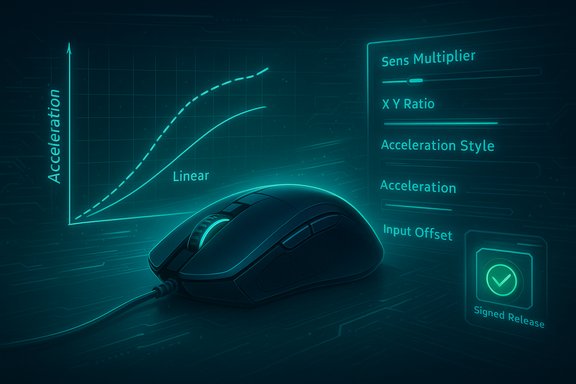
Raw Accel fills that gap. It intercepts the raw input stream at the driver level, replaces Windows’ variable, nonlinear acceleration with deterministic curves you configure, and exposes settings for sensitivity multiplier, axis ratios, acceleration curves, caps, and the precise physical threshold where acceleration begins. That combination is what lets users create consistent, trainable acceleration — or remove acceleration entirely while keeping other advantages like high sensor DPI.
Raw Accel’s premise is simple: give users explicit, deterministic control over acceleration so it can be used in a repeatable way rather than as an unpredictable system quirk.
That power comes with responsibility. Kernel‑level access, anti‑cheat sensitivities, and the need to tune settings carefully mean Raw Accel is best suited for advanced users, competitive players who understand tradeoffs, or designers willing to experiment. For anyone frustrated with Windows’ default behavior, however, Raw Accel is a mature, actively maintained option that turns mouse acceleration from a nuisance into a tool.
If you try it, install only official, signed releases, disable Windows’ Enhance Pointer Precision first, make incremental changes, and keep a fallback plan handy. The payoff is a mouse feel you can actually learn — and that, for many users, is worth the effort.
Source: Make Tech Easier Raw Accel App Finally Fixed Mouse Acceleration For Me in Windows – Here's How to Use It - Make Tech Easier
 Background
Windows ships with a feature called Enhance Pointer Precision (commonly referred to as Windows mouse acceleration), which scales cursor movement based on how fast you move the mouse. For many users — especially competitive gamers and precision designers — that behaviour is undesirable because it makes the same physical movement produce different on‑screen distances depending on speed. The usual advice has been to turn that feature off and rely on raw, 1:1 input. But turning Windows’ acceleration off means giving up all forms of acceleration, even the predictable, linear kinds that can be useful when tuned correctly.Raw Accel fills that gap. It intercepts the raw input stream at the driver level, replaces Windows’ variable, nonlinear acceleration with deterministic curves you configure, and exposes settings for sensitivity multiplier, axis ratios, acceleration curves, caps, and the precise physical threshold where acceleration begins. That combination is what lets users create consistent, trainable acceleration — or remove acceleration entirely while keeping other advantages like high sensor DPI.
How Windows mouse acceleration breaks precision
Windows’ built‑in acceleration is implemented as an adaptive, non‑linear transform. In practice that means:- Cursor distance is not a fixed function of physical movement distance; it also depends on motion speed and the recent history of motion.
- The system applies hidden scaling and smoothing factors that change cursor behavior across different mice and sessions.
- There is no easily configurable maximum cap or predictable "on" threshold, so tiny hand jitters and fast flicks can produce wildly different results.
Raw Accel’s premise is simple: give users explicit, deterministic control over acceleration so it can be used in a repeatable way rather than as an unpredictable system quirk.
What Raw Accel actually is — the technical overview
Raw Accel is a Windows x64 driver and companion application that processes mouse input in the raw input stream before Windows applies its own transforms. Key technical points:- The driver runs in kernel mode and is distributed as a signed release. That allows Raw Accel to operate at a low level while remaining compatible with many anti‑cheat systems.
- It intercepts raw counts (the physical sensor increments) and applies user‑defined formulas to compute the final cursor movement.
- The software exposes multiple acceleration curve styles, caps, per‑axis adjustments, and an input offset threshold that controls when acceleration begins.
- Profiles can be saved and loaded, and the app applies settings on startup so you typically do not need to keep the UI open once the driver is configured.
Installing Raw Accel: step‑by‑step (what to expect)
- Download the official release from the Raw Accel distribution (use the official GitHub or the project’s official distribution page).
- Extract the archive and run the installer executable. The installer will install the signed kernel driver.
- Reboot when prompted. Kernel driver installs typically require a reboot to start the service in system space.
- Launch the Raw Accel application and begin configuring. The installer usually offers to create a startup entry so the driver settings persist across logins.
- Disable Windows’ Enhance Pointer Precision (Control Panel → Hardware and Sound → Mouse → Pointer Options → uncheck Enhance Pointer Precision) or via Settings → Bluetooth & devices → Mouse in newer Windows builds. This prevents a conflict between Windows’ acceleration and Raw Accel.
The settings explained — what each control does and why it matters
Raw Accel exposes many controls that let you compose precise acceleration behavior. Understanding them is the key to getting results that are stable and trainable.Sens Multiplier
- What it is: a decimal multiplier applied to the cursor output after the curve is applied. If set to 1.0, Raw Accel does not alter base sensitivity; values <1 reduce cursor travel, >1 increase it.
- Why it matters: it acts like an additional DPI or sensitivity slider. Using the multiplier you can run the sensor at one physical DPI while producing an effective sensitivity that feels different.
Y/X Ratio
- What it is: scales vertical movement relative to horizontal movement.
- Use case: FPS players sometimes lower vertical sensitivity to make recoil control easier while keeping horizontal aim fast.
Acceleration Style
- Common options: Linear, Power, Natural, and other curve types (different releases expose different named curves).
- What it does: selects the mathematical shape by which cursor speed scales with physical speed. Linear gives a fixed, proportional increase and is easiest to train with; power or nonlinear curves can produce snappier flicks or softer midrange behavior.
Acceleration (intensity)
- What it is: the coefficient that sets how aggressively the curve amplifies movement once the input offset threshold is passed.
- Practical note: values that work well depend on your mouse DPI and personal preference. Many community guides give starting recommendations relative to DPI (for example: small single‑digit decimals for 800–1600 DPI mice), but tune by feel.
Cap Type and Caps (Output vs Input)
- Output Cap: limits the maximum cursor speed (useful to prevent runaway cursor velocity).
- Input Cap: caps acceleration based on physical mouse counts per millisecond (a cap on the raw movement speed).
- Why use caps: without a controlled cap, extreme flicks or sensor anomalies can create too-fast cursor jumps; a cap guarantees an upper bound.
Input Offset
- What it sets: the physical movement speed (in counts/ms) below which acceleration is not applied.
- Why it matters: this is how you make acceleration apply only to big flicks while keeping small aim corrections predictable. It’s the difference between consistent micro‑aim and fast, distance‑covering flicks.
Decay
- What it does: governs how quickly the applied acceleration returns to baseline after a movement ends.
- Use case: a short decay gives crisp snapped flicks; a longer decay smooths transitions but can feel like lingering momentum.
Practical configuration examples
Every mouse and player is different, but here are some starting points that illustrate common goals. Tweak slowly, change only one parameter at a time, and test with consistent in‑game drills.- Casual desktop / productivity
- Sens Multiplier: 1.0
- Acceleration Style: Linear
- Acceleration: 0.02–0.05
- Input Offset: high (so acceleration rarely triggers)
- Cap Output: moderate (to prevent overshoot)
- FPS player (balanced micro aim + flicks)
- Sens Multiplier: tuned to match in‑game values (many players use 400–800 effective DPI)
- Acceleration Style: Linear
- Acceleration: 0.04–0.12 (increase with DPI)
- Input Offset: 8–18 (so micro movements stay linear)
- Output Cap: 1.5–3.0 (prevents runaway flick speed)
- Design / drawing (steady, predictable)
- Sens Multiplier: 0.8–1.0
- Acceleration: 0.00–0.02 (minimal)
- Input Offset: very high (disable accel for precise work)
- Decay: long (smooth feel)
The “high‑DPI, low practical DPI” trick — theory and caution
A common trick shared by users is to set the mouse hardware DPI high (for example, 3200) and then use Raw Accel’s Sens Multiplier to scale the effective sensitivity down (for example, Sens = 0.25 yielding an effective 800 DPI). The idea is:- Higher hardware DPI reduces quantization and can slightly improve the sensor’s raw resolution.
- More raw counts can theoretically reduce perceptual micro‑jitter and may yield very small latency benefits under some conditions.
- By scaling output back down you get practical sensitivity you can aim with, while the sensor runs at a higher count rate.
- Any latency improvements from higher DPI are typically very small — often on the order of single milliseconds or less — and are influenced more strongly by polling rate, USB reporting, and the rest of the input/display pipeline than DPI alone.
- Some mice perform worse at extreme DPI values (interpolation, signal smoothing), so raising DPI beyond the sensor’s clean range can hurt tracking quality.
- The claimed 3–5ms improvement sometimes circulated online is anecdotal and hardware/driver dependent. Treat specific millisecond numbers as approximate and verify with controlled testing if latency reductions matter to you.
Anti‑cheat, security, and stability considerations
Raw Accel operates in kernel mode and installs a signed driver. That gives it the power to reliably modify raw input, but it also raises these points:- Anti‑cheat: the project explicitly aims for anti‑cheat friendliness (signed releases and minimal timing changes). Still, anti‑cheat policies evolve and individual games may treat any input‑processing driver differently. Check game communities and official anti‑cheat documentation for current guidance before using Raw Accel in competitive play.
- Driver security: kernel drivers run with high privileges. Always download the official signed release and verify hashes when available. Avoid mirror sites and unofficial installers.
- System stability: users have reported edge cases — desktop stuttering, odd cursor behavior when certain mouse drivers are installed, or incompatibility with some sensor firmware. If you experience problems, uninstall via the driver/uninstaller provided and reboot, or restore to a system restore point.
- Compatibility with manufacturer software: vendor tools (Logitech G Hub, Razer Synapse, Corsair iCUE) sometimes intervene in raw input or reset Windows pointer settings. If you use vendor utilities, test interactions carefully.
Troubleshooting: common issues and how to fix them
- Cursor “jumps” or extreme acceleration spikes
- Check your Cap Type and Output Cap values; set a conservative cap to prevent runaway velocities.
- Reduce Acceleration until movement is stable; some sensors or firmware combinations amplify certain settings unexpectedly.
- Acceleration not applying in a specific game
- Ensure the game is not using raw input that bypasses OS processing in a way that conflicts with driver interception. Many modern games use raw input (which Raw Accel hooks at the driver level), but some have internal acceleration or special input handling.
- Run the Raw Accel UI with admin privileges when testing and restart the driver after changes.
- Odd desktop behavior (zigzagging or jitter)
- Some users report Raw Accel feels “spazzy” on the desktop but fine in games. Try disabling the UI’s visualization features, reduce smoothing, or adjust decay.
- Check for conflicting mouse drivers or third‑party utilities; uninstall or disable them temporarily.
- Buttons temporarily disable acceleration (reported in some older threads)
- This has appeared in community reports with certain mice and older Raw Accel versions. Update to the latest official release and test; if persistent, gather logs and consult the project’s support channel.
Best practices for tuning and training with Raw Accel
- Change one parameter at a time and test for at least 15–30 minutes. Aimless toggling makes it harder to isolate cause and effect.
- Save multiple profiles: one for gaming (low input offset, higher cap), one for design (accel disabled), one for general desktop.
- Use consistent test routines: a flick test, a micro‑tracking test, and repeated target flicks will reveal different strengths/weaknesses of a configuration.
- Keep polling rate high (500–1000Hz) when testing changes — it reduces another variable that affects perceived responsiveness.
- If you rely on muscle memory (ranked play, pro practice), commit to a single profile for at least several days before deciding whether it helps.
Strengths and practical benefits
- Full, deterministic control over acceleration: Raw Accel turns an opaque OS behaviour into a tunable tool.
- Per‑axis tuning and thresholds: you can make acceleration ignore micro movements and only kick in on large swipes.
- Kernel‑level processing with signed driver: gives low‑latency processing and better anti‑cheat compatibility than many user‑land hacks.
- Profiles and persistence: once tuned, the driver can apply settings automatically and reliably.
Risks and limitations
- Kernel driver implications: installing any third‑party kernel driver increases the attack surface of a system; only install signed, official releases.
- Anti‑cheat and game policy risk: while the project emphasizes anti‑cheat friendliness, game protections change — using input drivers can be risky in some competitive environments.
- No universal default: Raw Accel is powerful, not plug‑and‑play. Poorly chosen settings can dramatically degrade control. Expect to spend time tuning.
- Hardware variance: not all mice behave the same at high DPI settings; some perform worse outside their native ranges.
When to use Raw Accel — and when to avoid it
Use Raw Accel if:- You want predictable, trainable acceleration rather than Windows’ opaque behaviour.
- You’re prepared to tune and test settings and want separate profiles for different tasks.
- You understand and accept the driver‑level implications.
- You prefer a guaranteed zero‑risk environment for anti‑cheat (some competitive platforms are strict).
- You require a guaranteed 100% vendor‑supported configuration with official driver support only.
- You don’t want to spend time tuning and troubleshooting edge cases.
Conclusion
Raw Accel does what Windows won’t: it hands precision control back to the user. By replacing Windows’ non‑linear, hidden acceleration with a configurable, deterministic driver, it offers a powerful way to regain consistency and train muscle memory — or to exploit hardware DPI for micro‑optimizations — without giving up acceleration entirely.That power comes with responsibility. Kernel‑level access, anti‑cheat sensitivities, and the need to tune settings carefully mean Raw Accel is best suited for advanced users, competitive players who understand tradeoffs, or designers willing to experiment. For anyone frustrated with Windows’ default behavior, however, Raw Accel is a mature, actively maintained option that turns mouse acceleration from a nuisance into a tool.
If you try it, install only official, signed releases, disable Windows’ Enhance Pointer Precision first, make incremental changes, and keep a fallback plan handy. The payoff is a mouse feel you can actually learn — and that, for many users, is worth the effort.
Source: Make Tech Easier Raw Accel App Finally Fixed Mouse Acceleration For Me in Windows – Here's How to Use It - Make Tech Easier
