

If you have an older Windows PC that feels sluggish, there's a simple, free trick you may already be able to use right now: plug a fast USB flash drive into a spare port and let Windows use it as a disk cache with ReadyBoost — a built-in feature that can reduce wait time on systems with low RAM and spinning hard drives. ReadyBoost isn't magic: it doesn't turn a slow laptop into a powerhouse, but on the right hardware it can make everyday tasks — launching apps, switching tabs, and opening files — feel noticeably snappier by reducing disk-access latency.
ReadyBoost was introduced in Windows Vista as a way to use NAND flash devices (USB flash drives, SD cards, and similar) as an intermediate cache between the HDD and system memory. The idea is simple: flash memory usually has much lower random-access latency than a spinning disk. For small, random reads — the kind of I/O pattern that slows down an HDD when RAM is tight — reading from a properly fast flash device can be faster than reading from the hard drive. Windows pairs ReadyBoost with SuperFetch to decide what to keep cached on the flash device.
Key technical points to keep in mind:
What to buy/use:
ReadyBoost is a pragmatic, low-risk tool for breathing life into aging Windows laptops and desktops. It won't replace a memory or storage upgrade, but when used with the right flash device and on the right machine, it can reduce the frustration of slow app launches and swapping — and sometimes that's exactly the short-term fix people need while they save for a bigger upgrade.
Source: bgr.com You Can Speed Up Any Old Computer With Your Spare USB Ports - Here's How - BGR
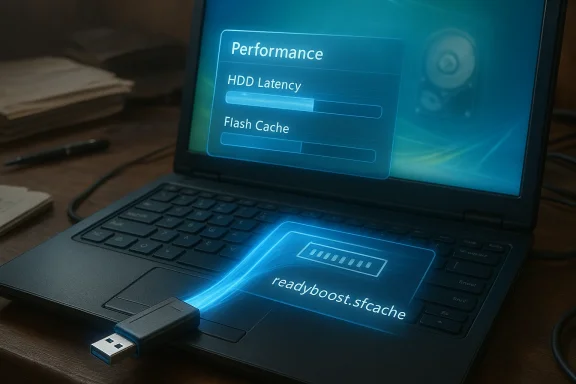 Background: what ReadyBoost actually does
ReadyBoost was introduced in Windows Vista as a way to use NAND flash devices (USB flash drives, SD cards, and similar) as an intermediate cache between the HDD and system memory. The idea is simple: flash memory usually has much lower random-access latency than a spinning disk. For small, random reads — the kind of I/O pattern that slows down an HDD when RAM is tight — reading from a properly fast flash device can be faster than reading from the hard drive. Windows pairs ReadyBoost with SuperFetch to decide what to keep cached on the flash device. Key technical points to keep in mind:
- ReadyBoost stores a cache file on the flash device (readyboost.sfcache) and encrypts/compresses its contents.
- It's designed to assist systems with low RAM (commonly 2–4 GB in older PCs) and HDD system drives; it offers little or no benefit on systems with generous RAM or where the system drive is an SSD.
- ReadyBoost is a supplement to RAM, not a RAM replacement — it's a faster alternative to paging to disk in specific scenarios, not a substitute for physical memory.
Why ReadyBoost can help older machines (and why it sometimes doesn't)
The performance gap ReadyBoost targets
Modern OS workloads have many small, scattered reads: launching applications, loading DLLs, and reading configuration files. HDDs are slow at this kind of random I/O because of mechanical seek times; flash devices have orders-of-magnitude lower access latency for small, random reads. When RAM is exhausted and the OS must page to a swap file, that paging usually falls to the HDD — exactly the situation where ReadyBoost can help by redirecting some of those hot, small reads to the flash cache.When ReadyBoost helps most
- Systems with 2–4 GB of RAM that frequently hit disk-based paging.
- Machines that still use a spinning HDD as their system drive.
- When the flash device meets Microsoft’s performance criteria (see next section).
When it won't help
- Computers with SSD system drives — Windows disables ReadyBoost because the SSD is already faster for the targeted I/O patterns.
- Systems with abundant RAM (8 GB or more in many everyday scenarios). Community reporting and Microsoft guidance both note diminishing returns as RAM increases.
- When the USB device itself is slow (cheap flash drives with poor random-read performance will fail ReadyBoost’s compatibility check).
ReadyBoost requirements and limits — what to check before you plug in
ReadyBoost enforces specific minimums so the cache can actually improve performance. These are the practical checks you should run:- Minimum capacity: Historically Windows required at least ~235–256 MB free; modern guidance is to use at least 1 GB and larger if you want noticeable benefit. Windows recommends giving ReadyBoost between 1× and 3× your physical RAM for the cache size suggestion, but Windows will make a recommendation automatically.
- Random-read and write throughput: the device must meet Microsoft’s random I/O thresholds (for example, roughly 2.5 MB/s for 4 KB random reads and 1.75 MB/s for 512 KB random writes as reported historically). Cheap flash drives often fail this test.
- Access latency: ReadyBoost looks for low access latency (sub-millisecond levels for effective caching).
- File system and size limits: On older Windows versions FAT32 imposed limits on max cache size (4 GB), while NTFS or exFAT allows larger caches (up to 32 GB per device in Windows 7+ historically). Windows 7 supported multiple ReadyBoost devices (up to eight) for a combined cache; Vista allowed only one device. These specifics vary by Windows version and may be subject to changes in recent updates.
- Use a USB 3.0 (or at least USB 2.0) port — USB 3.0 will give much better sustained throughput for modern flash drives.
- Pick a flash drive advertised with good random-read performance (look for high-quality, name-brand drives or ‘ReadyBoost-capable’ packaging from the device era).
- Format to NTFS or exFAT if you want to allocate cache larger than 4 GB (Windows will guide you).
How to enable ReadyBoost — step-by-step
- Insert the flash drive into a spare USB port and let Windows detect it.
- Open File Explorer, right-click the removable drive, and select Properties.
- If ReadyBoost is supported for that device and Windows version, there will be a ReadyBoost tab. Choose either “Dedicate this device to ReadyBoost” or “Use this device” and move the slider to allocate cache size. Windows will recommend an amount. Click Apply to activate the cache.
- If the ReadyBoost tab is missing, the device might have failed the performance check or the OS may be configured (or updated) in a way that removes ReadyBoost support. See the next section on compatibility and recent changes.
Real-world results: what to expect and how to measure
Expectations should be modest but practical. ReadyBoost offers responsiveness gains, not raw throughput increases. Typical improvements include:- Faster application launch times in memory-starved systems.
- Smoother switching between active applications when RAM is exhausted.
- Quicker small-file ously triggered HDD seeks.
- Use Task Manager (Performance tab) to watch memory and disk activity before and after enabling ReadyBoost. Look for reduced disk queue length and fewer paging operations under similar workloads.
- Run a benchmark designed to stress random I/O on small block sizes; ReadyBoost's benefit is visible in scenarios dominated by many small random reads. Keep in mind Windows’ own SuperFetch behavior adapts over time, so test with realistic, repeated workloads.
Choosing the right USB device (and ports)
Not all flash drives are created equal. For ReadyBoost, the key metric is random-read performance, not just advertised sequential MB/s numbers.What to buy/use:
- Prefer USB 3.0 flash drives with proven random I/O performance — higher-end thumb drives and some portable NVMe-based ‘SSD-in-a-USB’ enclosures perform well. ([lenovo.com](https://www.lenovo.com/us/en/glossary/readyboost/index.html?utm_soour machine has USB 3.0 ports, use them. Plugging a USB 3.0 device into a USB 2.0 port significantly reduces its usefulness.
- Very cheap generic flash drives with poor small-block performance. They usually fail ReadyBoost tests or deliver no perceptible improvement.
- If you want more than 4 GB for the cache, format the device as NTFS or exFAT before configuring ReadyBoost. Windows may offer to reformat the drive when you enable ReadyBoost. Back up any data first.
Risks and trade-offs you should know about
- Wear and tear: Flash memory endures a limited number of write cycles. ReadyBoost writes to the device, but Microsoft designed the system with wear-leveling and conservative write patterns. In practice, a good USB flash drive should last many years in ReadyBoost service under normal desktop workloads, but consumer-grade cheap drives may age faster. Be realistic: ReadyBoost will use the device, and very old or poor-quality flash media will wear out faster than quality storage.
- Security and encryption: ReadyBoost encrypts the cache with AES te if the drive is removed and accessed elsewhere. Still, avoid dedicating a drive that holds sensitive personal files unless you understand the security trade-offs.
- Reliability: Historically there have been isolated reports of driver conflicts (rdyboost.sys) or system instability when ReadyBoost interacted poorly with certain devices or drivers. Community threads document troubleshooting steps, but if ReadyBoost introduces instability on your machine, disable it and remove the cache file.
- Marginal benefit on modern systems: If your PC already uses an SSD or has plenty of RAM, ReadyBoost will usually be a no-op and Windows will either disable it or warn you that the system is fast enough without it.
Troubleshooting the common ReadyBoost problems
- ReadyBoost tab missing: If there’s no ReadyBoost tab in the drive’s Properties dialog it likely means the device failed Microsoft’s performance test, the system drive is an SSD (ReadyBoost disabled), or recent Windows updates changed availability. Start by testing a different, faster flash drive and confirm the system drive is not SSD-backed. Community reports indicate some Windows 11 builds removed or hidden ReadyBoost controls; check Windows support forums and Microsoft Q&A for your exact build.
- OS says the device is “not fast enough”: Try another device, use a different USB port (preferably USB 3.0), or format the drive to NTFS/exFAT and retry. Some devices have inconsistent performance across their capacity; Windows tests the entire device.
- “File in use” when removing cache: If Windows won’t delete the cache because it’s in use, disable ReadyBoost from the drive’s properties first and then remove the cache. Rebooting with the device removed can help in stubborn cases.
Alternatives and better upgrades (what to do if ReadyBoost isn’t enough)
ReadyBoost is a clever stopgap, but if you want a lasting speed boost, consider these ranked options:- Add physical RAM — the single best performance improvement for memory-starved systems. Increasing from 2–4 GB to 8 GB or more often delivers the biggest real-world gain.
- Replace the HDD with an SSD — this generally produces the most dramatic, broad performance uplift (faster boot, app launches, and file operations).
- Use ReadyBoost as a companion if hardware upgrades aren’t possible — it buys you time and smoother responsiveness in constrained setups.
The current state of ReadyBoost in modern Windows (what's changed recently)
ReadyBoost’s importance has declined as SSDs became standard and RAM got cheaper. More recently, user reports and support threads indicate that ReadyBoost’s UI or availability has been altered in Windows 11 updates (notably around the 22H2 cycle), with many users finding the ReadyBoost tab missing for certain builds or platforms. Microsoft’s community documentation and Q&A pages discuss ReadyBoost and its configuration but do not always provide a single public note describing a full deprecation; instead, community threads and support posts show the feature behaving differently across builds. Given the patchwork of reports, users should check their specific Windows build and device health before relying on ReadyBoost — and treat claims about removals cautiously unless confirmed for your exact Windows version.Final verdict — when to use ReadyBoost and how to get the best out of it
ReadyBoost remains a valid, zero-cost option to improve perceived responsiveness on older Windows PCs that use HDDs and have limited RAM. Use it when:- Your system has 2–4 GB of RAM and uses a spinning HDD.
- You can dedicate a reasonably fast USB 3.0 flash drive (or external drive) that meets Windows’ performance checks.
- Choose a high-quality, high-random-I/O flash drive and plug it into a USB 3.0 port.
- Allocate cache space equal to 1–3× your system RAM (let Windows recommend the amount if you’re unsure).
- Monitor Task Manager to verify the change under realistic workloads.
ReadyBoost is a pragmatic, low-risk tool for breathing life into aging Windows laptops and desktops. It won't replace a memory or storage upgrade, but when used with the right flash device and on the right machine, it can reduce the frustration of slow app launches and swapping — and sometimes that's exactly the short-term fix people need while they save for a bigger upgrade.
Source: bgr.com You Can Speed Up Any Old Computer With Your Spare USB Ports - Here's How - BGR
