

If you never use Windows’ hibernate feature, one of the easiest ways to reclaim several gigabytes on a crowded system drive is to remove the hidden hibernation file that lives at C:\hiberfil.sys — but that choice carries trade‑offs you must understand before you run a command and celebrate reclaimed space.
Windows supports three primary end‑user power states: Sleep, Hibernate, and Shutdown. Sleep keeps your working session in RAM for near‑instant resume at the cost of a small, steady power draw. Hibernate writes the contents of system memory to disk and powers the PC completely off; when you power it back on Windows reloads that file and restores your session exactly as it was. Windows also uses the same mechanism for Fast Startup (a hybrid shutdown that writes the kernel session to disk) and for hybrid sleep. The on‑disk artifact that makes all of this possible is the hiberfil.sys file. On many machines, hiberfil.sys is not trivial in size: Windows provisions a hibernation file measured as a percentage of installed RAM, and modern Windows typically reserves a sizable chunk of disk space for it. That reservation can be meaningful on laptops and small SSDs where every gigabyte counts. Removing it is simple and immediate, but doing so disables hibernation‑dependent features and alters system behavior — which is why a careful checklist and a clear understanding of trade‑offs are essential.
powercfg /hibernate on
Or use the powercfg subcommands to change the hiberfile type or size rather than disable it entirely (details below).
Several technical advisories and community analyses point out that hibernation is a significant write generator if used often; disabling it removes that class of writes entirely. If SSD endurance is a priority and you rarely use hibernate, disabling is a reasonable optimization. Conversely, if you hibernate daily (for example to preserve long sessions while conserving battery on travel), keep hibernation enabled and budget the drive endurance accordingly.
Note: modern SSDs have large TBW ratings and many users will not see meaningful lifespan impacts from occasional hibernation. Consider this a useful factor in the decision matrix rather than an overriding concern.
However, hibernation is a precisely designed feature that provides real value for certain workflows: conserving battery on long trips, preserving complex sessions across power‑off, protecting against power loss via hybrid sleep on desktops, and enabling Fast Startup. If you depend on any of those, keep it enabled or at least use a reduced hiberfile or smaller configured size to balance space vs functionality. Always use supported powercfg commands and perform a storage audit first so you know exactly how much space you’ll recover and whether other hidden large files provide a better recovery opportunity.
Conclusion
Removing hiberfil.sys is a quick, supported, and reversible way to reclaim disk space when you don’t need hibernation or Fast Startup. Executing powercfg /hibernate off is the recommended method — but the smart move is to audit disk usage first, weigh the functional trade‑offs (hybrid sleep, fast boot, battery strategy), and consider resizing or using the reduced hiberfile type when you want a middle ground. When handled deliberately, this cleanup is an effective part of a broader, safe storage‑reclamation plan.
Source: MakeUseOf If you don't use Hibernate on Windows, delete this massive hidden file now
 Background / Overview
Windows supports three primary end‑user power states: Sleep, Hibernate, and Shutdown. Sleep keeps your working session in RAM for near‑instant resume at the cost of a small, steady power draw. Hibernate writes the contents of system memory to disk and powers the PC completely off; when you power it back on Windows reloads that file and restores your session exactly as it was. Windows also uses the same mechanism for Fast Startup (a hybrid shutdown that writes the kernel session to disk) and for hybrid sleep. The on‑disk artifact that makes all of this possible is the hiberfil.sys file. On many machines, hiberfil.sys is not trivial in size: Windows provisions a hibernation file measured as a percentage of installed RAM, and modern Windows typically reserves a sizable chunk of disk space for it. That reservation can be meaningful on laptops and small SSDs where every gigabyte counts. Removing it is simple and immediate, but doing so disables hibernation‑dependent features and alters system behavior — which is why a careful checklist and a clear understanding of trade‑offs are essential. What is hiberfil.sys and why does it exist?
The technical purpose
- hiberfil.sys is the file Windows uses to store a snapshot of the kernel and (in full hibernate configurations) the contents of RAM so the system can resume to the same state after power off. Fast Startup also uses a reduced or partial form of this file to speed cold boots by saving the kernel session and drivers.
- Windows exposes the hibernation controls through the powercfg utility. You can enable/disable hibernation, change the file size as a percentage of RAM, or switch between full and reduced hiberfile types with powercfg subcommands. Microsoft documents the exact syntax and options.
How big is the file?
- On current Windows builds the “full” hibernation file is typically sized by default to about 40% of physical RAM; a reduced hiberfile used for Fast Startup is smaller (about 20% of RAM). If hibernation is disabled and the file is recreated for some reason, you may see other sizing behaviors, but the 40%/20% split is the current documented baseline for modern Windows. Older versions of Windows used different defaults (for example, Windows 7 historically used larger percentages). When you change the hibernation type or size with powercfg, Windows enforces limits to avoid creating a file that’s too small to hold necessary data; reducing the file below safe thresholds can break hibernation.
- Practical example: on a system with 16 GB RAM, expect hiberfil.sys to occupy roughly 6–7 GB (40% ≈ 6.4 GB). On a 256 GB SSD that’s often a noticeable chunk you might prefer to reclaim. Community troubleshooting and cleanup guides repeatedly list hiberfil.sys as one of the common multi‑GB hidden files people forget about.
When it makes sense to remove hiberfil.sys
- You rarely use Hibernate and prefer Sleep for short breaks and full Shutdowns for longer breaks.
- You are trying to reclaim disk space on a small system drive (for example small NVMe SSDs in ultrabooks).
- You do not rely on Fast Startup, hybrid sleep, or hibernate‑based resume scenarios (long trips where preserving a full session while saving battery matters).
What you lose if you disable hibernation
Disabling hibernation is not just deleting a file — it changes features:- Hibernate option removed from the Start menu and Alt+F4 power dialog.
- Fast Startup becomes unavailable because it relies on hiberfil.sys to store the kernel session and accelerate boot. This can slightly slow cold boots, though on SSD systems the practical penalty is often just a few seconds.
- Hybrid sleep support is affected; hybrid sleep preserves the session both in RAM and on disk so a power loss during sleep doesn’t lose work. On desktops without a UPS, hybrid sleep can be an important safeguard.
- Some advanced resume behaviors and certain third‑party or vendor power integrations may assume hibernation/fast startup is present; disabling may alter expected operation for those cases.
How to safely remove hiberfil.sys (step‑by‑step)
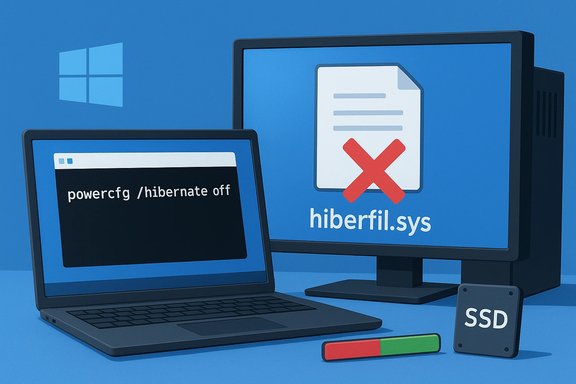
Windows protects hiberfil.sys from casual deletion in File Explorer. The correct and supported approach is to disable the feature so Windows removes the file for you.- Open an elevated command prompt or terminal (Run as Administrator).
- Run the command to disable hibernation:
powercfg /hibernate off
(powercfg -h off is a common shorthand and accepted on many systems. - Verify the file is gone by enabling view of hidden and protected OS files in File Explorer: View → Show → Hidden items and uncheck “Hide protected operating system files” to inspect C:. The file should be removed automatically.
powercfg /hibernate on
Or use the powercfg subcommands to change the hiberfile type or size rather than disable it entirely (details below).
Alternatives to full removal: resizing and “reduced” hiberfile
If you sometimes use Fast Startup or want the option of hibernation without surrendering as many gigabytes, Windows provides intermediate options:- Use the reduced hiberfile type (supports Fast Startup but not full hibernate) with:
powercfg /h /type reduced
That instructs Windows to use a smaller hibernation file designed only to store kernel/session metadata needed by Fast Startup. The reduced file type usually occupies approximately 20% of RAM rather than the full 40%. If you need full hibernate later, you can switch back to the full type. - Manually set the hiberfile size as a percentage of RAM. Example:
powercfg /h /size 50
This command sets hiberfil.sys to 50% of RAM (powercfg enforces minimums to avoid making the file too small to be usable). Use caution — setting the size too aggressively can cause hibernation to fail. Microsoft documents the allowed ranges and the registry key that records the configured percentage.
How to check real usage and diagnose what’s taking space
Before you disable anything, perform a quick audit so you know the single biggest offenders. Use these diagnostics:- Visual disk scanners: WizTree, WinDirStat, or TreeSize Free reveal the largest files and hidden folders quickly. Run as Administrator to ensure they can see system files and the MFT for NTFS scans. Community technicians often recommend a visual scan as the first step — it identifies real, removable items (large ISOs, VM disks, Windows.old, caches) in minutes.
- Volume Shadow Copy and System Restore check:
vssadmin list shadowstorage
vssadmin list shadows
Large VSS allocations sometimes hide tens of gigabytes in shadow copies; reducing or deleting them is an irreversible but high‑impact action if you no longer need restore points. - DISM component store analysis (WinSxS cleanup):
DISM /Online /Cleanup-Image /AnalyzeComponentStore
If it reports reclaimable space:
DISM /Online /Cleanup-Image /StartComponentCleanup
Use /ResetBase only when you’re prepared to make rollback irreversible. These commands are supported, safe when used as documented, and often return multi‑GB wins after feature updates. - Check pagefile and swap files: pagefile.sys can also consume several GB; adjusting its size or moving it to a secondary drive is an option for advanced users but affects virtual memory and crash‑dump behavior. Community guidance recommends changing pagefile settings only after understanding the memory needs of your workloads.
SSD longevity and write endurance: an extra consideration
Disabling hibernation can have a side benefit for SSDs: if you frequently hibernate, Windows writes the entire snapshot of RAM to the drive each time, which can be tens of gigabytes of sequential writes per hibernate operation. On drives with limited write endurance (consumer NVMe devices), that added daily write volume can accumulate noticeably over months or years.Several technical advisories and community analyses point out that hibernation is a significant write generator if used often; disabling it removes that class of writes entirely. If SSD endurance is a priority and you rarely use hibernate, disabling is a reasonable optimization. Conversely, if you hibernate daily (for example to preserve long sessions while conserving battery on travel), keep hibernation enabled and budget the drive endurance accordingly.
Note: modern SSDs have large TBW ratings and many users will not see meaningful lifespan impacts from occasional hibernation. Consider this a useful factor in the decision matrix rather than an overriding concern.
Recovery and precautions
- If you disable hibernation and later discover you need it, simply run powercfg /hibernate on to re‑create hiberfil.sys. That restores Fast Startup and hibernate options.
- Beware of deleting system files manually. Windows protects hiberfil.sys and recreates it if required; manual deletion can cause unexpected behavior and will often be undone. Use the supported powercfg commands.
- Before performing destructive, irreversible cleanups (vssadmin delete shadows, DISM /ResetBase), ensure you have a full backup or disk image if you may later need to roll back. Many of these commands permanently remove undo capabilities and uninstall points. Community guidance emphasizes imaging first when you accept irreversible deletions.
Quick decision checklist
- Do you actively use Hibernate or rely on Fast Startup?
- Yes: Do not remove hiberfil.sys — consider resizing or using the reduced hiberfile type instead.
- No: Disabling hibernation is reasonable to reclaim space.
- Do you depend on System Restore or Volume Shadow Copies to recover from driver or update regressions?
- Yes: Reclaiming space elsewhere first is safer; if you must reduce VSS, take a backup image first.
- Is SSD write endurance a concern and do you hibernate frequently?
- Yes: disabling hibernation reduces sustained sequential writes and may help longevity.
- Do you have limited free space and need a quick win?
- Inspect with WizTree/WinDirStat, run Disk Cleanup (system files), and then consider powercfg /hibernate off if you don’t use the feature.
Advanced tips and troubleshooting
- If the Fast Startup option is missing in Power Options, hibernation is likely disabled — enabling it restores the option. Microsoft documents this coupling between Fast Startup and the hibernation mechanism.
- To inspect which sleep states are available on your system, run:
powercfg /a
This lists available states and tells you whether hibernation is enabled/available. - To change the hiberfile type to full or reduced explicitly:
- Full: powercfg /h /type full
- Reduced: powercfg /h /type reduced
- If you suspect your system still shows less free space after cleanup, run chkdsk /f and reboot to ensure filesystem bookkeeping is correct; run the visual scanner again to verify no single files were missed. Community recovery guides include this as a final step after large cleanups.
Final verdict — is deleting hiberfil.sys worth it?
For many users who never use hibernate — especially on laptops with limited SSD capacity that otherwise rely on Sleep or full Shutdowns — disabling hibernation and reclaiming the hiberfil.sys allocation is a pragmatic, low‑risk way to free multi‑GBs of space instantly. On modern hardware, the boot time penalty from losing Fast Startup is often small, and the space recovered may be more valuable than a few seconds of boot time.However, hibernation is a precisely designed feature that provides real value for certain workflows: conserving battery on long trips, preserving complex sessions across power‑off, protecting against power loss via hybrid sleep on desktops, and enabling Fast Startup. If you depend on any of those, keep it enabled or at least use a reduced hiberfile or smaller configured size to balance space vs functionality. Always use supported powercfg commands and perform a storage audit first so you know exactly how much space you’ll recover and whether other hidden large files provide a better recovery opportunity.
Conclusion
Removing hiberfil.sys is a quick, supported, and reversible way to reclaim disk space when you don’t need hibernation or Fast Startup. Executing powercfg /hibernate off is the recommended method — but the smart move is to audit disk usage first, weigh the functional trade‑offs (hybrid sleep, fast boot, battery strategy), and consider resizing or using the reduced hiberfile type when you want a middle ground. When handled deliberately, this cleanup is an effective part of a broader, safe storage‑reclamation plan.
Source: MakeUseOf If you don't use Hibernate on Windows, delete this massive hidden file now
