

If your Windows 11 PC is complaining about low disk space, there are fast, reliable ways to find the actual culprits—large files, caches, installers, and forgotten archives—and reclaim useful gigabytes without guessing or reinstalling the OS.
Windows 11 gives you several built‑in tools to locate and remove large files: File Explorer’s search (Advanced Query Syntax), the Settings Apps list, the Storage settings (Storage Sense and Cleanup recommendations), and PowerShell for more complete, scriptable scans. Third‑party visualizers (WinDirStat, WizTree, TreeSize) augment those options when you need a fast visual map of what’s occupying an entire drive. The methods described below range from safe, GUI‑first approaches for casual users to command‑line techniques for power users and admins.
How to run a size-based search:
Caveat: automatic cleanup can remove items from Downloads or local caches—review the recommendation list before confirming deletions.
Basic one‑line to list the largest files (example shown in many community guides):
gci -Recurse | Sort-Object -Property Length -Descending | Select-Object -First 20 Name, FullName, Length
A more robust and readable command that:
Get-ChildItem -Path $path -File -Recurse -Force -ErrorAction SilentlyContinue |
Sort-Object -Property Length -Descending |
Select-Object -First 50 @{Name='Size(GB)';Expression={[math]::Round($_.Length/1GB,2)}}, FullName
This returns the 50 largest files under C:\ with sizes rounded to two decimal places. Replace 'C:\' with any drive or folder.
PowerShell considerations:
Recommended tools:
Get-ChildItem -Path $path -File -Recurse -Force -ErrorAction SilentlyContinue |
Sort-Object -Property Length -Descending |
Select-Object -First 50 @{Name='Size(GB)';Expression={[math]::Round($_.Length/1GB,2)}}, FullName
Cleaning drive space on Windows 11 is straightforward when you use the right tools in the right order: start with File Explorer filters and Settings, escalate to PowerShell or visual scanners when you need a full picture, and reserve system changes for when backups are in place. The result: more predictable free space, fewer surprises during updates, and a healthier, faster Windows experience.
Source: Guiding Tech How to Search for Large Files in Windows 11 to Save Space
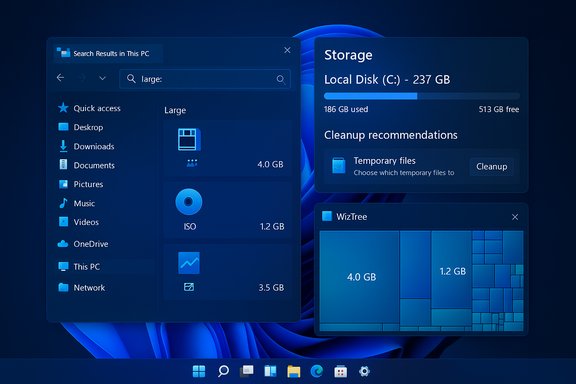 Background / Overview
Windows 11 gives you several built‑in tools to locate and remove large files: File Explorer’s search (Advanced Query Syntax), the Settings Apps list, the Storage settings (Storage Sense and Cleanup recommendations), and PowerShell for more complete, scriptable scans. Third‑party visualizers (WinDirStat, WizTree, TreeSize) augment those options when you need a fast visual map of what’s occupying an entire drive. The methods described below range from safe, GUI‑first approaches for casual users to command‑line techniques for power users and admins.Why finding large files matters
Free disk space affects more than just how many photos you can keep. Low free space can:- Slow down system responsiveness and file operations.
- Prevent Windows Updates from downloading or installing.
- Reduce virtual memory headroom and affect applications that write large temporary files (video editors, VMs, compilers).
Quick methods (GUI-first)
1) File Explorer: fast, flexible, and built into Windows
File Explorer’s search box accepts Advanced Query Syntax (AQS) filters that let you target file size, type, date, and location. Use this to find large files without extra software.How to run a size-based search:
- Open File Explorer (Win + E) and select the drive or folder to scan.
- Click the search box in the top‑right to activate the search tools.
- Type one of these AQS tokens to filter by pre-defined size ranges:
- size:large — roughly 128 MB to 1 GB.
- size:huge — roughly 1 GB to 4 GB.
- size:gigantic — files over 4 GB.
- To search for a numeric threshold, use size:>500MB or size:>1GB.
- Switch to Details view and sort by the Size column to show biggest files first.
- Combine with kind: or ext: to narrow results, e.g., kind:video size:>1GB or ext:.iso size:>2GB.
- Use datemodified: to find recent large files if you’re cleaning after a known action (e.g., video export).
2) Settings > Apps: find large applications quickly
Applications (especially games, development suites, and multimedia apps) can occupy tens or hundreds of gigabytes. To inspect installed apps:- Open Settings (Win + I) → Apps → Installed apps.
- Wait for the list to populate, then sort by Size to expose the biggest entries.
- Uninstall apps you no longer need or move large apps to another drive (some apps support moving from the same menu).
3) Storage settings, Cleanup recommendations and Storage Sense
Windows 11 exposes a consolidated storage view: Settings → System → Storage. The Cleanup recommendations panel highlights large / unused files, cloud‑only items, temporary data, and potential app removals. Storage Sense can automate routine cleanups (empty Recycle Bin, remove temporary files, auto‑free up cloud files after inactivity). These features are useful to automate long‑term housekeeping.Caveat: automatic cleanup can remove items from Downloads or local caches—review the recommendation list before confirming deletions.
Command-line power: PowerShell for whole-drive hunts
For a thorough, scriptable scan of entire drives (including non‑indexed locations), PowerShell is the fastest built‑in option.Basic one‑line to list the largest files (example shown in many community guides):
gci -Recurse | Sort-Object -Property Length -Descending | Select-Object -First 20 Name, FullName, Length
A more robust and readable command that:
- searches a specific path (faster than scanning the whole system),
- uses -Force and -ErrorAction to avoid stopping on access errors,
- displays sizes in human‑readable format (GB/MB):
- Open PowerShell as Administrator.
- Run:
Get-ChildItem -Path $path -File -Recurse -Force -ErrorAction SilentlyContinue |
Sort-Object -Property Length -Descending |
Select-Object -First 50 @{Name='Size(GB)';Expression={[math]::Round($_.Length/1GB,2)}}, FullName
This returns the 50 largest files under C:\ with sizes rounded to two decimal places. Replace 'C:\' with any drive or folder.
PowerShell considerations:
- Scanning entire system volumes can be slow on large drives—target specific folders first (Downloads, Users, ProgramData, VMs, Games).
- The -Force and -ErrorAction options prevent the scan from stopping on protected or unreadable folders.
- You can export results to CSV for offline review: add | Export-Csv -Path C:\largest_files.csv -NoTypeInformation.
Visual disk mappers and third‑party options
When you want a quick map of a drive’s top consumers, a visual tool beats lists.Recommended tools:
- WizTree — very fast NTFS scanner, great for top‑level identification.
- WinDirStat — classic visual treemap; reliable and free.
- TreeSize Free — handy for folder-by-folder sizing.
- Instant visual identification of big folders (VM images, ISO archives, game installers).
- Easy to drill down by folder and confirm file provenance before removal.
Safe sequence: a practical checklist to reclaim space
Follow this prioritized workflow to minimize risk and maximize reclaimed space:- Empty the Recycle Bin and delete obvious large files from Downloads (manually review first).
- Run Settings → System → Storage → Cleanup recommendations and apply safe suggestions.
- Use File Explorer size:> queries in Downloads, Documents, Desktop, and any large media folders.
- Check Installed apps and sort by size to uninstall unused large apps.
- Run Disk Cleanup and choose "Clean up system files" to remove Windows Update files and previous installations (Windows.old). This is a high‑gain step but irreversible—only use it if you won’t need to rollback.
- Run a visual scan with WizTree or WinDirStat to confirm remaining space hogs.
- If you still need space, use PowerShell to produce a curated list of the largest files and archive or move them to external/cloud storage.
Advanced moves — what to consider only after backups
The following actions deliver large gains but have tradeoffs and should be done only after you’ve backed up important data.- Disable hibernation (removes hiberfil.sys): powercfg /hibernate off — frees a file roughly equal to RAM size. This disables hibernation and affects Fast Startup behavior; choose only if you don’t use hibernate.
- Reduce System Restore and VSS shadow storage allocations — this can free many gigabytes but will limit restore points. Use vssadmin to inspect and adjust; proceed cautiously.
- Move the page file or resize it (not recommended for novice users). Page file behavior depends on installed RAM and workload; incorrect settings can harm stability. Consider only if you understand the implications.
- Clean the Windows component store with DISM (for superseded updates): DISM.exe /Online /Cleanup-Image /StartComponentCleanup or /ResetBase. This is useful on update‑heavy systems but is irreversible.
Handling cloud storage intelligently
Cloud services can be a great way to offload large, infrequently accessed files without deleting them:- OneDrive Files On‑Demand: keep online‑only placeholders locally while files remain in the cloud. Right‑click a file/folder → Free up space to remove the local copy. This instantly reclaims local storage while preserving access.
- Choose which folders to sync and prefer cloud archive for large archives and media you rarely open.
Common pitfalls and how to avoid them
- Deleting system or program files: avoid Program Files, Windows, and system driver folders unless you are certain. These deletions can break Windows or installed applications.
- Removing Windows.old prematurely: it frees large space but removes rollback ability after upgrades—only delete it if you’re confident.
- Trusting “one‑click” third‑party cleaners blindly: some are aggressive or bundle telemetry/adware—use reputable tools, read community reviews, and run in audit mode first.
- Expecting consistent space gains: estimates like “free up X GB in 5 minutes” are anecdotal; actual gains depend on each machine’s usage and accumulated caches. Treat any specific numeric headline with skepticism and verify on your system.
Example step‑by‑step: find and remove a 1+ GB orphan file safely
- Run File Explorer and search the suspected folder or drive with size:>1GB.
- Sort results by Size and locate top entries.
- Right‑click → Open file location to confirm the parent folder context.
- If it’s an installer or export you don’t need, move it to an external drive or Recycle Bin.
- Empty Recycle Bin to reclaim space permanently (or keep it as a soft safety net until you confirm nothing breaks).
- If the file is in a protected or system folder and you can’t delete it, don’t force removal—investigate its purpose or create a backup image before proceeding.
When built‑in tools aren’t enough: hardware options
If your workflows (games, VMs, video editing) constantly outstrip the internal drive capacity, software cleanup becomes a stopgap. Consider:- Adding or upgrading to a larger NVMe/SATA SSD — best long‑term fix for capacity and speed.
- External SSD for media archives and game libraries.
- Cloud storage subscription for long‑term archival of rarely accessed data.
Final verdict: a safe, repeatable strategy
- Start with File Explorer’s AQS (size:, kind:, ext
 for fast, precise searches.
 - Use Settings → Storage and Installed apps to find app and system suggestions.
- Use PowerShell for full‑drive, auditable lists and CSV exports when you need repeatable or remote diagnostics.
- Use visual tools (WizTree, WinDirStat) for a one‑glance map of offenders.
- Reserve system-level changes (hibernation, VSS, DISM component cleanup) for cases where you have backups and accept the tradeoffs.
Quick reference: useful commands & queries
- File Explorer AQS:
- size:large / size:huge / size:gigantic
- size:>500MB, size:>1GB
- kind:video size:>1GB
- ext:.iso size:>2GB
- PowerShell (human‑readable size, top 50 in C:
Get-ChildItem -Path $path -File -Recurse -Force -ErrorAction SilentlyContinue |
Sort-Object -Property Length -Descending |
Select-Object -First 50 @{Name='Size(GB)';Expression={[math]::Round($_.Length/1GB,2)}}, FullName
- Disable hibernation: powercfg /hibernate off (only if you don’t use hibernation).
Cleaning drive space on Windows 11 is straightforward when you use the right tools in the right order: start with File Explorer filters and Settings, escalate to PowerShell or visual scanners when you need a full picture, and reserve system changes for when backups are in place. The result: more predictable free space, fewer surprises during updates, and a healthier, faster Windows experience.
Source: Guiding Tech How to Search for Large Files in Windows 11 to Save Space
