

Windows 11 can play almost anything, but recording what it plays remains oddly obscure for everyday users. The practical workaround is Audacity with Windows WASAPI loopback, a built-in Windows audio path that lets the free editor capture speaker output without paid plug-ins, dubious utilities, or a physical cable. For anyone trying to save podcast snippets, game audio, browser playback, meeting sound, or clean system audio for a project, the method is simple once the correct recording host and loopback device are selected. The bigger story is that Windows still hides a useful capability behind audio terminology most users never see.
Windows users once relied on Stereo Mix, a virtual recording input that exposed the computer’s own playback as a recordable source. In the Windows XP and Windows 7 era, it was common to open the Recording tab, enable Stereo Mix, choose it in an audio editor, and capture whatever was coming through the speakers. It was not elegant, but it was visible enough for hobbyists, students, and creators to understand.
That convenience faded as modern laptops and desktops moved to newer driver stacks from Realtek, Intel, OEM vendors, and USB audio device makers. On many Windows 11 systems, Stereo Mix is either disabled, buried, or absent entirely. Users who open the modern Settings app often see only a microphone, headset input, or webcam mic, which makes Windows appear less capable than it actually is.
The gap matters because internal audio recording is now a mainstream need. Remote learning, podcasting, transcription, gameplay capture, livestream preparation, and short-form video editing all depend on clean audio. Capturing sound through a room microphone is rarely acceptable because it adds echo, fan noise, keyboard clicks, and speaker distortion.
Loopback does not mean the computer records sound after it leaves the speakers. It captures the digital playback stream routed to the selected output device. That distinction is crucial: the recording can be clean, direct, and free from room noise, provided the right output device is selected.
The problem is not that Windows 11 cannot record its own audio. The problem is that Microsoft does not present system playback capture as a simple, universal feature for consumers. The built-in Sound Recorder app focuses on microphones, not speaker output, so users assume they need a premium app or a complicated driver.
That inconsistency creates a support nightmare. Two Windows 11 laptops sitting side by side may show different recording options even when both use Realtek audio hardware. OEM customization, driver age, audio enhancement suites, and Bluetooth behavior can all alter what the user sees.
Common roadblocks include:
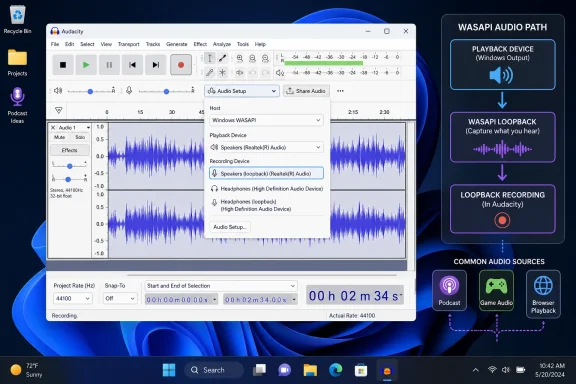
When Audacity is set to WASAPI, the recording device list changes. Instead of only physical inputs, users can see playback devices labeled with loopback. These entries represent the audio being sent to speakers, headphones, HDMI displays, USB DACs, or other outputs.
This is where many failed recordings begin. Selecting “Speakers” without “loopback” may not capture system audio at all, depending on the host and device. Selecting the wrong loopback endpoint will also produce silence, even if a YouTube video, game, or call is clearly audible through another output.
The practical benefits are significant:
Once Audacity is installed, open the program and locate the Audio Setup area. In current versions, this is usually presented as a toolbar menu; in older layouts, the audio host may appear as a separate dropdown. The important change is to switch the host from MME or DirectSound to Windows WASAPI.
Users should also start the source audio before or immediately after pressing record. Some configurations may not provide an active stream until audio is actually playing. If the waveform stays flat, the first diagnosis should be simple: confirm that Windows is sending sound to the same endpoint Audacity is trying to capture.
Windows volume, app volume, Audacity’s meter behavior, and output-device settings can all shape the result. For clean recordings, users should avoid pushing levels into distortion. A waveform that looks like a solid block at the top and bottom is a warning sign, not a success.
Export choice matters as well. Audacity’s project file is useful for editing, but it is not the same as a shareable audio file. Users should export to a standard format when they want to use the recording elsewhere.
Good export choices include:
Open Windows sound output controls and confirm where audio is actually going. Then return to Audacity and choose the matching loopback device. If sound is playing through Bluetooth headphones, selecting laptop speakers loopback will not capture it.
Try these checks:
Go to Windows privacy settings, open the microphone section, and make sure desktop apps are allowed to access recording features. Then restart Audacity. It is a small step, but it can save users from blaming drivers that are working normally.
Stereo Mix is worth checking because it costs nothing and may already be present. Pressing the classic Run command for the old Sound dialog and opening the Recording tab can reveal hidden devices. Right-clicking in the list and showing disabled or disconnected devices may expose Stereo Mix on systems where the driver still supports it.
Virtual audio cables are the next fallback. A virtual cable creates a software playback device and a matching recording device. Windows sends audio into the cable, and Audacity records from the cable’s output side.
That method is powerful but less convenient:
Organizations, however, need clearer rules than individual users. Recording a meeting, lecture, webinar, or customer call may trigger consent requirements, internal policy obligations, or data-retention concerns. The technology may be simple, but the governance around it is not.
Recommended enterprise practices include:
The method works for many everyday scenarios: saving a short audio reference, capturing gameplay sound, recording a podcast segment for personal notes, grabbing browser audio for editing practice, or preserving a voice memo played through a web app. The workflow is lightweight, and once configured, it becomes a repeatable two-click process.
For casual creators, Audacity’s editing features are a bonus. After recording, users can trim silence, normalize volume, apply compression, fade in and out, or export multiple formats. That means the same free tool handles both capture and cleanup.
Useful consumer scenarios include:
OBS is excellent for video capture and livestreaming, but it can feel excessive if the goal is only to record internal audio. Professional DAWs are powerful, but they introduce complexity and cost. Browser extensions can be convenient, but they may be limited to one tab or raise trust concerns.
The competitive comparison looks like this:
Streaming services, meetings, games, online classes, and paid media may have rules against recording or redistribution. Even when personal recording is technically possible, sharing the file can create copyright, contract, privacy, or workplace-policy problems. The safest approach is to treat system audio capture as a production tool, not a loophole.
Responsible habits include:
Audacity also continues to evolve, and its interface changes matter because small wording differences can confuse tutorials. A menu labeled “Audio Setup” is easier for beginners than a row of unexplained host and device dropdowns. The clearer these tools become, the more likely ordinary users are to choose safe, legitimate recording workflows instead of risky download sites.
Watch for:
Windows 11 may not make internal audio recording obvious, but the capability is there for anyone willing to select the right host and the right loopback device. Audacity turns that hidden path into a practical, free workflow that covers most everyday recording needs with professional enough quality for serious projects. The best long-term outcome would be a Windows audio experience that explains these options clearly, but until that arrives, WASAPI loopback in Audacity is the setting every Windows 11 audio user should know.
Source: H2S Media How to Record Windows 11 Internal Audio with Audacity for Free
 Background
Windows users once relied on Stereo Mix, a virtual recording input that exposed the computer’s own playback as a recordable source. In the Windows XP and Windows 7 era, it was common to open the Recording tab, enable Stereo Mix, choose it in an audio editor, and capture whatever was coming through the speakers. It was not elegant, but it was visible enough for hobbyists, students, and creators to understand.That convenience faded as modern laptops and desktops moved to newer driver stacks from Realtek, Intel, OEM vendors, and USB audio device makers. On many Windows 11 systems, Stereo Mix is either disabled, buried, or absent entirely. Users who open the modern Settings app often see only a microphone, headset input, or webcam mic, which makes Windows appear less capable than it actually is.
The gap matters because internal audio recording is now a mainstream need. Remote learning, podcasting, transcription, gameplay capture, livestream preparation, and short-form video editing all depend on clean audio. Capturing sound through a room microphone is rarely acceptable because it adds echo, fan noise, keyboard clicks, and speaker distortion.
The hidden Windows audio path
The key is WASAPI, short for Windows Audio Session API. It is not a consumer-facing button, but it is part of the Windows audio architecture and is available to applications that know how to use it. Audacity exposes that capability through its audio host selector, and when WASAPI is active, compatible playback devices can appear again as recordable loopback inputs.Loopback does not mean the computer records sound after it leaves the speakers. It captures the digital playback stream routed to the selected output device. That distinction is crucial: the recording can be clean, direct, and free from room noise, provided the right output device is selected.
Why Windows 11 Makes Internal Audio Recording Feel Hidden
Windows 11 has a polished Settings interface, but its audio controls remain split between modern menus and legacy Control Panel dialogs. Users can change speakers and microphones quickly, yet advanced recording behavior still lives behind older concepts such as recording devices, driver capabilities, sample formats, and privacy permissions. This mismatch makes internal audio capture feel more difficult than it should.The problem is not that Windows 11 cannot record its own audio. The problem is that Microsoft does not present system playback capture as a simple, universal feature for consumers. The built-in Sound Recorder app focuses on microphones, not speaker output, so users assume they need a premium app or a complicated driver.
The Stereo Mix hangover
Stereo Mix still exists on some systems, but its availability depends heavily on hardware drivers. If the manufacturer exposes it, users can often enable it from the old Sound control panel. If the driver does not include it, no amount of clicking “Show disabled devices” will make it appear.That inconsistency creates a support nightmare. Two Windows 11 laptops sitting side by side may show different recording options even when both use Realtek audio hardware. OEM customization, driver age, audio enhancement suites, and Bluetooth behavior can all alter what the user sees.
Common roadblocks include:
- Stereo Mix missing from the Recording tab entirely.
- Microphone-only recording in apps that do not expose loopback.
- Silent waveforms when the wrong playback endpoint is selected.
- Privacy permissions blocking desktop apps from audio capture.
- Bluetooth device switching when a headset microphone becomes active.
- Driver enhancements changing the sound before it reaches the recording path.
Audacity and WASAPI: The Free Route That Still Works
Audacity remains one of the most accessible tools for this job because it is free, open source, cross-platform, and familiar to many audio users. On Windows, its advantage is not only editing power but also its ability to choose different audio hosts. The default host may work for microphones, but Windows WASAPI is the important choice for internal audio.When Audacity is set to WASAPI, the recording device list changes. Instead of only physical inputs, users can see playback devices labeled with loopback. These entries represent the audio being sent to speakers, headphones, HDMI displays, USB DACs, or other outputs.
What loopback actually captures
A loopback device captures the output of a specific Windows playback endpoint. If audio is playing through laptop speakers, the user must choose the speakers loopback. If sound is routed through headphones, the headphones loopback is the correct target.This is where many failed recordings begin. Selecting “Speakers” without “loopback” may not capture system audio at all, depending on the host and device. Selecting the wrong loopback endpoint will also produce silence, even if a YouTube video, game, or call is clearly audible through another output.
The practical benefits are significant:
- No paid plug-ins are required.
- No virtual cable is needed for most systems.
- No analog re-recording through a microphone is involved.
- No room noise contaminates the track.
- No physical cable loop is necessary between headphone and microphone jacks.
- No third-party recorder has to be trusted with broad system access.
Step-by-Step Setup in Audacity
The setup is short, but the order matters. Users should first install Audacity from the official project distribution channels or a trusted app store listing. Avoiding random download portals is not paranoia; audio tools are popular enough that fake installers and bundled adware have repeatedly targeted users looking for free software.Once Audacity is installed, open the program and locate the Audio Setup area. In current versions, this is usually presented as a toolbar menu; in older layouts, the audio host may appear as a separate dropdown. The important change is to switch the host from MME or DirectSound to Windows WASAPI.
The exact sequence
A reliable setup looks like this:- Open Audacity.
- Go to Audio Setup.
- Change the audio host to Windows WASAPI.
- Open the recording device list.
- Choose the playback device that ends in loopback.
- Set recording channels to 2 Stereo.
- Start playback from the app, browser, game, or call.
- Press Record and confirm that a waveform appears.
- Stop the recording when finished.
- Export to a usable audio format such as WAV, MP3, or FLAC.
Choosing stereo correctly
For most internal audio, 2-channel stereo is the right choice. Music, videos, games, and streaming content are usually mixed in stereo, and collapsing them to mono can make the recording sound narrower or unbalanced. Mono is acceptable for voice-only material, but it is rarely the best default for general desktop audio capture.Users should also start the source audio before or immediately after pressing record. Some configurations may not provide an active stream until audio is actually playing. If the waveform stays flat, the first diagnosis should be simple: confirm that Windows is sending sound to the same endpoint Audacity is trying to capture.
Getting Clean Levels and Reliable Files
A successful recording is not only about getting a waveform. It is about avoiding clipping, unwanted system sounds, low volume, sample-rate mismatches, and file formats that create problems later. The best results come from treating the process like a small production workflow rather than a panic button.Windows volume, app volume, Audacity’s meter behavior, and output-device settings can all shape the result. For clean recordings, users should avoid pushing levels into distortion. A waveform that looks like a solid block at the top and bottom is a warning sign, not a success.
Sample rate and format choices
For spoken-word content, web audio, podcasts, and most music capture, 44.1 kHz or 48 kHz is usually enough. Video creators should favor 48 kHz, because that is the standard rate in most video workflows. Matching the project rate reduces the chance of long recordings drifting out of sync.Export choice matters as well. Audacity’s project file is useful for editing, but it is not the same as a shareable audio file. Users should export to a standard format when they want to use the recording elsewhere.
Good export choices include:
- WAV for uncompressed quality and future editing.
- FLAC for lossless compression and archival storage.
- MP3 at 192 kbps for compact, widely compatible spoken-word files.
- MP3 at 320 kbps when file size is less important than perceived quality.
- 48 kHz WAV for video editing timelines.
- 44.1 kHz WAV or FLAC for music-oriented workflows.
Troubleshooting Silent or Distorted Recordings
The most common failure is the flat waveform. In nearly every beginner case, Audacity is listening to the wrong input, the wrong output device is active in Windows, or no audio is playing through the selected endpoint. The fix is usually faster than the diagnosis feels.Open Windows sound output controls and confirm where audio is actually going. Then return to Audacity and choose the matching loopback device. If sound is playing through Bluetooth headphones, selecting laptop speakers loopback will not capture it.
Practical fixes before reinstalling anything
Before changing drivers or installing virtual audio utilities, work through the basics. Many users jump to advanced fixes when the problem is simply a mismatched device name. Windows 11’s audio routing is flexible, but that flexibility means apps may output sound to different places.Try these checks:
- Confirm the recording device name includes loopback.
- Make sure the selected loopback matches the active playback device.
- Start audio playback before judging whether recording works.
- Set Audacity recording channels to 2 Stereo.
- Restart Audacity after changing devices.
- Close apps that may seize exclusive control of the audio device.
- Check Windows microphone privacy settings for desktop app access.
When permissions get involved
Windows privacy controls can complicate matters because loopback capture may still be treated like recording access by the operating system. If microphone permissions are disabled globally, a desktop audio workflow can fail even though the user is not trying to record a physical microphone. This is unintuitive, but it is worth checking.Go to Windows privacy settings, open the microphone section, and make sure desktop apps are allowed to access recording features. Then restart Audacity. It is a small step, but it can save users from blaming drivers that are working normally.
Backup Methods: Stereo Mix and Virtual Audio Cables
WASAPI loopback should be the first method for most Windows 11 users, but it is not the only method. Some older or unusual audio setups behave better with Stereo Mix. Others require a virtual audio cable when the hardware driver, output device, or app routing model gets in the way.Stereo Mix is worth checking because it costs nothing and may already be present. Pressing the classic Run command for the old Sound dialog and opening the Recording tab can reveal hidden devices. Right-clicking in the list and showing disabled or disconnected devices may expose Stereo Mix on systems where the driver still supports it.
When Stereo Mix still makes sense
If Stereo Mix appears, enabling it creates a familiar recording input. In Audacity, users can switch the host back to MME or DirectSound and choose Stereo Mix as the recording source. This approach is older, but on some Realtek-based desktops it remains dependable.Virtual audio cables are the next fallback. A virtual cable creates a software playback device and a matching recording device. Windows sends audio into the cable, and Audacity records from the cable’s output side.
That method is powerful but less convenient:
- It may require changing the system playback device.
- It can stop the user from hearing audio unless monitoring is configured.
- It adds another software layer to troubleshoot.
- It may confuse meeting apps and games with custom audio settings.
- It can introduce routing mistakes if multiple virtual devices are installed.
- It is overkill for users who only need occasional browser or podcast capture.
Enterprise, Education, and Creator Workflows
Internal audio capture is not just a hobbyist trick. In enterprise and education settings, it can support training material, accessibility workflows, compliance review, localization, and internal knowledge capture. The same method that records a browser clip at home can also help a trainer create clean narration examples from approved media.Organizations, however, need clearer rules than individual users. Recording a meeting, lecture, webinar, or customer call may trigger consent requirements, internal policy obligations, or data-retention concerns. The technology may be simple, but the governance around it is not.
Policy matters more than the tool
For IT teams, the takeaway is that Audacity is not inherently risky simply because it can record system audio. The real question is whether users understand what they are capturing, where files are stored, and whether the content includes protected, confidential, or copyrighted material. A free tool can still create a sensitive file.Recommended enterprise practices include:
- Define when system audio recording is allowed.
- Require consent for meetings and calls where applicable.
- Store recordings in approved locations rather than personal folders.
- Train users to avoid capturing notifications or unrelated apps.
- Standardize sample rates and formats for production teams.
- Document whether Audacity is approved, managed, or blocked.
- Keep installers sourced from trusted distribution channels.
Consumer Impact: From Podcasts to Game Audio
For home users, the appeal is immediate. Audacity plus WASAPI loopback turns Windows 11 into a capable internal audio recorder without asking users to install a full broadcasting suite. It is especially useful for people who need a clean clip quickly and do not want to configure scenes, sources, encoders, or streaming profiles.The method works for many everyday scenarios: saving a short audio reference, capturing gameplay sound, recording a podcast segment for personal notes, grabbing browser audio for editing practice, or preserving a voice memo played through a web app. The workflow is lightweight, and once configured, it becomes a repeatable two-click process.
Why creators should care
Creators often underestimate audio until it ruins a project. A screen recording with weak sound, distorted volume, or background echo feels amateur even if the visuals are sharp. Direct digital capture gives editors a cleaner starting point.For casual creators, Audacity’s editing features are a bonus. After recording, users can trim silence, normalize volume, apply compression, fade in and out, or export multiple formats. That means the same free tool handles both capture and cleanup.
Useful consumer scenarios include:
- Recording game audio separately for later mixing.
- Capturing browser playback for personal editing workflows.
- Saving podcast excerpts for notes or analysis where permitted.
- Creating sound references for video projects.
- Recording app audio for troubleshooting demonstrations.
- Capturing voice-call audio only when consent and rules allow it.
Competitive Landscape: Why Free Still Matters
The market for audio and screen recording software is crowded. OBS Studio, commercial screen recorders, DAWs, transcription suites, meeting platforms, and browser extensions all offer pieces of the same puzzle. Yet Audacity remains relevant because it solves a narrow problem with minimal overhead.OBS is excellent for video capture and livestreaming, but it can feel excessive if the goal is only to record internal audio. Professional DAWs are powerful, but they introduce complexity and cost. Browser extensions can be convenient, but they may be limited to one tab or raise trust concerns.
Audacity’s advantage
Audacity’s advantage is transparency and focus. Users can see the waveform immediately, edit destructively or non-destructively depending on workflow, and export to common formats. It does not force a subscription or bury basic recording behind a paid tier.The competitive comparison looks like this:
- Audacity is best for free audio-only capture and editing.
- OBS Studio is best when video and multiple sources matter.
- Virtual cable tools are best for complex routing.
- Commercial recorders are best when support, templates, and automation matter.
- DAWs are best for music production and multitrack mixing.
- Meeting apps are best for authorized meeting recordings with participant indicators.
Privacy, Copyright, and Etiquette
Internal audio recording is technically easy, but it is not ethically automatic. Users should distinguish between recording audio they created, audio they are permitted to save, and audio that belongs to someone else. The same clean capture path can be used responsibly or carelessly.Streaming services, meetings, games, online classes, and paid media may have rules against recording or redistribution. Even when personal recording is technically possible, sharing the file can create copyright, contract, privacy, or workplace-policy problems. The safest approach is to treat system audio capture as a production tool, not a loophole.
Record responsibly
The most important principle is consent. If a call includes other people, they should know when recording is happening. If a clip comes from copyrighted media, users should understand whether their use is personal, educational, transformative, licensed, or prohibited.Responsible habits include:
- Ask permission before recording calls or meetings.
- Avoid capturing private notifications or unrelated conversations.
- Do not redistribute copyrighted audio without rights or a valid exception.
- Keep sensitive recordings in secure folders.
- Delete temporary captures when they are no longer needed.
- Use clear filenames so recordings are not mistaken for original work.
- Separate personal experiments from publishable project assets.
Strengths and Opportunities
The biggest strength of the Audacity and WASAPI method is that it uses capabilities already present on many Windows 11 systems. It turns an obscure audio API into a practical workflow for ordinary users, while preserving quality and avoiding unnecessary software purchases. For creators, educators, support technicians, and hobbyists, that combination of free access, clean capture, and basic editing is hard to beat.- Zero-cost setup makes high-quality internal audio recording accessible.
- WASAPI loopback avoids microphone noise and analog degradation.
- Audacity editing tools allow trimming, amplification, fades, and cleanup after capture.
- Stereo recording preserves the character of music, games, and video playback.
- Standard exports such as WAV, MP3, and FLAC fit most workflows.
- Minimal installation footprint reduces complexity compared with full production suites.
- Repeatable configuration turns future recordings into a quick routine.
Risks and Concerns
The risks come from inconsistency, not from the core method itself. Windows 11 audio routing depends on drivers, endpoints, privacy settings, Bluetooth profiles, app volume settings, and enhancements. A user following the right steps can still hit silence if the wrong output device is active or if the driver exposes unusual behavior.- Device confusion can lead to flat recordings.
- Notifications and alerts can contaminate otherwise clean captures.
- Audio enhancements may permanently color the recorded sound.
- Bluetooth headsets can change profiles and reduce quality during microphone use.
- Privacy settings may block recording access unexpectedly.
- Copyright and consent issues can arise when recording protected or private content.
- Virtual cables can complicate routing for users who do not need them.
What to Watch Next
Windows audio is slowly modernizing, but internal recording remains a power-user workflow rather than a simple Windows feature. Microsoft continues to improve parts of the Windows 11 sound experience, especially around device handling, Bluetooth audio, and settings integration. Still, there is no broad consumer-facing “record system audio” switch that explains itself in plain language.Audacity also continues to evolve, and its interface changes matter because small wording differences can confuse tutorials. A menu labeled “Audio Setup” is easier for beginners than a row of unexplained host and device dropdowns. The clearer these tools become, the more likely ordinary users are to choose safe, legitimate recording workflows instead of risky download sites.
Practical signals to monitor
The next wave of improvements should focus less on raw capability and more on clarity. Users do not need another hidden subsystem; they need predictable routing, plain-language labels, and warnings when they are about to record the wrong device.Watch for:
- Better Windows 11 audio routing controls in Settings.
- Clearer Audacity interface labels for WASAPI loopback.
- Improved Bluetooth LE Audio behavior for creators and gamers.
- More granular privacy controls for desktop recording apps.
- Greater pressure on screen-recording tools to include clean audio-only modes.
Windows 11 may not make internal audio recording obvious, but the capability is there for anyone willing to select the right host and the right loopback device. Audacity turns that hidden path into a practical, free workflow that covers most everyday recording needs with professional enough quality for serious projects. The best long-term outcome would be a Windows audio experience that explains these options clearly, but until that arrives, WASAPI loopback in Audacity is the setting every Windows 11 audio user should know.
Source: H2S Media How to Record Windows 11 Internal Audio with Audacity for Free
