

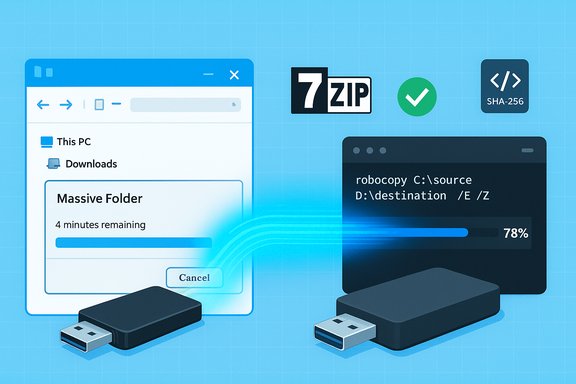
Windows’ built‑in copy (File Explorer) is fine for moving a handful of screenshots or a few documents, but when the job turns into hundreds of gigabytes, thousands of files, or multi‑GB single files the familiar drag‑and‑drop becomes a liability: slow, flaky, and often opaque about what actually finished and what didn’t. The practical alternative many power users and IT pros rely on is a mix of command‑line tools (notably Robocopy), smart compression (7‑Zip), and better copy utilities (TeraCopy / FastCopy / FreeFileSync) — workflows that trade a little learning for far more reliable, verifiable, and faster transfers. This article pulls the common claims apart, verifies key technical points with independent sources, explains robust workflows step‑by‑step, and highlights risks to watch for so you don’t accidentally erase or corrupt irreplaceable data.
File Explorer’s copy system is designed for daily desktop convenience: drag, drop, and a progress bar. That same convenience becomes a problem at scale because Explorer:
robocopy "C:\Source" "D:\Destination" /Z /MT:16 /R:3 /W:5 /V /LOG:"C:\logs\robocopy.log"
Robocopy’s /MT parameter accepts a broad range (start testing with /MT:8 or /MT:16 and tune based on CPU/disk behavior); community guidance notes the default when /MT is used without a number is 8, and the switch accepts up to 128 threads on modern systems. /Z enables restartable transfers for unreliable networks.
Source: How-To Geek Why I don’t trust Windows copy for big files—and what I use instead now
 Background / Overview
File Explorer’s copy system is designed for daily desktop convenience: drag, drop, and a progress bar. That same convenience becomes a problem at scale because Explorer:- Attempts to enumerate and estimate the entire job before and during transfer, which stalls or misreports progress on very large directories.
- Lacks robust, automatic retry and resume semantics for large interrupted transfers.
- Does not verify file integrity with checksums after a write, meaning silent bit‑level corruption (rare but real) can go undetected.
- Is single‑threaded and chatty when faced with thousands of small files, making transfers far slower than they need to be.
Why Windows Explorer struggles with large transfers
Explorer’s pre‑calculation and progress illusion
When you start a large copy, Explorer will often spend time “Calculating time remaining” and freeze on that message for long periods. That pause happens because Explorer tries to enumerate total file sizes and counts to build its progress estimate; on very large directory trees that enumeration itself can be expensive. The progress indicator that follows uses short‑term throughput samples rather than a sustained average, so its ETA jumps wildly. This isn’t merely annoying — it’s inefficient and can make you believe a transfer is stalled when the underlying I/O is just busy with metadata tasks.Error handling: single blocked file → entire job waits
Explorer’s copy often pauses or prompts the user when a single file is locked or unreadable. For thousands of items this means manual intervention (or a cancelled transfer) when a better tool would retry automatically, skip the file and log the error, or resume after a transient failure. Command‑line tools let you configure retries, wait intervals, and error logging up front.No built‑in checksum verification
Explorer assumes a successful write equals integrity. It does not compute and compare checksums after copying, so bit‑rot or transient write errors at the block level might go unnoticed. For routine consumer files this risk is low — but for backups, media masters, or archive collections it’s unacceptable. That’s why power users insist on explicit verification steps as part of any large transfer workflow.The practical alternatives: what works and when
Robocopy — the built‑in “robust file copy”
Robocopy (Robust File Copy) ships with Windows and is the standard for scripted, repeatable, resilient transfers. Its core strengths:- Resumeable copies via /Z (restartable mode).
- Multithreading with /MT to run multiple file copy workers in parallel, which dramatically improves throughput for many small files.
- Extensive retry and wait options (/R and /W).
- Mirroring and attribute preservation (/MIR, /COPY:flags).
- Logging and verbose output (/LOG, /V).
robocopy "C:\Source" "D:\Destination" /Z /MT:16 /R:3 /W:5 /V /LOG:"C:\logs\robocopy.log"
Robocopy’s /MT parameter accepts a broad range (start testing with /MT:8 or /MT:16 and tune based on CPU/disk behavior); community guidance notes the default when /MT is used without a number is 8, and the switch accepts up to 128 threads on modern systems. /Z enables restartable transfers for unreliable networks.
Compression‑then‑copy: turn many small files into one fast stream
For thousands of tiny files the best performance gain often comes not from the copy tool alone, but from changing the problem: create one large archive locally (7‑Zip recommended) and copy that single file. This reduces metadata chatter and converts many random reads/writes to a sequential stream, which is much faster over network links and slower disks.- Recommended archive tool: 7‑Zip (7z + LZMA2) for best size and optional AES‑256 encryption.
- Workflows commonly use 7‑Zip to create a single archive and then Robocopy’s /MT to move that archive, followed by extraction on the destination.
GUI helpers for manual jobs
If you prefer a GUI but want better behavior than Explorer:- TeraCopy — integrates with Explorer, supports pause/resume, retries, and error handling; good for casual but robust local copies.
- FastCopy — super‑fast for lots of small files, strong verification options.
- FreeFileSync / GoodSync — for scheduled or two‑way syncs with versioning and GUI controls.
Step‑by‑step: a battle‑tested workflow for large, critical transfers
Below is a robust procedure for moving multi‑GB or TB datasets with a focus on reliability and verifiability.- Prepare and test locally
- Pause cloud sync clients (OneDrive, Dropbox) and any antivirus real‑time scanning temporarily (note the security risk — re‑enable after).
- Check destination file system: NTFS (or exFAT) for files >4 GB; FAT32 will choke at 4 GB.
- Option A — Many small files: compress first
- Use 7‑Zip: Archive format = 7z, Method = LZMA2, Compression level = Normal/Ultra as appropriate; enable AES‑256 if needed.
- Split volumes if you must fit upload limits (7‑Zip supports this).
- Copy the archive file with Robocopy: robocopy "C:\Temp" "D:\Backup" Archive.7z /Z /MT:16 /LOG:robocopy.log.
- Option B — Large single files or non‑compressible media
- If it’s a big video or VM image, use Robocopy directly with /Z and a tested /MT value: robocopy "C:\Source" "D:\Dest" video.mkv /Z /MT:8 /R:3 /W:5 /LOG:copy.log.
- For extremely large network copies consider mapping a network drive and running Robocopy locally on the machine with both source and destination visible.
- Verify integrity
- Use PowerShell’s Get-FileHash to create SHA‑256 hashes at the source and destination:
- On source: Get-FileHash -Path "C:\Source\Archive.7z" -Algorithm SHA256 | Format-List
- On destination: Get-FileHash -Path "D:\Backup\Archive.7z" -Algorithm SHA256 | Format-List
- Compare the hex results; they must match. This explicit checksum step is the safety net Explorer omits. Community guides strongly recommend always verifying checksums for critical data.
- Logging and dry runs
- Use /LOG and /L (list only) in Robocopy for a safe dry run to see what would happen before actually running.
- Keep logs for each operation so you can later audit what files failed, retried, or were skipped.
Robocopy flags explained (practical cheat‑sheet)
- /Z — restartable mode (good for network transfers).
- /MT:n — multi‑threaded copy with n threads (1–128). Start with /MT:8 or /MT:16 and monitor.
- /MIR — mirror source to destination (be careful; this deletes files in destination that no longer exist in source).
- /R:n — retry count on failed copies; default is 1 million (set a sane value, e.g., /R:3).
- /W:n — wait seconds between retries.
- /LOG:file — write detailed log.
- /V — verbose output.
Verification tools and methods
- PowerShell Get-FileHash (SHA256/SHA1/MD5) — simple, built into Windows.
- 7‑Zip’s “Test” or “Test archive” feature — verifies internal archive integrity after compression.
- Third‑party hash GUIs (HashCheck, HashTab) or scripts that compute and compare sets of hashes for large batches.
- For one‑way syncs consider FreeFileSync’s verification options or rsync (via WSL) for delta and verification capabilities. These are standard practices in community how‑tos.
Hardware and file system realities that impact transfer speed
- Use USB 3.x or Thunderbolt ports for external drives; USB 2.0 will throttle you badly (USB 3.0 ≈ 5 Gbps, USB 2.0 ≈ 480 Mbps). Verify port capabilities in Device Manager.
- SSD vs HDD: NVMe SSDs can reach several GB/s, while spinning HDDs often top out near 80–160 MB/s. If you move large datasets regularly, use SSDs for source/destination or at least for staging the archive.
- File system: FAT32 limits single files to 4 GB — convert to NTFS or exFAT for large files.
GUI alternatives and when to pick them
- TeraCopy — Ideal for desktop users who want a drop‑in replacement for Explorer’s copy: pause/resume, skip/continue on errors, shell integration. Best for local manual copies.
- FastCopy — Very fast and lightweight, especially for many small files; offers verification options.
- FreeFileSync / GoodSync — Best for scheduled two‑way syncs, versioning, and GUI control for repeated backup jobs.
- GS RichCopy 360 (paid) — Enterprise features including robust multi‑threaded network copies with GUI.
Risks, gotchas and practical cautions
- /MIR is dangerous if mispointed: Mirror operations delete destination files. Always dry‑run with /L and inspect logs.
- Multithreading tradeoffs: /MT improves throughput on SSDs and networks but can thrash older HDDs; start with smaller thread counts and monitor CPU/disk queue depth.
- Disabling AV is risky: Temporarily turning off antivirus can speed copying but exposes you to threats. Only do this with trusted data and re‑enable protection immediately. Community posts consistently warn about this trade‑off.
- Checksum verification is non‑optional for critical data: Don’t assume a finished copy equals a correct copy. Always produce and compare hashes for important archives.
- Cloud sync interference: Keep OneDrive/Dropbox paused during heavy local transfers to avoid repeated I/O and conflicts. For very large cloud migrations use an official migration tool or use the sync client rather than browser uploads.
When you should still use Explorer (and when you shouldn’t)
Use Explorer when:- The job is small (a few folders or files).
- You need simple visual feedback and don’t want to learn command syntax.
- Compatibility is the priority for non‑technical recipients.
- You’re moving hundreds of gigabytes, terabytes, or thousands of small files.
- You need restartable or unattended transfers overnight.
- Data integrity and verification matter (backups, masters, archives).
Concrete example: compress + Robocopy + verify (complete script)
- Create archive with 7‑Zip GUI or:
7z a -t7z -m0=lzma2 -mx=9 Archive.7z "C:\Source*" - Copy with Robocopy (multithreaded, restartable, log):
robocopy "C:\Temp" "D:\Backup" "Archive.7z" /Z /MT:16 /R:3 /W:5 /V /LOG:"C:\logs\robocopy_archive.log" - Verify hashes (PowerShell):
$src = (Get-FileHash "C:\Temp\Archive.7z" -Algorithm SHA256).Hash
$dst = (Get-FileHash "D:\Backup\Archive.7z" -Algorithm SHA256).Hash
if ($src -eq $dst) { "OK: Hashes match" } else { "ERROR: Hash mismatch" }
Final analysis — strengths and where to be careful
Strengths of the command‑line/compress approach:- Speed: Multithreading and single‑stream transfers eliminate Explorer’s metadata overhead for many small files.
- Resilience: Robocopy’s restartable mode and retry settings mean transfers survive flaky networks and transient locks.
- Verifiability: Checksums and logs give you a provable audit trail that a copy completed correctly — essential for backups and archives.
- Learning curve: Mistyped flags (especially /MIR) can delete data. Test with /L and logs first.
- Hardware limits: No software will magically beat a slow USB 2.0 port or a spinning HDD bottleneck; use appropriate hardware.
- Rare corruption cases: Silent bit‑level corruption is uncommon but real; only checksum verification eliminates that risk. If you’re copying archival masters, assume that verification is required.
- Claims that Windows Explorer “always corrupts” large files are exaggerated; reports of corruption are rare and often caused by hardware, faulty cables, or failing drives rather than Explorer itself. The practical and verifiable claim is that Explorer does not provide checksum verification and has weaker retry/resume behavior than specialized tools — and those are the reasons professionals avoid it for big jobs. Treat absolute claims of “always corrupts” with skepticism unless accompanied by logs or hash comparisons.
Conclusion
For everyday, small transfers Explorer is convenient and fine. For anything that matters — backups, media masters, migrations, or tasks that run unattended — the Windows command line (Robocopy), a compress‑first approach with 7‑Zip, or a vetted third‑party copy utility will save time, reduce frustration, and, importantly, let you prove that a copy completed correctly. Learn how to dry‑run, log, checksum, and tune /MT for your hardware: a few hours of setup and testing will repay you many times over in reliability and speed. The community consensus is clear: if you regularly move large datasets, don’t trust Explorer as a final‑answer tool — use the right tool for the scale of the job.Source: How-To Geek Why I don’t trust Windows copy for big files—and what I use instead now
