

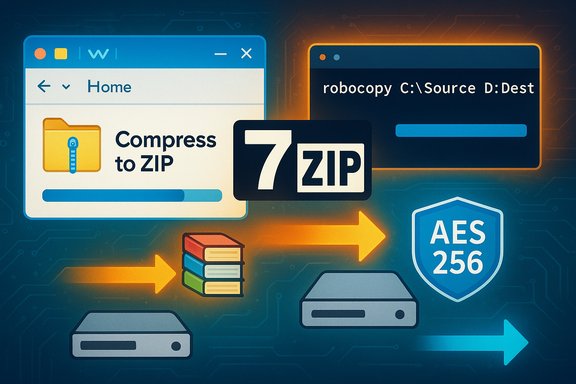
Windows 11 now gives casual users and power users alike a practical, zero‑install option for compressing files — but the real improvement for large transfers lies in choosing the right archive format, pairing compression with tuned copy methods, and understanding where third‑party tools still matter. This guide explains exactly how to zip and unzip on Windows 11, breaks down when built‑in compression is sufficient, and walks through the pro workflows (7‑Zip, split archives, Robocopy) that save time and bandwidth when moving very large files or thousands of small items. It also flags the security and compatibility trade‑offs you must weigh before pressing Compress.
Background / Overview
Windows has supported ZIP archives for decades, but recent updates to Windows 11 expanded File Explorer’s archive handling and made creating archives from the right‑click menu more convenient. The OS provides a familiar, zero‑install path for quick compression tasks while still leaving advanced features — AES encryption, fine compression tuning, multi‑part splitting and recovery records — to third‑party archivers. These distinctions are intentional: native ZIP favors broad compatibility and simplicity, whereas dedicated archivers prioritize compression ratio, security, and workflow control.Windows’ built‑in compressor uses the ZIP/Deflate method for maximum compatibility and fast decompression on other machines. It’s an excellent choice for quick attachments and one‑off sharing, but it lacks native creation of AES‑encrypted archives and advanced multi‑threaded compression controls. For backups, secure archives, or transfers that must be split into chunks, third‑party tools remain the practical solution.
How to zip and unzip on Windows 11 — the quick built‑in way
If your goal is fast and hassle‑free compression on a Windows 11 PC, File Explorer covers the basics without installing anything.Zip (compress) a file or folder
- Navigate to the file or folder in File Explorer.
- Right‑click the item and choose Compress to > ZIP file (or the classic Send to → Compressed (zipped) folder path).
- Windows creates a .zip file with the same name; right‑click → Rename to change it.
Unzip (extract) a ZIP file
- Right‑click the ZIP and choose Extract All. Select a destination and click Extract.
- Alternatively, open the ZIP in File Explorer and drag individual files out; the OS will extract only those items. For program executables or software installers inside archives, it’s safest to extract the entire archive to preserve supporting files.
When the built‑in ZIP is enough (and when it’s not)
Windows’ native compressor is ideal for:- Quick email attachments, single folders, or sharing with non‑technical recipients.
- Situations where compatibility is the priority and recipients expect a .zip file.
- Avoiding extra installs on locked-down or corporate devices.
- Creating AES‑256 encrypted archives — the built‑in tool can’t make strongly encrypted archives.
- Achieving the smallest possible archive for backups of large datasets or many text files.
- Splitting archives into multi‑part volumes for upload limits or reassembly.
- Fine control over compression method, dictionary size, or solid compression behavior.
Third‑party archivers: what they add and when to use them
Third‑party tools like 7‑Zip, WinRAR, PeaZip, and Bandizip extend Windows’ basic abilities with options essential for large or sensitive datasets.- 7‑Zip: Offers the 7z format with LZMA/LZMA2 compression, multi‑threading, AES‑256 encryption, and volume splitting. It is free and open source, making it the top recommendation when size and security matter.
- WinRAR: Known for speed, robust features, and recovery records that can reconstruct damaged archives — useful for transferring over unreliable links or for archival resilience. RAR creation is proprietary and typically requires a licensed copy for full functionality.
- PeaZip and Bandizip: Good alternatives with modern UIs and security features (PeaZip supports AES‑256 and other secure options). They provide friendly GUIs for encryption, splitting, and format conversion.
- Use ZIP (built‑in) for maximum compatibility and lowest friction.
- Use 7‑Zip (7z + LZMA2 + AES‑256) for backups, secure archives, or when you need the best compression ratio.
- Use WinRAR when speed and recovery features are paramount or when your workflow uses RAR parts and you are okay with proprietary licensing.
7‑Zip: practical settings and trade‑offs
7‑Zip offers many knobs that affect size, time, and memory. Here are reliable starting points for large archives:- Archive format: 7z (best size) or zip (if recipients cannot use 7‑Zip).
- Compression level: Ultra / Maximum for smallest size (CPU‑heavy); Normal for balance.
- Method: LZMA2 (better multi‑core scaling than LZMA).
- Dictionary size: Increase for better compression on very large datasets, but watch RAM consumption on both compress and extract.
- Solid compression: Enables better ratios for many small files, but increases extraction time for individual files — use for backups, not archives you’ll frequently open.
- Encryption: AES‑256 (available in 7‑Zip) — set a strong password and, if possible, transmit the password over a different channel than the archive.
- Splitting: Use the Split to volumes, bytes field to create multi‑part archives (e.g., 2G, 700M, 100M) when you must respect size limits. Recipients extract from the first part once all parts are present.
The pro workflow for moving very large datasets: compress first, then copy
When moving thousands of small files or terabytes between drives or over a network, the most reliable throughput improvement often comes from creating a single large archive locally and copying that single file. This transforms many costly metadata operations into a single sequential read/write and lets optimized copy tools move a single stream efficiently.Practical sequence:
- Create the archive locally on the fastest available drive (ideally an SSD). Use 7‑Zip with LZMA2 and the compression level you chose.
- Pause cloud sync clients (OneDrive, Dropbox) and stop heavy background tasks to reduce extra I/O.
- Copy the archive with Robocopy using multi‑threading:
- Example command:
robocopy "C:\Temp" "D:\Backup" Archive.7z /Z /MT:16 /LOG:robocopy.log - Use /Z for restartable mode and /MT for multi‑threading. /MT accepts values from 1–128; common starting points are /MT:8 or /MT:16 and then tune upward until you see diminishing returns or disk thrashing.
- Example command:
- Reduces per‑file metadata churn over the network or between drives.
- Enables parallelized transfer without re‑reading thousands of separate files.
- Simplifies error handling: test‑extract or checksums against the final archive to validate integrity at destination.
- Multi‑threaded copying uses CPU and can increase random I/O on spinning HDDs; tune /MT downward on older drives to avoid hurting throughput.
- Disabling antivirus can speed copy operations but increases exposure; only do it temporarily for trusted files, and re‑enable protections immediately.
Safety: scanning archives and handling downloaded ZIPs
ZIP files can contain executables or scripts; treat downloaded archives like any other download:- Right‑click the archive and choose your antivirus scanner (e.g., Scan with... in Windows Defender or your third‑party AV) before extracting.
- If you have doubts, extract inside a sandbox or virtual machine.
- When extracting program files, extract the entire archive rather than pulling a single executable; many programs rely on side‑car files in the same folder.
Benchmarks and performance expectations — realistic framing
Published speed and ratio numbers are useful for orientation but depend strongly on:- CPU cores and clock speed (multi‑core compression benefits from LZMA2 and 7‑Zip’s multithreading).
- Disk type and interface (NVMe SSDs vs SATA SSD vs spinning HDD; USB 2.0 vs USB 3.x/Thunderbolt).
- File mix (text, CSV, source code compress very well; JPEGs/MP4s usually compress little).
- Background processes, antivirus scanning, and cloud sync.
Quick troubleshooting and UX notes
- FAT32 file systems cap single file size at 4 GB. If you need big single‑file archives, use NTFS on Windows drives or create split archives. Convert or reformat after backing up data if necessary.
- If you plan to share with non‑technical recipients, prefer ZIP to avoid compatibility friction; include brief extraction instructions if you use 7z or split volumes.
- If you see options for 7z or TAR in the right‑click menu on Windows 11, those entries were added by third‑party tools. Use ZIP for maximum compatibility unless you control the recipient environment.
Recommended workflows (practical cheat sheet)
- Quick & compatible (email, single folder): Windows File Explorer → Compress to ZIP.
- Small backups with password protection (local use): 7‑Zip → 7z + AES‑256 + LZMA2 + Ultra. Test extraction on another machine.
- Large dataset migration across network or between drives: Create single 7z archive locally → Robocopy /Z /MT:8–32 to move the archive → Extract at destination → Verify checksums.
- Send across attachment limits: 7‑Zip or WinRAR → Split to volumes (e.g., 700M, 2G) and instruct recipient to open part1 to extract.
- Secure archival (long‑term storage + confidentiality): 7‑Zip 7z + AES‑256 + store copy offline; keep passwords and key material managed separately.
Final analysis — strengths, risks, and practical verdict
Strengths- Convenience: Windows 11’s built‑in ZIP is fast for casual use and eliminates the need for downloads on most consumer tasks.
- Power options exist: Free tools like 7‑Zip deliver better compression, encryption, and volume splitting when size and security matter.
- Pro workflows reduce real transfers time: Compress‑then‑copy and Robocopy tuning convert slow, chatty operations into efficient single‑stream transfers.
- Native encryption gap: Windows File Explorer does not create AES‑encrypted archives; sensitive data requires third‑party software.
- Operational risk of shortcuts: Disabling antivirus or over‑threading copy operations may speed transfers but expose you to security and reliability problems; only use such tactics deliberately and briefly.
- Benchmark variability: Published performance numbers depend on hardware and dataset; validate on your own system before large runs.
- For everyday file sharing and simple archives, use Windows 11’s built‑in ZIP — it’s immediate, compatible, and good enough most of the time.
- For backups, secure transfer, or bulk migration of large datasets, use a third‑party archiver such as 7‑Zip (7z + LZMA2 + AES‑256) combined with a tuned copy tool like Robocopy /MT. Test settings on representative data and monitor disk/CPU to find the sweet spot for your hardware.
Compressing files on Windows 11 is no longer a binary choice between “no tools” and “install everything.” The OS has removed friction for basic tasks, while mature third‑party tools remain indispensable for encryption, maximum compression, splitting, and throughput tuning. Use the built‑in ZIP for quick, compatible jobs; use 7‑Zip or WinRAR when size, security, or recovery features matter; and combine compression with the right copy strategy to dramatically speed truly large transfers. Test, verify, and encrypt when needed — and your next multi‑gig transfer will finish in a fraction of the time you used to expect.
Source: ZDNET How to zip large files on your Windows 11 PC (and whether third-party tools are necessary)
