

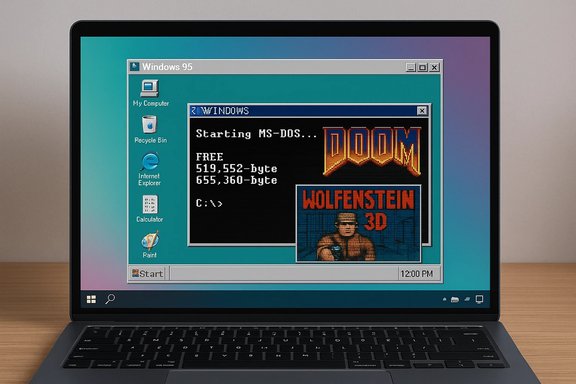
Windows 95’s quarter‑century anniversary resurfaced an unlikely piece of nostalgia: a packaged Electron app that boots the original OS — complete with WordPad, FreeCell, Calculator and Media Player — on modern Windows 10/11, macOS, and Linux systems, letting you play era‑classic games such as Doom and Wolfenstein 3D while offering a fast, browser‑style trip down the 1990s memory lane.
Windows 95 was released to retail on August 24, 1995, and it changed the expectations for desktop computing: the Start menu, taskbar and integrated desktop model became the blueprint for decades of Windows releases that followed. The release date and the scale of the launch are well documented in Microsoft’s press material and in contemporary retrospectives. Nearly three decades on, hobbyist and preservation projects have recreated vintage operating systems in emulators and browser environments. One particularly accessible incarnation is Felix Rieseberg’s packaged Electron app that bundles a Windows 95 disk image with a JavaScript‑based virtualization layer, delivering a downloadable, double‑clickable app that runs the original OS inside an emulated PC environment on today’s machines. The project attracted broad coverage and community conversation because it blends preservation, technical showmanship, and convenience.
Running an operating system that shaped today’s desktop in a single download is a fascinating cultural artifact — powerful as a teaching tool and fun to boot on a rainy afternoon, but always to be used with eyes open about the tradeoffs and legal context.
Source: BetaNews Celebrate 25 years of Microsoft Windows 95 by running it on Windows 10, macOS or Linux -- here's how
 Background / Overview
Windows 95 was released to retail on August 24, 1995, and it changed the expectations for desktop computing: the Start menu, taskbar and integrated desktop model became the blueprint for decades of Windows releases that followed. The release date and the scale of the launch are well documented in Microsoft’s press material and in contemporary retrospectives. Nearly three decades on, hobbyist and preservation projects have recreated vintage operating systems in emulators and browser environments. One particularly accessible incarnation is Felix Rieseberg’s packaged Electron app that bundles a Windows 95 disk image with a JavaScript‑based virtualization layer, delivering a downloadable, double‑clickable app that runs the original OS inside an emulated PC environment on today’s machines. The project attracted broad coverage and community conversation because it blends preservation, technical showmanship, and convenience. What exactly is this “Windows 95” app?
The components at a glance
- An Electron shell that makes the emulator behave like a native desktop app on Windows, macOS, and Linux.
- v86 / JavaScript x86 emulation running inside the Electron container to emulate CPU, BIOS, VGA and basic hardware.
- A packaged disk image containing a Windows 95 installation and preinstalled applications and demos.
- Optional host integration features in newer releases that can expose simple file access between the host and the emulated OS.
How it works in plain terms
At run time the Electron app launches a small JavaScript/WebAssembly VM (v86 or a v86‑derived engine). That VM maps a disk image (.img) into virtual storage, emulates x86 instructions and legacy devices, and boots Windows 95 just as a 1990s PC would. Keyboard, mouse and display are routed through the Electron window, and the “guest” OS believes it is running on a PC with 1990s hardware. Because everything is self‑contained, the experience is mostly local to your machine unless you enable explicit host‑integration features.Why this matters: nostalgia, preservation, and accessibility
The project sits at the intersection of three trends:- Nostalgia and cultural preservation. Vintage OSes are digital artifacts. Packaging them in easy‑to‑run apps lowers the bar for examination and enjoyment.
- Technical demonstration. Running a full OS inside JavaScript demonstrates how far web and cross‑platform toolchains have come: browser engines and WASM‑powered code can emulate entire system stacks with impressive fidelity.
- Education and curiosity. For younger users or students, these packaged apps provide a direct way to inspect legacy UI, limitations of old software and computing ergonomics without needing floppy disks or legacy hardware.
Installing and running the app (practical steps)
The exact steps vary slightly by platform, but the overall process is deliberately simple.- Download the packaged release for your OS from the official project page (choose Windows, macOS Intel/Apple Silicon, or Linux deb/rpm builds).
- Unpack the ZIP or run the installer. On macOS you’ll typically drag the app to /Applications; on Windows you may run a small installer or just execute the .exe.
- Launch the app — it will boot the Windows 95 disk image and present the classic desktop. If the app asks to restore or modify the bundled “C: drive” or shows a “Modify C: Drive” UI, that’s the point where you can add additional files or games to the image.
- To move files in and out, look for the host‑integration feature (recent builds expose a “my‑computer” host URL where a sandboxed view of your file system is available). Use it carefully—it’s convenient but also a security and privacy consideration.
- If the mouse becomes trapped inside the emulated screen, press Esc to toggle mouse capture. This small but important usability feature is highlighted in user‑facing coverage.
What works — and what doesn’t
Working well (commonly reported)
- Classic utilities like Notepad, WordPad, Calculator, Paint, and FreeCell generally run fine.
- Legacy games and DOS-era titles often run, though they may require specific resolution and color depth settings (e.g., 640×480 @ 256 colors) for best results. Doom and Wolfenstein 3D have been reported to run in preinstalled forms.
- Office 95 apps (in later releases) and era demos are sometimes included in the packaged image, giving a fuller period feel.
Known limitations
- Performance ceilings. JavaScript/WASM emulation is impressive but inherently slower than native virtualization. CPU intensive workloads and complex 3D or multimedia tasks will lag compared with VirtualBox, QEMU/KVM or VMware.
- Networking is flaky or intentionally restricted. Early builds limited Internet connectivity by design; modern instances may include Internet Explorer 5.5 but many contemporary websites simply won’t render or the browser cannot negotiate TLS properly on modern sites. Don’t expect a usable web today in the emulated Internet Explorer.
- Driver and hardware features missing. Modern GPU acceleration, ACPI intricacies, modern USB stack and advanced sound drivers are not part of 1995-era software. Expect partial or no support for modern peripherals.
Technical analysis: emulation tradeoffs and architecture
Why JavaScript + Electron?
Electron packages Chromium and Node.js to make cross‑platform desktop apps quickly. Pairing it with v86 or WASM x86 emulators enables a single binary that runs identically on Windows, macOS and Linux. This approach prioritizes accessibility over performance, aiming at a low‑friction nostalgic experience rather than production virtualization.- Pros
- One installer for all platforms.
- No heavy VM configuration.
- Fast path from download to boot for curious users.
- Cons
- Higher CPU and memory use compared with optimized hypervisors.
- Single‑process constraints of Electron may limit scaling and isolation semantics.
- Security model is weaker than a hypervisor that isolates guest and host at the kernel/hypervisor level.
When to prefer full virtualization
If you need stability, reliable networking, solid performance for testing or legacy app maintenance, use a traditional VM (VirtualBox, VMware, QEMU/KVM). Those solutions provide:- Better hardware passthrough.
- Separate virtual NICs and clearer networking controls.
- Easier snapshots, backups and integration with automation tooling.
Legal and security considerations — read this before you click “Run”
Licensing and copyright
- Windows 95 is proprietary Microsoft software. Distributing Microsoft disk images and installers is legally restricted. The GitHub repo for the Windows 95 Electron app explicitly states the project is provided for educational purposes only and is not affiliated with Microsoft; packaged releases include a disk image, but the legality of distributing that image is a grey area that varies by jurisdiction and by Microsoft’s stance. Treat the packaged images as archival or experimental, not as licensed redistributions.
- Macintosh.js (the Mac OS 8 Electron project by the same developer) raises similar questions for Apple’s software — these are preservation efforts, not licensed modern re‑releases.
Security risks
- Unpatched OS: Windows 95 lacks modern security features (no modern TLS, outdated kernel protections, no vendor patching). Connecting Windows 95 to the Internet is risky and could expose the host or local network if host‑integration features are enabled. Modern coverage highlights these concerns and advises caution when exposing legacy OSes to live networks.
- Host access and file share features: Newer packaged releases expose “my‑computer” host URLs allowing the guest to see parts of the host filesystem for convenience. That convenience doubles as a risk — a buggy guest or malicious payload running inside an emulator with hostfile access can read or modify files on your machine. Treat host integration like granting temporary file permissions; avoid enabling it unless you understand the implications.
- Third‑party downloads and trust: Obtain builds from the official project page and verify checksums where the author provides them. Do not install random “retro” builds from untrusted mirrors. Community threads highlight safe practice: run in a sandbox, keep your real work data isolated, and prefer ephemeral environments when experimenting.
Preservation vs. piracy — the preservationist’s conundrum
Retro projects are valuable to historians and hobbyists, but they often tiptoe across a thin legal line. Archivists argue that preserving digital artifacts is culturally important and that research and education are legitimate uses; vendors and copyright law sometimes disagree about reproduction and distribution rights.- The pragmatic stance: treat these packaged apps as educational demonstrations and, where possible, obtain images from legitimate archival sources or the original media you own.
- The ethical stance: be transparent about provenance and avoid using the project as a means to casually redistribute proprietary software.
Alternatives and complementary ways to relive Windows 95
If the Electron app isn’t your cup of tea, you have other options:- Browser emulators (v86 demos and hosted web emulators) allow booting in a tab without installing anything. They are quick but may stream disk images on the fly and are equally limited for modern networking.
- Full virtualization with VirtualBox, VMware, or QEMU — best for production‑style use, testing, or serious archival work.
- DOSBox or PCem for gaming-focused retro setups; these tools are tuned for DOS-era games and emulate older hardware more precisely for gameplay.
- macintosh.js if you want to explore Mac OS 8 in the same convenient wrapper — the same caveats about legality and networking apply.
Strengths, weaknesses and who should try it
Strengths
- Immediate access: Double‑click, boot, enjoy — no floppy‑swap nostalgia required.
- Educational value: Great for showing how user interfaces and UX evolved.
- Cross‑platform convenience: One download works across Windows, macOS and Linux without deep VM configuration.
Weaknesses and risks
- Not production‑grade: Unsuitable for running legacy business apps, drivers, or for security‑sensitive tasks.
- Potential legal ambiguity: Redistribution of Microsoft‑owned disk images is a legal gray area unless permission is explicit.
- Security implications: Outdated OS + optional host file exposure is a dangerous mix if mishandled.
Who should try it?
- Retro enthusiasts who want a quick nostalgia fix.
- Educators and students examining GUI history and OS evolution.
- Developers and hackers curious about low‑level emulation written in JavaScript.
Final thoughts and recommendations
Felix Rieseberg’s Electron‑packaged Windows 95 (and his sister macintosh.js project for Mac OS 8) is a polished, delightful demonstration of how modern development toolchains and emulation can revive old software for exploration and play. It’s an excellent way to experience a key piece of computing history without legacy hardware hassles. That said, it’s essential to treat the project as a curiosity and a preservationist tool rather than as a replacement for proper virtualization solutions. Security, licensing and performance constraints are real and well‑documented: do not expose the emulated system to sensitive networks, don’t rely on it for any meaningful productivity, and be mindful of copyright when distributing or sharing disk images. If your goal is nostalgia, education, or a quick technical demo, the package is a terrific, low‑friction entry point. If your need is reliability, testability or secure legacy application support, invest the extra time to set up a VM with VirtualBox or QEMU and keep the experimental Electron app confined to a sandboxed machine or throwaway profile.Running an operating system that shaped today’s desktop in a single download is a fascinating cultural artifact — powerful as a teaching tool and fun to boot on a rainy afternoon, but always to be used with eyes open about the tradeoffs and legal context.
Source: BetaNews Celebrate 25 years of Microsoft Windows 95 by running it on Windows 10, macOS or Linux -- here's how
