

You can indeed boot a working copy of Windows 95 inside a modern web browser — and the result is equal parts engineering neatness, digital preservation, and a cautionary tale about nostalgia versus practicality.
Windows 95 was released to retail on August 24, 1995, and it represented a seismic shift in consumer PC usability: the Start menu, taskbar, long file names, and plug‑and‑play hardware support all became mainstream with that launch. This date and the product’s official minimum hardware requirements (an Intel 386DX CPU, 4 MB of RAM and 50–55 MB of disk space for a minimal installation) are part of the public record and match multiple historical accounts. The launch was massive: Microsoft reported more than one million copies distributed in the first four days, a figure referenced repeatedly in museum timelines and contemporary reporting. Within a couple of years the OS had become the dominant desktop platform in the market — the combination of Microsoft’s marketing push and broad hardware support created rapid adoption. Those sales and adoption claims are well documented, though some precise distribution figures can vary by region or reporting method. Fast forward to the present and hobbyists, preservationists, and engineers have taken two decades of browser and WebAssembly/JavaScript advancements and used them to emulate x86 hardware fast enough to run legacy operating systems inside a tab. The headline — “Yes, you can run Windows 95 in your browser” — is accurate, but the story behind it is richer and more nuanced.
For casual nostalgia or classroom demonstrations, browser‑based Windows 95 is a brilliant tool. For anything beyond that — connecting to the internet, handling real data, or relying on the OS for functionality — it’s a poor substitute for modern, secure systems or properly licensed archival setups. The right way to enjoy this little slice of computing history is thoughtfully: appreciate the engineering, respect the legal boundaries, and treat the experience as a museum exhibit rather than a production platform.
Source: bgr.com Yes, You Can Run Windows 95 In Your Browser, And It's Glorious - BGR
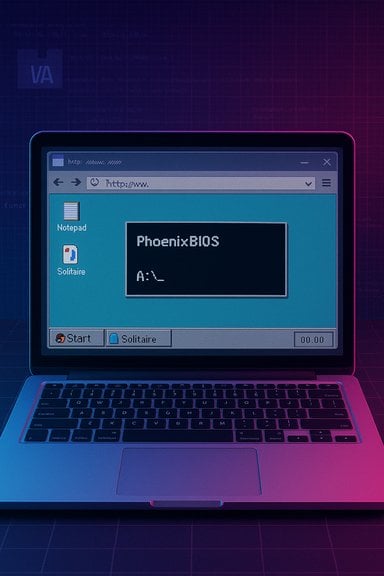 Background
Windows 95 was released to retail on August 24, 1995, and it represented a seismic shift in consumer PC usability: the Start menu, taskbar, long file names, and plug‑and‑play hardware support all became mainstream with that launch. This date and the product’s official minimum hardware requirements (an Intel 386DX CPU, 4 MB of RAM and 50–55 MB of disk space for a minimal installation) are part of the public record and match multiple historical accounts. The launch was massive: Microsoft reported more than one million copies distributed in the first four days, a figure referenced repeatedly in museum timelines and contemporary reporting. Within a couple of years the OS had become the dominant desktop platform in the market — the combination of Microsoft’s marketing push and broad hardware support created rapid adoption. Those sales and adoption claims are well documented, though some precise distribution figures can vary by region or reporting method. Fast forward to the present and hobbyists, preservationists, and engineers have taken two decades of browser and WebAssembly/JavaScript advancements and used them to emulate x86 hardware fast enough to run legacy operating systems inside a tab. The headline — “Yes, you can run Windows 95 in your browser” — is accurate, but the story behind it is richer and more nuanced.Overview: How “Windows 95 in a browser” actually works
Emulation, JIT compilation, and WebAssembly
Modern browser-based emulators recreate the old PC stack (CPU, BIOS, VGA, disk controllers, keyboard/mouse, sound) in JavaScript or WebAssembly. The most widely used engine for running vintage x86 operating systems in a browser is the v86 family of projects — an x86 virtualizer that translates guest machine code into WebAssembly (or optimized JavaScript) at runtime so it can execute in the browser sandbox. That translation, combined with emulated hardware drivers, is what lets the browser pretend to be a PC. Projects that demonstrate this approach commonly supply a ready-made disk image containing a Windows 95 install. The browser loads the emulator and disk image, maps the emulated BIOS/IDE devices, and boots Windows 95 just as if it were running on a tiny virtual PC. Because everything runs in the browser process and memory, you don’t install anything permanently on your machine unless you explicitly download images or an app build.The two common forms you’ll encounter
- Browser demos: public pages that host a v86 instance and disk images you can boot in a tab. These are ephemeral and convenient for quick experiments. Popular demo hosts include copy.sh (and community forks).
- Packaged apps: Electron or desktop wrappers that bundle the emulator and an image into a self‑contained app (for example, the widely circulated “Windows95” Electron project). These packages give you a desktop app experience while still using JS-based emulation under the hood. The Electron port credits v86 as the heavy lifter for CPU emulation.
The notable projects and players
v86 / copy.sh (the emulator backbone)
v86 began as an ambitious project to implement x86 virtualization in JavaScript and WebAssembly, supporting a wide range of legacy OSes — from MS‑DOS and Windows 3.x up to Windows 2000 in some configurations. The emulator’s author and maintainers provide the core engine, BIOS images, and example disk images that power web demos. That technology is the primary enabler for running Windows 95 in a browser today.Windows95 (Electron) — the packaged nostalgia app
A popular packaged experience is the Windows95 Electron app that bundles a Windows 95 disk image with an Electron UI. It’s a polished, click‑and‑run nostalgia experience that runs on macOS, Windows, and Linux — but it’s still JavaScript‑powered emulation using v86 under the hood. Community ports and packaged releases made the experience more accessible to people who don’t want to handcraft a disk image or tinker with emulator options. The repository and releases for that packaged project are still live on Git hosts.Preservation sites and image repositories
Beyond demos, several archival sites and hobby pages provide old OS images and documentation that preservationists and hobbyists use to build browser boot images. Some hosts maintain curated collections of DOS/Windows images for experimentation and education; they typically include disclaimers about licensing and use. These archives power the demos you can visit and try in a moment.What actually runs and what works well
- Boot and UI: Windows 95 boots and the UI is usable for exploring old apps and bundled utilities. Basic apps (Notepad, Control Panel, Paint, Solitaire) and early Win32 programs generally work. Web demos routinely include a handful of preinstalled-era apps so visitors can play without preparing an image.
- Games and DOS-era titles: Classic DOS and early Windows games sometimes run, but performance and compatibility vary. Many demos recommend switching to specific resolutions and color depths for better experience; some games rely on hardware behavior not perfectly replicated by the emulator. Expect mixed results when launching era‑heavy titles.
- Networking and drivers: Virtualized networking can be supported but is not identical to a real NIC. Sound and more advanced video modes are partially emulated; some hardware features are missing or imperfect, so modern multimedia use or complex drivers may fail.
Practical considerations: performance, compatibility, and limits
Performance is “good enough” — for what it is
Running Windows 95 in a browser is CPU and memory bound; modern machines generally handle the workload easily, but the experience will not match native virtualization. The emulator trades raw speed for browser portability and safety. In practice that means UI interaction and light applications are responsive, but anything CPU heavy will feel sluggish. For a nostalgia demo or archivist inspection, performance is more than adequate.File sizes and downloads
A minimal Windows 95 image is tiny by modern standards (tens of megabytes in many demo images), but demo pages still fetch binary blobs at load time. Expect a page load that includes several megabytes of BIOS, VGA ROM, and the disk image; on mobile networks that can be noticeable. The hosted demos usually stream or cache images to reduce repeated downloads.Compatibility quirks
Some Windows 95 builds may fail to boot depending on emulator settings (for example, ACPI vs. legacy PC types), and extremely rare edge conditions (very old installer states, unusual drivers) can break the boot sequence. Running a stable image supplied by a well-maintained demo host is the simplest path.Legal, ethical, and preservation issues
Licensing and copyright
Windows 95 is proprietary Microsoft software. The emulator engine itself is open source, but distribution of Microsoft’s copyrighted disk images and installers is legally restricted. Many hobby demos rely on images assembled from archival sources; some hosts include disclaimers or request that users provide their own legally obtained images. This is not a legal recommendation; it’s a practical reality users should be aware of. Treat these demos as educational or archival experiments rather than a route for casual software redistribution.Preservation vs. piracy: a fine line
Preserving digital artifacts is important for history and research. That said, replicating or offering copyrighted OS images for download without proper licensing crosses legal boundaries. The preservation community often negotiates with rights holders or relies on fair‑use/archival exceptions in controlled contexts; public web demos should make licensing intentions clear and, if possible, provide only the emulator and ask users to supply their own images.Safety and privacy
Running legacy software — especially systems without modern security patches — on networks can introduce risk. If you boot a vintage OS and connect it to the public internet from an emulator, you’re effectively exposing an unpatched stack to contemporary threats. For safety:- Prefer offline use: run the demo disconnected or restrict network services.
- Don’t use vintage OSes to handle sensitive data.
- Consider sandboxed environments or snapshots so nothing persists accidentally.
Why this matters: preservation, education, and nostalgia
Running Windows 95 in a browser isn’t just a gimmick. It’s valuable for:- Historical study: Researchers and students can examine the UI, UX decisions, and software behavior without digging up old hardware.
- Software archaeology: Archivists can validate file formats, installers, and compatibility of legacy data.
- Community memory: The experience reconnects people to formative computing moments, and it makes a classroom demo as simple as opening a URL.
Security and privacy: the real risks
Running a legacy OS in-browser might appear sandboxed, but several potential hazards remain:- Browser sandbox escapes are very rare but historically possible; a browser exploit could theoretically leverage a complex emulation stack. Keep your browser updated and don’t run untrusted code in the same environment where you handle sensitive tasks.
- Connecting the emulated Windows 95 to the internet invites vulnerability to drive‑by downloads or old network exploits. Many demos disable or limit networking for this reason.
- File handling: copying files from host to emulated environment can inadvertently expose sensitive host data if you’re not careful with mapped folders or upload interfaces.
How to try it safely (step-by-step)
- Choose a reputable demo or project host (for example, a maintained v86 demo or the Windows95 Electron repo if you want a desktop wrapper).
- Use a separate browser profile or a secondary machine; avoid using your main profile where saved passwords and active sessions live.
- Keep the demo offline for exploration; if you must allow networking, understand it’s limited and potentially insecure.
- Don’t run unknown executables inside the vintage environment. Treat it as read‑only unless you know the origin of software.
- Consider using snapshots or save/restore features in the emulator to avoid persistent changes.
Case studies and community context
The broader Windows community shows two parallel trends: one focused on emulation and archival (running authentic images in browser demos and VMs), the other on visual nostalgia (skinning modern Windows to look like older releases). Both demonstrate the appetite for revisiting past UX, but they serve different purposes.- Emulation demos are primarily about operation and preservation: boot sequences, installers, and binary behavior matter here. These are the demos powered by v86 and similar engines.
- Visual skins and customization projects (using WindowBlinds, RetroBar, Winaero Tweaker, etc. are about feel and aesthetics — making a modern system look and behave superficially like Windows 95 or XP, which is popular among users who miss the older era’s look-and-feel. Community how‑tos and forum threads show steady interest in both angles.
Strengths, limitations, and final analysis
Strengths
- Accessibility: You can try Windows 95 on nearly any modern device without hunting for floppy drives or installing old hardware.
- Educational value: Demonstrates legacy UI paradigms and system behavior for students and researchers.
- Preservation: Helps keep digital artifacts discoverable and demonstrable in a future‑proof web context.
Limitations and risks
- Legal ambiguity: Distribution of copyrighted images is a gray area outside explicit archival agreements.
- Security: The legacy OS carries no defenses against modern threats; connecting it to networks is risky.
- Practicality: These demos are great for exploration, not for productive work; performance and driver support are limited.
What to watch for
- If demos begin bundling proprietary images without licensing clarity, archivists and users should demand clearer preservation policies and better provenance.
- Emulators will continue to improve, but they’ll never replace proper virtualization or hardware for production needs.
- Community efforts to make modern interfaces look retro illustrate the cultural value of UX history — but they also highlight the need to separate aesthetic homage from actual legacy functionality, which carries different risks.
Conclusion
Yes — you can run Windows 95 in your browser, and it works well enough to be fun, demonstrative, and historically instructive. The achievement rests on impressive engineering: x86 emulation, runtime translation to WebAssembly, and clever packaging that together let a 1995 OS boot inside a tab. At the same time, the phenomenon raises practical and ethical questions about licensing, security, and the value of digital preservation.For casual nostalgia or classroom demonstrations, browser‑based Windows 95 is a brilliant tool. For anything beyond that — connecting to the internet, handling real data, or relying on the OS for functionality — it’s a poor substitute for modern, secure systems or properly licensed archival setups. The right way to enjoy this little slice of computing history is thoughtfully: appreciate the engineering, respect the legal boundaries, and treat the experience as a museum exhibit rather than a production platform.
Source: bgr.com Yes, You Can Run Windows 95 In Your Browser, And It's Glorious - BGR
