

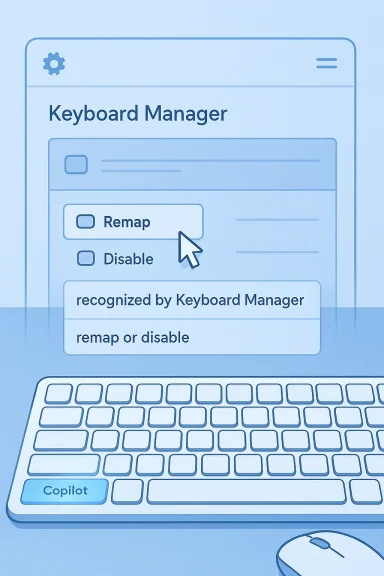
Back in 2024, Microsoft’s Copilot key became one of the most visible symbols of the company’s AI-first push in Windows 11, and it has remained a permanent fixture on newer PCs ever since. For many users, though, the dedicated key is less a productivity upgrade than an extra button they never wanted. The good news is that Windows 11 now offers a built-in way to change what the Copilot key does, and PowerToys Keyboard Manager provides a more flexible fallback when the built-in options are too limited. (support.microsoft.com)
Background — full context
Microsoft introduced the Copilot key as part of a broader effort to make AI a first-class input method on Windows 11 devices. On supported machines, pressing the key launches Microsoft Copilot or Microsoft 365 Copilot, and Microsoft’s own support pages now describe it as a dedicated hardware shortcut with customization options in Windows settings. The company has also expanded the key’s behavior across consumer and commercial scenarios, reflecting a long-term commitment rather than a short-lived experiment. (support.microsoft.com)The challenge is that hardware keys are different from software shortcuts. Once a laptop ships with a Copilot key, users can’t physically remove it, and many keyboards have already replaced a long-standing menu key position with the new button. That makes remapping especially important: if the key is going to exist, people at least want to decide whether it opens Copilot, Search, a different app, or something more useful to their own workflow. (support.microsoft.com)
Microsoft does provide a built-in customization path. According to Microsoft Support, users can go to Settings > Personalization > Text input and choose “Customize Copilot key on keyboard.” Microsoft documents options such as opening Microsoft Copilot or Microsoft 365 Copilot, and in some contexts users can choose Search or a supported app. That is a meaningful improvement over a locked key, but it still stops well short of true power-user flexibility. (support.microsoft.com)
That is where PowerToys comes in. Microsoft’s PowerToys Keyboard Manager is designed for advanced remapping of keys and shortcuts, and it can map one key to another key, a shortcut, or even text. It is not a firmware-level rewrite, but it is often the fastest way to turn an unwanted key into something practical. For users who want the Copilot key to behave differently system-wide, it is one of the most useful tools available. (learn.microsoft.com)
What Windows 11 lets you do natively
The simplest path is always the built-in one, because it is less likely to break and easier to reverse. Microsoft’s current documentation says the Copilot key can be customized from Windows settings, and on supported devices the setting is exposed under Personalization and Text input. In practical terms, that means the key can be redirected without third-party software if your build and device support the feature. (support.microsoft.com)Native options at a glance
- Open Microsoft Copilot.
- Open Microsoft 365 Copilot.
- Open Search, where supported.
- Launch a supported app in some configurations.
- Revert the key to its default behavior. (support.microsoft.com)
Why the built-in route is not enough
- It is constrained to Microsoft-sanctioned choices.
- It does not expose arbitrary executable launchers in the way power users expect.
- It may vary by device, build, and account type.
- It does not replace deeper workflow automation.
- It may be insufficient if you want to avoid Copilot entirely. (support.microsoft.com)
How PowerToys Keyboard Manager works
PowerToys Keyboard Manager is Microsoft’s advanced remapping utility for Windows. It can remap keys, remap shortcuts, and even send text, which makes it much more capable than a simple registry tweak or a one-off OEM hotkey tool. The key requirement is that PowerToys must be running in the background for the remap to remain active. (learn.microsoft.com)What PowerToys can do
- Remap one key to another key.
- Remap one key to a shortcut.
- Remap a shortcut to another shortcut.
- Send arbitrary text from a key press.
- Apply many remaps globally across Windows. (learn.microsoft.com)
What PowerToys cannot do
- It cannot remap every reserved Windows shortcut.
- It cannot remap the Fn key in most cases.
- It does not work at sign-in screens.
- It is not available inside some games or special input APIs.
- It only works while PowerToys is running. (learn.microsoft.com)
Remapping the Copilot key with PowerToys
Once PowerToys is installed, the process is straightforward. Open PowerToys, go to Keyboard Manager, and add a new key remap. Then press the Copilot key when the remap dialog asks you to select the input key, and define what it should send instead. Microsoft’s documentation confirms that remapping is immediate and does not require a reboot. (learn.microsoft.com)Basic setup steps
- Install and open Microsoft PowerToys.
- Enable Keyboard Manager.
- Open Remap a key.
- Select Add key remapping.
- Press the Copilot key in the input selector.
- Choose the action you want it to send.
- Click OK and test the result. (learn.microsoft.com)
Common remap ideas
- Copilot key to Search.
- Copilot key to a browser launch shortcut.
- Copilot key to a productivity app shortcut.
- Copilot key to a macro you already use.
- Copilot key to plain text, for niche workflows. (learn.microsoft.com)
Important behavior to remember
- The remap applies while PowerToys is running.
- The change takes effect right away.
- The key’s function may differ inside some apps.
- It is system-wide rather than per-keyboard.
- You can disable it by closing PowerToys or turning off Keyboard Manager. (learn.microsoft.com)
Best practical remap choices
The best remap is the one that fits your habits. There is no universal “correct” Copilot key assignment, because the key’s value depends on what you do most often. That said, some options are clearly more useful than others. (learn.microsoft.com)Good remap targets
- Windows Search for users who search constantly.
- A browser shortcut for people living in web apps.
- A launcher utility for fast app switching.
- A screenshot tool for content and support work.
- A clipboard manager for people who copy and paste all day.
- A note app for students and knowledge workers.
- A mute/unmute or meeting shortcut for hybrid workers. (learn.microsoft.com)
Better remaps for power users
- Launch PowerToys Run or another launcher.
- Open Task Manager or a system monitor.
- Trigger a custom shortcut for a virtual desktop.
- Start a recording or note-capture workflow.
- Open a frequently used project folder. (learn.microsoft.com)
What not to do
- Do not map it to something you will press accidentally in a loop.
- Do not assign it to a reserved Windows shortcut.
- Do not expect it to work at the login screen.
- Do not rely on it for gaming input.
- Do not forget that PowerToys must stay running. (learn.microsoft.com)
The menu key, the fn layer, and what really changes
One detail that often gets overlooked is that remapping the Copilot key does not always remove every aspect of its original hardware behavior. On some keyboards, the key still has a secondary function associated with the old menu key placement or a function-layer behavior. Microsoft’s guidance notes that the dedicated customization changes what the key does in Windows, but the physical hardware may still expose additional behavior depending on the keyboard design. (support.microsoft.com)What users should understand
- The Copilot key is partly hardware, partly Windows behavior.
- A software remap changes Windows’ interpretation.
- The keyboard manufacturer may still define fallback behavior.
- Fn-layer behavior is not always fully programmable.
- The original menu-key position may still matter in some layouts. (learn.microsoft.com)
Why this matters for older habits
- Menu-key users may miss a familiar context-menu shortcut.
- Touch typists may want a non-AI assignment immediately.
- Laptop users may prefer a key with a more universal action.
- Office workers may prioritize Search over Copilot.
- Enthusiasts may want a macro-capable launcher instead. (support.microsoft.com)
When PowerToys is the better choice than Settings
For a casual user, Windows Settings is probably enough. For a power user, it is often only step one. PowerToys becomes the better choice when the goal is broader than “open a different app.” Microsoft’s own PowerToys documentation shows why: it handles actual key remapping, shortcuts, and text insertion with considerably more control. (learn.microsoft.com)Use PowerToys if you want
- A custom shortcut instead of a fixed app.
- A remap that is easier to revise later.
- A workflow-oriented key rather than a Copilot-specific one.
- A way to reclaim multiple unwanted keys.
- A single tool for broader keyboard tuning. (learn.microsoft.com)
Use Settings if you want
- The simplest supported experience.
- Minimal background software.
- Official Windows integration.
- A low-risk option for business machines.
- A quick way to switch away from Copilot. (support.microsoft.com)
A note on third-party AI assistants and app support
Microsoft’s current docs indicate that customization can extend to supported apps, including Microsoft 365 Copilot and, in some circumstances, other compatible applications. That makes the Copilot key less of a dead end than it initially looked. Still, Microsoft is clearly controlling the ecosystem tightly, especially in managed and enterprise scenarios. (support.microsoft.com)What this means in practice
- Some apps may appear in the dropdown on supported builds.
- Microsoft’s app compatibility rules still apply.
- Enterprise-managed systems may have stricter constraints.
- App support can depend on packaging and signing.
- Consumer freedom is improving, but it is not unlimited. (learn.microsoft.com)
Why users care about alternatives
- They may already use another assistant daily.
- They may not want AI shortcuts baked into hardware.
- They may prefer local tools over cloud-centric ones.
- They may want a launcher, not a chatbot.
- They may simply want fewer accidental launches. (support.microsoft.com)
Strengths and Opportunities
The Copilot key is controversial, but it does create a useful opportunity for users who want faster access to the tools they actually use. Even if the default action is not ideal, the existence of a dedicated hardware key means there is a high-value remapping target sitting on the keyboard already. PowerToys turns that into a real productivity win. (learn.microsoft.com)Strengths
- Instant access to a frequently used action.
- System-wide remapping with PowerToys.
- No reboot required after changing the mapping.
- Flexible enough to suit different workflows.
- Official support for some customization in Windows settings. (learn.microsoft.com)
Opportunities
- Map the key to a preferred launcher.
- Use it for Search if that is more valuable than Copilot.
- Convert it into a meeting or productivity shortcut.
- Reclaim an accidental-press problem key.
- Align the hardware with your actual workflow. (learn.microsoft.com)
Risks and Concerns
The biggest concern with remapping the Copilot key is not technical complexity; it is reliability. Because PowerToys is software, the remap depends on the app being active in the background. That means the key may revert to its default behavior if PowerToys is closed, disabled, or blocked by policy. (learn.microsoft.com)Risks to keep in mind
- Dependency on background software.
- No use at the login screen.
- Inconsistent behavior in some apps and games.
- Potential confusion if multiple remaps overlap.
- Reserved Windows shortcuts that cannot be replaced. (learn.microsoft.com)
Other practical concerns
- Settings labels may differ by Windows build.
- Device manufacturers may ship customized behavior.
- Enterprise policies can override personal preferences.
- Some users may prefer not to install extra utilities.
- Hardware-level remapping is still not the same as software remapping. (support.microsoft.com)
What to Watch Next
Microsoft’s direction suggests the Copilot key is not going away, but the company’s approach to it may continue evolving. Support documentation already shows an emphasis on giving users some control over the key’s behavior, and enterprise documentation hints at broader app-mapping scenarios for managed devices. The trend is toward more configurability, not less. (support.microsoft.com)Likely developments
- More visible Copilot key settings in Windows.
- Broader app selection on supported machines.
- Better alignment between consumer and commercial behavior.
- Possible new customization categories in Settings.
- Continued refinement of how the key is handled after updates. (support.microsoft.com)
The user-side wishlist remains clear
- A fully custom app picker.
- Support for scripts and launch parameters.
- Better per-device control.
- More transparent behavior for enterprise users.
- Easier rollback and export of remap profiles. (learn.microsoft.com)
The Copilot key may have arrived as a symbol of Microsoft’s AI ambitions, but in everyday use it is really just another input device waiting to be made useful. Windows 11’s built-in customization gives you a first-pass solution, and PowerToys Keyboard Manager gives you the power-user version when the defaults fall short. For most readers, that is the real lesson: you do not have to accept the key on Microsoft’s terms if your workflow demands something better.
Source: pocket-lint.com I reprogrammed the Windows 11 Copilot key and now it's actually useful
Last edited:
