Remove Microsoft Copilot on Windows 11 with Group Policy (Insider Preview)

  • Thread Author
Microsoft has quietly given administrators a supported—but deliberately narrow—way to remove the consumer Microsoft Copilot app from managed Windows 11 devices through a new Group Policy surfaced in the January 2026 Insider Preview.

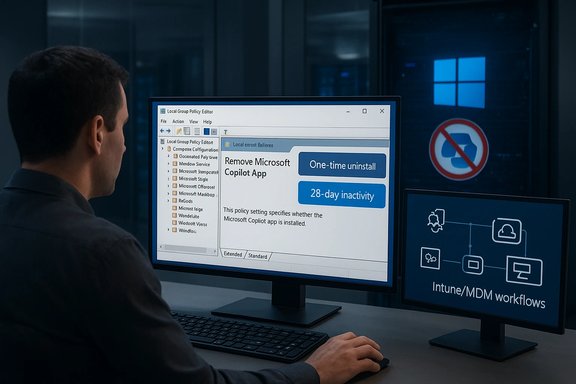
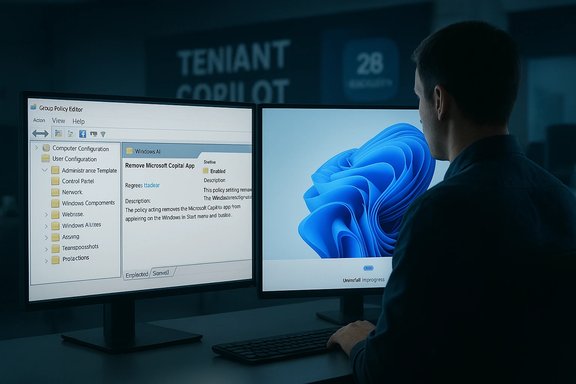
A person works at dual monitors, configuring Windows Group Policy settings.Background / Overview​

Windows 11’s Copilot ecosystem now includes a free consumer-facing Copilot app that many OEM images and provisioned images include, deep OS-level integrations (taskbar button, keyboard shortcuts, Explorer context menus), and a paid, tenant-managed Microsoft 365 Copilot service. This multiplicity has created real operational friction for IT teams who need deterministic controls for managed endpoints. Microsoft’s response in the Windows Insider Preview is a targeted, one-time uninstall mechanism implemented as a Group Policy named RemoveMicrosoftCopilotApp. The capability is packaged in Windows 11 Insider Preview Build 26220.7535 (delivered as KB5072046) and is currently visible to devices enrolled in the Dev and Beta Insider channels. Microsoft announced the build and the feature in the Windows Insider Blog on January 9, 2026. Independent reporting has reproduced the policy’s behavior and described the same gating rules.

What Microsoft shipped — the facts administrators need​

Where the policy appears​

  • Group Policy name: RemoveMicrosoftCopilotApp
  • Group Policy path: User Configuration → Administrative Templates → Windows AIRemove Microsoft Copilot App
  • Delivery: Windows 11 Insider Preview Build 26220.7535 (KB5072046) to Dev & Beta channels.
  • Target SKUs: Windows 11 Pro, Enterprise, and Education (managed devices).

What the policy actually does (in plain language)​

  • It performs a one-time uninstall of the consumer Microsoft Copilot app for the targeted user on a managed device when a strict set of gating conditions are satisfied. The action is not a persistent block; users can reinstall the consumer Copilot app later if store/tenant policy allows.

The gating conditions (all must be true)​

Microsoft designed this control to be conservative. The uninstall runs only when every one of the following is true for the targeted user/device:
  • Both Microsoft 365 Copilot (tenant-managed) and the consumer Microsoft Copilot app are installed on the device. This prevents administrators from removing the only Copilot experience organizations pay for.
  • The consumer Microsoft Copilot app was not installed by the user — it must be OEM‑preinstalled, image‑provisioned, or pushed by tenant tooling. User‑installed copies are intentionally excluded.
  • The consumer Microsoft Copilot app has not been launched in the last 28 days. Microsoft enforces this inactivity window as a safety gate to avoid surprising active users.
Because of these gates, the policy functions as a surgical cleanup tool (for classrooms, kiosks, or incorrectly provisioned images) rather than a fleet‑wide, irrevocable ban.

Why Microsoft built it this way — design tradeoffs​

The policy’s narrow scope reflects three priorities:
  • Preserve tenant continuity for customers using Microsoft 365 Copilot so tenant-managed workflows aren’t broken.
  • Respect user autonomy by excluding apps a user intentionally installed.
  • Avoid surprising active users by requiring a 28‑day inactivity window.
Those tradeoffs produce a conservative, supportable capability for IT teams, but they also shift responsibility back to administrators to operationalize and audit the desired posture. Independent outlets have characterized the change as a pragmatic admin concession rather than a rollback of Copilot’s integration into Windows.

Admin playbook: how to test, prepare, and apply RemoveMicrosoftCopilotApp​

The policy is useful in controlled scenarios if IT follows a clear pilot and verification plan. Below is a practical playbook aligned with how the setting behaves in the Insider preview.

1. Confirm prerequisites​

  • Ensure target devices are running Windows 11 Insider Preview Build 26220.7535 (KB5072046) and enrolled in the Dev or Beta Insider channels. Feature visibility can be server‑gated; installing the KB may not immediately expose the policy.
  • Confirm devices use a managed SKU: Pro, Enterprise, or Education. Home and unmanaged consumer devices are out of scope.

2. Verify Microsoft 365 Copilot presence​

  • Inventory your devices to confirm both the consumer Copilot app and Microsoft 365 Copilot (tenant‑managed) are present. The uninstall will not run if Microsoft 365 Copilot is absent. Use Intune/SCCM/endpoint management to verify installed packages and tenant service assignments.

3. Distinguish install origin (provisioned vs user-installed)​

  • The policy targets provisioned/OEM/tenant‑pushed installs. Use your inventory data to separate user-installed copies from provisioned packages. This distinction matters: if a user installed Copilot, the policy will not remove it.

4. Manage the 28‑day inactivity window​

  • Disable Copilot auto‑start on login on pilot devices so background launches don’t reset the inactivity clock. Background or accidental launches (taskbar button, Win+C, Copilot hardware key) can count as activity. IT should:
  • Disable Copilot startup entries via Task Manager, or
  • Manage startup apps centrally via Intune or Group Policy controls, and
  • Educate pilot users to avoid launching Copilot during the trial window.

5. Apply the Group Policy​

  • Open gpedit.msc (or push the ADMX/registry mapping via GPO/Intune).
  • Navigate to: User Configuration → Administrative Templates → Windows AIRemove Microsoft Copilot App.
  • Enable the policy for target OUs/users and monitor the outcome.

6. Validate and monitor​

  • After enabling the policy, verify the Copilot app is removed for the targeted user account. Confirm Microsoft 365 Copilot functionality remains intact for users who require it. Maintain post‑deployment checks after feature updates because provisioning cycles or Store updates can reinstall or re-provision the consumer Copilot app.

Limitations, operational risks, and gotchas​

This policy helps with cleanup but carries several important limitations and risks administrators must account for.

The 28‑day inactivity gate is brittle​

Copilot can auto‑start and register background launches that reset the timer. In practice, achieving 28 days of inactivity on general‑purpose devices is difficult without tightly managed startup settings. Failure to satisfy the inactivity window will prevent the uninstall from executing.

One-time uninstall — not permanent​

The policy removes the consumer Copilot app once for the targeted user. It does not create a durable block. The app can be reinstalled via the Microsoft Store, tenant provisioning, or future image updates unless administrators apply additional enforcement (AppLocker, WDAC, Intune uninstall profiles). Expect to combine controls for long-term enforcement.

Scope: managed SKUs only​

Home/consumer devices and unmanaged endpoints are out of scope. Organizations with mixed device populations will need layered controls and policies for non-managed machines.

Accessibility and feature dependencies​

Some accessibility features (for example, Narrator’s Copilot‑powered image descriptions) and system integrations may rely on Copilot. Uninstalling the consumer Copilot app could impact workflows that expect the consumer UI; test assistive features closely in pilot rings. Microsoft explicitly bundles accessibility upgrades in the same preview, underscoring potential interactions.

Server-side gating and preview semantics​

Because the setting is delivered via Insider Preview with controlled rollouts, presence can be server‑gated. Installing KB5072046 may not guarantee immediate availability of the policy. Also, features previewed in Insider builds may change or never reach general release; treat this as a guided preview, not a universal production feature yet.

Durable strategies to keep Copilot out (if that’s the objective)​

If an organization must ensure Copilot does not reappear, the one‑time uninstall needs to be part of a layered enforcement strategy:
  • Use AppLocker or Windows Defender Application Control (WDAC) to block the Copilot package family name or its executable — this prevents execution even if the app is reinstalled. AppLocker provides file- and publisher-based rules for durable blocking.
  • Deploy Intune uninstall profiles and configuration policies to remove or block reinstallation centrally. Combine with MDM‑managed Store restrictions where possible.
  • Harden images: remove Copilot from golden images and OEM provisioning; exclude the package during imaging to prevent reinjection on reimaging. Use baseline images and test updates.
  • Monitor the environment: add detection rules in endpoint monitoring for Copilot installation events and log attempts to reinstall or run Copilot.
These steps create durable enforcement but require governance, testing, and an approval process to manage user or accessibility exceptions.

Implications for privacy, compliance, and procurement​

  • For regulated industries and education, the ability to surgically remove pre-provisioned apps reduces surface area and helps with compliance audits—provided removal is verified and documented. However, because the policy does not prevent reinstallation, procurement and endpoint hygiene practices remain essential.
  • The distinction between consumer Copilot and Microsoft 365 Copilot matters for data governance: removing the consumer UI does not necessarily remove all OS-level telemetry or tenant-managed Copilot interactions. Admins must document what they removed and validate tenant workflows remain compliant.

Quick checklist for IT teams before broad deployment​

  • Confirm device build: 26220.7535 (KB5072046).
  • Verify device SKU and management status (Pro/Enterprise/Education; domain-joined or MDM-enrolled).
  • Inventory Copilot presence and install origin (provisioned vs user-installed).
  • Disable Copilot auto-start and prevent accidental launches for at least 28 days on pilot machines.
  • Enable RemoveMicrosoftCopilotApp in Group Policy for pilot OUs; monitor uninstall results.
  • Put durable enforcement (AppLocker/WDAC/Intune) in place if preventing reinstall is required.

Short technical reference​

  • Build/KB: Windows 11 Insider Preview Build 26220.7535 (KB5072046).
  • Group Policy path: User Configuration → Administrative Templates → Windows AI → Remove Microsoft Copilot App.
  • Conditions: Microsoft 365 Copilot present, consumer Copilot pre-provisioned (not user-installed), and not launched in 28 days.

Final analysis: what this means for IT and Windows users​

This update is a pragmatic step: it gives IT a documented, supported tool to clean up provisioned Copilot installs that are redundant or unwanted on managed devices. For environments where Copilot was accidentally provisioned—classrooms, kiosks, or misconfigured images—RemoveMicrosoftCopilotApp offers a safer alternative to brittle scripts and unsupported hacks.
That said, the policy’s conservative design means it is not a universal escape hatch. The 28‑day inactivity window, requirement that Microsoft 365 Copilot also be present, and the one-time nature of the uninstall mean administrators will often need complementary enforcement (AppLocker, WDAC, Intune) to achieve a permanent, fleet-wide posture. Independent coverage and hands‑on reporting highlight these operational caveats and recommend cautious, test-driven rollouts. Finally, because the capability is currently in the Insider Preview channel and rolled out with server-side gating, organizations should treat this as an early preview: test in controlled rings, validate accessibility and tenant workflows, and plan for a layered enforcement model where permanence is required.

Microsoft’s new RemoveMicrosoftCopilotApp policy is not a dramatic retreat from Copilot integration, but it is a meaningful concession to administrators who need a supported, documented way to clean up provisioned Copilot installs. Used correctly and in combination with durable blocking mechanisms, it can simplify endpoint hygiene—provided IT teams account for the operational limits and test thoroughly before broad deployment.

Source: TechNave https://technave.com/gadget/You-can...s-11-thanks-to-this-latest-update-45435.html]
 

Microsoft has quietly given IT administrators a supported — if deliberately narrow — way to remove the consumer Microsoft Copilot app from managed Windows 11 devices through a new Group Policy, but the control is a one‑time, conditional cleanup tool rather than a fleet‑wide “kill switch.”

IT admin uses Local Group Policy Editor to remove Microsoft Copilot (one-time uninstall).Background / Overview​

Microsoft’s Copilot family now covers several overlapping experiences: the free, consumer‑facing Microsoft Copilot app that shows up on many Windows 11 images, the paid, tenant‑managed Microsoft 365 Copilot service, and a set of deeper OS integrations (taskbar button, Win+C, context menus, and other protocol handlers). That multiplicity has created real operational friction for IT teams who need deterministic control over what runs on managed endpoints.
In response, Microsoft delivered a new Group Policy named RemoveMicrosoftCopilotApp in the Windows 11 Insider Preview, packaged in Build 26220.7535 (KB5072046). The setting is exposed in the Local Group Policy Editor under User Configuration → Administrative Templates → Windows AI → Remove Microsoft Copilot App, and it’s currently visible to machines in the Insider Preview Dev and Beta channels on supported SKUs.
This change is significant because it provides a documented, supported path to uninstall the consumer Copilot front end for target users on managed devices. But it’s important to understand that Microsoft intentionally scoped the control conservatively: it performs a single uninstall action when a strict set of gating conditions are met and does not act as a persistent prohibition. Administrators who require durable removal must still use layered controls and verification.

What Microsoft shipped (the short, verifiable facts)​

  • The feature is included in Windows 11 Insider Preview Build 26220.7535, distributed as KB5072046, and surfaced to devices enrolled in the Dev and Beta Insider channels.
  • The new Group Policy is named RemoveMicrosoftCopilotApp and lives at:
    User Configuration → Administrative Templates → Windows AIRemove Microsoft Copilot App.
  • Target SKUs for the policy are Windows 11 Pro, Enterprise, and Education on managed devices; Home and unmanaged consumer devices are not in scope for this policy.
  • The policy performs a one‑time uninstall of the consumer Microsoft Copilot app for the targeted user when all gating conditions are satisfied. It is not a permanent block — reinstallation (via Store, tenant provisioning, or image updates) remains possible unless additional controls are applied.
These are the core, verifiable points administrators need before piloting the setting. The policy is explicitly framed by Microsoft as a surgical cleanup tool for provisioned, unused Copilot installs (for example, classroom images, kiosks, or mistakenly provisioned endpoints).

How the RemoveMicrosoftCopilotApp policy actually works​

Microsoft designed the policy to minimize the chance of surprising or breaking active users. It will uninstall the consumer Copilot app for a specific user only when all of the following conditions are true:
  • Both Microsoft 365 Copilot (the tenant‑managed paid service) and the consumer Microsoft Copilot app are installed on the device. This guard prevents admins from accidentally removing the only Copilot experience a paying tenant relies on.
  • The consumer Microsoft Copilot app was not installed by the user — i.e., it must be provisioned via OEM image, tenant push, or image provisioning. User‑installed copies are intentionally excluded.
  • The consumer Microsoft Copilot app has not been launched within the last 28 days. That inactivity window is a calendar‑based safety gate intended to avoid removing the app from active users.
When those three checks all pass and the Group Policy is enabled for a user, the system will perform the one‑time uninstall for that user account. Because the action is not persistent, administrators who want to ensure the app never reappears must pair this policy with additional controls.

Why Microsoft limited the policy this way (intent and trade-offs)​

The design choices are intentional and reflect a balancing of priorities:
  • Preventing operational breakage for tenant customers who pay for Microsoft 365 Copilot by making sure the policy doesn’t remove the only Copilot experience they need.
  • Respecting end‑user autonomy where the app was explicitly installed by a user, not by provisioning. The policy targets preinstalled/provisioned copies to avoid removing apps a user deliberately installed.
  • Avoiding surprising active users with an uninstall action by enforcing a 28‑day inactivity check.
The upshot is that Microsoft delivered a supported, auditable way to clean up provisioned, unused Copilot installs — a practical improvement for many imaging and provisioning scenarios — but stopped short of a permanent enterprise-wide ban on Copilot front ends.

Deployment: How administrators can test and enable the policy​

The following steps provide a practical path to evaluate and pilot RemoveMicrosoftCopilotApp in a controlled environment. The guidance assumes target machines are already enrolled in the Insider Dev or Beta channel and have Build 26220.7535 (KB5072046) or a later preview flight that exposes the policy.
  • Confirm build, channel, and SKU
  • Verify devices are in the Dev or Beta Insider channel and running Build 26220.7535 or later. Server‑side feature gating means installing the update may still not immediately expose the policy; confirm visibility in Group Policy after the device checks in.
  • Verify Microsoft 365 Copilot presence
  • Inventory the fleet to confirm which devices have Microsoft 365 Copilot tenant provisioning active. The RemoveMicrosoftCopilotApp policy only triggers if the tenant‑managed service is present alongside the consumer app. If your tenant doesn’t use Microsoft 365 Copilot, the policy will not run.
  • Identify installation origin (provisioned vs user‑installed)
  • Use Intune, SCCM, or other inventory tooling to determine whether the consumer Copilot app on a device is OEM‑preinstalled / image‑provisioned / tenant‑pushed, or whether an end user installed it from the Microsoft Store. The policy only targets provisioned installs.
  • Ensure the 28‑day inactivity window is met (or pause auto‑start)
  • Because the policy checks for last‑launch activity within 28 days, administrators should ensure the targeted Copilot instance has been idle. That may require disabling auto‑start or background launches (via Task Manager, Intune startup management, or a temporary startup policy) so incidental background activity does not reset the timer.
  • Enable the Group Policy for a pilot group
  • On pilot devices, open gpedit.msc and navigate to:
    User Configuration → Administrative Templates → Windows AIRemove Microsoft Copilot App.
  • Enable the setting for a small pilot group or apply the ADMX/registry equivalent through an Intune configuration profile or Group Policy Object.
  • Observe outcomes and verify uninstall behavior
  • Validate that the consumer Copilot app is removed for targeted users when the gating conditions are satisfied and confirm that Microsoft 365 Copilot functionality remains intact for tenant users. Track events and logs to confirm the uninstall was one‑time and to detect any re-provisioning or reinstallation attempts.
  • For scale: map ADMX into Intune or deliver via GPO
  • Where broader rollout is planned, import the ADMX template and map the policy to Intune/MDM configuration profiles or configure a domain GPO. Document the registry keys and CSP equivalents you plan to deploy to enable auditing and repeatability.

Practical tips and recommended layered approach​

Because RemoveMicrosoftCopilotApp is a one‑time cleanup action, use it as part of a layered governance playbook:
  • Use AppLocker or WDAC (Windows Defender Application Control) to create a durable block if you must prevent reinstallation or execution of the consumer Copilot app. AppLocker/WDAC provide enforcement that survives user reinstallation attempts and many image/feature updates.
  • Disable tenant auto‑provisioning where possible so that Copilot is not reintroduced by tenant provisioning scripts or MDM policies.
  • Maintain image hygiene: remove or strip Copilot from base images used in PXE or provisioning workflows so new deployments do not reintroduce the app.
  • Use automated verification (scripts, Intune compliance checks, detection rules) to confirm that Copilot remains absent after feature updates and insider flights. Reinstallation can be triggered by store updates, image refreshes, or tenant pushes.
  • Document operational runbooks for support teams that include rollback steps and communication templates for end users who may notice the uninstall. Because the policy respects user‑installed apps, clearly explain to helpdesk staff how to distinguish deliberate installs from provisioned copies.

Risks, caveats, and unresolved questions​

  • Not a permanent “off” switch: The Group Policy is explicitly a one‑time uninstall. Users, Microsoft Store, or tenant provisioning can reinstall the consumer Copilot app later unless additional controls are layered. Treat the policy as a cleanup tool, not a durable enforcement mechanism.
  • Server‑side gating and preview status: The policy arrived via the Insider Preview and is subject to server‑side feature gating and staged rollouts. Applying the KB does not guarantee immediate visibility on every device; expect variation and test carefully before broad deployment.
  • The 28‑day inactivity gate can be operationally tricky: Copilot may auto‑start or register background activity that resets the inactivity window. To hit the 28‑day target you may need to disable auto‑start entries or control background triggers temporarily. Missing this detail can cause the policy to silently not trigger.
  • Conflicting or unverified claims in early reporting: Some headlines and brief articles suggested the consumer Copilot app “cannot be manually installed by users.” That statement is inconsistent with other, higher‑detail reporting noting users can reinstall from the Microsoft Store or via tenant provisioning — and Microsoft’s own guidance that the uninstall is not persistent. Treat the claim that users cannot install the app as unverified; rely instead on measured testing in your environment to confirm reinstall paths. Flagged as cautionary / unverifiable.
  • Accessibility and integrations: This Insider flight concurrently included Copilot accessibility enhancements (Narrator image descriptions and related features). If you remove the consumer Copilot front end, validate accessibility workflows to ensure no user experiences are broken in your environment. Coordinate with accessibility stakeholders before large‑scale removal.

What this means for end users and administrators​

For administrators, RemoveMicrosoftCopilotApp is a pragmatic addition to the management toolbox: it solves a real problem in imaging and provisioning scenarios where OEM or tenant provisioning unintentionally places a consumer Copilot front end on managed devices that aren’t meant to expose that UI. Used correctly, it can reduce confusion in classrooms, kiosks, or demo devices.
For end users, the policy is intentionally non‑surprising: it won’t remove Copilot that a user deliberately installed, and the 28‑day inactivity gate reduces the chance that active users lose a tool they rely on. Administrators should still plan communications so users aren’t startled if the app disappears from provisioned devices.

Quick admin checklist — deploy safely​

  • Confirm devices are in Dev or Beta Insider channel and running Build 26220.7535 (KB5072046) or later.
  • Inventory Microsoft 365 Copilot deployment and identify devices where tenant Copilot is present.
  • Distinguish provisioned installs from user installs using your endpoint management tooling.
  • Disable auto‑start or background triggers to satisfy the 28‑day inactivity window if needed.
  • Pilot the Group Policy on a small cohort, validate the one‑time uninstall behavior, and verify Microsoft 365 Copilot remains functional for tenant users.
  • Layer AppLocker/WDAC and disable tenant auto‑provisioning to achieve durable removal if required.

Final analysis — where this change helps and where it falls short​

This Group Policy represents a pragmatic, measured concession from Microsoft to enterprise governance demands. It delivers:
  • A supported, auditable way to remove provisioned but unused consumer Copilot installs on managed Windows 11 devices.
  • Conservative safety checks that protect tenant‑managed Microsoft 365 Copilot and respect user‑installed apps.
However, it is not a complete solution for every administrative scenario:
  • It does not prevent future reinstalls and so cannot, on its own, guarantee that the consumer Copilot experience stays off a device after updates or image refreshes.
  • The 28‑day inactivity requirement, installation‑origin gating, and preview‑channel availability mean adoption requires planning and testing.
For most organizations, the pragmatic course is to treat RemoveMicrosoftCopilotApp as a useful cleanup instrument inside a layered governance strategy: pilot it, combine it with AppLocker/WDAC and image hygiene, disable tenant provisioning where appropriate, and automate verification after feature updates. That approach turns a one‑time uninstall into one piece of a durable, auditable posture that aligns with compliance and usability goals.

Microsoft’s new policy doesn’t return absolute control in a single stroke, but it is an important, supported tool for admins who have long struggled with the Copilot footprint on managed Windows 11 devices — provided they accept its limits and operationally harden their environment around it.

Source: TechNave You can now remove Copilot from your Windows 11 thanks to this latest update | TechNave
 

Microsoft has quietly given IT administrators a way to uninstall the consumer Copilot app from managed Windows 11 devices, but the new RemoveMicrosoftCopilotApp Group Policy is deliberately limited, operationally awkward, and—if your aim is to permanently block Copilot—only a first step in a longer governance playbook.

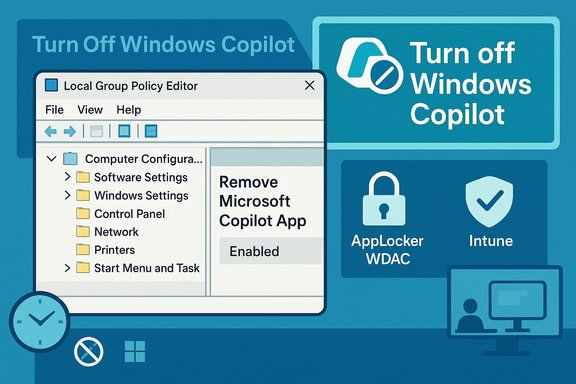
Illustration showing how to disable Windows Copilot using Local Group Policy Editor.Background / Overview​

Microsoft’s Copilot family now spans several products and delivery channels: a free consumer Copilot app that often ships with Windows 11 images, deep OS-level integrations (taskbar button, Win+C, keyboard or hardware keys, context menus), and the paid, tenant-managed Microsoft 365 Copilot service. That multiplicity has produced a persistent management headache for enterprise and education IT teams who need deterministic control over what runs on managed endpoints.
In response, Microsoft introduced a narrowly scoped Group Policy in the Windows 11 Insider Preview that can uninstall the consumer Copilot app for targeted users—provided a strict set of conditions are met. The policy is delivered in Windows 11 Insider Preview Build 26220.7535 (packaged as KB5072046) and is exposed at: User Configuration → Administrative Templates → Windows AI → Remove Microsoft Copilot App. It’s available only on managed devices running Windows 11 Pro, Enterprise, or Education in the Insider Dev/Beta rings.

What Microsoft shipped: the concrete facts​

  • The policy name is RemoveMicrosoftCopilotApp and it appears in the Local Group Policy Editor under User Configuration → Administrative Templates → Windows AI → Remove Microsoft Copilot App.
  • It is included in Windows 11 Insider Preview Build 26220.7535, delivered as KB5072046 and initially visible to devices in the Dev and Beta channels.
  • The policy targets managed devices on Windows 11 Pro, Enterprise, and Education SKUs; Home and unmanaged consumer desktops are out of scope.
  • When the policy runs and its preconditions are satisfied, it performs a one‑time uninstall of the consumer Microsoft Copilot app for a targeted user. It does not create a persistent block; the app can be reinstalled later via Store, tenant provisioning, or image updates unless administrators implement additional enforcement.
These are the load-bearing technical points administrators must treat as facts when planning deployments.

The three gating conditions — why the policy is conservative​

Microsoft intentionally made the uninstall policy conservative. For the Group Policy to trigger for a specific user/device, all of the following must be true:
  • Both Microsoft 365 Copilot (paid, tenant‑managed) and the consumer Microsoft Copilot app are installed on the device. The guard prevents removing the only Copilot experience that paid users may depend on.
  • The consumer Microsoft Copilot app must be provisioned (OEM preinstall, tenant push, or image provisioning) and not installed by the end user. User-installed copies are explicitly excluded from the uninstall.
  • The consumer Microsoft Copilot app must not have been launched in the last 28 days. Microsoft uses this inactivity window as a safety gate to avoid surprising active users.
These three constraints make the policy a surgical cleanup tool: excellent for cleaning provisioned but unused copies (classroom or kiosk images, mistakenly provisioned endpoints), but insufficient if you require a durable ban across a fleet.

Why this policy matters — practical use cases​

  • Classroom and lab images: schools and training labs often receive OEM or image‑deployed Copilot instances that are unnecessary for student devices. A one‑time uninstall can restore the intended image state without risking tenant service interruptions.
  • Kiosk and shared devices: devices used in kiosks or public terminals should minimize background services. The policy removes the consumer UI when it was preinstalled.
  • Remediation after accidental provisioning: if Copilot was pushed to devices by mistake during an imaging run, the policy gives an official, supported removal path that minimizes helpdesk churn.
Still, administrators must evaluate whether a one‑time uninstall matches their requirement. For true, long-term blocking, layered enforcement remains necessary.

Operational caveats and real-world friction points​

The policy’s intent—to avoid breaking paid tenant workflows and to prevent surprise removals—drives its cautious behavior. That caution creates operational friction administrators will hit quickly:
  • The 28‑day inactivity gate is brittle. Copilot often installs with an auto‑start behavior or can be triggered by keystrokes (Win+C, Copilot key, or accidental context-menu launches). Those background launches count as activity and will reset the 28‑day clock, preventing the uninstall from running. To satisfy the inactivity window you may need to disable Copilot auto‑start and lock down launch paths for a full 28 days.
  • User-installed copies are excluded. If a user installed Copilot from the Microsoft Store, the policy will not remove that copy. That forces admins who need bulk removal of user installs to pair group policy with detection/remediation scripts and AppLocker/Intune enforcement.
  • It’s a one‑time uninstall. After the uninstall runs for a targeted user on a device, nothing in RemoveMicrosoftCopilotApp prevents reinstallation. Tenants, imaging processes, or subsequent Windows feature updates can reintroduce the consumer app. Durable removal requires a layered approach.
  • Not immediately visible to all Insiders. The setting ships in an Insider build but is server‑side gated; installing the build alone does not guarantee the policy appears on every machine. Validate in a pilot.
These operational realities mean the policy is best viewed as an officially supported cleanup tool—not a silver-bullet management control.

Recommended admin runbook — how to prepare and deploy safely​

  • Validate scope and licensing. Confirm whether Microsoft 365 Copilot exists in your tenant and which users rely on it; the policy only runs when both consumer and tenant Copilot are present.
  • Pilot on a small set of managed devices (Pro/Enterprise/EDU) enrolled in Dev/Beta Insider rings that have KB5072046 applied. Verify the Group Policy appears at User Configuration → Administrative Templates → Windows AI → Remove Microsoft Copilot App.
  • Disable Copilot auto‑start and block or remap Copilot launch keys during the 28‑day inactivity window to prevent accidental launches. Monitor launch telemetry to ensure the app remains idle for 28 consecutive days.
  • Ensure that copies you want removed are provisioned (OEM or tenant‑pushed) rather than user‑installed. If users already installed Copilot, schedule detection and remediation via PowerShell or Intune scripts.
  • Enable RemoveMicrosoftCopilotApp via GPO or map the ADMX into Intune/MDM. Apply to targeted user OUs or device groups and monitor the uninstall action in event logs and endpoint management telemetry.
  • After the uninstall completes, follow up with durable controls if necessary (see next section). Verify both UI removal (taskbar, Win+C) and package removal (Appx/AppxBundle names vary across builds) and create a rollback plan.

For durable enforcement: layered controls you should combine​

RemoveMicrosoftCopilotApp is not intended to be a permanent block. If your organizational policy requires Copilot to never appear on managed machines, combine the following:
  • TurnOffWindowsCopilot policy / registry: Use the existing administrative disable control that maps to the registry/policy key (for example, the TurnOffWindowsCopilot policy under SOFTWARE\Policies\Microsoft\Windows\WindowsCopilot) to disable Copilot behavior where supported. Test this alongside the uninstall policy because they solve different problems.
  • AppLocker or Windows Defender Application Control (WDAC): Block the Copilot package family or specific Appx package identifiers to prevent reinstallation or execution. AppLocker whitelisting plus deny rules offer a reliable enforcement layer for managed endpoints.
  • MDM/Intune configuration: Use Intune device configuration profiles to prevent tenant pushes from reinstalling consumer Copilot, and script detection/remediation for user-installed copies.
  • Automated verification: Implement a verification cadence post-update. Controls that work on one Windows build can fail or change on the next feature update, so include Copilot checks in your post‑patch validation pipeline.
Combining these measures creates a defensible posture: RemoveMicrosoftCopilotApp removes unwanted provisioned instances, TurnOffWindowsCopilot disables behavior, AppLocker/WDAC prevents reinstallation, and Intune/automation enforces and verifies compliance.

Security, compliance, and support tradeoffs​

  • Reduced helpdesk risk vs. operational complexity. Microsoft intentionally avoided a blunt kill switch to reduce unintended breaks for tenant users. That lowers immediate helpdesk risk but forces administrators into a more complex orchestration model that increases automation and verification needs.
  • Update risk. Packaging and EF/OS integrations can change across feature updates. Controls must be revalidated after major Windows updates; assume periodic regression testing and fast re-mitigation paths.
  • Legal and telemetry considerations. Any claim about telemetry, backend processing, or data residency for Copilot features should be validated against Microsoft contractual and technical guidance if compliance is material to your environment. The uninstall policy addresses UI removal, but not necessarily all underlying telemetry or background service behavior. Flag these as areas needing vendor confirmation.

Strengths and limitations — a balanced assessment​

Strengths:
  • Official, supported removal path for provisioned consumer Copilot installs on managed devices, reducing the need for unsupported hacks or risky manual removals.
  • Designed to avoid breaking paid tenant workflows by requiring the presence of Microsoft 365 Copilot before removal and by excluding user-installed copies. This is a conservative but sane safety posture.
  • Visible and auditable via Group Policy and event logs, which helps IT teams include it in documented provisioning/remediation flows.
Limitations:
  • Operational friction (28‑day inactivity) makes it hard to use as a fast remediation tool; disabling auto-start and enforcing a 28‑day quiet window is awkward for many fleets.
  • One‑time uninstall semantics mean the policy does not create lasting protection—reinstallation remains possible without complementary controls.
  • Scope limitations: only available on managed Pro/Enterprise/Edu devices in Insider channels; not a consumer-facing option and not an immediate cure for Home edition or unmanaged devices.
Overall verdict: the policy is a welcome, pragmatic tool for controlled cleanup scenarios, but not a substitute for a thoughtful, layered governance strategy.

Quick admin checklist (concise)​

  • Confirm Windows 11 Insider build 26220.7535 / KB5072046 visibility in pilot devices.
  • Confirm devices are Pro, Enterprise, or Education and are managed (domain‑joined or MDM).
  • Disable Copilot auto‑start and block launch keys for at least 28 days to allow the inactivity gate to be met.
  • Apply RemoveMicrosoftCopilotApp via GPO/Intune and monitor event logs for uninstall events.
  • Layer TurnOffWindowsCopilot, AppLocker/WDAC, and Intune enforcement to prevent reinstallation and preserve a durable posture.

What remains uncertain — claims to approach with caution​

Several implementation details are straightforward in the Insider notes, but some operational behaviors can vary across builds and server-side gating:
  • The exact Appx package names and family identifiers for Copilot differ between builds and can affect AppLocker/WDAC rules; confirm package names on your build before blocking.
  • Server-side rollouts and regional availability: the policy has been rolled out with server-side gating and may not appear immediately in all regions or all Insider devices. Validate in your environment.
  • Telemetry surface area and residual background services: uninstalling the consumer UI may not remove all telemetry endpoints or integration hooks; validate data flows with Microsoft for compliance-sensitive deployments.
Flag any of these as conditions where direct vendor confirmation or hands-on testing in a controlled pilot is required.

Conclusion​

The RemoveMicrosoftCopilotApp Group Policy is a carefully scoped concession from Microsoft: it gives managed‑device administrators a supported, auditable mechanism to remove the preinstalled consumer Copilot app under tightly controlled circumstances. For classroom, kiosk, or imaging remediation scenarios it is a welcome tool—but the policy’s conservative gating (presence of Microsoft 365 Copilot, non-user install, and a 28‑day inactivity window), its one‑time uninstall semantics, and the requirement that devices be managed Pro/Enterprise/Education on Insider preview builds mean this is a surgical cleanup instrument, not a fleet‑wide kill switch.
Organizations that need Copilot to never appear must treat RemoveMicrosoftCopilotApp as one component of a layered governance playbook: combine it with TurnOffWindowsCopilot, AppLocker/WDAC, MDM/Intune controls, and automated verification after every feature update. Plan to pilot, monitor, and revalidate after updates—because the only durable guarantee in Windows endpoint management is continuous verification.
For IT leaders, the practical takeaway is straightforward: Microsoft listened and provided a supported remedy for specific cleanup scenarios, but durable control still requires planning, automation, and occasional manual intervention.

Source: GLITCHED Microsoft Copilot Can Now Be Uninstalled From Windows 11 But it is Still a Pain to Achieve
 

Microsoft’s new “uninstall” for Copilot is real — but it’s a surgical tool, not a sledgehammer, and getting it to do what you expect requires planning, patience, and additional controls.

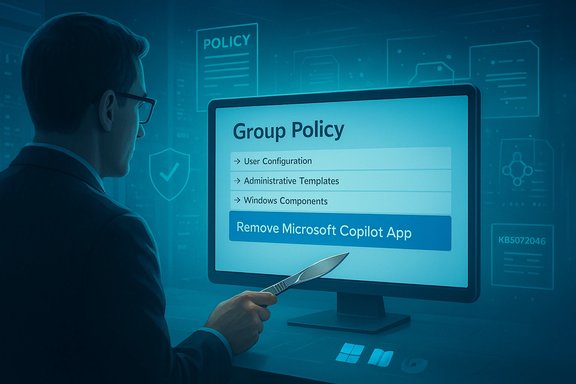
A man in a suit views a monitor displaying Group Policy options to remove Microsoft Copilot app.Background​

Microsoft’s Copilot has evolved into a family of experiences: a consumer-facing Copilot app that ships with many Windows 11 installations, deep OS integrations (taskbar button, keyboard shortcuts, File Explorer context menus), and a paid, tenant-managed Microsoft 365 Copilot service tied to enterprise subscriptions. That multiplicity is the root cause of repeated management headaches — admins want deterministic controls; consumers want choice; Microsoft must avoid breaking paid, tenant-managed workflows.
In the Windows 11 Insider Preview released in early January 2026, Microsoft added a Group Policy setting that will, under tightly constrained circumstances, remove the consumer Copilot app from a targeted user account. The change appears in Build 26220.7535 (distributed as KB5072046) and is surfaced in Group Policy at: User Configuration → Administrative Templates → Windows AI → Remove Microsoft Copilot App. The feature is currently scoped to managed SKUs in Insider channels.
This article explains exactly what that Group Policy does, why Microsoft implemented it this way, the operational limits you must understand, and practical, step-by-step guidance for admins and power users who need durable removal of Copilot from Windows 11 endpoints.

What Microsoft shipped: the RemoveMicrosoftCopilotApp policy​

Where it lives and what it does​

  • The Group Policy is named RemoveMicrosoftCopilotApp and is exposed in the Local Group Policy Editor under: User Configuration → Administrative Templates → Windows AI → Remove Microsoft Copilot App. It was added to the Windows 11 Insider Preview Build 26220.7535 and delivered as KB5072046.
  • Behavior: when enabled, the policy performs a one-time uninstall of the consumer Microsoft Copilot app for the targeted user account on that device. It does not create a persistent block; users or provisioning flows can reinstall the app later if permissions permit.
  • Scope: the policy is targeted at managed SKUs — Windows 11 Pro, Enterprise, and Education — and was initially available in the Insider Dev and Beta channels (server-side gating may delay availability on some devices). Home and unmanaged consumer devices are out of scope for this specific tool.

The three gating conditions — the rules that matter​

RemoveMicrosoftCopilotApp only acts when all of the following are true:
  • Both Microsoft 365 Copilot (the paid, tenant-managed service) and the consumer Microsoft Copilot app are present on the device. This is to avoid removing the only Copilot experience a licensed tenant user relies on.
  • The consumer Microsoft Copilot app was not installed by the user — it must be preinstalled, OEM-provisioned, or tenant-provisioned. User-installed copies are excluded from the policy’s reach.
  • The consumer Microsoft Copilot app has not been launched in the past 28 days. Microsoft enforces this inactivity window as a safety gate to avoid surprising active users.
Those three checks combine to make the policy a conservative, surgical cleanup mechanism: it targets provisioned but unused consumer Copilot installs (for example, classroom images, kiosks, or mistakenly provisioned devices), not to enforce a blanket ban across a mixed estate.

Why Microsoft designed it this way — the reasoning behind the limits​

Microsoft faces a clear architectural and customer trade-off: Copilot exists both as a consumer front end and as tenant-managed features integrated into Microsoft 365. A blunt “remove everything” control risked inadvertently disabling paid tenant workflows that organizations depend on. The company therefore:
  • Made the control user-targeted and one-time, reducing the chance of mass surprises and helpdesk outages.
  • Required the presence of Microsoft 365 Copilot to avoid removing the only functional Copilot available to paid users.
  • Excluded user-installed apps to preserve user autonomy on managed machines.
  • Added a 28-day inactivity gate to prevent accidental removals from devices on which Copilot is actually used.
That safety-first posture is sensible from a vendor risk-management perspective, but it intentionally limits the policy’s utility as a permanent enforcement tool.

Operational realities — why “uninstall” is still a pain​

The 28-day inactivity window creates friction​

The most awkward operational constraint is the 28-day unused requirement. Copilot on many builds may auto-start at login or be triggered by hotkeys (Win+C, hardware Copilot keys), background processes, or even search hooks. Those incidental starts reset the inactivity clock and prevent the Group Policy from triggering. In practice, administrators must either:
  • Explicitly disable Copilot auto-start for affected user accounts and ensure no one launches it for 28 consecutive days, or
  • Use imaging or staged provisioning where devices are prepared without user interaction for the required quiet period.
Both approaches add coordination overhead, particularly across large fleets.

It won’t touch user-installed copies​

If an end user has installed Copilot from the Microsoft Store or manually, the Group Policy will not uninstall it. This is an intentional choice to avoid surprising end users, but it forces admins who need bulk removal to combine detection (finding user-installed packages) with remediation (PowerShell, AppLocker, Intune scripts).

One-time uninstall only — not a durable block​

Even if the policy succeeds, it performs a one-time uninstall for that user account on that device. Nothing in the policy prevents reinstallation via the Store, tenant provisioning, or image refreshes. To make removal durable you must layer in additional controls such as AppLocker/WDAC or Intune-managed configuration that prevents the Copilot package from running or being reinstalled.

Deep integrations remain​

Uninstalling the consumer app doesn’t automatically remove all Copilot hooks — some shell integrations, protocol handlers, or device-specific enhancements (such as Copilot+ PC features or Windows Studio Effects on NPU-enabled machines) are separate components. Removing the app cleans the UI but may not “erase every trace” of Copilot from the OS. Administrators seeking extreme removal should treat that as an operational truth and plan accordingly.

Practical recommended workflows for admins and power users​

Below are practical, verifiable steps and layered strategies that reflect Microsoft’s policy behavior and community-tested methods. The numbered sequences help IT teams create a reproducible runbook.

1. Immediate, low-risk actions (quick wins)​

  • Hide the Copilot taskbar button: Settings → Personalization → Taskbar → toggle Copilot off. This is reversible and addresses the top user complaint: UI clutter.
  • Disable Copilot hotkeys where available: Settings → Personalization → Taskbar → Taskbar behaviors. Disabling Win+C reduces accidental launches.
  • If the Uninstall option appears in Settings → Apps → Installed apps, use it locally as the cleanest path when available; confirm by rebooting and verifying the taskbar and shortcuts no longer invoke Copilot. Note: some builds may gray out Uninstall.
These first-line measures are safe and fully reversible for end-user desktops and pilot machines.

2. Supported management controls (recommended for IT)​

  • Deploy the official Group Policy to turn off typical Copilot launch paths: the Turn Off Windows Copilot policy maps to the registry key: SOFTWARE\Policies\Microsoft\Windows\WindowsCopilot\TurnOffWindowsCopilot (DWORD = 1). Use this for centrally managed machines (GPO or Intune).
  • If you need to perform a one-time, supported uninstall for provisioned but unused Copilot instances, enable RemoveMicrosoftCopilotApp in Group Policy for target users. Ensure all three gating conditions are satisfied before expecting action. This is the official, supported cleanup tool in the Insider preview.

3. Durable enforcement (enterprise-grade)​

To prevent reinstallation or execution across a fleet:
  • Use AppLocker or Windows Defender Application Control (WDAC) to block the Copilot package family by publisher and package family name (for example, publisher CN=MICROSOFT CORPORATION and appropriate package family). Carefully test rules in a pilot ring to avoid false positives.
  • Combine AppLocker/WDAC with Intune configuration profiles to deploy registry keys and enforcement policies across managed devices. Intune can apply the TurnOffWindowsCopilot policy or push AppLocker rules for enterprise scale.
  • Review tenant provisioning flows in Microsoft 365 admin controls to prevent tenant-driven re-provisioning of consumer Copilot where possible. If tenant automatic provisioning is the path reinstating Copilot, addressing it at the tenant level is often the most robust remedy.

4. Detection and remediation scripts (when user installs complicate things)​

  • Create automated detection scripts (PowerShell) to enumerate Appx/AppxPackage names (Get-AppxPackage) and flag user-installed Copilot packages. Use targeted remediation scripts to remove or quarantine packages where policy allows. Exercise caution: verify package names before removal to avoid collateral damage.
  • Pair detection with compliance reporting so you can identify reinstalled instances after feature updates and re-apply AppLocker/WDAC protections as needed. Automate checks after cumulative updates and feature upgrades.

Technical specifics and precise verifications​

  • Build and update identifier: Windows 11 Insider Preview Build 26220.7535 (KB5072046) contains the RemoveMicrosoftCopilotApp Group Policy. Administrators should confirm their devices are on the same build or later before expecting the setting to appear.
  • Group Policy path: User Configuration → Administrative Templates → Windows AI → Remove Microsoft Copilot App. The setting performs a single uninstall for the targeted user when the gating conditions are true.
  • Registry mapping for the “Turn off Windows Copilot” policy: SOFTWARE\Policies\Microsoft\Windows\WindowsCopilot\TurnOffWindowsCopilot (DWORD = 1). This is the supported registry equivalent for Home users or scripted deployments. Back up the registry before making changes.
These specifics are reported consistently in Microsoft’s Insider notes and multiple independent examinations, and they should be verified on your exact builds before automation.

Risks, trade-offs, and things admins must weigh​

  • False comfort: believing RemoveMicrosoftCopilotApp is a permanent ban is risky. It is a one-time uninstall and does not prevent reinstallation; relying on it alone will likely lead to reappearance through Store installs, tenant provisioning, or Windows image refreshes. Durable enforcement requires AppLocker/WDAC or tenant mitigation.
  • Operational overhead: the 28-day inactivity requirement imposes significant operational burdens. Disabling auto-start and orchestrating 28-day quiet windows across large fleets is nontrivial and may be impractical without staged provisioning.
  • Feature regressions and updates: Windows servicing can reintroduce Copilot or change how components are packaged; past updates have accidentally removed or restored Copilot in some scenarios. Expect to validate post-update and maintain a remediation plan.
  • Accessibility and functionality impact: removing Copilot components can affect accessibility features that rely on AI (for example, enhanced Narrator image descriptions) and on-device AI features on Copilot+ hardware. Evaluate accessibility needs prior to broad removals.
  • Legal and regional considerations: preview behaviors and feature gating can vary by region; some Insider preview features may not be available in all jurisdictions. Verify availability for your tenant and region.
Where claims about performance gains or privacy improvements are made, treat them as conditional: Copilot background processes consume memory when active, but total system impact varies widely by hardware, workload, and which integrations are removed. Any broad performance claim should be validated on representative devices.

Recommended testing and rollout plan (practical checklist)​

  • Pilot ring: pick a small pilot group on the exact Windows builds you plan to manage (Insider or production). Confirm the Group Policy and registry mappings are present and behave as expected.
  • Disable auto-start and hotkeys on pilot devices, then verify 28 days of inactivity if you plan to use RemoveMicrosoftCopilotApp. Automate telemetry collection to detect accidental launches.
  • Apply RemoveMicrosoftCopilotApp in the pilot and confirm one-time uninstall behavior. Document the process, logs, and rollback steps.
  • If durable enforcement is required, create AppLocker/WDAC rules and test them in audit mode before enforcement. Use Intune to deploy and monitor compliance.
  • Maintain post-update verification: after any major Windows feature update, run automated checks to detect Copilot reinstallation and reapply enforcement as needed.

Final assessment​

Microsoft’s new RemoveMicrosoftCopilotApp Group Policy is a meaningful concession to administrators: for the first time there is an official, supported checkbox that can remove a provisioned consumer Copilot app under narrowly defined and safety-first conditions. That’s a substantive improvement over brittle scripts and user-driven uninstall attempts.
However, the policy’s conservative design — the requirement that both Microsoft 365 Copilot and the consumer Copilot app be present, the exclusion of user-installed apps, the 28-day inactivity gate, and the one-time uninstall semantics — makes it a remediation tool, not a permanent ban. Organizations that need guaranteed, fleet-wide prevention must view RemoveMicrosoftCopilotApp as one element of a layered strategy that includes AppLocker/WDAC, Intune/MDM configuration, tenant-level provisioning controls, and robust detection/remediation automation.
For individual users and small IT teams who only want Copilot out of sight, the practical path remains simple: hide the taskbar icon, disable hotkeys, and uninstall locally when the Settings UI allows it. For enterprises, plan, pilot, and pair the new GPO with durable execution-blocking controls. Expect ongoing verification after updates; Copilot’s packaging and delivery remain an active surface for change.
Microsoft has given admins a supported scalpel — it is now on IT teams to decide whether a scalpel is the right tool, or whether they need a broader toolkit that includes bolts and locks.

Source: glitched.online https://www.glitched.online/microso...indows-11-but-it-is-still-a-pain-to-achieve/]
 

Microsoft has quietly given administrators a one‑time, conditional way to remove the consumer Microsoft Copilot app from managed Windows 11 devices — but the new RemoveMicrosoftCopilotApp Group Policy is intentionally narrow, gated by strict checks, and not a permanent “kill switch” for Copilot on the desktop.

A glowing shield with the “GROUP POLICY” logo on a blue circuitry-style backdrop.Background / Overview​

Microsoft’s Copilot strategy has become multi‑layered: a free, consumer‑facing Microsoft Copilot app that shows up on many Windows 11 images, deep OS integrations (taskbar button, Win+C hardware key, context‑menu entries), and Microsoft 365 Copilot — the paid, tenant‑managed AI experience embedded in Office apps and workflows. That overlap created real management headaches for IT teams c control over what runs on managed endpoints.
In the January Insider preview (Windows 11 Insider Preview Build 26220.7535, distributed as KB5072046), Microsoft added a Group Policy named RemoveMicrosoftCopilotApp that enables admins to uninstall the consumer Copilot app for targeted users — but only when a short checklist of conditions is satisfied. The change is aimed at Pro, Enterprise, and Education SKUs on managed devices in the Insider Dev and Beta channels er‑gated during rollout. This article explains exactly what administrators can — and cannot — do with the new policy, how it compares to existing options, and the practical governance steps organizations should take to achieve durable control over Copilot on Windows desktops.

What RemoveMicrosoftCopilotApp actually does​

The policy in plain terms​

  • The Group Policy is a one‑time uninstall actionl gating conditions are met, the Consumer Microsoft Copilot app is uninstalled for the targeted user account once. It does not create a permanent block.
  • The policy only r Copilot app (the free front‑end). It intentionally leaves Microsoft 365 Copilot** — the tenant‑managed paid service — intact.
  • The setting is surfaced at: User Configuration → Adminis*Windows AIRemove Microsoft Copilot App** in the Local Group Policy Editor on supported Insider builds.

The three hard gating conditions​

Microsoft designed the policy to be conservative. The uninstall will only run for a given user/device if all of the following are true:
  • Both Microsoft 365 Copilot and the consumer Microsoft Copilot app are installed on the accidental removal of a tenant‑managed Copilot experience that business users depend on.
  • The consumer Copilot app was not installed by the user — it must be provisioned (OEM preinstall, tenant push, or image provisioninpies (for example, installed from the Microsoft Store) are excluded.
  • The consumer Copilot app has not been launched in the last 28 days. Microsoft enforces this inactivity window to avoid surprising active users and to make the policool rather than a blunt enforcement mechanism.
These checks make the policy ideal for cleaning up provisioned, unused Copilot installs on classroom devices, kiosks, or incorrectly imaged endpoints — but unsuitable as a stand‑alone mechanism for preventing Copilot from n enterprise environment.

How to find and apply the policy (admin steps)​

Quick checklist before you start​

  • Confirm the target devices are running (or are enrolled in) the Windows 11 Insider Dev or Beta channel and have received Build 26220.7535 / KB5072046. The feature is preview‑gated and may not appear immediately even aftate.
  • Confirm the device SKU is Windows 11 Pro, Enterprise, or Education and the device is managed (domain‑joined or MDM/Intune‑enrolled). Home and unmanaged consumer devices are out of sc Microsoft 365 Copilot is present and whether the consumer Copilot app was provisioned by OEM/tenant image provisioning. If users installed the app themselves, the policy will not target those instances.

Locating then gpedit.msc (Local Group Policy Editor) on a test machine.​

  • Navigate: User Configuration → Administrative Templates → Windows AIRemove Microsoft Copilot App.
  • Enable the policy and push it via AD/GPO or translate it into an equivalent Intune/MDM CSP profile for centralized deployment.
Note: the policy is user‑targeted an uninstall for each affected user when conditions are satisfied; it does not persistently block reinstall.

How this fits with existing management tools​

Micnts supported options for removing or preventing the Microsoft Copilot app, and the new policy is one more tool in that toolbox — but not a complete replacement for established controls. Key supported options include:
  • Uninstall via Settings or PowerShell: Admins can uninstall the Copilot package from Installed Apps or use PowerShell (Get‑AppxPackage / Remove‑AppxPackage) to remove the package for users. This is effective locally but may be reversed by subsequent updates or tenant provisioning.
  • AppLocker: For durable prevention, Microsoft recommends configuring AppLocker rules to block the Copilot package family (publisher: Microsoft Corporation, package name MICROSOFT.COPILOT). AppLocker can prevent installation and execution and is a more durable enforcement mechanism than a single uninstall. Microsoft’s manage‑Copilot documentation signals AppLocker as the preferred long‑term control for many enterprises.
  • TurnOffWindowsCopilot policy: For disabling Copilot affordances (taskbar button, launch paths), use the supported Group Policy "Turn off Windows Copiloting. That setting prevents typical launch paths but does not remove installed Appx packages in all scenarios.
Microsoft’s public guidance therefore points to a layered approach: use the RemoveMicrosoftCopilotApp policy as a surgical cleanup where appropriate, and pair it with AppLockevisioning controls if your requirement is to permanently prevent reinstall or execution.

Why Microsoft built it this way — design rationale​

There are clear tradeoffs behind Micresign:
  • Respect for user choice: The policy avoids removing apps that users explicitly installed themselves. This preserves end‑user autonomy even on managed devices.
  • Avoid surprising active users: The 28‑day inprevents admins from abruptly removing software that users are actively using. That reduces helpdesk churn from sudden, unexplained app disappearances.
  • Protect tenant workflows: By requiring Microsoft 365 Cbefore removing the consumer app, Microsoft ensures it doesn’t accidentally remove the only Copilot experience a tenant relies on.
In short, RemoveMicrosoftCopilotApp is explicitly a cleanup tool — not a replacement for fleet‑wide enforcement policies.

Practical examples and verification steps for admins​

Example: pilot and verify​

  • Pick a small pilot group of managed test devices enrolled in the Insider Beta ring and ensure they have Build 26220.7535 / KB5072046.
  • Confirm the Copilot app was provisioned (OEM or tenant) and has not been launched in the last 28 days for at least one test user.
  • Enable RemoveMicrosoftCopilotApp via Group Policy for that user, force a policy refresh, and monitor event logs for uninstall success.
  • Verify results:
  • Settings → Apps → Installed apps shows Copilot removed.
  • Taskbar Copilot button absent and Win+C no longer invokes the consumer app.
  • PowerShell: Get‑AppxPackage | Where‑Object { $_.Name -like "Copilot" } returns no consumer.
These verification steps mirror community playbooks and Microsoft’s own suggested validation approaches.

Example: durable enforcement (recommended for strict environments)​

  • Use AppLocker to add a blocking rule for the Copilot package family (Publisher CN=MICROSOFT CORPORATION; Package namersion *). Configure auditing mode first to check impact.
  • Apply the TurnOffWindowsCopilot policy or registry mapping to remove taskbar affordances and keyboard launches.
  • Disable tenant auto‑provisioning of consumer Copilot via Microsoft 365 admin contr4. Add the RemoveMicrosoftCopilotApp Group Policy as a one‑time cleanup for any leftover provisioned instances.
  • Add a post‑update verification runbook: after every Windows feature update, check for reprovisioned Copilot instances and reapply AppLocker/remediation as needed.

Limitatioo watch for​

  • Not permanent: RemoveMicrosoftCopilotApp is a one‑time uninstall and does not prevent reinstallation via the Store, tenant provisioning, or future image updates. For permanent prevention, AppLocker/WDAC plus tenant controls are required.
  • Insider preview and server gating: At time of writivered in Insider Preview Build 26220.7535 (KB5072046) and may be server‑gated. It could change before general release, and availability can differ by region. Administrators should treat it as preview functionality and test thoroughly.
  • Operational friction from the 28‑day rule: Copilot’s default behavior includes auto‑start on login on many builds,ving the 28‑day inactivity window difficult without proactively disabling Copilot in Startup or educating users. That makes the policy useful only in planned remediation scenarios, not immediate fleetwide rollouts.
  • Telemetry and residual components: Uninstalling the consumer app removes the front‑end, but other Copilot‑adjacent components or telemetry flows may remain (shell hooks, OS integrations, or cloud logs). For precon and cross‑service linkage, consult Microsoft’s Copilot privacy and tenant documentation; treat any statements about complete telemetry removal as unverifiable without those vendor documents.
  • **Potential breakage with unsupporttools and scripts exist that strip deeper AI components, but these can break updates and are unsupported by Microsoft. Use supported policies and AppLocker where possible.

Cross‑checks and verification of the key claims​

  • Microsoft’s management documentation describes supported options to remove or prevent the consumer Copilot app (including AppLocker and PowerShell uninstall), validating that the consumer front‑end can be uninstalled and that AppLocker is the recommended durable blocker.
  • Third‑party coverage of the Insider build confirms the Group Policy name, the build number (26220.7535 / KB5072046), and the 28‑day inactivity requirement — matching independent hands‑on reporting .
  • Community and forum investigations reproduce the policy’s gating behavior and emphasize the policy’s “one‑time cleanup” semantics while recommending layering with AppLocker or tenant controls for durability.
Where details are incomplete — for example, exact telemetry retention, or whether Microsoft will broaden consumer access to the policy beyond managed SKUs — those points are either subngoing documentation updates or are regionally controlled in preview. Treat such claims cautiously and validate against Microsoft’s published docs and release notes for your servicing channel.

Practical recommendations for first**: Validate RemoveMicrosoftCopilotApp in a controlled ring before broad deployment. Confirm build, enrollment status, and gating conditions on representative images.​

  • Adopt a layered approach:
  • Use AppLocker or WDAC to block the Copilot packaprevention.
  • Use TurnOffWindowsCopilot policy (or registry mapping) to remove affordances and reduce accidental launches.
  • Use **RemoveMicrosoftCopilotAppfor provisioned, unused instances.
  • Document and automate verification: Add checks to your update cadence to detect re‑provisioning after feature updates and reapply blocks or remediation sCommunicate to users: Because the policy will not target user‑installed Copilot instances, communicate the intended behavior and the steps users should take if they need Copilot restored.
  • *Preserve recovery pointsll to remove Appx packages across users, create restore points or maintain image backups — removing system packages can have unintended consequences if done incorrectly.

Bottom line​

The RemoveMicrosoftCopilotApp Group Policy is a pragmatic concession by Microsoft: it gives administrators a supported, documented way to surgically remove provisioned, unused instances of the consumer Microsoft Copilot app on managed Windows 11 devices. But it’s deliberately narrow by design — gated by build/channel, SKU and enrollment status, the requirement that Microsoft 365 Copilot be present, and a 28‑day inactivity check — and it performs a one‑time uninstall rather than a durable block. For organizations that must ensure Copilot never returnsis to blend the new policy with AppLocker/WDAC protections, tenant provisioning controls, and an ongoing verification cadence after feature updates. This change reduces friction for many classroom and imaging scenarios, but it shifts responsibility back to IT teams to operationalize and verify their desired posture across Windows updates and tenant provisioning. Treat RemoveMicrosoftCopilotApp as a useful new tool in the governance toolbox — helpful, but not a magic bullet.

Source: PCMag You Can Finally Uninstall Microsoft's Copilot App, But It's Tricky
 

Back
Top