

Microsoft’s Copilot is front‑and‑center in Windows 11, but you do not have to live with it — the visible app, its taskbar noise, and most common launch paths can be removed or neutralized without breaking Windows. The method is simple in principle: uninstall the Copilot app where it exists, apply the supported management policy (or the registry equivalent on Home), and hide taskbar affordances; for hard enforcement across a fleet add AppLocker/WDAC or an Intune policy. The community walkthroughs and Microsoft’s administrative guidance line up on the exact steps — and on one important caveat: Microsoft sometimes changes how Copilot is delivered, so you should treat removal as an operational posture that needs verification after major updates.
Microsoft positioned Copilot as a headline Windows 11 feature, surfacing it on the taskbar, in the Start/Search flow, and across app experiences. For many users that’s productivity help; for others it’s unwanted UI clutter and a privacy concern. The practical reality is that Copilot exists in two layers:
If you choose to remove Copilot, document the steps you took and create a simple verification checklist (taskbar absent, Win+C inert,
Source: FindArticles The Steps to Remove Windows 11 Copilot Have Been Shown
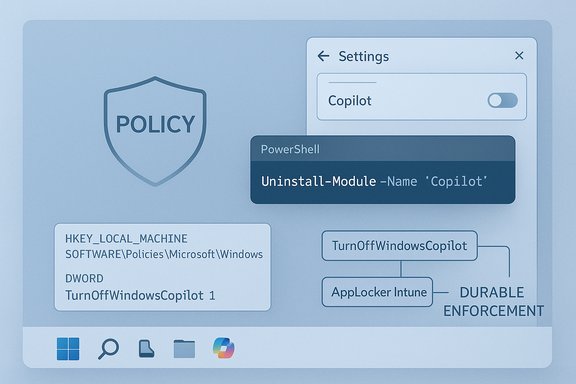 Background / Overview
Microsoft positioned Copilot as a headline Windows 11 feature, surfacing it on the taskbar, in the Start/Search flow, and across app experiences. For many users that’s productivity help; for others it’s unwanted UI clutter and a privacy concern. The practical reality is that Copilot exists in two layers:- The Copilot app and its UI affordances (taskbar button, sidebar, “Ask Copilot” context menu).
- The OS-level delivery and runtime hooks (policies, packaged components, system shell extensions and delivery channels) that allow Copilot to be provisioned and launched.
What you can remove — and what you can’t
Two-layer model (short)
- Removable/controllable: the Copilot app package, the taskbar icon, the Win+C hotkey on supported builds, Explorer shell extensions (right‑click entries), and optional Web Experience / Widgets package. Community guides and Microsoft docs provide the same stepwise methods.
- Less removable / persistent: deep OS integrations, delivery policies, and Copilot+ NPU-accelerated features (Windows Studio Effects) that live as distinct parts of Settings or device firmware. These may be intentionally retained on Copilot+ PCs and by design aren’t removed by simply uninstalling the front‑end app.
Practical takeaway
There’s little point in trying to “erase” every mention of Copilot from a modern Windows image; instead, remove the app and disable the supported policy so Copilot becomes inert for users, then add application control for durable enforcement in managed environments. Community playbooks and Microsoft’s manage‑Copilot guidance converge on this layered approach.Quick, safe steps for most users (GUI)
Follow these steps first — they’re the least risky and reversible.- Uninstall the Copilot app (if visible)
- Open Start, type “Copilot”, right‑click Microsoft Copilot and choose Uninstall, or go to Settings > Apps > Installed apps, find Microsoft Copilot, click the three‑dot menu and select Uninstall. This removes the front‑end UI for most users.
- Hide the taskbar item
- Settings > Personalization > Taskbar → under Taskbar items toggle Copilot and Widgets off. That clears the visible taskbar clutter without touching system policies.
- Remap or disable the hardware Copilot key
- If your keyboard has a Copilot key, use Microsoft PowerToys or your OEM’s utility to remap or disable it. This prevents accidental presses. Community guides cover the PowerToys remap flow for this key.
Stronger — supported management (recommended for Pro / Enterprise)
For durable blocking on Windows 11 Pro, Enterprise, or Education, use the supported Group Policy setting that Microsoft documents.Group Policy (Windows 11 Pro / Enterprise / Education)
- Press Win+R, type
gpedit.mscand press Enter. - Navigate to: User Configuration → Administrative Templates → Windows Components → Windows Copilot.
- Double‑click Turn off Windows Copilot and set it to Enabled. Apply and OK.
- Sign out or restart.
SOFTWARE\Policies\Microsoft\Windows\WindowsCopilot\TurnOffWindowsCopilot and when enabled prevents Copilot from appearing and launching via common paths. Microsoft’s policy documentation shows the mapping and scope (user vs device) and notes the policy is the supported management path. Important note: Microsoft’s own guidance also says AppLocker is the preferred long‑term approach to prevent installation and execution for some delivery scenarios; AppLocker rules (publisher = Microsoft Corporation, package name MICROSOFT.COPILOT) are useful when you want to prevent re‑provisioning or vendor‑driven reinstalls. Registry method (Windows 11 Home or scripted rollouts)
Windows Home lacks gpedit but the same behavior can be implemented with the registry. Back up the registry before editing.- Per‑user (affects signed‑in user):
- Path:
HKEY_CURRENT_USER\Software\Policies\Microsoft\Windows\WindowsCopilot - Value:
TurnOffWindowsCopilot(DWORD) =1 - Machine‑wide (all users — admin required):
- Path:
HKEY_LOCAL_MACHINE\SOFTWARE\Policies\Microsoft\Windows\WindowsCopilot - Value:
TurnOffWindowsCopilot(DWORD) =1
gpupdate /force (where supported). This mirrors the Group Policy setting and is widely used in community scripts. Exercise registry caution: export keys and create a restore point before changing system keys. Command line and PowerShell options (power user)
- Winget: open an elevated Windows Terminal and run:
winget list copilotto find the package name, then:winget uninstall "Microsoft Copilot"(or the exact package ID reported bywinget list).- PowerShell removal (typical community script):
- Per‑user removal:
Get-AppxPackage -Name "Microsoft.Copilot" | Remove-AppxPackage- System / all users:
Get-AppxPackage -AllUsers -Name "Microsoft.Copilot" | Remove-AppxPackage -AllUsers
Get-AppxPackage before removal. Note: removal for provisioned packages (installed for new users) may require Remove-AppxProvisionedPackage steps. Caveat: Removing package files can be brittle across builds. Microsoft’s guidance suggests AppLocker and policy are more robust for managed fleets. Widgets / Web Experience Pack — optional Power user step
Some users remove the Windows Web Experience Pack to stop Widgets and related background tasks. That package is namedMicrosoftWindows.Client.WebExperience and can be removed if you want Widgets and certain integrated preview features gone.- Winget:
winget uninstall "windows web experience pack"orwinget uninstall MicrosoftWindows.Client.WebExperience- PowerShell:
Get-AppxPackage [I]MicrosoftWindows.Client.WebExperience[/I] | Remove-AppxPackage
Enterprise-grade durability: AppLocker, Intune, tenant controls
If you manage a fleet and need Copilot gone for good (or until you decide otherwise), combine these:- Deploy the TurnOffWindowsCopilot policy via Group Policy or an Intune configuration profile for Pro/Enterprise devices.
- Create AppLocker rules to block the Copilot package family (
MICROSOFT.COPILOT) by publisher. AppLocker prevents install/execution and is explicitly recommended by Microsoft as the more durable approach versus the legacy TurnOffWindowsCopilot policy. - For Microsoft 365 managed environments, disable tenant‑level automatic app provisioning for Copilot via the Microsoft 365 Apps admin center to avoid tenant-driven reinstalls.
What persists after disabling Copilot (what you’ll still have)
- Search and Start: core Search/Start still work normally; Copilot shortcuts are suppressed but Search still functions.
- Edge Copilot pane: Copilot features embedded in Microsoft Edge are separate; disable them in Edge’s settings if you want to avoid browser‑side AI prompts.
- Copilot+ PC features: NPU‑accelerated features such as Windows Studio Effects are separate system components and turning off Copilot will not automatically remove them; they live in Settings and may require separate toggles.
The update problem: why removal is rarely “one and done”
Microsoft sometimes retools delivery and packaging; feature updates or re‑provisioning can reintroduce inbox apps. Community and official guidance both warn that a one‑time uninstall may be undone by a major feature update or a tenant‑level install policy. For that reason:- Re‑verify after feature updates and monthly cumulative updates.
- For personal machines, keep an eye on Microsoft Store auto‑update settings if Copilot is delivered as a Store app.
- For fleets, prefer AppLocker/Intune and tenant settings to prevent re‑provisioning.
How to get Copilot back
If you change your mind, there are straightforward reversal paths:- Reinstall the app from the Microsoft Store (search Copilot) or use winget:
winget install "Microsoft Copilot"(or the MS Store package ID).- If you disabled via Group Policy, set Turn off Windows Copilot to Not Configured (or Disabled) and restart.
- If you used the registry, delete or set
TurnOffWindowsCopilotto0and reboot. - Reinstall the Web Experience Pack from the Microsoft Store to restore Widgets if you removed it.
Security, privacy, and UX tradeoffs — critical analysis
Strengths of removing Copilot
- Cleaner UI and fewer distractions: Removing the taskbar icon and sidebar reduces visual noise. This is the most immediate user benefit.
- Reduced background activity: Removing the app and Web Experience Pack can reduce background CPU/memory/network use on constrained devices.
- Improved privacy posture: Less on‑device agent means fewer accidental uploads or integrated prompts that could surface private information. Community guidance specifically recommends disabling model‑training and privacy toggles if you keep Copilot enabled.
Risks and costs
- Feature loss: Copilot integrates productivity features across Office and Windows (contextual drafting, Designer suggestions, quick actions). Disabling removes those benefits for users who value them.
- Update regressions: Feature updates and re‑provisioning can reinstall or re‑enable Copilot; this leads to repetitive maintenance unless you use AppLocker/MDM.
- Support complexity: Aggressive removal via deep package edits or registry hacks risks unexpected breakage, and may complicate helpdesk or warranty troubleshooting. Use supported policy or AppLocker where possible.
Operational recommendation
Start with the least destructive options (taskbar toggle, uninstall via Settings). Escalate to Group Policy/registry when you need a per‑user block. For durable, fleet‑wide enforcement, pair the policy with AppLocker and tenant configuration and test on pilot devices before broad rollout. Back up registries, create restore points, and document every step.Verifying claims and current market context
The original writeup quoted a StatCounter figure that Windows 11 runs on “about 33 percent” of Windows machines worldwide. That number is outdated: StatCounter and multiple reporting outlets show Windows 11 adoption has moved significantly since the early rollout years and fluctuates month to month. Recent industry coverage indicates Windows 11 passed Windows 10 in some months of 2025 and hover(ed) in the ~50% range in mid‑2025 before adjustments, depending on the reporting month and dataset. Check StatCounter or major coverage (Windows Central, PCWorld/Thurrott) for the most recent month‑by‑month figures for an accurate current percentage in your region. Treat any single percentage in a fast‑moving upgrade cycle as a snapshot that can change after major support deadlines or campaign pushes.Short checklist (copy/paste)
- For a quick cosmetic fix:
- Settings > Personalization > Taskbar → toggle Copilot and Widgets off.
- To remove the Copilot app (single PC):
- Settings > Apps > Installed apps → Uninstall Microsoft Copilot (if available).
- Or PowerShell (admin):
Get-AppxPackage -AllUsers -Name "Microsoft.Copilot" | Remove-AppxPackage -AllUsers. - To disable for a user (Pro / Enterprise):
- gpedit.msc → User Configuration → Administrative Templates → Windows Components → Windows Copilot → Turn off Windows Copilot = Enabled.
- To disable on Home or script it:
- Add
HKCU\Software\Policies\Microsoft\Windows\WindowsCopilot\TurnOffWindowsCopilot=1(DWORD), or add underHKLMfor all users. Restart. - To prevent reinstall across a fleet:
- Use AppLocker with publisher CN=MICROSOFT CORPORATION and package name
MICROSOFT.COPILOT, plus Intune/tenant settings.
Final verdict
If you simply don’t want an AI assistant always present on your desktop, the pragmatic path is clear: uninstall the visible Copilot app, enable the supported TurnOffWindowsCopilot policy (or set the registry equivalent for Home), and hide the taskbar toggles. For organizations or power users wanting durable enforcement, pair that with AppLocker and tenant controls. The strategy is effective, reversible, and minimizes the risk of destabilizing Windows — but it is not a one‑time surgery: treat Copilot removal as an operational control that you’ll verify after major Windows feature updates. The community and Microsoft provide overlapping, consistent instructions for each step, and the safest practice is to use the supported management paths wherever possible while backing up before you make system changes.If you choose to remove Copilot, document the steps you took and create a simple verification checklist (taskbar absent, Win+C inert,
Get-AppxPackage shows no Copilot, policy key present). That turns a one‑off tweak into a repeatable, auditable configuration — the difference between a brittle trick and a manageable control.Source: FindArticles The Steps to Remove Windows 11 Copilot Have Been Shown
