

If you’re one of the many Windows 11 users who never changed the machine name assigned during setup, that inscrutable string — usually something like DESKTOP-5PH9MNH — isn’t just ugly and confusing: it’s a missed opportunity to improve security, device management, troubleshooting, and everyday clarity across local networks and your Microsoft account inventory.
Out of the box, Windows typically assigns a randomized host name when no explicit name is provided during setup. That default format (commonly prefixed with DESKTOP- or LAPTOP-) prevents immediate name collisions on networks but leaves most people with opaque device labels that are useless when scanning backups, the Microsoft account devices page, or a list of computers on your home network. This default behavior is baked into Windows installation flows and, unless you name the machine during OOBE or rename it afterward, the generated label persists in multiple places including the Settings app and Microsoft account device lists. Renaming a Windows 11 PC is fast and supported by the operating system, but many users overlook it. This piece explains why the setting matters, how and when to change a name safely, enterprise caveats (Autopilot, Intune, domain membership), and practical naming schemes so your devices look professional, stay unique, and cause fewer headaches.
Elements to consider:
If your device still shows an autogenerated DESKTOP-XXXXX label, it takes only a minute to improve it and save yourself endless guessing down the line. Before renaming, follow the platform rules, mind domain or MDM policies, and apply a short, useful naming convention that scales with your environment. The clarity you get back will be worth the few keystrokes it takes to change that opaque default.
Source: Pocket-lint Windows 11 has one setting almost no one changes, even though they should
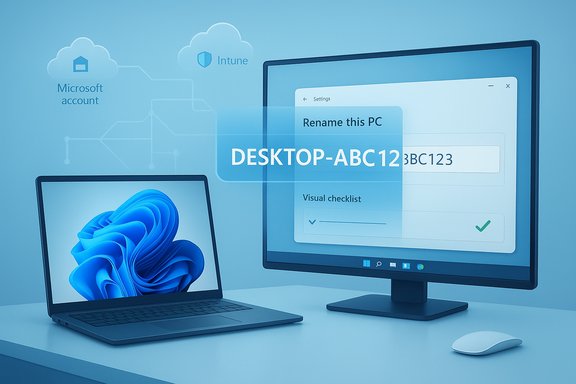 Overview
Out of the box, Windows typically assigns a randomized host name when no explicit name is provided during setup. That default format (commonly prefixed with DESKTOP- or LAPTOP-) prevents immediate name collisions on networks but leaves most people with opaque device labels that are useless when scanning backups, the Microsoft account devices page, or a list of computers on your home network. This default behavior is baked into Windows installation flows and, unless you name the machine during OOBE or rename it afterward, the generated label persists in multiple places including the Settings app and Microsoft account device lists. Renaming a Windows 11 PC is fast and supported by the operating system, but many users overlook it. This piece explains why the setting matters, how and when to change a name safely, enterprise caveats (Autopilot, Intune, domain membership), and practical naming schemes so your devices look professional, stay unique, and cause fewer headaches.Background: why Windows auto-generates names (and why that’s fine — up to a point)
When Windows installs without a preconfigured ComputerName value, the installer generates a randomized name (for example, DESKTOP-XXXXXXX). This reduces the chance that two machines on the same network will have identical NetBIOS/hostname values during first-boot, which would otherwise cause name-resolution conflicts. The generated string is deliberately short and constrained because Windows computer names must comply with legacy NetBIOS/DNS constraints — most importantly a practical 15-character limit for NetBIOS names. That automatic naming keeps installs robust, but it’s not helpful long-term. The generated label:- Gives no indication of owner, location, or purpose.
- Can make device inventories unreadable if you have several systems.
- Confuses backups and cloud dashboards where you expect a meaningful identifier.
Basic rules for Windows computer names
Before you rename anything, it’s important to stick to the rules so the new name will be accepted system-wide and won’t break network services:- Maximum length: 15 characters for the NetBIOS/computer name used by Windows networking. Longer labels may be valid for DNS hostnames in other contexts, but Windows enforces the 15-character constraint for the computer name used in many places.
- Allowed characters: letters (A–Z), numbers (0–9), and hyphens (-) are supported for device names used by Autopilot and most Windows systems. Names cannot be all-numeric. Certain special characters are prohibited (various punctuation marks, whitespace, slashes, backslashes, pipes, question marks, etc.. Always avoid underscores for DNS compatibility, and avoid leading or trailing hyphens or periods.
- Avoid reserved or cosmetic oddities: Using purely numeric names or punctuation-only names can break DNS/AD validation or cause application-level assumptions to fail. Windows also reserves the 16th character for special use in certain contexts, so do not try to circumvent the 15-character rule.
How to rename your Windows 11 PC (easy, supported path)
Renaming via the Settings app is the cleanest approach for most users. It is supported on Windows 11 and Windows 10 and updates the system in a supported manner.- Open Settings (Win + I).
- Go to System > About.
- Click Rename this PC.
- Type a new name (letters, numbers, hyphens; max 15 characters) and click Next.
- Choose Restart now or Restart later to apply the change.
Quick tip
On newer Windows 11 builds the Home or System page includes a hero card with a quick-link to Rename this PC, so you often don’t need to drill into About to find it.Alternative methods (Control Panel, Command Line, PowerShell)
If the Settings UI is unavailable or restricted by policy, there are other supported methods.- Control Panel (classic):
- Win + R → sysdm.cpl → Computer Name tab → Change… → enter new name → OK → restart.
- PowerShell (administrators):
- Rename-Computer -NewName "NewName" -Force -Restart
- For remote or domain scenarios, the cmdlet supports -ComputerName, -DomainCredential, and protocol options. The Rename-Computer cmdlet has been part of PowerShell since v3.0 and is flexible for automation.
- Command Prompt (legacy):
- wmic computersystem where name="%computername%" call rename name="NewName" followed by shutdown /r to restart. This is a fallback that still works but is less script-friendly than PowerShell.
What renaming actually changes — and what it doesn’t
Renaming a PC updates the system hostname used by Windows networking, syncs to your Microsoft account device list over time, and shows the new label in Settings, Control Panel, File Explorer “This PC” area (as the device name display), and many backup or management tools that read the system hostname. The OS applies the change after a restart and attempts to propagate it to relevant services. However, some things are not altered by renaming:- Your user profile folder path (C:\Users\YourUser) is not renamed when you change the computer name. Renaming the machine does not move or rename the user profile directory.
- Cloud services such as document edit histories do not reliably annotate edits with the device name; Microsoft services often show only the account name, not the device identity. If you rely on a device-specific audit alongside account-level events, don’t assume the device name will appear in every cloud log or document version entry.
Enterprise considerations: Autopilot, Intune, and domain-joined machines
For IT administrators, naming isn’t just cosmetic — it’s part of lifecycle management. Windows Autopilot and Microsoft Intune provide device-name templates, but their rules and behaviors deserve attention.- Autopilot / Intune device name templates: When you create an Autopilot profile in Intune, you can enable an “Apply device name template” option and populate variables like %SERIAL% or %RAND:x%. Templates are limited to 15 characters and only allow letters, numbers, and hyphens. Templates require the device to be Azure AD joined to fully apply (hybrid-joined devices can have more limited behavior). These rules are documented in the Autopilot profile settings.
- Failure modes: In practice, organizations periodically report that some devices still boot up with DESKTOP-xxxx names even though a naming template exists. Common causes include enrolling the device before the Autopilot profile was assigned, timing issues during OOBE, or hybrid join scenarios where only a prefix may be applied. Microsoft Q&A and community threads describe these edge cases and troubleshooting steps.
- Domain-joined machines: If the PC is joined to an Active Directory domain, renaming might require coordination with the domain controller and administrative privileges. In some domain scenarios, renaming can trigger re-registration of the machine account or necessitate a rejoin; always follow your organization’s change-control practices.
Naming best practices — practical templates and examples
A good device name is short, informative, and predictable. Keep it under the 15‑character NetBIOS limit and use consistent elements to make inventory and troubleshooting simple.Elements to consider:
- Owner initials or username (2–3 chars)
- Location or site code (2–4 chars)
- Device type or role (PC, LTP for laptop, SRV for server)
- A short unique identifier (serial suffix trimmed to fit)
- JD-NYC-LTP01
- MK-SEA-PC05
- OPS-SRV-03
- JOHN-SF-13 (if you prefer first name + site + unique)
- Personal info beyond what you’re comfortable exposing (full names if devices can be visible externally).
- Spaces and special characters that Windows won’t accept.
- Names that are all digits or exceed the 15-character limit.
- Two-letter owner code (AA)
- Two-letter site (NY)
- Device type (L for laptop, D for desktop)
- Two-digit sequence (01)
Result: AANYL01 (but include a hyphen for readability: AA-NY-L01)
Automation and bulk renaming — PowerShell examples
Rename-Computer is the supported PowerShell cmdlet and works well for scripting single or multiple changes. Example local and remote commands:- Rename local machine and restart:
- Rename-Computer -NewName "AA-NY-D01" -Force -Restart
- Rename remote computer (requires rights and connectivity):
- Rename-Computer -ComputerName "OLDNAME" -NewName "AA-NY-D01" -DomainCredential (Get-Credential) -Restart
- Bulk rename from CSV:
- Create CSV with OldName,NewName columns.
- $list = Import-Csv C:\rename.csv
- foreach ($r in $list) { Rename-Computer -ComputerName $r.OldName -NewName $r.NewName -DomainCredential (Get-Credential) -Force -Restart }
Common pitfalls and troubleshooting
- Rename button is greyed out: Check if you’re an admin, the device is MDM/domain-managed, or a policy blocks renaming. If the device is managed by Intune or an organization, the rename option can be restricted. Admins can use PowerShell or check MDM/Group Policy to allow the change.
- Name reverts to DESKTOP-xxxxx: This can happen when Autopilot or an MDM profile reapplies a naming template or when a provisioning script runs at the wrong time. Verify your Autopilot profile assignment timing and any post‑OOBE scripts. Remove conflicting automation or adjust the Autopilot profile to prevent repeats.
- Device shows two names or network conflicts: If the “Full computer name” differs (e.g., includes a DNS suffix) or you see duplicate hostnames, check domain/DNS suffix settings and NetBIOS naming scope. These are usually DNS/AD configuration issues rather than the rename process itself.
- Inventory mismatch in Microsoft account / Entra: Sometimes the name shown in the Microsoft Account portal or Entra/Intune differs from what the endpoint displays. That can be due to synchronization lag, multiple registrations, or how the device enrollment was performed (local Microsoft account vs Azure AD). Allow time for sync and, if needed, force a device sync in the management portal.
Security and privacy: why a name matters beyond aesthetics
A well-chosen name can reduce risk and make life easier:- Operational clarity: A naming convention helps admins quickly identify a device’s owner, site, and role — speeding incident response and forensic triage.
- Limit information leakage: An unhelpfully verbose name might reveal hardware models or a username in public screenshots. A neutral, standardized name minimizes that exposure.
- Backup and recovery: When restoring devices from cloud backups or browsing device lists in a Microsoft account, meaningful names let you select the right image or backup without guessing. Microsoft explicitly recommends descriptive names for organization and management purposes.
When renaming isn’t enough — what to do with older, messy inventories
If you inherited a fleet with mixed or autogenerated names:- Audit: Export device inventories from Intune/Entra or query local systems for hostnames.
- Decide a naming convention and map old names to new ones.
- Pilot: Rename a small set, validate with management tools, backups, and user acceptance.
- Automate: Use Autopilot naming templates for new devices and PowerShell/MS Graph automation for existing devices.
- Monitor: Watch for reversion or exceptions and adjust provisioning timing (Autopilot assignment, restart schedule) to reduce failures. Microsoft guidance for Autopilot naming and community troubleshooting threads are helpful when you encounter stubborn exceptions.
Final checklist before you rename
- Confirm you have administrator rights or appropriate domain/Microsoft Entra permissions.
- Verify the name complies with the 15-character and character-set limitations.
- Check whether the device is managed (Intune/Group Policy) and whether renaming is allowed or will be overwritten by provisioning automation.
- Restart after renaming and allow time for the change to sync to management portals and the Microsoft account dashboard.
- Document the new name in your asset inventory or helpdesk ticketing system.
Conclusion
Renaming your Windows 11 PC is one of those low-effort, high-return tasks that most users and small organizations skip — often out of inertia. A descriptive, consistent name simplifies backups, device management, troubleshooting, and even basic tasks like finding the right machine in the Microsoft account device list. Windows provides safe, supported ways to rename (Settings, Control Panel, PowerShell), and enterprise tools like Autopilot can automate naming at scale — but automation needs careful configuration to avoid surprises.If your device still shows an autogenerated DESKTOP-XXXXX label, it takes only a minute to improve it and save yourself endless guessing down the line. Before renaming, follow the platform rules, mind domain or MDM policies, and apply a short, useful naming convention that scales with your environment. The clarity you get back will be worth the few keystrokes it takes to change that opaque default.
Source: Pocket-lint Windows 11 has one setting almost no one changes, even though they should
