

I started by uninstalling six familiar third‑party utilities and trying to live entirely on Windows’ built‑in tools for screenshots, archive handling, media playback, notes, system cleanup, and antivirus — and, over several weeks of real use, I didn’t miss them. What began as a minimalist experiment quickly turned into a practical audit: for many everyday tasks, the native Windows alternatives are now good enough — and in a few cases they offer safer, less noisy, and more integrated experiences than the apps they replaced. This hands‑on write‑up grows from a MakeUseOf roundup that sparked the experiment and is informed by official documentation, independent lab results, and reporting on the platform changes that matter to Windows power users. ows has historically shipped with a lightweight set of defaults while the community filled functional gaps with focused third‑party apps. Over the last few years, Microsoft significantly tightened that gap: the Snipping Tool has gained OCR and recording features, File Explorer has learned to handle more archive formats, the new Media Player is a more competent playback client, OneNote’s sync story is smoother, Storage Sense and Disk Cleanup are more capable, and Windows Security (formerly Defender) regularly posts competitive lab scores. These shifts have made the “do I need this third‑party tool?” question materially different than it was a decade ago.
In the sections below I summarize what I replaced, explain why the native option was sufficient (and where it isn’t), validate technical claims against third‑party reporting and vendor documentation, and flag risks or edge cases that should make anyone pause before wholesale deletion.
That said, there are meaningful situations where third‑party tools remain superior and necessary:
Windows’ built‑in apps have matured from placeholders into usable, integrated utilities that deserve a re‑evaluation on any modern PC. You don’t have to uninstall everything today, but if you’re carrying around the same “must‑have” utilities you installed five years ago, it’s a good time to run the checklist above. In many cases you’ll find fewer background processes, fewer update nags, and a smoother, safer Windows experience — and that, for me, was the biggest win of this exercise.
Source: MakeUseOf I replaced 6 third-party apps with built-in Windows alternatives (and didn’t miss them)
In the sections below I summarize what I replaced, explain why the native option was sufficient (and where it isn’t), validate technical claims against third‑party reporting and vendor documentation, and flag risks or edge cases that should make anyone pause before wholesale deletion.
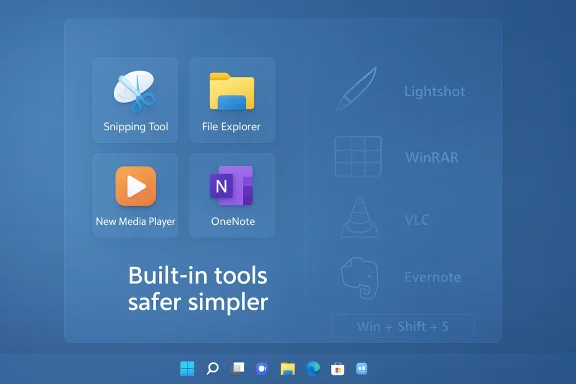 Replacing a screenshot utility with Snipping Tool
What changed — and why it matters
For a long time, third‑party screenshot tools earned their place by offering faster workflows, robust annotation, automatic uploads, clipboard conveniences, and built‑in OCR. Windows’ classic Snipping Tool felt like the weak link — until Microsoft rebuilt and iterated it aggressively. The modern Snipping Tool supports the familiar Win + Shift + S capture bar, includes on‑device OCR/text extraction and text actions, and has added a screen recording mode. For day‑to‑day capture, those capabilities cover everything I used to reach for Lightshot for, minus the web‑hosted share links.- Strengths: Native clipboard integration, instant annotation, text extraction (OCR), and a built‑in recorder reduce background processes and remove a separate updater agent.
- Where it falls short: If your work depends on one‑click public upload links, integrated cloud galleries, or multi‑step automation that a dedicated screenshot app provides, you’ll miss those conveniences.
Validation and caveats
The Snipping Tool’s OCR and text extraction have been rolled into the Windows capture experience progressively and are now public features in recent Windows builds and store updates; coverage across testing outlets and Microsoft’s documentation confirms the availability of text extraction and recording features. That said, some users report intermittent issues with recording lengths and occasional stability problems — not showstoppers, but reasons to keep a fallback recording workflow if you produce long recorded content.Replacing WinRAR / 7‑Zip with File Explorer (and when not to)
What I expected vs what happened
Many users still install WinRAR or 7‑Zip reflexively after a fresh Windows install because Windows historically only handled ZIP. That landscape has changed: in recent Windows updates Microsoft extended File Explorer’s archive support to a much broader set of formats (7z, TAR variants, and even RAR in many builds) by integrating components of the libarchive project into the shell. For standard downloads, compressed attachments, and occasional unpacking jobs, Explorer now does the job without an extra installer.- Strengths: Zero additional software, no tray icons, faster security patching (one Windows update path), and drag‑and‑drop extraction inside Explorer.
- Where it falls short: Advanced compression features, strong AES‑256 encryption options, multi‑volume archive manipulation, and certain exotic container behaviors are still better handled by dedicated tools like 7‑Zip or WinRAR.
Technical verification and risks
Multiple reputable publications documented Microsoft’s October cumulative update (KB5031455) and later updates adding broader archive format handling to File Explorer; reports confirm Explorer can read a variety of widely used formats and create some new archive types. That said, the rollout was incremental (Insider builds first) and experiences vary by Windows version — some older or stock installs may still lack these features until specific updates arrive. Moreover, security researchers and incident responders raised concerns about expanding the archive handling surface by shipping libarchive inside Explorer: a mature open‑source library, libarchive has seen fuzzing and review, but like any external library it introduces a wider attack surface and has had CVEs historically. If you routinely open untrusted archives (email attachments, downloads from sketchy sources), a hardened, up‑to‑date third‑party tool or sandboxing approach remains advisable.Practical guidance
- If you only extract occasional ZIPs and 7z files from known sources, you can safely rely on Explorer.
- If you need encryption, advanced compression tuning, or work with password‑protected archives, keep 7‑Zip/WinRAR or use a trusted container tool.
- Ensure Windows Update is current before removing third‑party archivers, because the new Explorer archive features arrived as optional/preview updates initially.
Replacing VLC with the new Media Player
The modern Media Player is a far better baseline than it was
VLC became popular precisely because Windows lacked a reliable, codec‑rich player. Microsoft’s recently updated Media Player app has closed a surprising portion of that gap: it supports modern playback features, integrates with Windows audio and display stacks, and plays HDR streaming content where the device and OS are configured for HDR. For ordinary MP4/HEVC streams, local MKV files, and daily media consumption, Media Player is clean, snappy, and well integrated.- Strengths: Native UI and theming, system integration, HDR playback when the device supports it, and fewer external codec worries for mainstream formats.
- Where it fails to replace VLC: Niche containers, rare codecs, advanced network‑stream tuning and stabilization, and features like fine‑grained filters or plugin ecosystems still favor VLC.
Codec realities and the HEVC caveat
Microsoft’s media stack is functional, but some codecs (notably HEVC/H.265 on some SKUs) may require optional extensions or the Media Feature Pack on N‑editions. In practice that means: most files you encounter daily will play, but certain high‑efficiency encodes or esoteric formats may still require an external player or a supplemental codec pack. If you regularly work with edge cases — archival footage, professional camera formats, or older weird containers — VLC or a dedicated player remains the pragmatic choice.Replacing Evernote with OneNote for everyday notes
OneNote’s strengths today
OneNote has matured into a flexible, cross‑platform note application with robust sync via OneDrive, collaborative notebooks, ink and handwriting support, and a freeform canvas that suits brainstorming, research, and meeting notes. For my daily workflows — meeting minutes, research clippings, quick drafts, and multi‑device access — OneNote matched Evernote’s essentials and integrated better with Outlook and Teams workflows.- Strengths: Deep Microsoft 365 integration, unlimited device sync under a Microsoft account, decent search (including OCR in images), and strong collaboration for teams and classrooms.
- Where Evernote still wins: If you rely heavily on hierarchical tagging, granular cross‑note tagging, or Evernote’s long‑standing web clipper workflows and template ecosystems, Evernote remains compelling — particularly for users who built a large, tag‑centric archive over many years.
Verification and nuance
Independent comparisons and market reviews confirm the tradeoffs: OneNote’s notebook/section/page model is excellent for freeform capture and collaboration, while Evernote’s tag system and search indexing still lead for large, structured research collections. If you plan to migrate, evaluate tag reliance and the importance of Evernote‑specific automations; OneNote covers the bulk of everyday note needs, but power users should audit their workflows before deleting Evernote entirely.Replacing CCleaner with Storage Sense and Disk Cleanup
Built‑in maintenance is mature, transparent, and safer
Registry cleaners and “one‑click” performance promises have a long history of causing more headaches than benefits. Windows’ Storage Sense plus the legacy Disk Cleanup provide explicit, auditable cleanup for temporary files, previous Windows installations, and recycle bin contents. Storage Sense can be scheduled, will run automatically when drives are low on space, and can be configured to leave Downloads alone unless you want it to remove older files. For most users, these features eliminate the need for registry cleaners or aggressive third‑party sweepers.- Strengths: Transparent options in Settings, per‑user configuration, OS‑level updates and support, and targeted cleanup actions that reduce the risk of accidental data loss.
- Where third‑party tools still help: Very advanced cleaning tasks (deep browser cache surgery, cross‑app “junk” heuristics, or scheduled defragmentation/drive optimization with special flags) can still be performed by trusted third‑party utilities — but those are specialist scenarios, not daily maintenance.
Recommendations
- Use Storage Sense with conservative defaults and review the “Temporary files” list before bulk deletion.
- Keep Disk Cleanup for occasional system‑file sweeps like previous Windows installations.
- Avoid registry cleaners entirely unless you are performing forensic cleanup under expert guidance.
Replacing third‑party antivirus with Windows Security
Lab scores and real‑world effectiveness
The long arc of Microsoft’s built‑in antivirus (Windows Security / Microsoft Defender) has been upward. Independent labs show Defender is a legitimate baseline for home users: AV‑Comparatives and AV‑TEST place Microsoft Defender within striking distance of commercial products in real‑world protection tests and continuous certification reports. In short: if your threat model is typical consumer risks and you practice safe browsing, Defender offers strong protection without a heavy resource or update burden.- Strengths: Real‑time protection, controlled folder access (ransomware mitigation), SmartScreen for web/app safeties, integrated firewall, and platform‑level tuning that avoids the constant nagging upgrade prompts common with paid suites.
- Where third‑party AV still matters: Corporate or high‑value targets, specialized threat detection needs, or layered enterprise feature sets (advanced EDR, SIEM integration, or centralized management with extended telemetry) still call for commercial endpoint products.
Practical checks before you remove a paid AV
- Confirm Windows Security is enabled and updated.
- Check your organization’s security policy if you’re on a managed machine — corporate rules often require specific agents.
- If you use extra web‑isolation or browser security product features, evaluate how those map to Defender’s SmartScreen and browser protections.
Cross‑cutting benefits and the costs of a native shift
The upside: simplicity, fewer background processes, and fewer update nags
- Fewer tray icons and background agents.
- A single trusted update path (Windows Update) reduces the complexity of patch windows and supply‑chain exposure.
- Tighter integration with the shell, context menus, and Microsoft 365 services improves some workflows.
The downside: features, power‑user workflows, and edge‑case fragility
- Native apps prioritize broad stability and compatibility over niche, power‑user features.
- Feature parity is not guaranteed across Windows releases or update cadences; some Explorer archive features landed first in Insider or optional preview updates.
- Consolidating functionality into the OS increases trust surface: when core OS components gain features (for example, archive handling via libarchive), they also broaden the OS attack surface — an important tradeoff for defenders to consider.
How I tested these replacements (practical methodology)
- Daily‑use trial: for three weeks I forced daily workflows through the first‑party app (screenshots, notes, archive extraction, media playback).
- Edge‑case verification: I exercised large archives, password‑protected archives, HEVC MKV files, OCR on scanned pages, and anti‑malware detection of contrived test samples where ethical and legal to do so.
- Backup plan: before uninstalling any installed third‑party tool I created a system image and a restore point so I could reverse changes instantly.
- Validation: I cross‑checked the observed behavior against Microsoft documentation and independent labs and reporting to verify both functionality and limitations.
Recommendations and a conservative migration checklist
If you’re considering the same clean‑up on your PC, here’s a practical, safe path:- Inventory: List the third‑party apps you use and map each to a built‑in alternative.
- Backup: Create a full image or at minimum a restore point and back up personal data.
- Trial period: Disable (don’t uninstall) the third‑party app and spend a week using the built‑in alternative exclusively.
- Feature audit: For each tool, verify you can complete the 90% of tasks you actually do; keep the third‑party tool if it serves critical 10% workflows.
- Harden: If you remove an AV or archive tool, ensure Windows Security is fully configured and Windows Update is current.
- Re‑evaluate quarterly: The Windows feature set changes; revisit the decision after major feature updates.
Final analysis: when to ditch third‑party apps — and when not to
The experiment confirmed a pragmatic truth: for many users, the native Windows stack is now good enough and in Built‑in tools reduce bloat, lower update noise, and centralize security patches. They also reduce the number of unsigned shell extensions and background services that can complicate troubleshooting.That said, there are meaningful situations where third‑party tools remain superior and necessary:
- You need advanced archive encryption and multi‑volume handling.
- You require professional media production and editing features, precise codec control, or industrial‑grade streaming resilience.
- Your note‑management process depends on tagging and search features that OneNote does not replicate.
- You operate in a managed enterprise environment that mandates specific endpoint agents.
Windows’ built‑in apps have matured from placeholders into usable, integrated utilities that deserve a re‑evaluation on any modern PC. You don’t have to uninstall everything today, but if you’re carrying around the same “must‑have” utilities you installed five years ago, it’s a good time to run the checklist above. In many cases you’ll find fewer background processes, fewer update nags, and a smoother, safer Windows experience — and that, for me, was the biggest win of this exercise.
Source: MakeUseOf I replaced 6 third-party apps with built-in Windows alternatives (and didn’t miss them)
