

Windows today does many of the things that used to force a fresh Windows install to be followed by a list of “must-have” third‑party utilities — but the reality is nuanced: built‑in tools have improved dramatically, yet they don’t make every third‑party app obsolete. A recent MakeUseOf roundup argues that common categories like compression tools, system cleaners, driver updaters, screenshot utilities, and third‑party antivirus are often unnecessary, because Windows can now handle these tasks itself. two decades the Windows setup ritual was predictable: install a faster file archiver, a “cleaner” that would sweep away cruft, a driver updater to keep hardware humming, a power‑user screenshot tool, and an antivirus suite. Those choices were defensive: Windows once shipped with fairly narrow built‑in utilities, so people reached for specialized tools to get the features and reliability they needed.
Over the last few Windows releases Microsoft has systematically expanded what ships in the box. Features like automatic cleanup, better driver distribution, an improved Snipping Tool, and a modernized Defender have moved the baseline a long way. That shift changes the calculus for most users: the time, disk space, and potential compatibility and privacy costs of adding third‑party tools must be weighed against what Windows already does.
This article examines the major app categories MakeUseOf calls out, verifies the claims against Microsoft technical documentation and independent test labs, and gives practical guidance on when built‑in tools are truly sufficient — and when a third‑party tool still makes sense. Along the way I flag limitations and real‑world failure modes so you can make an informed decision for your PC.
That progress means many casual users no longer need to install 7‑Zip or WinRAR just to open a download or to bundle a folder into an email‑friendly package.
For most users who only need to capture selections, annotate, or extract text from images occasionally, Snipping Tool is now entirely serviceable.
Microsoft also publishes enterprise‑oriented performance in MITRE and other evaluations for its EDR/XDR products, showing strong detection and low false positives in those contexts.
That said, the transition is not absolute. Native archive support still has edge cases and encryption limitations; advanced archiving, deep cleanup automation, driver recovery, and power‑user screenshot workflows remain legitimate reasons to install third‑party utilities. Independent security labs confirm Defender is a competent baseline protection, but organizations and users with specialized needs will continue to choose commercial solutions.
The practical takeaway: start with Windows’ built‑in tools, configure them properly, and only add third‑party software when a clear, demonstrable need remains. That approach reduces software bloat, minimizes risk, and keeps your Windows PC lighter and easier to manage — while still leaving room for specialized tools where they truly matter.
Source: MakeUseOf Stop installing these Windows apps — you don’t need them anymore
Over the last few Windows releases Microsoft has systematically expanded what ships in the box. Features like automatic cleanup, better driver distribution, an improved Snipping Tool, and a modernized Defender have moved the baseline a long way. That shift changes the calculus for most users: the time, disk space, and potential compatibility and privacy costs of adding third‑party tools must be weighed against what Windows already does.
This article examines the major app categories MakeUseOf calls out, verifies the claims against Microsoft technical documentation and independent test labs, and gives practical guidance on when built‑in tools are truly sufficient — and when a third‑party tool still makes sense. Along the way I flag limitations and real‑world failure modes so you can make an informed decision for your PC.
 Archives: Windows’ native compression is no longer just ZIP — with limits
What Microsoft now supports
Historically, File Explorer has only created and opened ZIP files natively. That changed in stages: Microsoft added broader archive handling to File Explorer and in recent Windows builds introduced a “Create Archive” wizard that supports additional formats. Official Microsoft support pages and coverage from major Windows outlets document that File Explorer can now create and extract several archive types in newer releases of Windows 11.That progress means many casual users no longer need to install 7‑Zip or WinRAR just to open a download or to bundle a folder into an email‑friendly package.
Important limitations you must know
However, the native support is not a full replacement for dedicated archive tools:- Encryption and password‑protected archives are still an area with caveats. Microsoft’s pages and community threads indicate that some encrypted archives and password‑protected formats either aren’t created or handled the same way as in specialized tools. If you rely on AES‑256 encryption or need to create password‑protected multi‑part archives, Windows’ native tools may fall short.
- Edge cases and format quirks remain. Users and community reports have documented extraction glitches with certain 7z or RAR files (for example, archives that include executable files or uncommon compression flags). Those bugs suggest the built‑in handlers are still maturing.
- Advanced features are missing: solid compression tuning, repair of damaged archives, self‑extracting archives, and fine‑grained command‑line automation are still domains where 7‑Zip, WinRAR, and PeaZip shine.
Guidance: when to skip third‑party archivers — and when not to
- Skip installing an archiver if your needs are basic: open occasional downloads, create ZIP packages for email, or do ad‑hoc extractions. Windows File Explorer now covers these scenarios and keeps your system simpler.
- Keep (or install) a dedicated archiver if you:
- Regularly create encrypted or multi‑part archives.
- Need maximum compression ratios for backups.
- Work with unusual formats or need robust repair tools.
- Automate archive creation/extraction in scripts where a stable command‑line tool matters.
System cleanup and “optimizer” tools: Storage Sense and Disk Cleanup are adequate for most
What Windows provides today
Windows includes several built‑in utilities for reclaiming space and maintaining a system:- Disk Cleanup remains available for quick sweeps of temporary files and old Windows update files.
- Storage Sense automates cleanup operations (emptying Recycle Bin, purging temporary files) and can be scheduled or triggered when disk space is low. Microsoft’s documentation explains how Storage Sense works and how to set it up.
Why third‑party “cleaners” became controversial
Third‑party cleaners (CCleaner, BleachBit and the like) historically offered more aggressive cleaning and convenience features. But they also carry risks:- Over‑aggression: Some cleaners remove files that break user expectations or disrupt application state.
- Extra software and telemetry: Many free utilities bundle optional offers or telemetry that users must opt out of.
- Historically, some cleaners have been implicated in unwanted changes (startup alterations, disabled services) or even security problems.
When to use a third‑party cleaner
- You have a specific technical need that Storage Sense and Disk Cleanup do not cover (for example, cleaning deep browser caches or application caches across many apps in a single pass).
- You are an advanced user who understands what each cleaning action does and is comfortable managing exclusions and settings.
Drivers: Windows Update is the first line, vendor tools earn their keep selectively
How driver updates are delivered
Microsoft distributes many hardware drivers through Windows Update, and since recent Windows iterations the system favors automatic distribution of “Automatic” drivers while exposing other driver updates in the Optional updates > Driver updates area. Microsoft’s documentation and engineering notes explain the rules for which drivers are pushed automatically versus listed as optional. In practice, Windows Update will deliver many critical and compatibility drivers to keep devices working without manual intervention.The risks of third‑party driver updaters
Generic driver updater applications promise to scan your system and install the “latest” drivers. Those promises carry real hazards:- Incorrect drivers can break hardware or cause blue screens.
- Non‑certified drivers may not be signed or tested for your hardware configuration.
- Driver updaters often include unnecessary software or nag screens.
Vendor tools: when they’re useful
There remain valid reasons to run vendor update utilities:- OEM‑specific features: Some hardware (e.g., laptops with hybrid graphics or special function keys) benefits from vendor‑packaged drivers that include firmware and configuration tweaks.
- Firmware and BIOS updates: Manufacturers’ tools are the correct channel for firmware updates.
- Troubleshooting: If Windows’ optional driver doesn’t resolve a hardware issue, downloading the driver the manufacturer provides — or using their tool — can be the right move.
Practical rule of thumb
- Let Windows Update deliver drivers first.
- Use the Optional updates list only if you need a newer driver for a specific problem.
- Resort to OEM/graphics vendor downloads for firmware, major chipset, or GPU driver needs.
- Avoid generic third‑party driver updaters — they’re more likely to cause trouble than help.
Screenshots: Snipping Tool has matured, but power users still benefit from ShareX/Greenshot
Snipping Tool: what it can do now
The Snipping Tool has evolved beyond a simple rectangular screenshot toy. Recent updates added features such as text extraction (OCR), annotation tools, a color picker, and basic screen recording and trimming. Microsoft’s Insider posts and release notes document the rollout of a Text Extractor and related capture enhancements, bringing functionality that once required third‑party apps into the inbox experience.For most users who only need to capture selections, annotate, or extract text from images occasionally, Snipping Tool is now entirely serviceable.
Where third‑party screenshot tools still win
- Advanced automation and workflows: Tools like ShareX offer hotkeys, automatic upload to custom servers, OCR automation, and task chaining that are essential for streamlining repetitive work.
- Superior annotation and editing: Greenshot and third‑party editors provide richer markup options and integrations (e.g., export to ticketing systems).
- Lossless control and capture variety: Power users who need delayed capture, multi‑monitor management, game overlays, or very low latency capture still prefer specialized utilities.
Recommendation
Use Snipping Tool for everyday captures and occasional OCR. Keep a powerful third‑party tool in your toolkit if you do capture‑heavy work or need advanced automation.Antivirus: Microsoft Defender is a valid baseline — and independent labs back it up
What the labs say
Independent testing organizations have repeatedly placed Microsoft Defender among the mainstream, competent endpoint protections. AV‑TEST and AV‑Comparatives results show Defender delivering high protection rates and scoring well across protection, performance, and usability metrics in recent product evaluations. These independent lab results demonstrate that the built‑in Defender is no longer the weak default it once was; for many users it offers sufficient protection without extra cost or bloat.Microsoft also publishes enterprise‑oriented performance in MITRE and other evaluations for its EDR/XDR products, showing strong detection and low false positives in those contexts.
Why some users still choose third‑party suites
Third‑party antivirus products still offer advantages that may matter to some users:- Feature sets: Password managers, VPNs, identity monitoring, or cloud backup offerings bundled into premium suites.
- Corporate policies: Enterprises may standardize on a specific vendor for central management, telemetry, or compliance features.
- Extra layers: Users who need web filtering across multiple browsers, aggressive phishing protection, or specialized ransomware rollback features might prefer a commercial product.
Downsides of extra antivirus software
- Additional system resource usage and UI clutter.
- Potential for conflicts between multiple real‑time scanners.
- Upsell tactics and bundled software in consumer versions.
Practical advice
- For home and general business users, Microsoft Defender is an excellent baseline. Configure Ransomware Protection, enable Cloud‑Delivered Protection, and keep Defender and Windows Update current.
- Consider a third‑party product if you need specific features Defender doesn’t provide, or if organizational policy requires a particular vendor. Always test for compatibility and be mindful of performance trade‑offs.
Practical checklist: How to decide whether to install a third‑party app
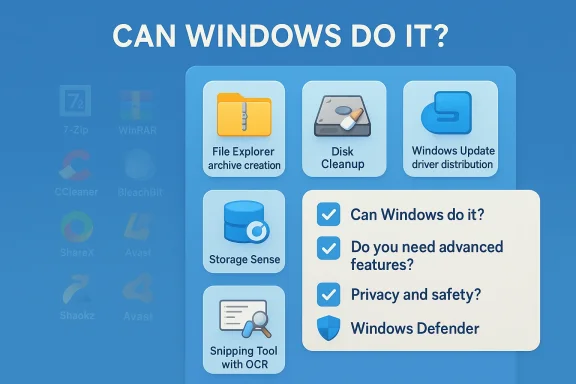
Use this six‑point decision test before adding a utility to Windows:- Can Windows already do it? — Test the built‑in tool for the core task (e.g., extract an archive, run Storage Sense, check Optional Driver updates, use Snipping Tool). If it meets your basic needs, don’t add software.
- Do you need advanced features? — If you need encryption, scripting, bulk operations, or enterprise management, a third‑party tool might still be the right choice.
- Is there a measurable benefit? — Will the tool save you real time or produce materially better results?
- Are you comfortable with the risk profile? — Check reputation, privacy policy, and whether the vendor bundles software.
- Can you undo changes? — Create a restore point before installing or running sweeping tools, or use a VM to test potentially disruptive utilities.
- Does your environment require it? — Organizational policies, compliance, or vendor support may mandate certain software.
Safe removal and rollback: how to get rid of an app if it causes problems
If you decide a third‑party app is unnecessary or problematic, remove it carefully:- Disable or turn off the app first (stop background services, disable scheduled tasks).
- Uninstall through Settings > Apps > Apps & Features, or use the vendor’s uninstaller.
- Create a system restore point before major removals.
- Verify key system features still work (print, audio, Windows Update, Defender).
- If the app modified drivers or low‑level components, consider using Device Manager rollback or OEM recovery tools.
Strengths and risks of the “Windows‑only” approach
Strengths
- Simplicity and integration: Windows’ built‑in tools are tightly integrated, reducing conflicts and surface area for problems.
- Lower maintenance: Fewer third‑party update cycles and fewer startup items improves stability and boot time.
- Security and trust: Inbox tools avoid the telemetry or bundled offers that sometimes accompany free utilities.
- Cost savings: No subscription fees or paid upgrades for baseline functionality.
Risks and caveats
- Feature limitations: Built‑in tools intentionally trade breadth for simplicity; power users can miss advanced functionality.
- Platform lag and edge cases: New Windows features can take time to roll out, and built‑in handlers may have subtle bugs with uncommon file types or workflows. Community reports show specific extraction and password handling bugs still being worked on.
- Enterprise constraints: Corporate environments often require centralized management, reporting, or vendor‑approved stacks that force third‑party choices.
Quick step‑by‑step: Set up Windows to replace common third‑party needs
- Compression:
- Use ‑click “Compress” or the Create Archive wizard (newer Windows 11 builds).
- Keep a dedicated archiver installed only if you need advanced features.
- Cleanup:
- Turn on Storage Sense (Settings > System > Storage).
- Use Disk Cleanup to remove Windows update leftovers after a feature upgrade.
- Drivers:
- Let Windows Update handle drivers; check Settings > Windows Update > Advanced options > Optional updates for driver options.
- Use vendor support software only for firmware or manufacturer‑specific features.
- Screenshots:
- Use Win + Shift + S or the Snipping Tool for captures and OCR.
- Install a power user tool (ShareX) only if you need automation, uploads, or advanced annotation.
- Security:
- Use Microsoft Defender with cloud protection enabled.
- Consider layering additional tools only if you require features Defender lacks.
Conclusion
MakeUseOf’s thesis — that many long‑standing “must‑have” Windows utilities are less necessary now — is largely correct in 2025 for the average user. Windows has matured: File Explorer’s expanded archive handling, automated disk cleanup via Storage Sense, improved driver distribution, the upgraded Snipping Tool, and a significantly stronger Microsoft Defender together make the default Windows environment more capable and safer than the one most people remember.That said, the transition is not absolute. Native archive support still has edge cases and encryption limitations; advanced archiving, deep cleanup automation, driver recovery, and power‑user screenshot workflows remain legitimate reasons to install third‑party utilities. Independent security labs confirm Defender is a competent baseline protection, but organizations and users with specialized needs will continue to choose commercial solutions.
The practical takeaway: start with Windows’ built‑in tools, configure them properly, and only add third‑party software when a clear, demonstrable need remains. That approach reduces software bloat, minimizes risk, and keeps your Windows PC lighter and easier to manage — while still leaving room for specialized tools where they truly matter.
Source: MakeUseOf Stop installing these Windows apps — you don’t need them anymore
