Microsoft’s recent changes have finally untangled one of Windows 11’s most persistent irritations: setting a third‑party browser as the operating system’s default is now far less painful than it was at launch, and regulatory pressure in Europe has pushed the company even further toward respecting user choice. What began as a controversial shift to granular file‑type associations has been softened by a targeted update that restored a one‑click “set default” experience, while broader compliance measures tied to the Digital Markets Act (DMA) have expanded what “default” means in practice for users in the European Economic Area (EEA).
Windows has always tried to balance user choice with the integration benefits of ship‑in browsers and services. The move to Chromium‑based Microsoft Edge reset the browser conversation, and Windows 11’s initial approach to default apps intensified it. Early releases of Windows 11 required users to change defaults for individual file types and protocols—like .htm, .html, http and https—rather than offering a single “make this your default browser” control. That design decision triggered extensive criticism from users, browser vendors, and consumer advocates.
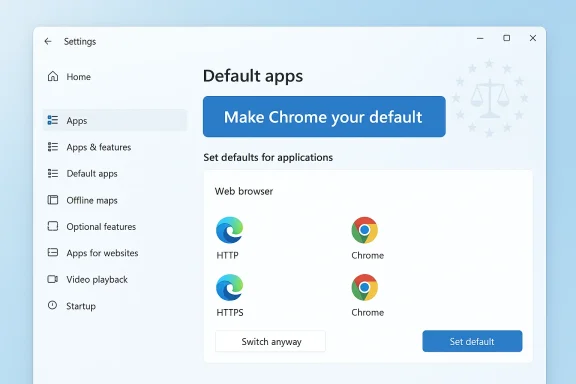
In response to that backlash, Microsoft issued an update that restored a more familiar workflow. The KB5011563 update (OS Build 22000.593), published in late March 2022, reintroduced a “Set default” button on a browser’s app settings page, allowing Windows to change the core web link associations with a single click rather than forcing manual edits across many file types. More recently, regulatory compliance work under the DMA has produced additional changes in the EEA, extending default browser coverage to more link and file types and removing some of the aggressive prompts that previously encouraged users to stick with Edge.
Why this matters: the single‑click mechanism reduces confusion, lowers support overhead, and aligns Windows 11 with user expectations formed by Windows 10 and other platforms. It removes a tactical barrier that had been perceived as anti‑competitive friction.
For users, the practical takeaway is straightforward: if you’ve been frustrated by Windows 11’s earlier approach, modern builds make it much easier to use the browser you prefer. For power users and IT pros, the story underscores the importance of validating behavior on your specific Windows build and in your region—especially because some system surfaces and file types may still require manual adjustments. Finally, the episode reinforces an enduring principle: defaults shape behavior, and when defaults become battlegrounds, users, regulators, and vendors all influence the outcome.
Source: Indeksonline. https://indeksonline.net/mg/Manamora-ny-fanovana-ny-navigateur-tianao-i-Microsoft-Windows-11/
 Background
Windows has always tried to balance user choice with the integration benefits of ship‑in browsers and services. The move to Chromium‑based Microsoft Edge reset the browser conversation, and Windows 11’s initial approach to default apps intensified it. Early releases of Windows 11 required users to change defaults for individual file types and protocols—like .htm, .html, http and https—rather than offering a single “make this your default browser” control. That design decision triggered extensive criticism from users, browser vendors, and consumer advocates.In response to that backlash, Microsoft issued an update that restored a more familiar workflow. The KB5011563 update (OS Build 22000.593), published in late March 2022, reintroduced a “Set default” button on a browser’s app settings page, allowing Windows to change the core web link associations with a single click rather than forcing manual edits across many file types. More recently, regulatory compliance work under the DMA has produced additional changes in the EEA, extending default browser coverage to more link and file types and removing some of the aggressive prompts that previously encouraged users to stick with Edge.
What changed and why it matters
From many clicks back to one
When Windows 11 first shipped, changing browsers required:- Opening Settings > Apps > Default apps,
- Finding the browser, then
- Reassigning dozens of individual file extensions and protocols.
Why this matters: the single‑click mechanism reduces confusion, lowers support overhead, and aligns Windows 11 with user expectations formed by Windows 10 and other platforms. It removes a tactical barrier that had been perceived as anti‑competitive friction.
Regulatory pressure pushed the envelope further in Europe
The European Digital Markets Act forced major platform companies to make concrete changes to how defaults and integrated services work. Microsoft responded by adjusting Windows and related apps in the EEA:- The set‑default action now covers additional link types and file formats beyond the core http/https and .htm/.html set, expanding the scope of what “default browser” means on the platform.
- System components that previously opened web content in Edge regardless of the system default—like the Bing app, Widgets, and certain search surfaces—were updated to respect the operating system’s default browser in the EEA.
- Microsoft reduced proactive prompts that nag users to make Edge the default, limiting those prompts to cases where users explicitly open Edge.
A clear, step‑by‑step: how to change your default browser in Windows 11 (modern method)
- Install the browser you prefer (Chrome, Firefox, Brave, Vivaldi, etc.).
- Open the Settings app (press Windows + I).
- Navigate to Apps > Default apps.
- Find your preferred browser in the app list and open it.
- Click the Make [Browser Name] your default (or Set default) button at the top of the browser’s page.
- Confirm any prompts that appear (Windows may display a “Switch anyway” dialog the first time you change certain handlers).
What still requires attention: edge cases and limitations
Even with improvements, a few caveats remain important for users and administrators:- Some file types can remain Edge defaults. Historically, PDF and other formats (SVG, MHTML, FTP and specific XHTML variants) were sometimes left pointing to Edge even after a single click. Users who rely on alternative apps for PDF or image formats should verify those handlers individually in Default apps settings.
- Widgets and system search behavior varies by region and build. Outside of DMA‑affected regions, some Windows 11 surfaces continued to open links in Edge despite the system default. Workarounds exist (third‑party utilities, registry edits, or browser extensions), but these may be brittle and can be disabled by system updates.
- S Mode is an exception. If a device is locked to Windows “S Mode,” Microsoft restricts installations to Microsoft Store apps and retains Edge/Bing as system defaults until the user switches out of S Mode.
- Enterprise management and update channels. The KB5011563 changes were delivered as an optional update and later rolled into broader releases. Organizations managing updates through Windows Update for Business, WSUS, or other channels should confirm update availability for their servicing model.
Why Microsoft made the change: product logic and external pressure
Microsoft’s motivations are a mix of technical rationale, user experience pressure, and regulatory compliance.- User experience and feedback: The initial granular approach drew loud and repeated criticism. Microsoft responded to that user feedback by reinstating a simpler mechanism. This is a classic product iteration cycle: trial a strict technical control, observe friction, and then iterate toward a cleaner UX.
- Competitive positioning: Edge is a strategic product: it powers Microsoft services and is bundled with the OS. But making default‑browser selection too difficult attracts regulatory and reputational risk. Restoring an easy path to third‑party browsers reduces friction—but only up to a point.
- Regulatory compliance: The European DMA went further. It required platform companies to make defaults and integrations more transparent and to remove unfair advantages. Microsoft’s EEA‑specific changes are a direct response to those legal obligations, including expanding which file types and system surfaces respect a chosen default browser and reducing promotional prompts.
Reaction from browser vendors, users, and privacy advocates
- Browser vendors applauded the simplification, though many continued to criticize Microsoft for persistent edge cases—situations where system surfaces still favored Edge. Browser makers view defaults as vital for reach and ecosystem health, so restoring a one‑click path was welcomed but viewed as only part of the solution.
- Users generally responded positively to the restored simplicity. For many, the earlier per‑extension approach felt intentionally obstructive and was a frequent topic in forums and help tickets. The updated flow reduced confusion and technical support calls.
- Privacy advocates and antitrust watchers observed that the changes in the EEA were substantial and necessary, but they also cautioned that Microsoft’s global behavior remained more aggressive—changes that respect defaults in Europe aren’t necessarily available in other regions without regulatory pressure.
Technical deep dive: what “setting a default” actually does now
When you click the “Set default” button for a browser, Windows takes specific technical actions:- It adjusts protocol handlers (HTTP, HTTPS) and file associations (.htm, .html) to point to the selected browser’s registered application handlers.
- In DMA‑compliant EEA builds, the system will also apply additional handlers if the browser registers for them, such as .svg, .mhtml, and other markup or web container formats.
- System components that act as launch points for web content—like the Microsoft Bing app or Start experiences—are updated to route content through whatever application the OS designates as the default browser (in EEA builds).
Security and privacy implications
Changing your default browser has more than mere convenience implications. It touches security and privacy in several ways:- Sandboxing and exploit mitigation: Modern browsers vary in their sandboxing architectures and patch cadence. Choosing a browser with robust security practices is a legitimate security control.
- Extension ecosystems and telemetry: Browser choice affects which extensions and telemetry model are in play; some browsers emphasize privacy and limit data collection, while others are more aggressive in service integration.
- Phishing and secure content rendering: Default handling of archived web content or specialized formats (e.g., MHTML) can affect exposure to malicious content if a browser poorly implements parsing for those formats.
- System integration: When Windows routes searches and widgets into the default browser, it creates an integrated surface where the browser’s privacy settings and search defaults can significantly alter data flows from system components.
Workarounds and third‑party tools
For users outside the EEA or those who still encounter system surfaces that force Edge, several community solutions have appeared:- Edge‑redirecting utilities: Tools that intercept Edge‑only URIs and forward them to the system default. They can be effective but may break when Microsoft adjusts internal URI schemas or Windows updates.
- Registry edits and script‑based rebindings: Power users can force associations via registry or script automation. This requires expertise and carries risk if done improperly.
- Browser extensions and built‑in prompts: Some browsers offer prompts to “make default” and walk users through the settings. The in‑browser guidance can be easier for nontechnical users.
Practical recommendations for users and IT admins
For everyday users:- If you want a different browser, update Windows to include the KB5011563 changes or a later cumulative build, then use Settings > Apps > Default apps and click Make [Browser] your default.
- After switching, open Widgets and system search in a few common scenarios to confirm which browser handles links in your environment. If you’re in the EEA and up to date, the system should respect your choice on most surfaces.
- Remember to check PDFs and other file types that may still point to Edge, and change them manually if necessary.
- Test updates in a lab before broad deployment. Optional quality updates may include UI behavior changes and compatibility concerns.
- Use Group Policy or MDM profiles to enforce default app choices if you manage enterprise devices. Verify that defaults persist across reboots and Windows upgrades.
- Monitor vendor advisories—some Windows updates have produced unexpected behavior on unsupported hardware or specific configurations, so watch for known issues tied to particular builds.
Broader implications: platform control and user autonomy
Microsoft’s shift here is instructive for platform governance debates. The initial Windows 11 approach showed how product design can be used to steer user behavior without explicit permission. The subsequent readjustment—partly through user backlash and partly through regulatory pressure—suggests three broader trends:- Platform vendors will continue to optimize for strategic products, but reputational, legal, and market forces constrain overtly coercive designs.
- Regulatory frameworks like the DMA can accelerate changes that restore user autonomy, at least regionally. These changes can be technical and subtle—extending the definition of “default” to more file types and system surfaces, for example.
- Users and ecosystem partners (browser vendors, developers) still play a role by pushing back and providing practical workarounds that raise the cost of lock‑in strategies.
Where things still need improvement
Despite clear progress, a few areas still deserve attention:- Global parity: EEA‑specific changes are a positive step, but users in other regions remain subject to older defaults and prompts. Broadening the behavior globally would remove inconsistency and further respect user choice.
- Complete handler coverage: The “Set default” action is cleaner, but the ecosystem still lacks a universally accepted definition of which file types should be included in a default browser. Consistent standards across browsers and OSes would reduce friction.
- Transparency and education: Many users remain unaware how defaults operate. Better educational prompts and clearer UI language would reduce confusion without resorting to nagging prompts.
- Stability of third‑party workarounds: When users rely on community tools to correct OS choices, their solutions often break with updates. Official solutions should minimize the need for fragile third‑party patches.
Conclusion
Windows 11’s default browser saga is a case study in how product UX, competitive strategy, and regulation interact to shape day‑to‑day user experiences. Microsoft has reversed a decision that made changing browsers more cumbersome, and the KB5011563 update restored the familiar, single‑action default choice that most users expected. Where regulation intervened—most notably in the EEA—the company went further, broadening what “default” means and reducing promotional prompts that favored a first‑party product.For users, the practical takeaway is straightforward: if you’ve been frustrated by Windows 11’s earlier approach, modern builds make it much easier to use the browser you prefer. For power users and IT pros, the story underscores the importance of validating behavior on your specific Windows build and in your region—especially because some system surfaces and file types may still require manual adjustments. Finally, the episode reinforces an enduring principle: defaults shape behavior, and when defaults become battlegrounds, users, regulators, and vendors all influence the outcome.
Source: Indeksonline. https://indeksonline.net/mg/Manamora-ny-fanovana-ny-navigateur-tianao-i-Microsoft-Windows-11/