

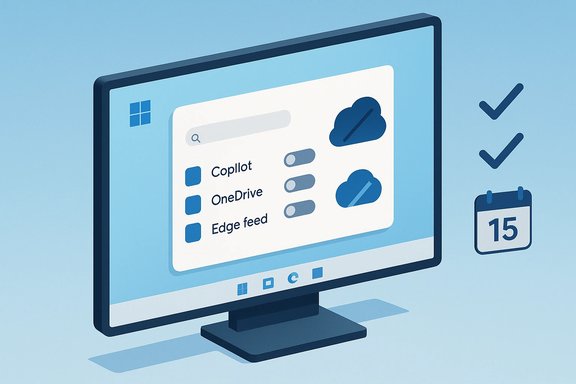
Windows 11 can feel like a fresh start—sleeker visuals, improved snapping, and deeper integration with cloud and AI—but many users quickly discover that defaults matter. The modern default experience often nudges you toward Microsoft services, fills space with recommendations and feeds, and installs components that some people never asked for. The good news is Windows 11 is highly configurable: with a handful of targeted changes you can reclaim performance, battery life, privacy, and sanity. This feature walks through the eight most common annoyances and gives precise, tested fixes, plus a frank assessment of the trade‑offs and risks.
Windows 10 reached its official end of mainstream support on October 14, 2025, prompting many users and organizations to migrate to Windows 11 or enroll in the Extended Security Updates (ESU) program that runs through October 13, 2026. This calendar-driven change explains why more people are evaluating Windows 11 right now and why tackling defaults matters: you’ll likely be living with whatever configuration you choose for some time. The list below consolidates practical fixes that are both low-risk and reversible for individual users, and flags the items that require administrative templates, PowerShell, or Insider/Enterprise controls. Where useful, verifiable cross-checks from multiple independent sources are noted.
But the trade‑offs are real. The OS now favors an opinionated default that nudges users toward Microsoft services and monetizable placements (Start recommendations, feed content, pre‑enabled OneDrive backups). That creates a second wave of friction for users who prize local control, privacy, or minimalism. The rollout model—where features appear in Insider/dev channels or are phased—can also fragment user expectations: what works or can be removed on one machine may differ on another depending on build and edition.
From a security perspective, Microsoft’s choice to end Windows 10 mainstream support reinforced the need to move forward; ESU fills a transition gap, but extended support is not a long‑term substitute for a supported OS. Enterprises and households that delay migration should plan for ESU enrollment timelines and the incremental admin work of managing defaults on many devices.
If you take one thing away: a few minutes spent decluttering Windows 11—stopping backups, disabling recommendations, pruning startup items, and removing the components you never use—returns hours of productivity and fewer surprises down the road.
Source: CNET Windows 11 Gets a Lot Better When You Fix the 8 Most Annoying Features
 Background
Windows 10 reached its official end of mainstream support on October 14, 2025, prompting many users and organizations to migrate to Windows 11 or enroll in the Extended Security Updates (ESU) program that runs through October 13, 2026. This calendar-driven change explains why more people are evaluating Windows 11 right now and why tackling defaults matters: you’ll likely be living with whatever configuration you choose for some time. The list below consolidates practical fixes that are both low-risk and reversible for individual users, and flags the items that require administrative templates, PowerShell, or Insider/Enterprise controls. Where useful, verifiable cross-checks from multiple independent sources are noted.Why bother? The payoff from fixing defaults
- Faster boot and less background CPU usage by removing unwanted startup apps.
- Better battery life on laptops by stopping always‑on syncing and background feeds.
- Less visual clutter and fewer “recommended” ads in the Start menu and Edge.
- Lower privacy surface area by uninstalling or disabling unneeded cloud/AI clients.
These outcomes aren’t hypothetical: community testing and vendor documentation show measurable gains when you remove unnecessary background processes and opt out of automatic sync or recommendation services.
1. Uninstall Microsoft Copilot (or make it behave)
What it is and why people complain
Copilot is Microsoft’s system‑wide AI assistant integrated into Windows and Microsoft 365 apps. For users who don’t want the extra AI hooks—or who find the UI intrusive—Copilot’s presence, toolbar buttons, and occasional background processes are unwelcome. Community guides and official Q&A confirm that Copilot can be disabled or removed, but there are important caveats: full removal behavior depends on your Windows edition, whether the app was provisioned, and whether Microsoft pushes it back via updates.How to remove or disable (user level)
- Settings route (simple, reversible): Settings > Apps > Installed apps → search “Copilot” → click the three‑dot menu → Uninstall. This removes the consumer Copilot app for the current user. If the Uninstall option is missing, proceed with the PowerShell method below.
- PowerShell (all users / thorough): Run PowerShell as Administrator and remove the package for all users:
- Get‑AppxPackage -AllUsers -Name "Microsoft.Windows.Copilot" | Remove‑AppxPackage -AllUsers
- To prevent re‑provisioning for new accounts: Get‑AppxProvisionedPackage -Online | Where‑Object { $_.DisplayName -like "Microsoft.Copilot" } | Remove‑AppxProvisionedPackage -Online
How to disable (safer for Home users)
- Group Policy (Pro/Enterprise/Edu): User Configuration > Administrative Templates > Windows Components > Windows Copilot → “Turn off Windows Copilot” = Enabled.
- Registry (Home): create the DWORD TurnOffWindowsCopilot at HKEY_CURRENT_USER\Software\Policies\Microsoft\Windows and set value to 1. This blocks Copilot without removing app packages; always back up the registry first.
Caveats and risks
- Microsoft may re‑provision Copilot on feature updates; the PowerShell/provisioning removal step is more persistent but not guaranteed to survive every major build.
- Recent Insider updates added an admin policy to remove the Copilot app under narrow conditions (device must not have run Copilot in past 28 days, and specific edition/installation scenarios apply). That means full, permanent removal for managed devices is improving, but may still be limited to organizational channels or newer builds—exercise caution and test on a spare machine if possible.
2. Stop OneDrive from reshaping your storage (or uninstall it entirely)
What users see
OneDrive’s folder backup and default cloud saves can move Desktop, Documents, and Pictures into the cloud. For many users this is helpful; for others it’s confusing, leads to unexpected storage use, or raises privacy concerns. Recent reporting shows friction and instances of confusing sync behavior after upgrades.Quick fixes
- Turn off folder backup: click the OneDrive cloud icon in the taskbar → Settings → Backup → Manage backup → Stop backup for Desktop, Documents, Pictures. This prevents future automatic redirection while retaining the app.
- Unsync specific folders: OneDrive Settings → Account → Choose folders → uncheck folders you don’t want synced. Files already in OneDrive remain in the cloud; choose Carefully when stopping backup to avoid surprises.
- Uninstall OneDrive (if you don’t want it at all): Settings > Apps > Installed apps → find OneDrive → Uninstall. This removes the client from the PC; cloud files remain accessible at onedrive.com. Reinstallation is available from the Microsoft Store if you change your mind.
Caveats and best practices
- Always confirm where your files live before you stop backup or uninstall. If OneDrive moved folders during setup, you may need to restore or move files back into the local user profile to keep expected folder behavior. Back up critical data before making changes.
3. Turn off Start‑menu recommendations and “ads”
Why this helps
The Start menu’s Recommended section can show app promotions, tips, and suggested installs. That area consumes real space and can show promotional content that feels like advertising. Toggling it off cleans up the Start menu and restores focus to pinned apps. Multiple outlets and user guides document the exact toggle and confirm it reduces clutter.How to do it
- Open Settings (Win + I) → Personalization → Start.
- Turn off “Show recommendations for tips, shortcuts, new apps, and more.”
This simple toggle suppresses promoted content and reduces the Recommended area. For enterprise environments, Group Policy has an administrative template to remove the Recommended section entirely.
Caveats
- Some Insider builds have nuanced behavior where the Recommended area persists but shows only items you already have; if that happens, the Group Policy option is the most robust route. Also note that Microsoft experiments with the Start layout; updates can change behavior.
4. Reconfigure the Start menu: pin, unpin, and organize
Make the Start menu work for you
Windows 11’s Start menu favors a streamlined pinned view and a compact All apps list. Taking a few minutes to remove unwanted pinned apps and pin the ones you use daily transforms the Start menu from a noisy billboard into a productive launcher. These steps are standard and low risk.Steps
- Unpin unwanted items: click Start → right‑click a Pinned app → Unpin from Start.
- Pin favorites: Start → All apps → search for an app → right‑click → Pin to Start.
- Use “More pins” or the newer Start layouts (when available) to increase the number of pinned slots and reduce the Recommended area. These UI controls are straightforward and reversible.
5. Clean up the taskbar (remove noise and free resources)
Why it matters
A cluttered taskbar is slower to process and visually noisy. Removing unused icons (Widgets, Search, Task View, Copilot) reduces distractions and makes the taskbar more useful. Many users report faster, cleaner workflows after trimming the taskbar.How to adjust
- Right‑click the taskbar → Taskbar settings → Taskbar items: toggle off Widgets, Search, Chat/Copilot or other icons you don’t use.
- To pin apps you do want: Start → All apps → right‑click → More → Pin to taskbar. This re-centers the taskbar around the apps you actually open daily.
Advanced options
- For users who want the classic left-aligned taskbar, Taskbar alignment is available in Settings > Personalization > Taskbar. If you prefer deeper control, third‑party tools like StartAllBack and Start11 remain popular for restoring legacy behaviors—use them only from reputable vendors and be mindful of update stability.
6. Turn off the Edge feed and clean up the New Tab page
The problem
Edge’s New Tab Page and Edge feed surface a variable mix of news tiles, sponsored content, and personalized suggestions. If you use a different browser or prefer a clean new tab, disabling the feed improves privacy and reduces noisy content.How to disable the feed and widgets in Edge
- Open Edge, open a New Tab Page.
- Click the Settings (gear) icon on the page.
- Turn off “Show feed” and “Show widgets” and set the layout to “Content off” or “Focused/Minimal” depending on your Edge version. You can also set a custom new‑tab URL to a blank page or an internal start page to avoid the dashboard entirely.
Notes
- Edge groups Copilot toggles in different places (Appearance, Sidebar, New Tab Page). Disabling the Copilot sidebar in Edge is done separately in Edge settings. If you uninstalled the system Copilot app, the Edge toggles may still show until Edge or Windows is restarted.
7. Limit or eliminate notifications (system and browser)
Why you should care
Notifications from apps and websites are a major productivity leak. Browser push notifications can persist even when the site is closed. Windows provides granular notification controls so you can silence channels that aren’t essential.Steps to regain control
- System notifications: Settings → System → Notifications. Use the top toggle to mute everything or scroll down and toggle notifications per app.
- Browser/site notifications (Edge): Edge → Settings → Cookies and site permissions → Notifications → remove or block sites from the Allow list. You can also use the site’s padlock icon in the address bar to change permission instantly.
Extra tip
- Use Focus Assist (Settings → System → Focus) to set scheduled quiet hours, or allow only priority app alerts during work blocks.
8. Disable unwanted startup apps to speed boot and reduce background load
The effect
Startup apps add seconds (or minutes) to boot time and can keep CPU/disk activity high after sign‑in. Disabling nonessential autostart entries produces immediate responsiveness gains—especially on older machines.Recommended method (safe and reversible)
- Settings → Apps → Startup: toggle off third‑party apps you don’t want at boot. Windows labels startup impact (Low/Medium/High) to prioritize what to disable. Alternatively use Task Manager (Ctrl+Shift+Esc → Startup tab) for the same controls.
For power users
- Check Task Scheduler and Startup folders (shell:startup and shell:common startup) for items that aren’t visible in the Settings pane. Microsoft’s Autoruns (Sysinternals) is the gold standard for auditing everything that launches at boot; if you use it, proceed cautiously and avoid disabling Microsoft-signed system components.
Security, privacy, and stability considerations
- Back up before you remove: Uninstalling apps (Copilot, OneDrive) or stopping folder backups can inadvertently leave you with files only in the cloud or only locally. Back up critical data first.
- Registry and Group Policy: Registry edits can brick user settings if done incorrectly. Group Policy is safer for managed systems but not available in Home editions. Always export keys or create a System Restore point before changes.
- Insider / Enterprise differences: Some removal controls (like the new “RemoveMicrosoftCopilotApp” admin policy) are rolling out in Insider builds and enterprise channels first and may not be available on consumer stable releases yet. If you manage multiple devices, test policies on a sample machine before mass deployment.
- Updates can reintroduce features: Microsoft sometimes re‑provisions system apps during feature updates. A combination of removing the provisioned package and disabling re‑installation via policy reduces reappearance risk but does not make removal absolutely permanent across all future builds.
Critical analysis: strengths, friction points, and long‑term outlook
Windows 11 continues Microsoft’s push toward a cloud-augmented, AI-friendly desktop. That strategy yields clear benefits: integrated cloud restore, built-in AI helpers, tighter Office integration, and UI features (Snap Layouts, Virtual Desktops) that genuinely boost productivity. Updates in 24H2 and subsequent cumulative builds have polished many rough edges and delivered important bug fixes.But the trade‑offs are real. The OS now favors an opinionated default that nudges users toward Microsoft services and monetizable placements (Start recommendations, feed content, pre‑enabled OneDrive backups). That creates a second wave of friction for users who prize local control, privacy, or minimalism. The rollout model—where features appear in Insider/dev channels or are phased—can also fragment user expectations: what works or can be removed on one machine may differ on another depending on build and edition.
From a security perspective, Microsoft’s choice to end Windows 10 mainstream support reinforced the need to move forward; ESU fills a transition gap, but extended support is not a long‑term substitute for a supported OS. Enterprises and households that delay migration should plan for ESU enrollment timelines and the incremental admin work of managing defaults on many devices.
Quick‑reference checklist (actions you can complete in 15–30 minutes)
- Uninstall/disable Copilot: Settings → Apps → Installed apps, or PowerShell/regedit/Group Policy for persistent blocking.
- Stop OneDrive auto‑backup: OneDrive icon → Settings → Backup → Manage backup → Stop backup. Optionally uninstall OneDrive from Settings → Apps.
- Turn off Start recommendations: Settings → Personalization → Start → disable “Show recommendations for tips, shortcuts, new apps, and more.”
- Re‑pin Start and taskbar: clean pins and pin what you use from All apps.
- Disable Edge feed/widgets: Edge New Tab Page → Settings (gear) → turn off Feed and Widgets.
- Tame notifications: Settings → System → Notifications; Edge → Cookies & site permissions → Notifications to block site push alerts.
- Disable startup apps: Settings → Apps → Startup or Task Manager → Startup → Disable nonessential items.
Conclusion
Windows 11’s defaults are designed to introduce users to Microsoft’s ecosystem and to surface new AI and cloud features. For many people that’s useful—yet for a significant and vocal cohort it feels intrusive and wasteful. The eight fixes above restore control: remove what you don’t want, retain what helps you, and harden the system where necessary. The work is straightforward and mostly reversible, but it pays to be methodical: back up your files, test changes on one machine if you manage many, and prefer supported methods (Settings, Group Policy, PowerShell with official guidance) over “deep hack” shortcuts unless you understand the trade-offs.If you take one thing away: a few minutes spent decluttering Windows 11—stopping backups, disabling recommendations, pruning startup items, and removing the components you never use—returns hours of productivity and fewer surprises down the road.
Source: CNET Windows 11 Gets a Lot Better When You Fix the 8 Most Annoying Features
