Out of the box, that friendly “You’re almost done setting up your PC” prompt is meant to be helpful; in practice it’s the first in a long line of nudges, vendor extras, and optional features that make the first hour with a new Windows PC feel like a cross between a guided tour and a sales funnel. This feature piece synthesizes hands‑on setup guidance from community experts, practical Windows‑level how‑tos, and recent update‑ and hardware‑level developments so you can finish setting up your PC quickly, securely, and with control—without trading away privacy or performance.
The modern Windows setup experience blends Microsoft’s onboarding flows, OEM customizations, and powerful but optional services such as OneDrive, Windows Hello, and the new Copilot features. The result: a setup experience that can be fast and useful if you accept the defaults, or noisy and intrusive if you prefer a lean, private machine. Community advice collected in recent Windows setup threads breaks this down into two sensible, repeatable approaches: complete the Out‑of‑Box Experience (OOBE) and prune what you don’t want, or perform a clean install to start with a pristine image. Both approaches are valid; the right choice depends on whether you value convenience or total control.
Those same community threads also collect practical checklists for post‑setup housekeeping: check Windows Update, install vendor drivers, remove OEM bloatware, set up backup (OneDrive + File History), enable Windows Hello, and tune privacy settings. These steps are short, high‑impact tasks that protect your data and stabilize the PC after the initial boot.
Community‑tested ways to stop it:
Practical implication during setup: Copilot+ features may add new configuration options (privacy, local model storage) and require vendor drivers for the NPU. If you plan to keep your device long term and expect on‑device AI to matter, verify NPU support and vendor driver availability before deciding between OOBE or a clean image.
Security note: bypass tools and unofficial ISOs can be vectors for malware—recent reporting shows copycats targeting popular bypass utilities. Only use trusted official sources and vendor tools for critical systems.
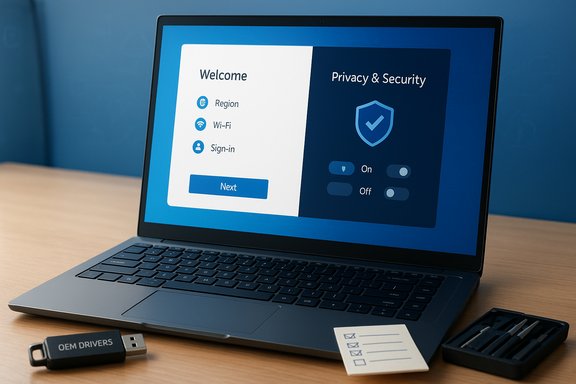
Be pragmatic: invest 30–90 minutes now to avoid hours of repair and data recovery later. Keep a small toolkit (USB with vendor drivers, a recovery image, and a short checklist) and review those settings after each major Windows feature update. Community‑curated steps and troubleshooting examples collected from ongoing threads provide a reliable, experience‑tested roadmap for finishing setup cleanly and safely.
Finishing setup is not a one‑time checklist — it’s an initial investment that pays back in stability, privacy, and reduced friction. Use the practical short checklists above, keep recovery tools and vendor drivers handy, apply updates promptly but prudently, and disable the consumer nudges if they don’t add value. These steps convert a boxed PC into a dependable, private, and well‑behaved workstation you won’t regret configuring.
Source: Thurrott.com Lets finish setting up your PC
 Background / Overview
The modern Windows setup experience blends Microsoft’s onboarding flows, OEM customizations, and powerful but optional services such as OneDrive, Windows Hello, and the new Copilot features. The result: a setup experience that can be fast and useful if you accept the defaults, or noisy and intrusive if you prefer a lean, private machine. Community advice collected in recent Windows setup threads breaks this down into two sensible, repeatable approaches: complete the Out‑of‑Box Experience (OOBE) and prune what you don’t want, or perform a clean install to start with a pristine image. Both approaches are valid; the right choice depends on whether you value convenience or total control.Those same community threads also collect practical checklists for post‑setup housekeeping: check Windows Update, install vendor drivers, remove OEM bloatware, set up backup (OneDrive + File History), enable Windows Hello, and tune privacy settings. These steps are short, high‑impact tasks that protect your data and stabilize the PC after the initial boot.
Why two setup strategies matter: OOBE vs clean install
Option A — Use OOBE and tune afterwards
For most users, completing the initial setup (region, keyboard, Wi‑Fi, Microsoft account sign‑in, Windows Hello) is the fastest path to a working machine. OOBE also makes it easy to restore settings and content from an old device. The trade‑off: you’ll inherit whatever OEM image, trialware, and configuration choices the vendor included. The practical OOBE advice is straightforward: accept the “Set up as a new PC” option instead of restoring from another device if you want a clean profile, skip unnecessary manufacturer registration, and then remove anything you don’t want from Settings → Apps.Option B — Clean install (recommended for power users and IT)
A clean install (Reset this PC → Remove everything → Cloud download, or boot from official media) gives you a pristine Windows image without OEM extras or hidden services. Power users and IT pros often prefer this method because it eliminates unknowns early. The downside is more setup time: drivers, personalization, and app reinstall must be done manually. The community guidance favors clean installs when privacy, stability, and long‑term maintainability are the priorities.Quick starter checklist — what to do immediately after setup
These are the highest‑value actions to run through in the first 30–60 minutes after the desktop appears:- Check which Windows build you have: press Win+R, type winver, and read the version. This helps decide exact driver and update steps.
- Install updates: Settings → Windows Update → Check for updates. Repeat until Windows reports you’re current. Firmware and driver updates from the vendor site often fix sleep, storage, and connectivity problems.
- Create a restore point and back up files: enable System Protection and create a restore point; sign in to OneDrive and enable PC folder backup (Desktop, Documents, Pictures). Add File History or an external drive for a second copy.
- Remove bloatware: Settings → Apps → Installed apps; uninstall unwanted OEM apps. Use a reputable uninstaller for stubborn components. Keep vendor utilities that control hardware features (battery, fan, keyboard backlight).
- Configure security: confirm Windows Security (Defender) shows green checks; enable Windows Hello for biometric sign‑in if available. Set Real‑time protection ON.
The nag dialog: “You’re almost done setting up your PC” — why it appears and how to stop it
That recurring notification—“You’re almost done setting up your PC” with options like “Remind me in 3 days” or “Continue”—is part of Windows’ welcome and consumer suggestion system. It’s intended to help users finish enabling cloud backups and companion services, but many find it unnecessary once they’ve intentionally configured their machine.Community‑tested ways to stop it:
- Disable the welcome/suggestions toggles in Settings → System → Notifications:
- Turn off “Suggest ways I can finish setting up my device to get the most out of Windows.”
- Turn off “Get tips, tricks, and suggestions as you use Windows” and “Show me the Windows welcome experience after updates and occasionally when I sign in.”
These typically stop the prompt on consumer editions. - If the Settings switches are missing or the message returns after feature updates, apply per‑user registry changes (advanced users only). Common registry keys used by power users:
- HKEY_CURRENT_USER\Software\Microsoft\Windows\CurrentVersion\UserProfileEngagement — set ScoobeSystemSettingEnabled = 0
- HKEY_CURRENT_USER\Software\Microsoft\Windows\CurrentVersion\ContentDeliveryManager — set SubscribedContent-310093Enabled = 0 and SubscribedContent-338388Enabled = 0
These registry values disable the welcome and content suggestion experiences for your user profile. Note that major feature updates can re‑enable these settings, requiring a recheck after big updates. - For Windows Pro/Enterprise: use Group Policy for a machine‑wide block (Computer Configuration → Administrative Templates → Windows Components → Cloud Content → “Turn off Microsoft consumer experiences”). This is the safest method for managed devices.
Driver, firmware, and update hygiene: the most overlooked setup steps
Many vendor images shipped with laptops are built months in advance and may lack crucial security and firmware fixes. The recommended sequence:- Run Windows Update repeatedly until nothing new appears, rebooting as needed. This often installs chipset and vendor driver updates.
- Visit the OEM support page for your exact model and download the latest chipset, graphics, Wi‑Fi, and UEFI/BIOS updates if Windows Update doesn’t supply them. Keep a small USB stick with these drivers for offline recovery.
- For wireless or storage driver issues during setup, the installer trick is to load drivers from a USB drive using pnputil or, during OOBE, press Shift+F10 and use diskpart to mount the USB and run pnputil /add‑driver D:*.inf. This approach gets connectivity working when Setup can’t find a network adapter.
Copilot+, NPUs, and hardware considerations for “AI PCs”
Microsoft’s Copilot+ PC class adds a hardware dimension to setup decisions. Copilot+ devices include a Neural Processing Unit (NPU) designed to run on‑device AI workloads with lower latency and better privacy than cloud‑only approaches. Microsoft documents that qualifying Copilot+ NPUs are expected to run at 40+ TOPS (trillions of operations per second) to support features like Recall, local vision actions, and offline model acceleration. If you care about on‑device AI performance, choose a Copilot+ certified device; otherwise the standard cloud‑assisted Copilot features will still work on many Windows 11 machines.Practical implication during setup: Copilot+ features may add new configuration options (privacy, local model storage) and require vendor drivers for the NPU. If you plan to keep your device long term and expect on‑device AI to matter, verify NPU support and vendor driver availability before deciding between OOBE or a clean image.
Hardware requirements and unsupported installs: what you must verify now
Windows 11 has a well‑defined security baseline that includes TPM 2.0 and Secure Boot, and Microsoft’s official guidance confirms TPM 2.0 is required to run Windows 11. If your PC has TPM hardware but it’s disabled, you can usually enable it in UEFI/BIOS. The broader community and reporting outlets have also confirmed Microsoft’s firm stance on these requirements. If you rely on workarounds to install Windows 11 on unsupported hardware, expect unpredictable update behavior and no guarantee of future updates. Community threads describe tools and Rufus options that remove setup checks (useful for enthusiasts with specific needs), but these are not supported by Microsoft, may break in future updates, and can expose systems to risk. Rufus’s “remove hardware requirements” option modifies the installer media to avoid TPM/Secure Boot checks during setup; it does not, however, add missing CPU instruction support such as SSE4.2 or POPCNT—if the CPU lacks necessary instruction support the OS may simply fail to boot. For technicians: always verify CPU features with Coreinfo (or similar) before attempting an in‑place upgrade on older hardware.Security note: bypass tools and unofficial ISOs can be vectors for malware—recent reporting shows copycats targeting popular bypass utilities. Only use trusted official sources and vendor tools for critical systems.
A practical post‑setup sequence you can follow in 30–90 minutes
- Win+R → winver — record your Windows version (e.g., Windows 11 24H2 or 25H2). This determines which update manifests and vendor drivers to prefer.
- Settings → Windows Update → Check for updates. Install everything, reboot, and repeat until no more updates appear.
- Sign in to OneDrive and enable PC folder backup (Desktop, Documents, Pictures). Confirm Files On‑Demand if disk space is a concern.
- Create a restore point: Start → type “Create a restore point” → System Protection → Create.
- Remove obvious bloatware via Settings → Apps → Installed apps; use AppBuster or a trusted uninstaller for deeper cleanup if desired. Keep vendor tools that manage hardware if you rely on them.
- Check Device Manager for any missing drivers; if drivers are missing, download the OEM chipset, GPU, and Wi‑Fi drivers from vendor support and install offline. Keep them on a USB backup.
- Configure privacy and notifications: Settings → Privacy & Security → adjust location, camera/microphone permissions, and feedback diagnostics; turn off suggestion prompts if you prefer a quieter environment.
- Optional but recommended for power users: install PowerToys, a package manager such as winget, and backup imaging tools to create a golden image you can restore later.
Managing emergency updates and recovery: lessons from KB5070773
Recent out‑of‑band fixes such as KB5070773 (released to fix broken Windows Recovery Environment USB input caused by a prior update) illustrate why you should apply updates and keep a recovery plan. If a feature update or cumulative update affects WinRE, having a recovery USB and up‑to‑date vendor drivers saved offline can be lifesaving. Microsoft’s update notes and community troubleshooting threads both advise confirming update install status with DISM or Get‑HotFix commands and collecting logs if repair is required. If you encounter update failures during or after setup, collect the diagnostic logs (DISM logs, CBS.log, and WindowsUpdate.log) and use community diagnostics guidance to choose a targeted fix—this approach avoids broad destructive reinstalls.Strengths and risks: an honest appraisal
Strengths
- The modern setup is fast and integrates cloud features (OneDrive, Microsoft account sync), which is excellent for users who want continuity across devices. The onboarding nudges surface valuable features many users miss.
- Built‑in security baselines like TPM 2.0 and Secure Boot raise the bar for device security, benefitting everyone as threats evolve. Official guidance and community consensus reinforce this.
- The Copilot+ NPU approach promises better on‑device AI experiences and reduced cloud dependency for sensitive tasks. If you need local AI acceleration, Copilot+ hardware is a clear upgrade path.
Risks and trade‑offs
- Default OEM images often include bloatware and telemetry components; blindly accepting defaults erodes privacy and can degrade performance. Community advice favors a quick cleanup or a clean install for long‑term reliability.
- Workarounds and bypass tools to install Windows 11 on unsupported hardware are inherently risky: they can break updates, are unsupported by Microsoft, and may expose systems to malware if obtained from unofficial sources. Use them only with full awareness and offline recovery preparation.
- Feature updates occasionally introduce regressions that impact recovery (WinRE) or input devices. Maintain a recovery USB, keep a second backup of critical drivers, and apply high‑impact updates in a controlled manner for business machines.
Final verdict and recommended setup philosophy
Treat your first hour with a new Windows PC like inventory and triage. Do the vital hygiene steps—updates, drivers, backup, and privacy settings—immediately. Decide up front whether you want convenience (complete OOBE then tweak) or absolute control (clean install). For most home and business users the OOBE path followed by an intentional cleanup strikes the best balance between convenience and control; power users and IT should default to clean images and documented golden images.Be pragmatic: invest 30–90 minutes now to avoid hours of repair and data recovery later. Keep a small toolkit (USB with vendor drivers, a recovery image, and a short checklist) and review those settings after each major Windows feature update. Community‑curated steps and troubleshooting examples collected from ongoing threads provide a reliable, experience‑tested roadmap for finishing setup cleanly and safely.
Quick reference: actionable commands and registry notes
- Verify installed hotfix (elevated PowerShell):
dism /Online /Get-Packages | findstr /I "KB5070773"
or
Get-HotFix | Where-Object { $_.HotFixID -eq 'KB5070773' }
Use these to confirm emergency updates applied successfully. - Collect diagnostic excerpts (for troubleshooting update failures):
Select-String -Path "$env:windir\Logs\DISM\dism.log" -Pattern 'Error','Failed' -Context 3,8 | Out-File "$env:USERPROFILE\Desktop\dism_err_excerpt.txt" -Encoding ascii
dism /Online /Get-Packages | Out-File "$env:USERPROFILE\Desktop\Packages_full.txt" -Encoding ascii
Select-String -Path "$env:windir\Logs\CBS\CBS.log" -Pattern 'error' -Context 3,8 | Out-File "$env:USERPROFILE\Desktop\CBS_excerpt.txt" -Encoding ascii
These are the small diagnostic files community experts ask for before offering a single next command. - Registry keys to silence welcome/content nudges (advanced, per user):
HKEY_CURRENT_USER\Software\Microsoft\Windows\CurrentVersion\UserProfileEngagement → ScoobeSystemSettingEnabled = 0
HKEY_CURRENT_USER\Software\Microsoft\Windows\CurrentVersion\ContentDeliveryManager → SubscribedContent-310093Enabled = 0, SubscribedContent-338388Enabled = 0
Export keys before changing them; keep a restore point.
Finishing setup is not a one‑time checklist — it’s an initial investment that pays back in stability, privacy, and reduced friction. Use the practical short checklists above, keep recovery tools and vendor drivers handy, apply updates promptly but prudently, and disable the consumer nudges if they don’t add value. These steps convert a boxed PC into a dependable, private, and well‑behaved workstation you won’t regret configuring.
Source: Thurrott.com Lets finish setting up your PC