

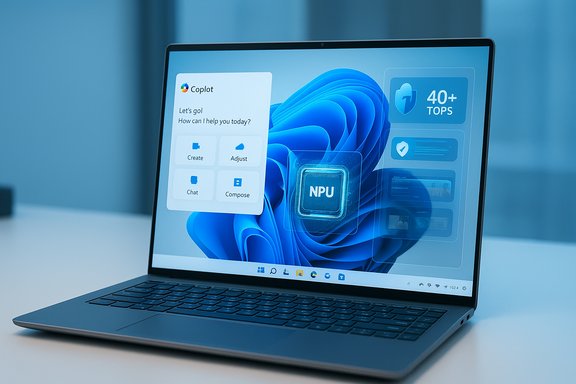
Setting up a new Copilot+ PC is easy if you stop after the out‑of‑box experience (OOBE) — but getting the most from the NPU‑powered features, privacy controls, and AI integrations takes intentional follow‑through. This guide walks through a practical, step‑by‑step Copilot+ PC setup for Windows 11, explains the hardware and software prerequisites you should verify, and analyzes the trade‑offs and risks you must manage before handing a new device to a power user or deploying multiple units across an organization. Along the way you’ll get actionable how‑to steps for OOBE, a clean install, driver and update checks, personalization, Windows Recall and Copilot Mode in Edge, and sensible backup and performance tips to protect data and keep the machine fast.
Background / Overview
Copilot+ PCs are a hardware + software pairing: Windows 11 with deeper Copilot integration plus a dedicated Neural Processing Unit (NPU) designed to handle local AI workloads. Microsoft defines the Copilot+ class around an NPU capable of roughly 40+ TOPS (trillions of operations per second) — a practical baseline for running low‑latency, on‑device AI features such as Live Captions, Windows Studio Effects, Cocreator in Paint, and Recall. Microsoft’s Copilot+ marketing and developer guidance confirm the 40+ TOPS threshold and list the core Wave 1/2 experiences that are gated to Copilot+ hardware. Microsoft also timed much of the Copilot push to coincide with the end of mainstream support for Windows 10 (October 14, 2025). That lifecycle milestone creates a natural upgrade moment for users and businesses, and explains why Windows 11 setup guidance and Copilot features are prominent in device onboarding workflows. The practical result: basic Copilot interactions and cloud‑based assistant features work on most modern Windows 11 machines, but the lowest latency, most private, and most advanced AI features (notably Recall and some Vision/Action operations) are exclusive to Copilot+ devices with a qualifying NPU and vendor driver support. This distinction matters when you decide whether to keep the OEM image or perform a fresh install, and it also affects privacy and storage planning for features that keep local snapshots.First decisions: OOBE or clean install?
There are two defensible ways to initialize a new Copilot+ PC: complete the Out‑of‑Box Experience (OOBE) and prune from there, or wipe and perform a clean installation so you start with a pristine OS image.Option A — Use OOBE and tune afterwards
OOBE is the quickest path. The standard steps include region, keyboard layout, network setup, naming the device, signing in with a Microsoft account, configuring Windows Hello (face / PIN fallback), and the opt‑ins for settings, OneDrive and manufacturer registration. If you accept the Microsoft account and restore options you can pull settings and store/sync content from a previous Windows device, but a neutral recommendation for new Copilot+ systems is to choose “Set up as a new PC” when you prefer a fresh, tailored experience. Practical OOBE steps follow the standard Windows flow; you can keep the default installation and then remove unwanted OEM apps and adjust privacy and Copilot settings later.- Go through OOBE: region → keyboard → Wi‑Fi → sign in with Microsoft Account → configure Windows Hello and PIN.
- On the “Restore” screen choose “Set up as a new PC” for a clean profile baseline.
- Skip manufacturer registration if you prefer not to share details with the OEM.
Option B — Clean install (recommended for power users and IT)
A clean install removes from the start any manufacturer customizations, bundled software, and potential telemetry agents. Windows 11’s Settings > System > Recovery > Reset this PC lets you choose Remove everything and then Cloud download to fetch a fresh image from Microsoft’s servers and reinstall the OS. Use cloud download if you want the most up‑to‑date base image; the Local reinstall option uses the recovery partition and might preserve OEM drivers/configs you don’t want. Microsoft documents the Reset options clearly and recommends Cloud download when you suspect local image corruption or when you want a fully updated fresh copy.- Pros of clean install: guaranteed fresh system image, no OEM bloat, predictable baseline for enterprise imaging.
- Cons: extra time for driver and device configuration, potential need to source vendor drivers manually for Copilot+ NPU support.
Step‑by‑step: Post‑OOBE checklist (what to do first)
Whether you kept the OEM image or did a clean install, perform these steps immediately to secure the device and ensure AI features behave as you expect.1) Update Windows and apply any vendor firmware
- Open Settings > Windows Update and click Check for updates. Reboot when prompted. Windows Update is the primary method for OS fixes and driver delivery; optional driver updates appear under Advanced options > Optional updates. Microsoft recommends installing driver updates provided through Windows Update, but for specialized hardware (especially vendor NPUs, Wi‑Fi, and GPUs), download drivers from the OEM support site if Windows Update doesn’t offer the latest builds.
2) Confirm drivers and hardware (Device Manager)
- Open Device Manager and confirm there are no yellow or red exclamation marks and that no devices show as “Unknown.” If problems appear, try Optional updates in Windows Update to fetch driver updates; otherwise download the latest drivers from the manufacturer’s support site for your Copilot+ hardware. For example, NPU drivers and firmware are frequently vendor‑packaged and may require separate installation steps.
3) Remove unwanted OEM apps and bloat
- Settings > Apps > Installed apps and uninstall anything you won’t use. This frees space and reduces background processes that can affect boot and idle performance. If you want to be thorough, create a short list of required productivity apps and remove everything else, then reinstall only the essentials.
4) Set up Windows Hello and secure the device
- Windows Hello is required for certain features — notably encrypted access to Recall snapshots — and is strongly recommended on Copilot+ machines to secure on‑device AI artifacts. During OOBE you set up Face / PIN; if you skipped it, configure it now under Settings > Accounts > Sign‑in options.
Personalization and productivity setup
A few minutes spent customizing the desktop, Start menu, and Taskbar will pay off in daily productivity.Themes, color mode, accent color, and backgrounds
- Settings > Personalization: switch themes, set Light/Dark/Custom mode, pick an accent color, and choose a custom picture or Windows Spotlight for dynamic wallpapers. Spotlight rotates images and can keep the desktop feeling fresh without manually swapping files.
Start menu and taskbar tuning
- Starting with the 2025 updates Windows 11 lets you disable the Recommended section in Start (turn off recent apps/files and tips), create app folders in Start, and pin favorites. Taskbar settings allow left alignment of icons for a classic layout, removal of Widgets / Search / Task View icons, and choosing when Taskbar icons shrink to fit. These personalization options help reduce UI noise and make Copilot interactions feel less intrusive.
Edge + Copilot Mode
- If you use Microsoft Edge, enable Copilot Mode from Edge Settings > AI innovations (or visit the Copilot Mode landing page). Copilot Mode activates Journeys, Vision, and Actions in the browser: Journeys groups your browsing history into task cards, Vision lets Copilot analyze the current webpage or an attached screenshot, and Actions can perform agentic tasks on web pages with explicit permission. Copilot Mode is opt‑in and can be revoked at any time. Use Edge’s AI innovations settings to control what Copilot may access (cookies, screenshots, connectors).
Windows Recall: what it is, hardware requirements, and privacy controls
Windows Recall is one of the headline Copilot+ features and needs careful consideration before enabling.What Recall does
Recall captures encrypted, timestamped “snapshots” of your desktop activity and makes them searchable by natural language. It’s useful for finding a document you had open earlier, retrieving a snippet of text from a previously viewed page, or reconstructing a workflow you were in the middle of. The interface organizes snapshots on a timeline and supports Click‑to‑Do interactions that turn visual snapshots into actionable tasks.Hardware and OS prerequisites
- Recall is gated to Copilot+ PCs with a qualifying NPU and currently requires a relatively modern Windows 11 build; Microsoft’s Copilot+ guidance emphasizes NPUs capable of 40+ TOPS for the full suite of on‑device experiences. Early Recall rollouts went to specific platforms (Qualcomm Snapdragon initially) and later expanded to Intel/AMD Copilot+ SKUs as vendors shipped NPU‑equipped silicon and drivers. If your machine lacks a recognized NPU, Recall will not appear in Settings.
Privacy and controls
- Recall is opt‑in, stores snapshots locally in encrypted storage, and requires Windows Hello authentication to access content. Microsoft has added filters to exclude sensitive information and allows users to exclude apps/websites from being recorded. Despite these protections, privacy advocates raised concerns during development because Recall captures high‑fidelity desktop history — so enabling it on shared, managed, or high‑security machines requires policy review. If you plan to enable Recall, use the settings to:
- Limit maximum storage for snapshots.
- Set snapshot retention duration.
- Add apps and websites to the Recall exclude lists.
- Enable “Filter sensitive information” where applicable.
- If you’re an IT administrator, block or delay Recall rollout until governance and DLP integration are validated. For consumer users, enable only if you understand the scope and have enough local storage and a trusted physical security posture.
Copilot policies, permissions, and recommended defaults
AI features that inspect files, browser tabs, or screen regions must be permissioned explicitly. Follow these rules when configuring a Copilot+ PC:- Keep Vision, Actions, and File read capabilities off by default. Enable them only for users who need them and provide short training on scope and revocation.
- For corporate devices, treat Copilot like any other data‑processing service: map what data it can access, ensure connectors are approved, and apply device‑level policy to disable or limit Copilot memory and on‑device indexing.
- If you enable Copilot Voice (wake word “Hey, Copilot”), prefer press‑to‑talk modes in shared/secure spaces. The wake‑word detector is designed as a local spotter, but the follow‑on transcription typically goes to cloud models unless handled by on‑device inference on Copilot+ hardware.
Performance tuning: startup, power modes, and ARM considerations
Startup applications
- Open Settings > Apps > Startup and turn off nonessential apps. This is a small, high‑impact step to speed boot times and reduce background CPU usage on Copilot+ systems, which still benefit from fewer concurrent background services when executing local AI inferences.
Power & battery settings
- Settings > System > Power & battery > Power mode: choose performance settings for plugged‑in scenarios and battery saver for mobile use. Also set screen sleep and hibernate timeouts to match your usage patterns to avoid unnecessary power draw.
Night light
- Enable Night light on laptops for long‑term eye comfort during late work sessions.
ARM devices and emulation (Prism)
- If your Copilot+ PC is ARM‑based, many Win32 apps will run under Microsoft’s Prism emulation. That works seamlessly for most productivity apps, but expect slightly lower single‑threaded performance in some legacy Win32 apps compared with native x64/x86 builds. When downloading non‑Store apps, favor any available native ARM builds to maximize performance.
Apps, browsers, and file migration
Browser
- Microsoft Edge with Copilot Mode is integrated and convenient; if you prefer Chrome or Firefox, install from the vendor site and change defaults at Settings > Apps > Default apps. You can also run Edge side‑by‑side for Copilot workflows while using your preferred browser for general browsing.
Microsoft 365
- Install Office apps from your Microsoft 365 portal if required for work or school. Copilot interactions in Office may require an M365 subscription for some advanced co‑authoring features.
Transferring files
- For most users, OneDrive is the simplest transfer method: copy files to OneDrive on the old machine and they’ll be available once you sign in on the new one. For large data sets (multiple TBs), use an external USB drive for direct copying. Numbered transfer steps (brief):
- On old device: copy selected folders/files to an external drive or OneDrive folder.
- On new device: sign in to OneDrive or plug in the external drive and copy files into the desired folders.
- If you rely on advanced file ACLs or enterprise file servers, coordinate with IT for migration or set up a temporary SMB share to avoid permission mismatches.
Backups and recovery
After configuring the system, create at least one full backup image so you can restore the configuration quickly if hardware fails or if a Windows update breaks a critical workflow. Windows still includes the legacy System Image Backup (Control Panel > File History > System Image Backup) which can be used as a temporary full system image — note that Microsoft has deprecated and stopped active maintenance on that tool, but it remains available for ad‑hoc full‑image backups. For ongoing protection, favor modern solutions:- Cloud file backups (OneDrive) for personal data and aggressive file versioning.
- Third‑party disk imaging with regular scheduled snapshots for full image recovery.
- A recovery USB with Windows installation media (recommended) and secure offsite storage for images.
Troubleshooting quick hits
- No Cloud download option in Reset this PC? Reboot into WinRE (hold Shift and Restart) and run Reset this PC from Troubleshoot; some OEM installs and certain provisioning setups hide the cloud download option until run from WinRE. If optional driver updates don’t show up, verify Windows Update > Advanced options > Optional updates and check Driver updates.
- Missing NPU features? Confirm an NPU is present under Task Manager > Performance (NPU should appear on qualifiying devices) and verify the vendor driver is installed. If the NPU is not recognized, the device won’t surface Copilot+ gated features.
Critical analysis — strengths, limits, and risks
Strengths — why Copilot+ PCs are compelling
- Low‑latency AI: On‑device inference via a 40+ TOPS NPU can deliver faster responses for Vision/Voice features and keep sensitive data local for many operations, improving privacy and responsiveness.
- Integrated workflows: Built‑in Copilot hooks in Windows and Edge (Journeys, Actions, Vision) reduce the friction of moving between apps and the web. For knowledge work, this can accelerate research and task continuity.
- Enterprise readiness: Microsoft supplies enterprise controls and staged rollouts that let IT teams test and adopt Copilot features incrementally.
Practical limits and risks
- Privacy surface area: Recall captures high‑fidelity snapshots — even if encrypted and opt‑in, that data is sensitive and requires robust local device security and governance. Misconfigured devices, shared accounts, or inadequate physical security increase risk. Treat Recall as a data collection feature that must be the subject of policy decisions.
- Hardware fragmentation: Copilot+ features are hardware‑gated. Expect variability across devices and occasional delays for driver availability from OEMs; early adopters should budget time for driver updates and firmware patches.
- Vendor patch cadence: NPUs and associated drivers may require frequent vendor updates. Plan a driver management workflow (Windows Update, vendor portal, or MDM) to keep the platform stable.
- Feature rollouts are server‑gated: Even on qualifying hardware, Microsoft may gate features server‑side, so identical devices sometimes show different capabilities until Microsoft completes the staged enablement. That affects rollouts in managed fleets.
Recommended baseline configuration for typical users
- Keep Windows up to date: Settings > Windows Update, install all cumulative updates, then reboot.
- Create a local admin recovery USB and a full system image backup after initial configuration.
- Configure Windows Hello and BitLocker (if storing sensitive business data).
- For Copilot privacy: keep Vision / File read / Actions off until explicitly needed and whitelist apps/locations if enabling Recall.
- If you use Edge for research or AI browsing, enable Copilot Mode in Edge Settings > AI innovations and control Journeys/Actions permissions there.
Short FAQ (condensed)
- What are the two main ways to set up a Copilot+ PC?
- Complete OOBE and prune or perform a clean install via Settings > System > Recovery > Reset this PC > Remove everything (Cloud download recommended).
- How do I know if Recall will work?
- Your device must be a Copilot+ PC with a recognized NPU (40+ TOPS guidance) and the correct Windows build; Recall appears in Settings > Privacy & security > Recall & snapshots if eligible.
- Where are Edge AI features configured?
- Edge Settings > AI innovations (Copilot Mode, Journeys, Actions). Copilot Mode is opt‑in.
- How to install the latest drivers?
- Use Windows Update > Advanced options > Optional updates > Driver updates, and supplement with OEM driver downloads if hardware is missing critical drivers.
Final thoughts
A Copilot+ PC raises the productivity bar for tasks that benefit from low‑latency AI — but the best outcomes come from intentional setup. Complete OOBE conscientiously or perform a clean install, update firmware and drivers, lock down privacy and recall controls, and make Edge Copilot Mode decisions based on how much browsing telemetry you’re comfortable sharing with the assistant. For organizations, pilot Copilot+ rollouts with tight governance and measured policies before enabling the most sensitive features like Recall and agentic Actions.Microsoft’s Copilot ecosystem is evolving quickly: hardware gating, server‑side feature enablement, and privacy controls mean you must balance capability with caution. Configure the device up front, document your policies, and you’ll convert a new Copilot+ PC from a flashy purchase into a dependable, secure productivity platform that truly leverages on‑device AI.
Source: Windows Central https://www.windowscentral.com/microsoft/windows-11/how-to-set-up-your-new-copilot-pc-on-windows-11/
