

Microsoft has quietly added a new twist to the Windows 11 out‑of‑box experience (OOBE): while your PC downloads the latest updates during initial setup, you can now open and try Copilot — Microsoft's conversational AI — directly inside the setup flow without first signing in with a Microsoft account.
Microsoft has been steadily folding Copilot into the fabric of Windows 11 since its broader launch, moving the assistant from a sidebar experiment to a system‑level interaction point. Over the past year Microsoft introduced multiple Copilot touchpoints — taskbar entry points, File Explorer integration, voice and vision features, and a new Copilot app family that includes consumer and Microsoft 365 variants. That push included device onboarding and setup scenarios as a natural place to introduce users to Copilot while their device performs background tasks like firmware and feature updates.
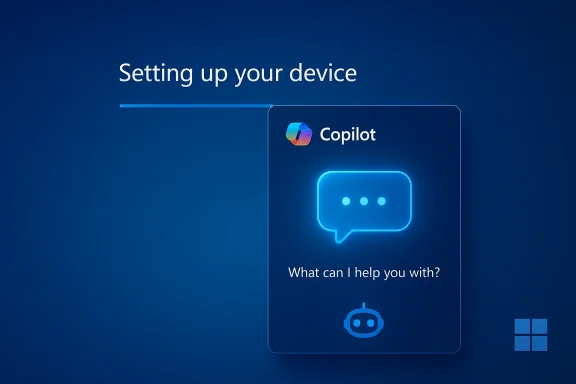
The latest change places a “try now” affordance inside OOBE when the device is downloading an update as part of first‑time setup. The option opens the Copilot chat interface so new users can ask questions, run generative tasks, and even generate images while the setup progress bar moves in the background. Importantly, this interactive experience appears to be offered during the OOBE update step — the same moment Windows may fetch a day‑one firmware or cumulative update — and does not force a Microsoft account sign‑in to start a session.
At the same time, the change raises important privacy, enterprise, and transparency questions. OOBE is one of the most sensitive user journeys; any interactive content there should be crystal‑clear about what’s processed, where data goes, and how users can opt out. Administrators must ensure their provisioning practices account for the new interaction surface, and everyday users should treat the OOBE Copilot trial as a demo rather than a private or permanent record.
This integration is a logical step in Microsoft’s ambition to make Copilot a first‑class interface on Windows. Whether it becomes a welcome convenience or a controversial nudge will depend on how clearly Microsoft communicates the experience and how responsibly it manages data, consent, and enterprise boundaries going forward.
Source: Windows Central Microsoft brings Copilot to the Windows 11 setup experience
 Background
Microsoft has been steadily folding Copilot into the fabric of Windows 11 since its broader launch, moving the assistant from a sidebar experiment to a system‑level interaction point. Over the past year Microsoft introduced multiple Copilot touchpoints — taskbar entry points, File Explorer integration, voice and vision features, and a new Copilot app family that includes consumer and Microsoft 365 variants. That push included device onboarding and setup scenarios as a natural place to introduce users to Copilot while their device performs background tasks like firmware and feature updates.The latest change places a “try now” affordance inside OOBE when the device is downloading an update as part of first‑time setup. The option opens the Copilot chat interface so new users can ask questions, run generative tasks, and even generate images while the setup progress bar moves in the background. Importantly, this interactive experience appears to be offered during the OOBE update step — the same moment Windows may fetch a day‑one firmware or cumulative update — and does not force a Microsoft account sign‑in to start a session.
What changed — the new OOBE Copilot experience
Microsoft’s update to OOBE introduces a lightweight Copilot sandbox inside the setup UI. The key consumer‑facing points are:- A visible “try now” button appears in the OOBE UI when an update is being downloaded as part of setup.
- Clicking the button launches the Copilot chat interface within the setup session, allowing text chat and media generation.
- The experience does not require the user to complete a Microsoft account sign‑in first; the assistant is usable in the temporary setup session.
- Interaction is session‑scoped: Copilot can answer questions, help with basic tasks, and generate images while setup continues in the background.
- The OOBE Copilot prompt appears only when the setup is actually downloading an update (for example, day‑one firmware or when the installer needs to move the device to a newer build before completing first boot).
Why Microsoft put Copilot into OOBE
There are several strategic and product reasons why embedding Copilot in setup makes sense:- Captured attention window. OOBE update downloads can take minutes — sometimes up to half an hour depending on bandwidth — giving Microsoft a captive window to introduce Copilot and let users try it without having to hunt for it later.
- Low friction trial. Allowing interaction without a Microsoft account lowers the barrier for first impressions. Users can see value quickly without creating accounts or adjusting settings.
- Product discovery during onboarding. New features promoted during setup can increase adoption and reduce later support friction: if a user learns what Copilot can do early, they may configure it intentionally rather than accidentally.
- Marketing and ecosystem lock‑in. Nudging users to try Copilot aligns with Microsoft’s broader effort to make its assistant a default interaction model on Windows, which benefits the company’s apps and cloud services.
- Testing and telemetry. OOBE trials provide Microsoft with early signals — how many users try Copilot during setup, what prompts they use, and whether the experience helps or hinders the onboarding flow.
How it works in practice
The OOBE Copilot experience is intentionally simple. Here’s the typical flow a new user will see:- Begin standard OOBE: region, keyboard, network, and initial privacy choices.
- If Windows needs to pull an update before completing setup, the device shows the update/download progress in the finishing steps.
- When the update download is underway, the OOBE screen surfaces a “try now” button for Copilot.
- Selecting “try now” opens a chat pane inside OOBE. The user can:
- Ask conversational questions about Windows, setup, or general topics.
- Request image generation where supported.
- Try Copilot features available to anonymous sessions.
- The setup continues in the background; when the update finishes the device completes OOBE and the user moves into the full Windows desktop.
- The Copilot session during OOBE appears to be a temporary, anonymous interaction. Conversation history and personalization are typically tied to a Microsoft account; without a sign‑in those transcripts cannot be persisted to a user profile.
- OOBE updates themselves are delivered via the OOBE update mechanism that runs if an internet connection is available during setup. This same update path has been used previously for other interactive content during setup.
- For enterprise or managed devices, distinct Copilot entry points and behaviors apply; Microsoft’s commercial guidance already differentiates the consumer Copilot app from the Microsoft 365 Copilot experience used in managed environments.
Benefits for users
Embedding Copilot in OOBE brings a number of straightforward user benefits:- Try before you commit. Users can explore Copilot’s capabilities without an account, making discovery easier and less invasive.
- Immediate help during setup. New users who hit confusing screens or driver/firmware questions can ask Copilot for guidance while they wait.
- Entertaining downtime. Image generation, light conversation, or quick tips can make the sometimes tedious setup process feel faster.
- Familiarization with AI features. Early exposure reduces post‑setup confusion: users who already tested Copilot are more likely to know how to invoke it and what it can (or cannot) do.
Risks, trade‑offs, and unanswered questions
The change introduces several important risks and considerations that users, privacy advocates, and IT admins should weigh:Privacy and telemetry
- Session‑scoped vs. persistent: If a user interacts anonymously during OOBE, those conversations aren’t linked to a Microsoft account — but Microsoft’s cloud processing and telemetry policies still apply. It’s important to know what data is collected, how long temporary transcripts are retained server‑side, and whether any metadata is attached to device identifiers.
- Consent clarity: OOBE is already a sensitive moment for consent — users may quickly tap through prompts. There’s a risk that people will interact with Copilot without fully understanding what data is sent to Microsoft’s services.
- Image generation: When users create images, are source prompts or generated images stored, and under what account or retention policy? That varies across generative services and should be made explicit.
Enterprise and identity complexity
- Microsoft’s enterprise guidance separates consumer Copilot behavior from Microsoft 365 Copilot and Entra identity flows. For managed devices, admins should confirm whether OOBE Copilot exposures could surface data, require licensing, or interact with corporate policies.
- Devices provisioned with Entra or domain‑join flows may see different Copilot entry points, and the Copilot key behavior is already subject to different mappings in commercial scenarios.
Nudging and UX fairness
- The setup experience is prime real estate. Introducing promotional interactions during OOBE walks a fine line between gentle discovery and heavy-handed upsell. Repeated prompts or omission of clear opt‑outs could fuel user backlash.
- Accessibility implications: OOBE is a crucial time to set up assistive technologies. Any interactive addition must be fully accessible (screen‑reader compatible, keyboard navigable, voice alternatives) so setup doesn’t favor certain user groups.
Security concerns
- While a Copilot session in setup is unlikely to request or access protected resources, the broader copilot integration model — particularly when vision or actions features are enabled — raises questions about what automated actions or exposures are allowed once the device is live.
- Attack surface: adding interactive code paths into the early boot experience increases the complexity of OOBE, which historically is a tightly controlled and minimal environment to reduce risk.
How this affects administrators and power users
IT teams and power users should treat OOBE Copilot as both an opportunity and a vector for policy review.- Review OOBE updates and policies. Ensure your provisioning documentation accounts for any new prompts or potential delays caused by interactive elements.
- For corporate deployments, use unattended setup automation (unattend.xml, provisioning packages, or imaging) where interactionless installs are required; these approaches avoid OOBE prompts entirely.
- Audit telemetry, retention, and compliance. If your organization deploys many new devices, understand what signals Microsoft collects during OOBE trials and whether any of that touches corporate identifiers.
- Educate users. If devices will be handed to employees pre‑configured, decide whether to complete OOBE in advance, skip promotional experiences, or provide guidance for what employees should expect.
Accessibility, inclusions, and UX recommendations
If Microsoft intends Copilot to be a welcoming part of the onboarding experience, a few UX principles should be observed:- Clear consent dialogs. Make it explicit when an interaction sends data to the cloud, what types of data are processed, and how long temporary transcripts are retained.
- Easy opt‑out. Offer a clear, single‑click way to dismiss the Copilot trial for users who don’t want to engage.
- Accessible design. Ensure OOBE Copilot works with screen readers, keyboard navigation, and regional language settings.
- In‑session privacy controls. Provide short, obvious controls in the OOBE chat to delete the current conversation or prevent saving (especially relevant if the user signs in later and expects privacy).
The wider product and business context
Copilot’s placement in OOBE is consistent with a broader Microsoft strategy:- Make Copilot discoverable. By placing Copilot on the taskbar, inside File Explorer, and now in OOBE, Microsoft lowers friction to adoption.
- Differentiate by hardware and identity. Microsoft has emphasized Copilot+ PCs (with NPUs for on‑device inference) and separates consumer Copilot from Microsoft 365 Copilot for enterprise customers. The OOBE trial seems targeted at consumer discovery rather than enterprise activation.
- Drive ecosystem usage. Early positive experiences can increase use of Microsoft services (Edge, Bing, OneDrive, Microsoft 365), which benefits the broader ecosystem and monetization pathways.
What Microsoft and users should clarify going forward
A feature that lives in OOBE asks for clear communications from Microsoft and informed choices from users:- Clarify retention policies: how long are OOBE Copilot sessions retained on Microsoft systems and can anonymous session data be deleted on request?
- Clarify account behavior: if a user signs in after an OOBE Copilot session, can that session be attached to their account, and if not, how is that explained?
- Clarify enterprise gating: what differences exist when OOBE runs for corporate images, Entra‑joined devices, or devices that will be enrolled in MDM?
- Regional and regulatory constraints: how will the OOBE Copilot trial work in regions with stricter data rules, and will Microsoft offer an OOBE variant that omits Copilot entirely where required?
Practical tips for end users setting up a new Windows 11 PC
- If you prefer not to use Copilot during setup, you can ignore or dismiss the prompt and continue with the standard OOBE flow.
- If you want to try Copilot but keep your interactions private, remember that anonymous OOBE sessions may not persist to an account — don’t use OOBE Copilot for anything sensitive.
- If you’re a power user or admin provisioning many devices, use automated, non‑interactive deployment options to bypass promotional or optional onboarding steps.
- After setup, review Copilot privacy and history controls in Settings so you can control what is saved and how it’s used when you sign in with a Microsoft account.
Conclusion
Putting Copilot inside the Windows 11 out‑of‑box experience is a small UX change with outsized implications. It’s a savvy move from a product and engagement perspective: Microsoft meets users during a naturally idle moment and gives them a low‑friction way to test AI features. For many consumers this will feel like a modern and useful onboarding touchpoint.At the same time, the change raises important privacy, enterprise, and transparency questions. OOBE is one of the most sensitive user journeys; any interactive content there should be crystal‑clear about what’s processed, where data goes, and how users can opt out. Administrators must ensure their provisioning practices account for the new interaction surface, and everyday users should treat the OOBE Copilot trial as a demo rather than a private or permanent record.
This integration is a logical step in Microsoft’s ambition to make Copilot a first‑class interface on Windows. Whether it becomes a welcome convenience or a controversial nudge will depend on how clearly Microsoft communicates the experience and how responsibly it manages data, consent, and enterprise boundaries going forward.
Source: Windows Central Microsoft brings Copilot to the Windows 11 setup experience
