

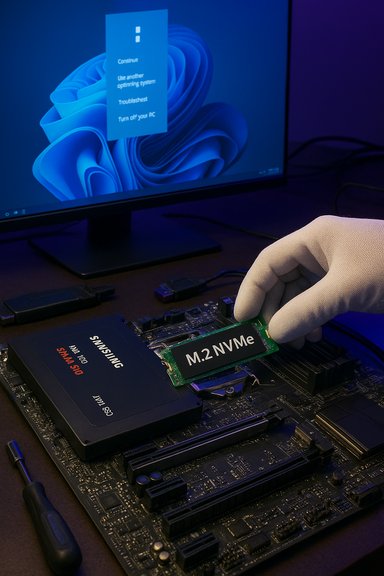
When an enthusiast swaps a NVMe boot drive into their rig, the sentimental leftover often isn’t junk — it’s a versatile tool waiting for a new role, as one XDA contributor discovered when they turned a seven-year-old Samsung 860 EVO 250GB SATA SSD into a second, dedicated Windows 11 drive rather than throwing it away or leaving it to gather dust.
The XDA story is straightforward: after migrating a primary Windows installation from a SATA Samsung 860 EVO (250GB) to a much faster WD_Black SN770 NVMe drive, the writer repurposed the old SATA SSD for a secondary Windows 11 installation. The reasoning is practical and reproducible: rather than dealing with a dual-boot configuration on a single NVMe drive — which can trigger Fast Startup conflicts, Secure Boot complexities, and partition-management headaches — the author installed Windows 11 on the spare SATA SSD and used hibernation/boot selection to switch between OSes. The result was a low-cost, low-risk way to keep Windows 10 as a primary environment while retaining a clean, separate Windows 11 install for testing and screenshots.
This article expands on that choice with technical verification, practical how-tos, safety notes, and a set of repurposing ideas so readers can get the most value out of legacy SATA SSDs instead of discarding them.
SATA SSDs remain useful: they’re inexpensive, energy-efficient, and more than fast enough for many secondary duties. NVMe wins the bandwidth wars, yes, but raw sequential throughput isn’t the only metric that defines a responsive desktop. For readers looking to repurpose an old drive, the pragmatic advice is:
Source: XDA Here's what I did with my old SATA SSD after switching to NVMe
 Overview
The XDA story is straightforward: after migrating a primary Windows installation from a SATA Samsung 860 EVO (250GB) to a much faster WD_Black SN770 NVMe drive, the writer repurposed the old SATA SSD for a secondary Windows 11 installation. The reasoning is practical and reproducible: rather than dealing with a dual-boot configuration on a single NVMe drive — which can trigger Fast Startup conflicts, Secure Boot complexities, and partition-management headaches — the author installed Windows 11 on the spare SATA SSD and used hibernation/boot selection to switch between OSes. The result was a low-cost, low-risk way to keep Windows 10 as a primary environment while retaining a clean, separate Windows 11 install for testing and screenshots.This article expands on that choice with technical verification, practical how-tos, safety notes, and a set of repurposing ideas so readers can get the most value out of legacy SATA SSDs instead of discarding them.
Background: the hardware in question
The Samsung 860 EVO (250GB) — what it is and what it delivers
The Samsung 860 EVO line was a mainstream SATA SSD family positioned as an affordable, reliable upgrade over spinning hard drives and earlier SATA SSDs. The 250GB SKU is a common first-SSD size and remains perfectly serviceable for many purposes today. Key, verifiable specs to keep in mind:- Interface/protocol: SATA III (6 Gb/s, AHCI)
- Typical sequential performance: up to roughly 550 MB/s read and ~520 MB/s write (SATA limitations cap performance near these figures)
- Form factor: 2.5" or M.2 SATA variants depending on model
- Launch timeframe: the 860 EVO family arrived in the market around 2018
- Endurance and warranty: mainstream consumer endurance; specifics vary by capacity but the series offered multi-year warranties
The WD_Black SN770 NVMe family — what the upgrade looked like
The WD_Black SN770 is a PCIe NVMe drive (PCIe Gen4 x4 on many SKUs) targeted at mainstream gaming and enthusiast use. It represents the generational shift that propelled many users to replace SATA system drives with NVMe M.2 modules. Important, verified points:- Interface/protocol: NVMe over PCIe (PCIe Gen4 x4 on supported motherboards; backward-compatible with PCIe Gen3)
- Typical sequential performance: depends on capacity; the 250GB SN770 is rated lower than larger SKUs (for example, ~4,000 MB/s read, ~2,000 MB/s write on the 250GB SKU), while 1TB/2TB SKUs reach ~5,000+ MB/s in reads and much higher writes.
- Release window: the SN770 launched around early 2022
- Form factor: M.2 2280
- Warranty: typically a 5-year limited warranty on consumer SKUs
Why the author avoided dual-boot and kept OSes on separate drives
Practical problems with putting both OSes on one NVMe
A dual-boot setup on the same physical drive can work well, but there are three practical issues that often trip up casual users and even advanced tinkerers:- Fast Startup (Windows “hybrid shutdown”) interaction: Windows’ Fast Startup (enabled by default in many Windows installations) effectively hibernates kernel state instead of fully shutting down. That state can leave partitions in a semi-locked or hibernated state, which frustrates other boot managers or other OSes attempting to access the same drive — leading to mount failures or even filesystem corruption in multi-boot scenarios.
- Secure Boot, UEFI, and partitioning complexities: Windows 11 demands UEFI firmware and a TPM 2.0 (or approved emulation). While Secure Boot itself can coexist with dual-boot setups, mixed configurations (for example, legacy BIOS-bootable Linux or older bootloaders) add complexity and potential conflicts.
- Windows updates and bootloader overwrites: Major Windows updates may rewrite boot records or adjust EFI entries, which can accidentally alter or break a multi-boot setup stored on a single disk.
The tradeoff: convenience vs. flexibility
- Benefits of separate drives: simplicity, isolation (one OS can be removed/reinstalled without harming the other), fewer surprises from updates, and no need for complex partition juggling.
- Downsides: one extra drive bay or M.2 slot required, a small extra power draw, and the inconvenience of physically switching boot devices in firmware/boot menu if not handled through a user-friendly boot selector.
How relevant is a SATA SSD today? (Reality check on speed claims)
The XDA piece makes a common editorial point: NVMe SSDs advertise massively higher sequential throughput than SATA drives, but in everyday use the perceptible difference is much smaller. That is true — with important technical nuance.The numbers (simple, accurate framing)
- SATA III (consumer): practical sequential limits around 500–600 MB/s due to the interface ceiling.
- NVMe (PCIe Gen3 x4): practical sequential throughput in the ~3,500–4,000 MB/s class for many Gen3 drives.
- NVMe (PCIe Gen4 x4): typical flagship Gen4 consumer drives are in the ~5,000–7,000 MB/s range depending on model and capacity.
- PCIe Gen5 x4 NVMe: theoretical and early-flagship numbers are in the multi-GB/s range well beyond Gen4 (10,000–14,000 MB/s on some marketed drives).
- Comparing a PCIe Gen4 flagship (~7,000 MB/s) to SATA (~550 MB/s) gives a ratio near 12–13×.
- Comparing a cutting-edge PCIe Gen5 flagship (~15,000 MB/s in marketing numbers) to SATA (~550 MB/s) approaches ~27×, which fits the 15–30× range.
What matters in real life
- Boot time: often similar between modern SATA SSDs and NVMe drives; the OS boot process is sensitive to many factors (CPU, firmware initialization, device drivers) where raw sequential bandwidth isn’t the sole determinant.
- Application launch and desktop “snappiness”: marginal differences for light office/web workloads; both drive types deliver orders-of-magnitude improvement over HDDs.
- Large file transfers, scratch work, video editing, massive game installs, and database workloads: NVMe’s higher bandwidth and much higher IOPS shine here, delivering tangible time savings.
- Game loading: modern gaming engines increasingly benefit from NVMe (DirectStorage is a push in that direction), but the real-world difference depends on the title’s I/O patterns; not every game will turn a 10-second load into a 1-second load.
Practical, verified steps to repurpose a SATA SSD as a secondary Windows 11 drive
Below is a concise, pragmatic sequence — verified against common best practices — for turning an old SATA SSD into a secondary Windows 11 installation.- Back up everything on the SATA SSD.
- Confirm hardware requirements for Windows 11 on target machine: UEFI boot mode, TPM 2.0, Secure Boot compatibility, and at least 64 GB of free space. If the system is already running Windows 10, check firmware settings for TPM and Secure Boot and enable them as needed.
- Decide between a fresh install or cloning: cloning preserves existing data and apps but can carry over quirks; a clean install is the most predictable path for a second, clean OS.
- If cloning: use a reputable tool (disk-cloning software that supports migrating to NVMe/SATA and fixes boot entries) and ensure the disk uses GPT when the system requires UEFI. If switching from MBR to GPT, use Microsoft’s MBR2GPT tool or perform a clean install.
- If fresh-installing: create Windows 11 installation media (official Media Creation Tool or ISO) and boot the target machine to the correct drive via firmware boot menu.
- Disable Fast Startup on the primary Windows installation (important if you plan to share drives or access partitions cross-OS). Fast Startup doesn’t apply to restarts, but it leaves drives in a hybrid state after shutdown, which is unsafe for dual-boot or multi-OS access.
- Choose boot device at power-on using the motherboard’s boot menu or set a one-time boot device hotkey for occasional switches; avoid maintaining a complex dual-boot entry that could be altered by updates.
- After installation, confirm Windows Update, drivers, and firmware settings. Keep the two OSes isolated where possible, and avoid mounting the other OS’s system partition unless you know what you’re doing.
Risks and gotchas — what to watch for
- Fast Startup hazards in multi-boot scenarios: leaving Fast Startup enabled can lock NTFS partitions and cause mounting errors or file-system “dirty” states in another OS. Disable it if you expect other systems to access shared volumes.
- TPM and Secure Boot requirements for Windows 11: attempting to run Windows 11 on unsupported hardware by bypassing checks can produce compatibility issues, and widely circulated bypass utilities have been abused by threat actors; exercise caution and prefer official upgrade paths.
- Cloning pitfalls: cloning an OS onto different controller types (SATA to NVMe or vice versa) can occasionally introduce driver or boot issues; test before wiping the source disk.
- Write endurance considerations: small-capacity SSDs have lower TBW ratings; using a 250GB drive as a heavy scratch disk or VM host can exhaust endurance faster. For light OS duty and occasional use, endurance is less of a concern.
- Firmware updates and boot entries: Windows feature or firmware updates can rewrite EFI entries or re-order boot devices; keep installation media and recovery tools handy.
- Vendor-specific features: some NVMe drives include platform features (DirectStorage, dashboard utilities, gaming modes) that are absent on SATA drives; functionality differs across vendors.
Smart ways to keep using that old SATA SSD
If you decide to keep an older SATA SSD — and you should — here are practical options that give it long, useful life:- Secondary OS or test installation (as the author did).
- External USB 3.1/3.2 enclosure: make it a portable tool for installers, rescue utilities, and backups.
- Local cold storage for installers, ISOs, and archives.
- Dedicated swap/hibernate partition or scratch disk for non-critical workloads (watch TBW).
- Low-cost cache in a home-lab NAS or router that supports SSD caching (where SATA capacity & reliability beat raw NVMe bandwidth).
- Retro-gaming storage for consoles or older PCs that don’t need NVMe speeds.
- Classroom or lab use for fast but inexpensive provisioning of machines.
Final thoughts: thrift, pragmatism, and storage choices
The XDA author’s choice — convert a sentimental, functional SSD into a separate Windows 11 test environment — is a tidy example of practical hardware stewardship. It avoids the complexity and fragility of a shared boot drive while offering a cheap, fast path to the latest OS for screenshots, feature checks, and compatibility testing.SATA SSDs remain useful: they’re inexpensive, energy-efficient, and more than fast enough for many secondary duties. NVMe wins the bandwidth wars, yes, but raw sequential throughput isn’t the only metric that defines a responsive desktop. For readers looking to repurpose an old drive, the pragmatic advice is:
- Evaluate the workload: use NVMe for scratch-heavy, I/O-intense tasks; use SATA for secondary OSes, portable drives, or caching.
- Keep OSes physically separated if you want to avoid dual-boot fragility and Fast Startup side-effects.
- Follow best practices for cloning, UEFI/GPT configuration, and Secure Boot/TPM settings for Windows 11 installs.
- Monitor SSD health and be mindful of endurance on smaller-capacity SSDs.
Source: XDA Here's what I did with my old SATA SSD after switching to NVMe
