

WhatsApp’s decision to replace its native Windows desktop client with a WebView2-wrapped web app has left many Windows 10 and 11 users looking for a way to restore the older, native experience — this feature‑rich, lean WinUI/UWP client that used less RAM, provided tighter Windows integration, and felt like a proper desktop app. The move to a web‑wrapped client is real and deliberate; it brings faster feature parity across platforms but also increases memory use, changes notification behavior, and alters local storage and backup semantics. This feature explains exactly what changed, why it matters, and — most importantly — the practical, step‑by‑step options to restore (or approximate) the old client on Windows 10 and 11, for individual users and for administrators managing fleets. It also highlights trade‑offs, security risks, and when a rollback is not possible or advisable.
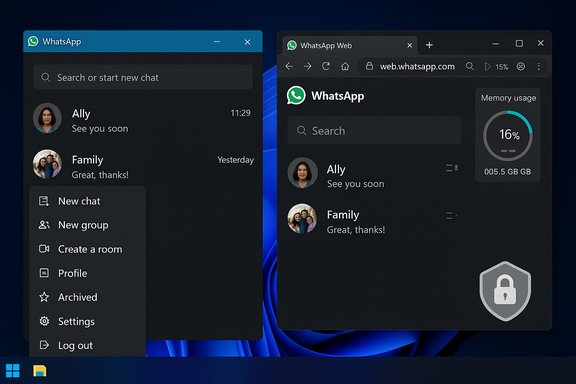
WhatsApp for Windows historically shipped as a native Universal Windows Platform (UWP) / WinUI client, notable for low idle memory usage, good notifications, and tight integration with Windows features such as jump lists and native accessibility hooks. In 2025 Meta began migrating the Windows desktop client to use Microsoft Edge’s WebView2 (a Chromium‑based embedded browser control), effectively turning the app into a wrapped version of web.whatsapp.com. Meta’s engineering rationale is straightforward: maintain a single web codebase, roll out features faster (Channels, Communities, Status parity), and reduce platform‑specific maintenance. For users and admins, the costs are obvious: more RAM/CPU, browser‑style notification behavior, and different local storage/backup semantics. The community response included hands‑on tests showing that the new WebView2 wrapper can use several times more memory than the native client under realistic loads — numbers vary by device and chat load, but multiple outlets reported measurable increases and real‑world slowdowns on 8 GB and lower systems. Treat specific memory‑use figures as machine‑dependent and directional: they show a clear trend (heavier resource use) even if precise GB values vary.
Important caveats before you begin:
Steps:
If you follow the sideloading path, document where you obtained the package, keep checksums and signatures for future verification, and plan to re‑evaluate periodically: vendor decisions and OS update policies can change, and a future update may restore native behavior or provide an official rollback channel. For enterprises, pilot, stage, and enforce policies; for individuals, back up encrypted keys, prefer the PWA if you can’t maintain the native client securely, and keep Windows and Edge/WebView2 up to date if you must run the web‑wrapped client.
Source: Neowin https://www.neowin.net/guides/how-to-restore-old-whatsapp-client-on-windows-10-and-11/
 Background / Overview
WhatsApp for Windows historically shipped as a native Universal Windows Platform (UWP) / WinUI client, notable for low idle memory usage, good notifications, and tight integration with Windows features such as jump lists and native accessibility hooks. In 2025 Meta began migrating the Windows desktop client to use Microsoft Edge’s WebView2 (a Chromium‑based embedded browser control), effectively turning the app into a wrapped version of web.whatsapp.com. Meta’s engineering rationale is straightforward: maintain a single web codebase, roll out features faster (Channels, Communities, Status parity), and reduce platform‑specific maintenance. For users and admins, the costs are obvious: more RAM/CPU, browser‑style notification behavior, and different local storage/backup semantics. The community response included hands‑on tests showing that the new WebView2 wrapper can use several times more memory than the native client under realistic loads — numbers vary by device and chat load, but multiple outlets reported measurable increases and real‑world slowdowns on 8 GB and lower systems. Treat specific memory‑use figures as machine‑dependent and directional: they show a clear trend (heavier resource use) even if precise GB values vary. What exactly changed for Windows users
The technical shift
- The app now hosts the WhatsApp web UI inside Microsoft Edge WebView2, rather than running a native WinUI frontend.
- Local storage shifts from native encrypted stores to browser‑style caches, service workers, and WebView2 data stores.
- Notifications, background throttling, and accessibility behavior are governed more by the WebView2/browser model than by native Windows APIs.
User‑visible differences
- Higher RAM and CPU usage on many setups (directional, workload‑dependent).
- Less Windows polish: title bars, jump lists, live previews, richer OS integration and some accessibility hooks may be reduced or behave differently.
- Login and data flow: migration often forces desktop re‑authentication and relies on WhatsApp’s cross‑device history mechanisms (Secure Storage / PIN or passkey if you use encrypted backups). If you need to preserve E2EE history, enable the appropriate backup or Secure Storage options on your phone first.
Can you “restore” the old native WhatsApp client?
Short answer: sometimes. The ability to restore the older client depends on how the app was installed, what Microsoft Store update controls you have, whether the native package is still available for download, and whether you accept the practical and security trade‑offs of sideloading older packages.- If you still have the old native binary installed and the Microsoft Store update hasn’t been applied, you can delay the update (limited pause) and continue using the old client for now. Microsoft’s Store now only allows pausing automatic app updates for limited intervals (up to five weeks in many cases), so this is a short‑term reprieve for most users. Enterprise management tools can provide stronger control.
- If the Store update already replaced the native client, you may be able to reinstall a previous native build by sideloading the original Appx / AppxBundle / MSIXBUNDLE package — but that requires locating a legitimate copy of the older package, installing it manually (PowerShell or App Installer), and then preventing the Store from auto‑updating it (which is harder now for consumer devices). Sideloading carries risk: packages from third‑party mirrors are not automatically trusted and can be tampered with. Always verify file integrity and prefer vendor‑provided downloads where available.
Option 1 — Easiest: Delay the migration and use the old client (short window)
- Open Microsoft Store → click your profile icon → Settings → App updates.
- Use the Pause option to delay automatic updates for 1–5 weeks (choose the maximum if you need time to prepare). Note this is a temporary measure; Store updates resume after the pause period.
Option 2 — Reinstall the old native client by sideloading (advanced, potentially risky)
This is the common approach for enthusiasts and power users who want the native WinUI/UWP experience back. It requires an older WhatsApp package (AppxBundle / MSIXBundle) and either App Installer or PowerShell to install.Important caveats before you begin:
- Security risk: Downloading an executable package from an unofficial mirror carries risk of tampering or malware. Verify digital signatures and checksums if possible. Only use well‑known, reputable archive sources or the official Microsoft Store download if available.
- Updates: After sideloading, the Store may still auto‑update the app unless you prevent updates — and Microsoft’s consumer controls now limit how long you can pause updates. On managed devices, admins should block the Store update using MDM/GPO.
- Find the old WhatsApp package
- Option A (preferred): If the publisher or a trustworthy app archive provides the old package, use that. Verify SHA256 or the package signature.
- Option B (less ideal): Use Microsoft Store link + a trusted Store downloader (Adguard’s Store link generator is commonly used to pull MSIX/Appx downloads from the Store servers), but treat downloaded packages from such tools with care and verify them.
- Prepare Windows
- (Optional) Enable Developer Mode: Settings → Privacy & security → For developers → Developer Mode. This can make sideloading easier but increases attack surface; disable afterwards if you prefer.
- Install App Installer from the Microsoft Store if you plan to use the GUI method.
- Install the package
- GUI: Right‑click the .msixbundle or .appxbundle and open with App Installer → click Install.
- PowerShell: Run an elevated PowerShell prompt and execute:
- Set-ExecutionPolicy is not usually required for Add‑AppxPackage, but ensure you run PowerShell as Admin.
- Add-AppxPackage -Path "C:\Path\to\WhatsApp.Package.msixbundle"
- After the install, launch WhatsApp from the Start menu and sign in (you may need to re‑authenticate with your phone).
- Prevent auto‑update (consumer devices)
- Use Microsoft Store → Settings → pause app updates (temporary). For longer control, see the registry tip below — but use this only if you understand the security implications and after making a full system backup or system restore point. HowToGeek documents a registry technique to extend the pause beyond the UI limits, but editing the registry is risky and not recommended for casual users.
- Verify application behavior
- Confirm the client is the native WinUI version (visual polish, lower RAM footprint in Task Manager, native notification behavior).
- Test message history and backups: ensure Secure Storage / E2EE backup options are set on your phone before migration to maximize recovery chances.
Option 3 — Best practical substitute: install WhatsApp as a PWA (Progressive Web App)
If restoring the old native client is impossible or too risky, the PWA route is a practical compromise: install web.whatsapp.com as a browser app and control lifecycle via the browser. PWAs sometimes behave better than opaque WebView2 wrappers because browsers have more mature process management and easier update controls.Steps:
- Open Microsoft Edge or Chrome and sign into web.whatsapp.com with your phone.
- From the browser menu → Apps → Install this site as an app (Edge) or Install site (Chrome).
- Pin the installed PWA to the Taskbar and set it to run in its own window.
- Easier to manage updates (browser controls) and often lower memory overhead than a poorly optimized wrapper.
- You keep near feature parity with the wrapped app (same web codebase), while retaining clearer control over the runtime.
Option 4 — For administrators: block or stage the Store update (recommended for enterprises)
Organizations that depend on WhatsApp for business workflows should treat this migration like any client platform change.- Use Intune / Group Policy to block the Store app or prevent automatic Store updates for specific UWP packages. The Intune documentation explains how to add and manage Microsoft Store apps and use CSP/ADMX settings to control Store behavior. For example, the "Turn off the Store application" and "Turn off Automatic Download and Install of updates" policies are relevant. If your organization relies on a native WhatsApp client, pilot the new client in a small ring and test notification and accessibility behavior before a full rollout.
- Update helpdesk runbooks to include forced re‑auth guidance, Secure Storage / backup verification, and PWA installation steps as fallback.
- Reassess compliance/archiving workflows; a web‑first client changes how local artifacts and archives appear and may complicate deterministic capture.
Preserving encrypted history and backups (Secure Storage / Passkey)
If you rely on end‑to‑end encrypted chat history, take proactive steps now:- On your phone, open WhatsApp → Settings → Chats → End‑to‑end encrypted backup (or Secure Storage / Message storage depending on your client) and enable the recommended secure backup option. Set a recovery PIN or enable passkey support if available. These measures increase the chance your desktop session can restore E2EE history after a migration or re‑sign. Do this before uninstalling or being logged out.
- Export any chat data you absolutely need outside Meta’s encrypted system if legal/archiving needs require it; note that exported data may not include decrypted E2EE content unless you backed up keys or enabled Secure Storage beforehand.
Troubleshooting and verification
- If the app still opens as a WebView2 process or you can’t get the native look back, check Task Manager: multiple msedgewebview2.exe or WebView2 processes are a sign you’re running a web wrapper. The native client will show WhatsApp process names consistent with a UWP/WinUI package and typically lower baseline RAM at idle. Memory numbers vary by device and opened chats; use them directionally only.
- If sideloading fails with signature errors, the package is not compatible or signed for a different store channel; don’t circumvent signature checks with unknown hacks — that’s risky.
- If notifications aren’t reliable after any change, confirm Windows notification settings, Focus Assist, and that the PWA or app has permission to show notifications in Windows Settings.
Risks, trade‑offs and the reality check
- Security risks from sideloading: older binaries may lack security patches; third‑party packages can be tampered with. Verify signatures, avoid suspicious mirrors, and prefer official sources.
- Microsoft Store update controls are intentionally more restrictive for consumers; the pause is temporary and enterprise controls are the correct long‑term mechanism. Consumer hacks (registry edits) exist but come with system stability and security risk; document and back up before attempting.
- The WebView2 migration reflects an industry trade‑off: faster, unified development vs. native desktop polish. For many modern machines, the new client is tolerable; for low‑RAM devices, power users, or environments that require deterministic archiving and tight OS integration, the migration is a meaningful downgrade. Use PWA or alternative messaging apps (Signal, Telegram) if native behavior is a hard requirement.
- Unverifiable claims: precise memory multipliers, alleged forced cut‑off dates, and internal staffing rationale circulated in reporting; treat them as provisional unless confirmed by Meta in-app notices or on official help pages. Verify in‑app notifications for the authoritative migration schedule for your account and device.
Practical recommended checklist (quick playbook)
- Immediate (individual users)
- Enable Secure Storage / end‑to‑end encrypted backup on your phone and set a PIN or enable passkeys. Verify restoration on another device if possible.
- Pause Microsoft Store app updates for now (Settings → Microsoft Store → Profile → Settings → App updates → Pause up to allowed duration).
- If you need the native client and accept risk: obtain an older MSIX/Appx package from a trustworthy source, verify it, and sideload using App Installer or PowerShell.
- Or install the WhatsApp PWA from Edge/Chrome as a pragmatic replacement.
- Immediate (administrators)
- Pilot the new client on a test ring; measure RAM, notification fidelity, accessibility and battery effects.
- Use Intune / GPO to control Store app rollout and prevent fleet‑wide immediate migration; prepare user communications and helpdesk scripts about forced re‑auth and backup PINs.
- Revalidate compliance and eDiscovery workflows that depended on the native client; the web client changes local artifacts.
Final verdict
Restoring the old WhatsApp native client on Windows 10 and 11 is possible in many situations, but it is increasingly a temporary or partial solution. Microsoft’s Store update policy, WhatsApp’s server‑side flows, and the security risks of sideloading older binaries make a clean, permanent rollback unlikely for most users. The most reliable enterprise route is to use management controls to stage and block updates while you pilot the new client; individual users can delay updates briefly, sideload with caution, or adopt the PWA as a pragmatic compromise. Across every route, preserving encrypted chat history (Secure Storage/passkeys) and taking reasonable security precautions are essential. The underlying reality is a classic engineering trade‑off: Meta gained a faster way to ship cross‑platform features by moving to WebView2 — but for Windows power users and resource‑constrained devices, this is a meaningful downgrade that requires deliberate mitigation.If you follow the sideloading path, document where you obtained the package, keep checksums and signatures for future verification, and plan to re‑evaluate periodically: vendor decisions and OS update policies can change, and a future update may restore native behavior or provide an official rollback channel. For enterprises, pilot, stage, and enforce policies; for individuals, back up encrypted keys, prefer the PWA if you can’t maintain the native client securely, and keep Windows and Edge/WebView2 up to date if you must run the web‑wrapped client.
Source: Neowin https://www.neowin.net/guides/how-to-restore-old-whatsapp-client-on-windows-10-and-11/
