

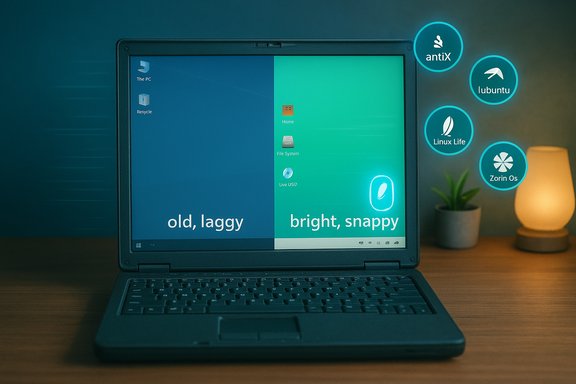
If your aging Windows 10 laptop is starting to feel like a slow, clunky relic, a lightweight Linux distribution can be the fastest — and cheapest — way to make that machine useful again. Driven by the practical urgency of Windows 10’s end-of-support and by a steady improvement in lightweight Linux desktops, five distros stand out for breathing life into old hardware: antiX, Lubuntu, Linux Lite, Peppermint OS, and Zorin OS Lite. These choices balance low system demands, familiar desktop metaphors for Windows refugees, and active community support — and when tested from a live USB they frequently turn formerly sluggish machines into dependable web-and-productivity systems. The original roundup that inspired this guide highlights the same five options and frames them as reliable, low-overhead replacements for Windows 10 on lower-end laptops.
Windows 10 reached the end of standard support on October 14, 2025, creating a practical security and maintenance inflection point for owners of older machines that couldn't or wouldn't move to Windows 11. After that date Microsoft stopped shipping free security updates for mainstream Windows 10 releases, meaning devices left on unsupported builds face increasing risk unless patched via Extended Security Updates (ESU) or migrated to a supported OS. That deadline has pushed many users toward lightweight Linux distributions and cloud-first alternatives as cost-effective, secure ways to extend device life. For most home and small-office use, the switch to Linux is not about matching every Windows-only app; it’s about matching daily tasks (browsing, email, streaming, document editing) while reclaiming speed and battery life. The five distros profiled below are specifically chosen because they are lightweight by design, offer low barriers for Windows migrants, and provide active updates and documentation.
If you’re ready to try: start with a live USB, back up your data, and pick the distro that best matches your hardware and workflow. A little testing goes a long way — and in most cases, a carefully chosen lightweight Linux distro will make an old Windows 10 laptop feel new again.
Source: XDA 5 lightweight Linux distros that breathe life into old Windows 10 laptops
 Background / Overview
Windows 10 reached the end of standard support on October 14, 2025, creating a practical security and maintenance inflection point for owners of older machines that couldn't or wouldn't move to Windows 11. After that date Microsoft stopped shipping free security updates for mainstream Windows 10 releases, meaning devices left on unsupported builds face increasing risk unless patched via Extended Security Updates (ESU) or migrated to a supported OS. That deadline has pushed many users toward lightweight Linux distributions and cloud-first alternatives as cost-effective, secure ways to extend device life. For most home and small-office use, the switch to Linux is not about matching every Windows-only app; it’s about matching daily tasks (browsing, email, streaming, document editing) while reclaiming speed and battery life. The five distros profiled below are specifically chosen because they are lightweight by design, offer low barriers for Windows migrants, and provide active updates and documentation.How I tested recommendations (practical context)
- All five distributions are commonly recommended for older hardware by community and vendor documentation, and have consistent real-world reports of improved responsiveness on machines with 1–4 GB of RAM or less.
- Claims about minimum RAM and system behavior were cross-checked against each project’s documentation and community notes where an official doc was not decisive.
- The final advice focuses on realistic, everyday performance (web browsing, office apps, light media), not niche workloads that require Windows-only software or modern GPUs.
antiX — Ultra-lean, systemd-free revival for truly old laptops
Why antiX fits underpowered machines
antiX is engineered for the absolute low end. It’s Debian-based, purposely avoids systemd in favor of simpler init options, and targets machines with tiny memory footprints and older CPUs. If your laptop is from the pre-2010 era or only has a few hundred megabytes of RAM, antiX is often the only practical modern OS that runs acceptably.Minimum requirements and realistic expectations
- Project documentation and community testing show antiX can run on systems with as little as 128–256 MB of RAM (with swap) and practical installations often start at 512 MB for a usable desktop experience. Live-USB and frugal installs are explicitly supported, which is ideal for testing without installing to the hard drive. Community forums and project FAQs emphasize small-ISO editions and a range of full/base/core/net images to tailor disk and memory usage.
Strengths
- Extremely low memory and storage footprint — works on very old netbooks and laptops.
- Systemd-free architecture for users who want a minimal init layer and easier troubleshooting.
- Multiple lightweight window manager choices (IceWM, Fluxbox, JWM) let you trim the environment to taste.
Risks and caveats
- The interface is intentionally minimalist and can feel rough compared with modern desktop shells — expect more manual setup if you want polish.
- Some modern hardware (new Wi‑Fi chips, fingerprint readers) may lack vendor drivers; verify device support before committing.
- Smaller userbase than mainstream Ubuntu-family distros — community support is strong but narrower.
Lubuntu — Familiar layout, LXQt efficiency, and Ubuntu’s ecosystem
Why Lubuntu is a reliable middle ground
Lubuntu is an official Ubuntu flavor built around the lightweight LXQt desktop. It’s specifically aimed at modest hardware while preserving access to Ubuntu’s extensive repositories, drivers, and long-term support releases. For users who want a familiar desktop (taskbar, menu, tray icons) without Linux becoming an exercise in tinkering, Lubuntu is often the best balance of usability and low resource use.Minimum requirements and real-world performance
- Historically Lubuntu documentation recommends a practical baseline of 1 GB RAM for modern web use, while 512 MB could suffice for very light local tasks. Modern Lubuntu LTS releases focus on 64-bit systems and advise 1–2 GB as a comfortable minimum for everyday browsing. For heavier websites and multiple browser tabs, 2 GB is a more realistic baseline.
Strengths
- Familiar Windows-like desktop reduces the learning curve.
- Ubuntu base gives broad driver support and easy access to popular packages.
- Good documentation and a manual that helps with installation, upgrades, and troubleshooting.
Risks and caveats
- “Lightweight” is relative: modern browsers (Chrome, Firefox) are memory-hungry and will still stress machines with sub-2 GB RAM.
- Newer Lubuntu releases focus on current hardware and 64-bit images; very old 32-bit machines may need alternative images or legacy distros.
Linux Lite — Windows-like comfort, Ubuntu LTS reliability, and newcomer-friendly tools
Why Linux Lite is good for Windows migrants
Linux Lite intentionally mimics the Windows desktop metaphor and includes utility apps designed to smooth the transition: a built-in Help Manual, a curated “Lite Software” tool for easy application installs, and user-focused tweaks that minimize surprises for first-time Linux users. It’s based on Ubuntu LTS, which reassures users who want predictable updates and longer support windows.Minimum requirements and practical baseline
- The Linux Lite help manual lists preferred requirements around 1 GB RAM or higher, an architecture of 64-bit, and a modest disk footprint (20 GB recommended). For day-to-day web work and document editing, 1–2 GB is realistic; for comfortable multi-tab browsing choose 2+ GB.
Strengths
- Very gentle learning curve with a Help Manual and utilities aimed at Windows users.
- Preselected apps (Firefox, LibreOffice, VLC) make the out-of-the-box experience productive without hunting for software.
- XFCE desktop keeps the environment snappy and configurable.
Risks and caveats
- Not a fit where full Windows-only application compatibility is required; you’ll need Wine, a VM, or cloud Windows for some professional apps.
- For the very lowest‑end hardware (sub-512 MB), Linux Lite is too heavy — pick antiX or Puppy in those cases.
Peppermint OS — hybrid cloud-first approach with ICE site-specific browsers
What makes Peppermint unique
Peppermint OS blends a traditional desktop with strong cloud integration. Its signature feature, ICE, creates site-specific browsers (SSBs) that let you turn web apps into lightweight desktop-like shortcuts. That approach fits users who rely heavily on Google Docs, webmail, Slack, and other cloud services because much of the heavy lifting is done in the browser, not locally.Minimum requirements and usage profile
- Peppermint targets modest hardware (commonly recommended baseline around 512 MB–1 GB RAM), but because it encourages web apps, overall system demands reflect the browser’s resource use. On a machine with 1–2 GB RAM, Peppermint with ICE SSBs feels razor-sharp for email, cloud office suites, and web streaming.
Strengths
- ICE SSBs simplify workflows by turning frequent web services into launchable “apps” without a browser UI.
- Clean, uncluttered LXQt-based desktop that stays fast with minimal RAM usage.
- Good for cloud-heavy, web-first workflows.
Risks and caveats
- Reliance on web apps means offline workflows are limited compared with desktop-first distros.
- Browser resource consumption still dominates; a machine with only 1 GB RAM will succeed only if the user keeps tabs and browser extensions to a minimum.
Zorin OS Lite — modern polish with XFCE efficiency
Who should pick Zorin OS Lite
Zorin OS Lite offers a polished, Windows-like experience while remaining light enough for older systems. It’s built on Ubuntu LTS and uses XFCE in the Lite edition to balance visual clarity with performance. If you want a modern, attractive desktop that still runs comfortably on 2 GB RAM laptops, Zorin Lite is an excellent candidate.Requirements and support lifecycle
- Zorin’s help pages indicate the Lite edition is intended for machines with 1–2 GB RAM depending on workload, and Zorin has committed to keeping Lite available for its 17 and 18 release series with support assurances. Users should check the exact Zorin release support window when planning installs.
Strengths
- Highly polished out-of-the-box themes and Windows-like layouts reduce friction for Windows-to-Linux transitions.
- Ubuntu base provides drivers, software, and LTS stability.
- Curated software selection that makes initial setup fast and pleasant.
Risks and caveats
- The Lite edition may be phased or changed in future major releases; check Zorin’s support and edition roadmap if you require long-term Lite-specific features. For many users, the standard Zorin releases are now optimized enough to run on lower-RAM machines.
Quick practical comparison (at-a-glance)
- antiX
- Desktop: IceWM/Fluxbox/JWM
- Ideal for: Very old laptops, 256–512 MB RAM
- Best for: Rescue installs, frugal/live USB
- Lubuntu
- Desktop: LXQt
- Ideal for: 1–2 GB RAM
- Best for: Windows-like layout with Ubuntu compatibility
- Linux Lite
- Desktop: XFCE
- Ideal for: 1–2 GB RAM
- Best for: New Linux users migrating from Windows
- Peppermint OS
- Desktop: LXQt (cloud-centric)
- Ideal for: 1–2 GB RAM (web-first)
- Best for: Heavy web-app users, ICE SSB integration
- Zorin OS Lite
- Desktop: XFCE
- Ideal for: 1–2+ GB RAM
- Best for: Polished Windows-like desktop on older hardware
Migration checklist — from cautious trial to installation
- Inventory: list Windows apps, peripherals (printers, scanners), and any specialized hardware drivers you need to support.
- Backup: create a full image backup and copy critical files to external storage and cloud. This is non-negotiable.
- Live test: create bootable USB sticks (Rufus, balenaEtcher, or Linux-friendly tools) and try each distro in live mode to confirm hardware compatibility (Wi‑Fi, audio, display scale). All five distros support live sessions; antiX and Peppermint are especially live-friendly.
- Choose an install strategy:
- Single-boot: wipe and install if you want the cleanest, fastest result.
- Dual-boot: reserve a partition or use external drives if you need to keep Windows.
- Frugal or persistent USB: useful for testing or occasional use on very old hardware.
- Prepare installation media: verify SHA256 checksums and use official download pages for ISOs (Lubuntu, Zorin, Linux Lite, Peppermint, antiX).
- Post-install tweaks:
- Install proprietary drivers (NVIDIA) only if required.
- Use lighter browsers (Firefox with content process tuning, or Pale Moon / Midori on very low-end machines) for reduced RAM usage.
- Configure swap (or a zswap/zram strategy) on systems with <2 GB RAM to improve responsiveness.
Real-world tips to get the most speed from a revived laptop
- Prefer an SSD over an HDD when possible; even a modest SATA SSD dramatically reduces perceived sluggishness.
- Keep background services minimal: disable unneeded autostart items and avoid heavy indexing/search daemons on low-RAM machines.
- Use lightweight apps: AbiWord or a minimalist editor instead of full LibreOffice if disk and RAM are tight.
- For web-heavy users, limit open tabs and disable unnecessary extensions — browser RAM use is usually the biggest bottleneck across these distros. Lubuntu docs emphasize that advanced web services (YouTube, Google Docs) materially increase RAM needs.
Potential pitfalls and how to mitigate them
- App compatibility: If you must run Windows-native proprietary apps (Adobe CC, specific accounting packages), plan to run them in a virtual machine (if hardware allows), use Wine/Proton where supported, or keep one machine with Windows behind a secure network. For many small-business and hobbyist scenarios, browser-based alternatives suffice.
- Anti-cheat and gaming: Many games relying on kernel-level anti-cheat will not run on Linux, or will require complex workarounds. Treat gaming as a separate migration problem and test before committing.
- Peripheral drivers: Verify printer and scanner compatibility with a live session; older, commodity devices almost always work but manufacturer-specific scanners and fingerprint modules can be problematic.
- Security posture: If you choose to stay on Windows 10 past EOL (not recommended for internet-facing devices), consider offline-only use or purchase ESU as a short-term bridge while planning migration. For most users, a Linux LTS distro is the longer-term secure route.
Which distro should you pick?
- Choose antiX if your laptop is extremely old (sub-1 GB RAM, single-core era) and you accept a minimalist UI for maximum speed.
- Choose Lubuntu if you want a familiar, responsive desktop that stays close to Ubuntu’s ecosystem and balances ease-of-use with lightness.
- Choose Linux Lite if you prefer a Windows-like environment built especially to streamline the Linux transition for non-technical users.
- Choose Peppermint OS if your workflow is web and cloud focused and you value ICE site-specific browser shortcuts.
- Choose Zorin OS Lite if you want a polished, Windows-like aesthetic with the efficiencies of XFCE and Ubuntu LTS underneath.
Final assessment — strengths, trade-offs, and the environmental bonus
Lightweight Linux distros are a practical way to make old Windows 10 laptops useful, secure, and energy-efficient again. They offer:- Faster boot and app launch times on modest CPUs.
- Reduced memory and storage overhead compared with Windows 10.
- Long-term security via vendor-maintained updates for supported releases.
- A second life for hardware that might otherwise become e-waste.
If you’re ready to try: start with a live USB, back up your data, and pick the distro that best matches your hardware and workflow. A little testing goes a long way — and in most cases, a carefully chosen lightweight Linux distro will make an old Windows 10 laptop feel new again.
Source: XDA 5 lightweight Linux distros that breathe life into old Windows 10 laptops
