

If you still have a box of old floppies or a stack of CD‑ROMs in the attic, you can bring those DOS and Windows‑3.x classics back to life on a modern Windows 11 PC — but not the way you did in 1992. The practical route today is emulation: install a modern DOS emulator, mount your original media (or disk images), and run old installers and games in a controlled virtual DOS environment. This guide expands the PCWorld how‑to, walks through both “use the original discs” and “use images” workflows, explains the key technical steps (mounting, installing, starting), flags caveats and legal issues, and gives preservation‑minded options when physical media are unreadable.
The roadblock for running many 1980s–1990s programs on Windows 11 is architectural: modern Windows (x64) no longer supports 16‑bit binaries or the legacy DOS runtime that those titles expected. That means you can’t just double‑click a 16‑bit installer on a 64‑bit Windows 11 machine and expect it to run — you need emulation or a legacy virtual machine. Microsoft documents that x64 Windows does not run 16‑bit programs natively and that WOW64 does not supply a 16‑bit environment. The practical, lightweight solution for most classic DOS games and Windows 3.1 software is DOSBox (and its modern forks/staging builds). DOSBox emulates an MS‑DOS environment, provides virtual floppy and CD‑ROM drives, supports SoundBlaster / AdLib sound emulation and MIDI output, and accepts keyboard, mouse and joystick input — everything needed to run many old titles as if they were on period hardware. For more ambitious preservation (cycle‑accurate timing or full Windows 9x installs) other tools (DOSBox‑X, PCem, full VMs) are options.
This practical approach balances authenticity and convenience: use your original media where possible, create verified images for long‑term storage, respect licensing, and choose the emulator that best matches your goals (playability vs archival fidelity). With a little patience and the right tools, those pixelated adventures — Maniac Mansion, King’s Quest, Leisure Suit Larry and their peers — will run again on your modern hardware, sounding and feeling close to the originals.
Source: PCWorld Old games, new PC: How to run DOS classics on Windows 11
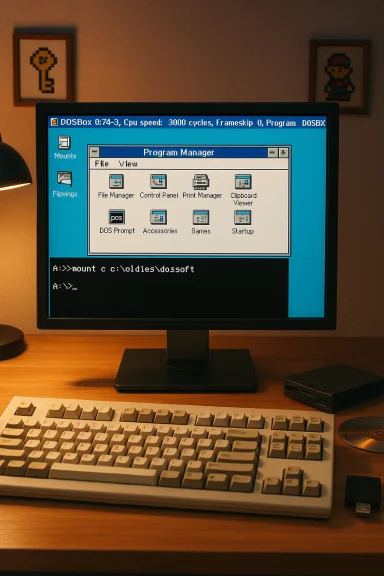 Background / Overview
The roadblock for running many 1980s–1990s programs on Windows 11 is architectural: modern Windows (x64) no longer supports 16‑bit binaries or the legacy DOS runtime that those titles expected. That means you can’t just double‑click a 16‑bit installer on a 64‑bit Windows 11 machine and expect it to run — you need emulation or a legacy virtual machine. Microsoft documents that x64 Windows does not run 16‑bit programs natively and that WOW64 does not supply a 16‑bit environment. The practical, lightweight solution for most classic DOS games and Windows 3.1 software is DOSBox (and its modern forks/staging builds). DOSBox emulates an MS‑DOS environment, provides virtual floppy and CD‑ROM drives, supports SoundBlaster / AdLib sound emulation and MIDI output, and accepts keyboard, mouse and joystick input — everything needed to run many old titles as if they were on period hardware. For more ambitious preservation (cycle‑accurate timing or full Windows 9x installs) other tools (DOSBox‑X, PCem, full VMs) are options. Why DOSBox matters — what it emulates and what it doesn’t
- What DOSBox gives you
- A software MS‑DOS prompt and a virtual IBM‑PC compatible machine (configurable CPU speed, graphics mode, sound card emulation).
- Support for SoundBlaster, AdLib, internal speaker emulation and MIDI routing — essential for authentic audio in many adventure and RPG titles.
- Virtual floppy and CD‑ROM mounts, plus joystick/gamepad input mapping for games that expect them.
- What DOSBox does not do well
- It is not a general‑purpose VM for running modern OSes; Windows 95/98 can be experimental or brittle inside some DOSBox builds. For Windows 9x era titles that depend on particular drivers or DirectX quirks, a full PC emulator (PCem) or a VM might be more reliable.
- Cycle‑perfect preservation (bit‑exact hardware timing) sometimes requires specialized emulators or hardware capture — DOSBox focuses on playability rather than archival perfection.
Prepare your Windows 11 PC and files — recommended layout
A tidy folder layout makes mounts and commands simpler. The PCWorld guide’s suggested structure is sensible:- Create a root folder for retro work: C:\Oldies
- Inside it, create C:\Oldies\DOSSoft to hold all installed games and unpacked disc images.
Installing DOSBox and first steps
- Download the latest official DOSBox or a modern fork (DOSBox Staging and DOSBox‑X both add useful features). Both the standard DOSBox and the Staging/X forks are active projects — Staging brings improved defaults and nicer mouse options, while DOSBox‑X targets broader compatibility and a richer configuration menu.
- Install DOSBox in C:\Oldies\ (or simply place a shortcut to a portable DOSBox.exe there). Create the C:\Oldies\DOSSoft directory to store games and disc images.
- Read the DOSBox help and the “mount” command documentation — mounting host folders and physical drives is core to using DOSBox. The DOSBox wiki documents mount syntax (e.g., mount C C:\Oldies\DOSSoft, mount A A:\ -t floppy, mount D D:\ -t cdrom) and how to unmount with mount -u.
How to mount drives in DOSBox (practical commands)
- Mount a host folder as DOSBox’s C: drive:
- mount C C:\Oldies\DOSSoft
- Mount a USB 3.5" floppy drive as A:
- mount A A:\ -t floppy
- Mount a physical CD drive as, say, E:
- mount E E:\ -t cdrom
- Unmount a drive that was mounted:
- mount -u A
- Mounted folders don’t always auto‑refresh inside DOSBox when you copy new files from the host; use the Swap Image hotkey (Ctrl+F4) in DOSBox to refresh floppy images, or unmount and remount the drive to reflect changed host files. The DOSBox docs explicitly note that mounts don't automatically refresh and explain the -t floppy / -t cdrom options.
Running from original 3.5" floppies (step‑by‑step example)
Example used in PCWorld: Shadowlands (1992).- Connect a USB external 3.5" floppy drive and confirm Windows assigns it a letter (A
 .
. - Start DOSBox and mount the physical floppy as A:
- mount A A:\ -t floppy
- Mount your installation folder as C:
- mount C C:\Oldies\DOSSoft
- Switch to the floppy drive:
- A:
- Run the installer or copy files into C:, e.g.:
- install A: C:
- After install, switch to C:, cd into the game folder and run the EXE:
- C:
- cd SHADOW
- shadow
Installing Windows 3.1 and running 16‑bit Windows apps
You can install Windows 3.1 under DOSBox (it’s how many Windows‑3.x programs are run today):- Collect the Windows 3.1 floppy images or original discs and unpack all installation files into a host folder (e.g., C:\Oldies\DOSSoft\Win31).
- Mount that folder as a drive in DOSBox (for example, mount E C:\Oldies\DOSSoft\Win31).
- Run setup from the mounted drive inside DOSBox to install Windows into C:\WINDOWS (DOSBox will write the installed files into your host folder).
- To start Windows 3.1, mount the installed WINDOWS folder as a drive (e.g., mount F C:\Oldies\DOSSoft\WINDOWS), switch to it and run win or win /s to boot the GUI.
What to do when discs are unreadable or missing
If your original media are gone or physically damaged, the usual alternative is disk images (IMG, ISO, BIN/CUE). Two practical approaches:- Download a legally‑available image (abandonware archives are numerous but remember licensing issues — you usually need a valid license to use proprietary software). The PCWorld guide points this out: you may find images online but you must still own a license/serial to be legal.
- Create images from your own discs using imaging tools (ImgBurn, WinImage) for CDs and for 3.5" floppies a standard USB floppy drive plus a low‑level imaging tool can often produce usable .IMG/.IMA files.
Imaging and transfer tools — recommended toolset
- For CDs: ImgBurn (Windows) or any ISO mounter to create exact ISOs.
- For 3.5" floppies: use a modern USB floppy and imaging tools (WinImage, RawWrite) to create .IMG/.IMA files.
- For 5.25" or copy‑protected media: KryoFlux or Greaseweazle with a known‑good legacy drive to create flux images; these capture nonstandard formats and copy‑protection areas (essential for many unreleased or regional formats).
Alternatives and when to use them
- DOSBox vs DOSBox Staging / DOSBox‑X
- DOSBox Staging improves defaults, rendering, and mouse capture behavior; DOSBox‑X provides deeper compatibility and a richer config UI for non‑game uses. Choose DOSBox Staging for easier game setup, DOSBox‑X if you need more features or troubleshooting tools.
- DOSBox Pure / DOSBox Pure Unleashed
- Recent UI‑first builds aim to make the DOSBox experience drag‑and‑drop friendly and even experiment with Windows 9x installs, but Windows 9x support remains experimental and should be treated as such for tricky installers. For stubborn Win95/98 titles or ones requiring specific drivers, consider a full VM or PCem.
- Full VM or PCem
- VirtualBox/VMware work well for Windows 95/98 if you can prepare an image and supply the right drivers. PCem emulates whole vintage PC platforms (BIOS, chipset, sound card, 3dfx Voodoo) and is the best choice when you need accuracy and driver‑level compatibility for late‑’90s titles.
Troubleshooting: frequent gotchas and fixes
- Mouse capture/release: DOSBox historically captures the mouse when you click inside the window. Use Ctrl+F10 to release the mouse; modern builds like DOSBox Staging introduce configurable capture_mouse options (onclick, onstart, seamless) and a middlerelease behaviour. If your mouse behaves oddly in Windows 3.1, toggle capture or try fullscreen (Alt+Enter).
- Mount refresh: if you copy files from Windows into a host folder mounted in DOSBox, they may not show up until you remount or use the Swap Image key (Ctrl+F4) for floppy images. The DOSBox documentation explains mount behavior and refreshing.
- Audio problems: check DOSBox’s sbtype and oplemu settings to match the game’s expected sound hardware; many adventure games work best with SoundBlaster 16 emulation and AdLib/FM support. The DOSBox manual lists supported sound devices.
- “This program cannot be run in DOS mode” or “Illegal command: win”: these errors mean you are trying to run a Windows‑focused installer/executable from pure DOS — install Windows 3.1 inside DOSBox first or use the correct guest OS for the title. Many installers for later Windows versions will fail in plain DOS.
Legal and ethical considerations
- Ownership matters. Downloading or using disk images for proprietary software without owning a license generally violates copyright law. Even if images are widely available on archive sites, legal ownership (or a licensed re‑release on GOG/Steam) is the safe route. The PCWorld guide and community preservation resources emphasize the legal caveat: you should only use images you own or titles released freely by their rights holders.
- Some classic games have been legally rereleased (GOG, Steam) with modern installers and DRM‑free executables; when available, prefer those because they save time and avoid legal ambiguity.
Recommended workflow: two typical scenarios
Scenario A — You own the original discs (fastest, most authentic)
- Gather media and a working USB 3.5" floppy or CD drive.
- Create C:\Oldies\DOSSoft and install DOSBox.
- Mount the physical drive and the C: folder inside DOSBox.
- Run the installer from A: or E: and install into C:\ (the emulator will write files to your host folder).
- Launch and configure sound/mouse inside DOSBox and play.
- mount A A:\ -t floppy
- mount C C:\Oldies\DOSSoft
- A:
- install A: C:
- C:
- cd SHADOW
- shadow
Scenario B — Discs are lost or unreadable, you have images
- Create or download legal ISO/IMG files (CDs/3.5" floppies).
- Place the images in C:\Oldies\Images or similar.
- Use DOSBox’s imgmount to attach images:
- imgmount A C:\Oldies\Images\shadow.img -t floppy
- imgmount D C:\Oldies\Images\game.iso -t iso
- Proceed to install from the mounted images and run the game.
Security and preservation best practices
- Use an isolated guest environment for old software: keep vintage guests offline unless you need legacy networking, and never expose them to modern internet traffic unfiltered.
- Back up your original images and exported installation folders (read‑only archive copies). These are your digital artifacts — treat them as you would photographs or documents.
- Prefer official rereleases where possible; they eliminate many DRM headaches and often include modern compatibility patches.
Final analysis: strengths, risks, and realistic expectations
Strengths:- High playability, low cost — DOSBox and its forks let you revive a huge swath of DOS era titles quickly and reliably on Windows 11. Sound, input, CD audio, and floppy installs are supported and well‑documented.
- Preservation path — combining imaging hardware (KryoFlux/Greaseweazle) and emulation produces archives that can be replayed and analyzed without relying on aging hardware.
- Legal ambiguity — images on archive sites are convenient but often infringe copyright; use only what you can legally claim.
- Edge‑case compatibility — some titles (especially Windows 9x and rare copy‑protected games) require more complex emulation or real hardware and will not be perfectly reproducible in a single emulator. For these you may need PCem, a VM, or flux‑level imaging.
- Usability quirks — mouse capture, hotkeys, and refresh behavior have minor friction points that are easy to solve once you know the commands (Ctrl+F10 to release mouse in classic DOSBox; configurable capture options in Staging).
Quick reference cheat sheet
- Create folders: C:\Oldies\DOSSoft
- Mount host folder as C: : mount C C:\Oldies\DOSSoft.
- Mount floppy drive as A: : mount A A:\ -t floppy.
- Mount CD-ROM: mount E E:\ -t cdrom.
- Unmount: mount -u A.
- Release mouse (vanilla DOSBox): Ctrl+F10. For Staging, change capture_mouse options in the config.
Closing thoughts
Reviving DOS and Windows‑3.x classics on Windows 11 is both straightforward and richly rewarding: DOSBox and its modern descendants give you a replicable, well‑documented environment to play, tinker and preserve. For straightforward DOS games, the path from original floppy or CD to running title is short. For more complex or copy‑protected artifacts, expect additional investment — flux‑level imaging, PCem, or VMs — but those extra steps are the right choice for faithful archival and recovery.This practical approach balances authenticity and convenience: use your original media where possible, create verified images for long‑term storage, respect licensing, and choose the emulator that best matches your goals (playability vs archival fidelity). With a little patience and the right tools, those pixelated adventures — Maniac Mansion, King’s Quest, Leisure Suit Larry and their peers — will run again on your modern hardware, sounding and feeling close to the originals.
Source: PCWorld Old games, new PC: How to run DOS classics on Windows 11
