

RSS never died — it quietly matured, and this weekend’s small-but-satisfying renaissance is captured perfectly by a short How‑To Geek roundup that points Windows users toward three distinct RSS readers: Fluent Reader, RSSOwl, and RSS Guard. The piece highlights each app’s personality — Fluent Reader for a modern, Windows‑friendly experience; RSSOwl for a throwback, highly functional Java client; and RSS Guard for a heavily configurable, power‑user toolbox — and represents a useful starting point for readers who want the “newspaper on demand” feeling without social‑platform algorithms.
RSS (Really Simple Syndication) remains one of the most reliable ways to receive content from the sites you care about without handing your attention to recommendation engines. For Windows users in 2025, the landscape is shaped by three practical axes: interface (modern vs. classic), dependency and portability (native vs. Java/Electron), and extensibility (skins, scripts, or feed service syncing). The apps in the roundup map cleanly to those axes: Fluent Reader is a modern Electron/React client inspired by Microsoft’s Fluent Design; RSSOwl is a long‑running Java/Eclipse‑based reader with a legacy but robust feature set; and RSS Guard is a Qt/C++ cross‑platform project that emphasizes configurability and low‑level control. This feature unpacks each app, verifies technical claims, flags potential risks, and offers practical advice so readers can choose the best “RSS reader for Windows 11” (or Windows 10) for their needs.
Conclusion: RSS remains the best way to reclaim a curated information diet, and these three readers give Windows users a clear, well‑supported trio of choices — whether you want style, substance, or surgical control.
Source: How-To Geek 3 unique RSS reader apps for Windows to try this weekend
 Background / Overview
RSS (Really Simple Syndication) remains one of the most reliable ways to receive content from the sites you care about without handing your attention to recommendation engines. For Windows users in 2025, the landscape is shaped by three practical axes: interface (modern vs. classic), dependency and portability (native vs. Java/Electron), and extensibility (skins, scripts, or feed service syncing). The apps in the roundup map cleanly to those axes: Fluent Reader is a modern Electron/React client inspired by Microsoft’s Fluent Design; RSSOwl is a long‑running Java/Eclipse‑based reader with a legacy but robust feature set; and RSS Guard is a Qt/C++ cross‑platform project that emphasizes configurability and low‑level control. This feature unpacks each app, verifies technical claims, flags potential risks, and offers practical advice so readers can choose the best “RSS reader for Windows 11” (or Windows 10) for their needs.Why RSS still matters
- RSS puts you in control of sources and ordering — no opaque algorithms.
- Feeds support focused, repeatable scanning of topics; they’re ideal for research, niche interests, and independent journalism.
- Desktop RSS readers add offline caching, filtering, and advanced organization that browser‑based readers and social streams rarely provide.
Fluent Reader — the modern, Windows‑friendly RSS client
What Fluent Reader is and why it appeals
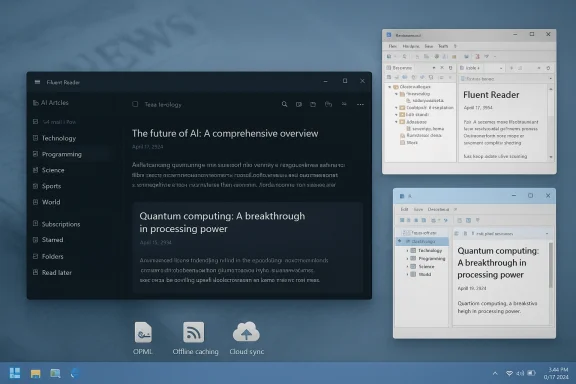
Fluent Reader is an open‑source, Electron‑based RSS client that models its UI on Microsoft’s Fluent Design principles. It emphasizes a minimal, modern interface, OPML import/export, local reading, and optional syncing with several online feed services (Inoreader, Feedbin, The Old Reader, etc.. The project’s repository and project page describe its focus on dark mode, local backups, regex‑style filtering, and keyboard productivity.Strengths
- Polished UI that feels at home on Windows 11 while remaining cross‑platform.
- Service sync support (Inoreader, BazQux, Feedbin), which helps users move between a cloud aggregator and a local client without losing read status.
- OPML import/export and backup features, making migration and portability straightforward for power users.
- Great for users who want a modern app with straightforward setup and no Java or low‑level configuration headaches.
Weaknesses and risks
- Built on Electron, which can mean larger disk and memory footprints than native clients, and periodic concerns about resource use.
- Some advanced power‑user features (deep scripting, heavy customization) that you’d find in native or older clients are not the primary design objective.
- As with many open‑source projects, the longevity of feature development depends on community and sponsor support; check release cadence if long‑term maintenance matters.
Who should pick Fluent Reader
- Anyone wanting a Windows 11‑friendly, modern UI and simple setup.
- Users who occasionally rely on cloud feed services and want a polished local client that can sync.
- Readers who prioritize readability and ergonomics over extreme customization.
RSSOwl — the durable Java classic, with a caveat
What RSSOwl delivers
RSSOwl is a veteran RSS reader with roots in the Eclipse ecosystem. It’s feature‑dense, offering advanced search, saved searches, labels, news bins, and flexible filtering. For readers who prize powerful local indexing, automated rules, and a traditional three‑pane layout, RSSOwl remains compelling and useful. The official site continues to host downloads, and the application is still functionally relevant for users who prefer a full featured desktop client.A critical technical detail: Java runtime requirements
Historically and practically, RSSOwl expects a Java Runtime Environment. Community support threads and user reports note that RSSOwl has required a 32‑bit Java Runtime on Windows builds, and users installing only a 64‑bit JRE can encounter startup errors or JVM termination messages. That quirk is rooted in the app’s packaging and Eclipse‑based runtime choices and remains an adoption friction point for some Windows users. If you plan to use RSSOwl, be prepared to install a compatible JRE (the project recommends ensuring a JRE/JDK is available) or use the bundled runtime variant if one is provided.Strengths
- Robust filtering and saved search engine — great for readers who want to triage large numbers of feeds.
- Cross‑platform and battle tested; features like news bins and instant search are highly usable for heavy workloads.
- Mature feature set for offline reading and complex rule automation.
Weaknesses and risks
- Dependency on Java — both a practical and security consideration. Java installations can introduce unwanted browser plugins or legacy components; prefer up‑to‑date OpenJDK builds and minimal runtime installations.
- UI looks dated compared with modern Electron or native Windows 11 applications, which some readers may find off‑putting.
- Maintenance cadence: while downloads and site content remain available, parts of RSSOwl’s codebase and packaging are inherited from older Eclipse runtimes; confirm current releases and test on your system before committing. Where precise runtime constraints are unclear, treat any rigid “32‑bit JVM required” claims as verified by community reports but still check current installer notes.
Who should pick RSSOwl
- Power users who need advanced saved searches and message automation.
- People who are comfortable managing a Java runtime or who prefer a classical desktop application model.
- Users who want a mature app with deep filtering, even at the cost of a retro UI.
RSS Guard — the configurable, scriptable power tool
What RSS Guard brings to the table
RSS Guard is an actively developed Qt/C++ reader that balances power and performance. It supports multiple feed formats (RSS/RDF/Atom/JSON Feed), integrates with many online feed services (Feedly, Inoreader, Tiny Tiny RSS, Nextcloud News), and includes podcast playback via mpv/ffmpeg backends. Importantly, RSS Guard is highly skinable and scriptable; the user interface can be altered with Qt stylesheets and custom HTML/CSS article templates, and it exposes advanced settings for per‑feed HTTP headers, caching, and more.Notable recent improvement: pause feed fetching
A practical addition for users who want manual control over bandwidth or refresh behavior is the ability to pause feed fetching — introduced in recent releases. This makes RSS Guard friendly for intermittent connections, metered networks, or cases where you want to read without background refresh activity. The feature is documented in the release notes for version 4.8.0 and mentioned in build summaries.Strengths
- Highly configurable UI (skins, Qt stylesheets) and extensive settings for feed discovery and per‑feed behavior.
- Cross‑platform with portable builds and lightweight installers; good choices for users who switch systems.
- Active development with regular releases, feature additions (Gemini protocol support, pause updates), and a clear GitHub presence.
Weaknesses and risks
- The interface can be busy and technical, which creates a steeper learning curve for newcomers.
- Because of its power, it exposes more configuration surface — that’s great for custom workflows but increases the chance of misconfigurations (e.g., custom headers, caching rules).
- Some users report intermittent feed issues with specific providers (e.g., Reddit feed quirks), which may be due to upstream feed changes rather than the client; expect occasional edge cases and be prepared to debug feed discovery.
Who should pick RSS Guard
- Users who want a feature‑rich, scriptable client that can be tuned precisely.
- People who run feeds from self‑hosted services (Tiny Tiny RSS, FreshRSS) and want advanced control.
- Readers who appreciate cross‑platform portability with robust local caching and podcast support.
Quick comparison: three readers, one choice
- Fluent Reader
- Best for: modern UI, ease of use, Windows 11 aesthetics.
- Pros: polished interface, cloud sync support, OPML import/export.
- Cons: Electron footprint, fewer scripting options.
- RSSOwl
- Best for: heavy local filtering, saved searches, classical desktop workflows.
- Pros: powerful search and rules, mature feature set.
- Cons: Java requirement (historically 32‑bit), dated UI.
- RSS Guard
- Best for: customization, scripting, podcast playback, and cross‑platform portability.
- Pros: skins, per‑feed headers, pause fetching, active releases.
- Cons: detailed UI may overwhelm casual users.
Installation and setup checklist (practical steps)
- Decide the type of client you prefer (modern UI vs. scriptable power vs. classic).
- Download from the official source or GitHub releases page — avoid third‑party mirrors.
- If you choose Fluent Reader, get the release build and confirm dependencies for Windows.
- For RSSOwl, verify the JRE requirements (consider installing a compatible JRE or using the provided runtime, if available).
- For RSS Guard, use the GitHub Releases page or the project’s official documentation for installation options (portable, installer, or package manager).
- Import your OPML file (if moving from another reader) or add feeds manually by pasting a site’s feed URL.
- Configure update intervals conservatively for large feed lists to reduce bandwidth and server load.
- Set up backups: export OPML and local settings periodically. Most clients offer an export or backup option.
Security, privacy and maintenance considerations
- Always install from official channels (project sites, GitHub Releases, Microsoft Store). Signed packages reduce supply‑chain risk.
- Be cautious with third‑party skins or scripts; they may include HTML/CSS or script content that touches the article viewer. Prefer vetted themes or create your own minimal templates. RSS Guard’s skin API and Fluent Reader’s content isolation features are useful, but custom content still requires scrutiny.
- If a reader requires an external runtime (Java, .NET, Electron frameworks), keep those runtimes updated; out‑of‑date runtimes can carry vulnerabilities.
- Consider feed‑source trust: some feeds include remote images or tracking elements; disabling remote assets in article views improves privacy and load times.
- For enterprise users, choose clients that support policy control or can be deployed reproducibly (e.g., portable builds, signed installers).
Practical tips for power users
- Use saved searches and filters to surface only high‑value items. RSSOwl and RSS Guard excel here.
- Offload heavy‑hit feeds (daily dumps or high‑volume sites) to a cloud aggregator and use the client to read curated lists — this reduces local processing and speeds up reading.
- If you use multiple devices, pick a client that supports service sync (Fluent Reader, RSS Guard integrations) or rely on a cloud reader like Inoreader/Feedly for cross‑device state.
- For a newspaper‑like feeling, set the client to cache full content and use long‑form reader modes (Fluent Reader offers Mercury Parser integration to fetch full article text).
Strengths and risks: an editorial assessment
Strengths:- The three readers together cover the full spectrum of user needs: design‑forward (Fluent Reader), classic and deeply automated (RSSOwl), and obsessively configurable (RSS Guard).
- Each project has an independent development story and user base, which is healthy for ecosystem redundancy — you’re not locked into a single vendor or service.
- Runtime dependencies (Java for RSSOwl; Electron for Fluent Reader) introduce maintenance and security vectors that users must manage. Community reporting shows RSSOwl’s historical need for 32‑bit Java; treat that as a meaningful adoption friction.
- Feed providers change formats and rate limits; occasional breakage (e.g., Reddit feed quirks) can occur and may require client updates or manual adjustments.
- Customization and skin ecosystems open a small but real attack surface — avoid unvetted third‑party templates that request unusual privileges or include external assets.
Short guide: pick by profile
- You want a Windows 11 look and no fuss: choose Fluent Reader. Clean UI, in‑app reader, and sync options make the switch seamless.
- You run hundreds of feeds and want saved searches and rules: pick RSSOwl, but be prepared to manage Java. Verify the installer and JRE compatibility before committing.
- You need maximum configuration, skins, podcast support, and the ability to pause fetching: RSS Guard is the pick for tinkerers and multi‑device folks. Check recent release notes and use portable builds if you move between machines.
Final verdict
If you value a modern, frictionless reading experience that fits neatly into Windows 11, start with Fluent Reader. If you’re a heavy‑duty reader who needs automation and saved searches, RSSOwl still shines — but treat the Java requirement as a real operational step. For those who want the ultimate combination of control, skins, and advanced options (including pauseable updates and podcast playback), RSS Guard is the most feature‑dense choice and shows the most active, recent maintenance. Together these three represent the best “RSS readers for Windows” you can install this weekend — each solves a slightly different problem while preserving the core advantage of RSS: direct access to the sites you choose, on your terms.Conclusion: RSS remains the best way to reclaim a curated information diet, and these three readers give Windows users a clear, well‑supported trio of choices — whether you want style, substance, or surgical control.
Source: How-To Geek 3 unique RSS reader apps for Windows to try this weekend
