

Rufus 2025: How to Create a Bootable USB for Windows 10, 8, and 7 Without Falling Into Common Mistakes
Rufus remains, in 2025, one of the most reliable tools for turning a USB drive into a bootable installation medium for Windows 10, Windows 8, and Windows 7. Its appeal lies not only in its speed, but in the way it simplifies tasks that previously required manual commands — like the old DiskPart workflows that many Windows 7 users learned the hard way on technical forums. That evolution explains why the utility continues to be so frequently cited by those who need to install operating systems on modern machines, ARM laptops, or older computers with finicky BIOS settings.But Rufus also demands judgment. The fact that a USB "writes" successfully does not guarantee that the PC will boot from it, that the ISO image is intact, or that the chosen partition scheme is appropriate for the device's firmware. In other words: Rufus reduces friction, but does not eliminate the need to understand UEFI/Legacy boot, the difference between FAT32 and NTFS, and the typical errors that block installation before it even begins.
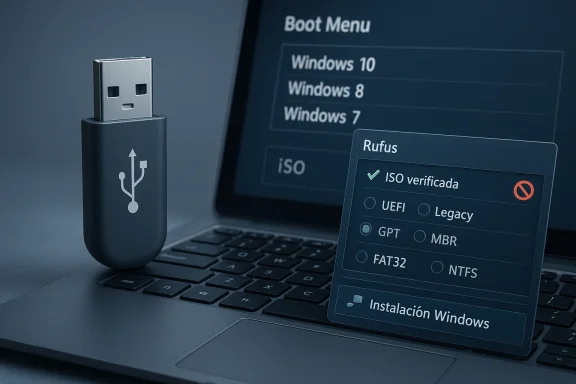 Background
For years, creating a bootable USB for Windows was a hands-on process. Advanced users relied on tools like DiskPart, the bootsect command, manual copying of DVD contents, and a healthy dose of trial and error. Windows forums themselves recall that period: instructions like select disk, clean, create partition primary, active, and format fs=fat32 quick were practically a rite of passage for anyone who wanted to install Windows 7 from USB without outside help.In that context, Rufus's advantage emerged: offering a streamlined interface for a complex task. The tool automated steps that, in manual methods, depended on the user correctly identifying the disk, marking the partition as active, and copying the installation files without missing anything. That automation was especially valuable with Windows 7, when many machines still booted with traditional BIOS, and USB media had to accommodate firmware and format limitations that today seem prehistoric.
Over time, Rufus went from being just an "ISO-to-USB writer" to becoming a Swiss Army knife for installers. In recent years, beyond creating installation media, it has also been used to bypass certain Windows 11 installer restrictions on older hardware. That flexibility has made it central to home users, field technicians, and administrators who need a portable and fast solution — not a bloated wizard that locks them into a single workflow.
Rufus's relevance in 2025 is also understood through the shift in the Windows support landscape. With Windows 10 approaching its end of support and more users exploring reinstalls, repairs, and migrations, the demand for reliable USB media continues to grow. In that environment, any boot failure or image problem can become a costly disruption, not just a minor home inconvenience.
What Rufus Does and Why It Remains Relevant
Rufus is not a "burner" in the trivial sense. It is a tool that prepares a device to boot — which involves writing the correct structure, choosing the appropriate partition scheme, and, depending on the case, handling compatibility options that affect how the installer starts. That combination sets it apart from more basic utilities and explains why many users prefer it when the goal is not just to copy files, but to actually boot from the USB drive.The utility remains relevant because it solves a practical problem that never went away: manufacturers and firmware are not identical. A modern machine with UEFI tends to behave differently from an older laptop with BIOS, and a desktop PC can react differently from a laptop with restricted boot options. Rufus offers a clear control point, while the manual method forces you to fight with the firmware, disk format, and boot order all at the same time.
Key Advantages of Rufus
Rufus's advantages are not theoretical — they show up in day-to-day use. The program is typically fast, lightweight, and flexible enough to adapt to multiple scenarios, from reinstalling Windows 10 on a recent laptop to preparing media for Windows 7 on legacy hardware. That versatility also makes it useful for technicians who carry a single flash drive and don't want to rely on a collection of different tools.- Speed when writing ISO images.
- Simplicity compared to manual procedures.
- Flexibility for different boot modes.
- Compatibility with both old and modern scenarios.
- Portability for field technical use.
Before You Start: Requirements and Preparation
Preparation is where many users skip steps and then blame Rufus. A bootable USB doesn't start at the "Start" button; it starts with verifying that the correct drive was selected, that the ISO file is not corrupted, and that there is enough free space. In several historical Windows threads, the same warning repeats: a misdirected command or a misidentified disk can wipe the wrong drive or leave the media unusable.For Windows 10, 8, and 7, it's best to start with a clean USB drive, and if possible, one of good quality. Although most installers fit on 8 GB, a 16 GB drive provides extra room for larger images, updates, and scenarios where the user wants to keep additional tools. Minimum size matters less than the reliability of the flash drive, because a faulty medium can generate intermittent errors that are hard to diagnose.
What to Check Before Using Rufus
Before pressing anything, a basic check is in order. Most failures attributed to Rufus are actually prior problems: a poorly downloaded ISO, an unstable USB port, or a partition option that doesn't match the device's firmware. On older machines, additionally, an incorrect boot mode can cause the machine to completely ignore the device, even if it was correctly prepared.- Confirm the drive letter or size of the correct USB.
- Back up any files on the drive.
- Verify the ISO's integrity if it came from a slow or unstable source.
- Use a reliable port, preferably directly on the machine.
- Confirm the PC's boot mode: UEFI, Legacy, or mixed.
How to Create a Bootable USB with Rufus
The basic Rufus workflow is simple: insert the USB drive, open the application, select the drive, choose the ISO, and define the partition and file system options before writing the image. That apparent simplicity is why the tool became the natural replacement for the manual Windows 7 processes, where everything depended on command sequences and meticulous file copying.With Windows 10 and Windows 8, the procedure tends to be more forgiving because these modern versions work better with UEFI media and contemporary structures. Even so, success depends on the user choosing the correct scheme for their machine. Rufus can automate much of that, but the final judgment still belongs to the user — especially when the machine has mixed configurations or older firmware.
Recommended Steps
- Insert the USB and open Rufus.
- Select the correct drive under "Device."
- Choose the Windows 10, 8, or 7 ISO.
- Set the partition scheme compatible with your machine.
- Adjust the file system if Rufus suggests it.
- Click Start and wait for the process to complete.
- Restart the PC and open the boot menu to select the USB.
What to Choose for Windows 10, 8, and 7
For Windows 10 and Windows 8, the most common combination is UEFI with a GPT partition, especially on recent hardware. That typically offers the cleanest and fastest path to launching the installer, provided the machine's firmware is configured to recognize that mode. By contrast, Windows 7 still appears more frequently on legacy hardware, where an MBR configuration and a BIOS/Legacy boot may be more appropriate.- Windows 10: usually works best on modern UEFI.
- Windows 8: shares much of the same logic as Windows 10.
- Windows 7: may require more attention to Legacy mode.
- Older machines: check firmware compatibility before writing.
- Modern machines: avoid forcing legacy configurations unnecessarily.
Common Errors When Using Rufus
One of the most frequent mistakes is believing the problem lies in the tool when it actually lies in the image, the firmware, or the selection of the target drive. Historically, many forums show users convinced they did everything right because the ISO was copied, yet the machine kept booting into the old system. In almost all those cases there was a missing piece: incorrect active partition, poorly formatted USB, or incompatible boot mode.Another common failure is underestimating the importance of the file system. FAT32 remains relevant in UEFI scenarios, while NTFS may appear in installations with large files or specific needs. That decision is not cosmetic — it can determine whether the firmware sees or ignores the device. The old advice to "try another option" is not a cliché; it's a pragmatic response to the heterogeneity of the PC ecosystem.
What Typically Goes Wrong
Errors can also come from an external source. A corrupted ISO, an incomplete download, or a defective USB drive can produce exactly the same symptom as a bad configuration in Rufus: the installer doesn't boot or the system gets stuck on the initial screen. That's why it's worth separating the diagnosis into layers and not jumping straight to reinstalling everything without verifying the origin of the failure.- Damaged or incomplete ISO.
- Wrong USB selected.
- Incompatible partition scheme.
- UEFI/Legacy firmware misconfigured.
- Problematic or unstable USB port.
Rufus and Windows 7: The Most Delicate Case
Windows 7 deserves its own section because it is the system where the distance between past and present is most apparent. At that time, many users created bootable USBs with DiskPart and manually copied DVD contents, or used utilities like UltraISO to automate part of the work. Rufus earned its place precisely because it abstracted that pain without requiring users to memorize commands or understand all the pitfalls of the boot sector.However, Windows 7 also better exposes the limitations of modern hardware. On newer machines — especially those designed for Windows 10 or later — Windows 7 support may be incomplete or nonexistent due to drivers, firmware, or boot policies. That means a well-made USB doesn't always guarantee a viable installation, something users tend to discover too late.
Differences Between Windows 7 and Windows 10/8
Windows 7 tends to require more manual attention because it was born in a transitional era. The world still coexisted with traditional BIOS, less unified drivers, and greater differences between manufacturers. Windows 10 and 8, on the other hand, are more aligned with the UEFI ecosystem and with media created under more modern assumptions, which reduces technical friction for most current users.- Windows 7 handles some modern configurations less gracefully.
- Windows 10/8 integrate better with UEFI.
- The machine's firmware can be the real obstacle.
- Drivers matter more on old or very new hardware.
- Compatibility doesn't depend on Rufus alone.
BIOS, UEFI, and the Secret of Booting
Many tutorials focus on creating the USB and forget the second act: getting the computer to actually boot from it. That is a serious conceptual error, because booting depends as much on the media as on the firmware. Historical forums show this clearly: users who had correctly formatted and copied all the files kept falling back into Windows XP because the BIOS wasn't selecting the appropriate device type.In 2025, the landscape is different but the lesson still stands. UEFI simplifies many things, but can also hide options that block media created for other modes. Legacy or CSM may be necessary on older hardware, while on modern systems forcing legacy compatibility can complicate things more than it helps. The best strategy is to align the media created by Rufus with the machine's actual firmware — not with a generic assumption.
How to Interpret a Boot Failure
If the USB was created successfully but the PC boots into the installed system, the problem usually lies in the boot order, firmware mode, or device compatibility. If the system shows the USB but doesn't reach the installer, the partition scheme or file system may not match the firmware's expectations. And if the USB doesn't appear at all, try another port, another drive, or even a different BIOS configuration.- USB doesn't appear: check ports and compatibility.
- Appears but won't boot: check UEFI/Legacy.
- Boots to internal disk: check boot order.
- Freezes at startup: suspect a defective ISO or drive.
- Asks for drivers: the media or hardware may be misaligned.
Performance, Reliability, and Use Cases
Rufus stands out because it is fast without being heavy. For users who create USBs occasionally, that means less waiting and less friction. For technicians preparing multiple machines, the advantage is even greater because every minute saved in the creation process multiplies across a day of support or deployment.Its reliability also shows in specific scenarios where other solutions fail due to over-abstraction. On machines with unusual requirements, Rufus allows adjusting details that matter. And when the goal is to install Windows on old, new, or mixed hardware, that adaptability is worth more than a polished interface with few options.
Where Rufus Shines
- Quick reinstalls on home machines.
- Technical support in the field or in the office.
- Legacy hardware where booting requires care.
- Emergency media for recovery.
- Testing scenarios with multiple ISOs and configurations.
The Windows 7 case is a good example. What used to be done with commands and optical discs is now resolved in minutes with a tool that reduces human error. But the value of Rufus lies not only in speeding up the process, but in turning a historically error-prone task into something repeatable, auditable, and easier to teach to others.
Impact for Home Users and for Technicians
For the home user, Rufus is a way to reclaim control. It allows reinstalling Windows after a failure, preparing a repair medium, or maintaining an emergency USB without wrestling with confusing menus. On a psychological level, that matters: those who have been through a failed installation tend to greatly value a tool that reduces uncertainty.For technicians and administrators, the benefit is more operational. Rufus allows standardizing processes, reducing dependence on manual steps, and creating a consistent workflow for different generations of hardware. That is especially useful when alternating between Windows 10, 8, and 7, or when working with machines where firmware doesn't always behave the same way.
Differences in Impact
The difference between the two audiences comes down to frequency and the cost of error. A home user might lose an hour; a technician might lose an entire morning. That's why the same program is perceived as "convenient" by some and "indispensable" by others, even though both are solving the same underlying problem: booting a reliable installer from USB.- Home: reinstall, repair, and emergency.
- Repair shop: standardization and speed.
- Enterprise IT: deployments and field support.
- Legacy hardware: more testing, more compatibility work.
- Modern hardware: fewer steps, but more UEFI precision.
Strengths and Opportunities
Rufus continues to stand out because it combines speed, flexibility, and a level of control that many advanced users need. Its main opportunity in 2025 is clear: to serve as the bridge between modern ISO images, diverse firmware, and increasingly heterogeneous installation scenarios. In an ecosystem where Windows 10, 8, 7, and hardware from different generations coexist on the same workbench, that utility is not a luxury — it is de facto infrastructure.- Clear interface for complex tasks.
- Broad compatibility with different boot schemes.
- Time savings compared to manual methods.
- Educational value for understanding UEFI, BIOS, and partitions.
- Useful for technicians working with mixed fleets.
- Supports legacy workflows that other programs have abandoned.
- Still portable and easy to distribute for support.
Risks and Concerns
Rufus's greatest strength also defines its main risk: too many people use it as if it were a magic solution. In reality, the tool depends on a complete chain of factors — from the integrity of the ISO to the firmware configuration of the target machine. If any of those links fails, the user may unfairly blame the program and waste time on incorrect diagnoses.- Incorrect USB selection and data loss.
- Corrupted ISO or incompletely downloaded.
- Boot mode incompatible with the hardware.
- Confusion between GPT, MBR, UEFI, and Legacy.
- Low-quality USB that fails under load.
- Over-reliance on a single tool for all cases.
- Support issues on very old or very specific hardware.
Looking Ahead
Rufus will remain important as long as Windows continues to be installed from USB, and all indications suggest that model isn't going away anytime soon. The pressure to reuse hardware, repair existing systems, and reinstall more frequently keeps the demand for reliable bootable media alive. Add to that the fragmentation of the PC market, where modern and old machines coexist on the same workbench.In the near future, the conversation will not just be about "how to create a USB," but "how to make the media compatible with the machine, the firmware, and the installation purpose." There, Rufus has a structural advantage: it doesn't promise a closed experience, but rather enough control to resolve more real-world cases. And in technical support, that typically matters more than absolute simplicity.
- Greater hardware diversity will demand more options.
- UEFI/Legacy compatibility will remain central.
- Home users will ask for more guided workflows.
- Technicians will continue to value fine-grained control.
- ISO images will remain the critical validation point.
Source: fathomjournal.org Fathom - For a deeper understanding of Israel, the region, and global antisemitism
Last edited by a moderator:
