

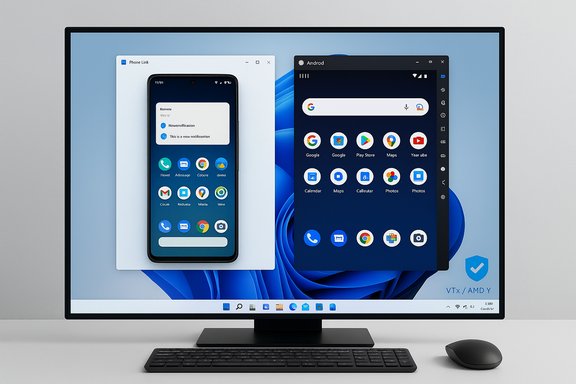
Microsoft quietly pulled the plug on the Windows Subsystem for Android (WSA), but that doesn’t mean Windows 11 users are bereft of Android apps — they aren’t tied to Google Play on the desktop the way they once were, and there are safe, practical paths to keep using Android utilities on a PC. The official deprecation of WSA and the Amazon Appstore on Windows (effective March 5, 2025) is the key change; it removes the simplest native route to run Android apps on Windows, but the two most practical alternatives are phone mirroring via Microsoft Phone Link and dedicated Android emulators or VMs. The community article you provided lays out this same conclusion, and this feature unpacks the options, verifies technical claims, flags risky or unverifiable instructions, and gives a step‑by‑step, security‑minded playbook so readers can run Android apps on Windows 11 without relying on the Play Store.
Microsoft launched the Windows Subsystem for Android (WSA) to bring Android apps to Windows 11 through a managed, virtualized AOSP runtime paired with the Amazon Appstore. The functionality was introduced in 2021 and reached general availability on eligible machines, but Microsoft later marked WSA as deprecated and announced that support and availability for Android apps using WSA will end on March 5, 2025. Multiple independent outlets reported and archived Microsoft’s deprecation notice; the timeline and core message are consistent across reporting. Why the change matters: for users who adopted Android-only mobile apps into their daily PC workflows (banking tools, messaging, two‑factor apps, mobile-first utilities), WSA offered a convenient, integrated desktop experience — apps appeared in Start, could be pinned to Taskbar, and participated in Snap layouts and Alt+Tab. With WSA deprecated, Microsoft will no longer maintain that integration or distribute the Amazon Appstore on Windows; users must adopt alternatives or continue using already‑installed WSA apps only until the deprecation window ends. The community story after Microsoft’s announcement is straightforward: you can either keep your phone as the execution engine and mirror apps to the PC, or run a full Android runtime locally on your PC using third‑party emulators/VMs and sideloaded APKs. The guidance below details both approaches, including security tradeoffs and exact setup requirements.
Source: findarticles.com Windows 11 Users Will Be Able to Run Android Apps Without Play Store
 Background / Overview
Microsoft launched the Windows Subsystem for Android (WSA) to bring Android apps to Windows 11 through a managed, virtualized AOSP runtime paired with the Amazon Appstore. The functionality was introduced in 2021 and reached general availability on eligible machines, but Microsoft later marked WSA as deprecated and announced that support and availability for Android apps using WSA will end on March 5, 2025. Multiple independent outlets reported and archived Microsoft’s deprecation notice; the timeline and core message are consistent across reporting. Why the change matters: for users who adopted Android-only mobile apps into their daily PC workflows (banking tools, messaging, two‑factor apps, mobile-first utilities), WSA offered a convenient, integrated desktop experience — apps appeared in Start, could be pinned to Taskbar, and participated in Snap layouts and Alt+Tab. With WSA deprecated, Microsoft will no longer maintain that integration or distribute the Amazon Appstore on Windows; users must adopt alternatives or continue using already‑installed WSA apps only until the deprecation window ends. The community story after Microsoft’s announcement is straightforward: you can either keep your phone as the execution engine and mirror apps to the PC, or run a full Android runtime locally on your PC using third‑party emulators/VMs and sideloaded APKs. The guidance below details both approaches, including security tradeoffs and exact setup requirements.What Changed — The Timeline and Practical Impact
- Microsoft changed its official WSA documentation and support guidance to mark WSA deprecated and to state that the Amazon Appstore on Windows and all WSA‑dependent apps will not be supported after March 5, 2025. Users who installed apps before March 5, 2024, were allowed to continue using them through the deprecation cutoff, but new installs and official updates were curtailed after the deprecation announcement.
- The practical result: the native, zero‑install route to run Android apps directly under Windows is being retired. Microsoft’s Phone Link remains supported for mirroring, and third‑party emulators and VMs remain viable alternatives (and in many cases more mature and actively maintained). Independent community projects also attempted to repack WSA with Google Play (community WSA builds), but these are unofficial, time‑sensitive, and carry maintenance and security risks.
Option 1 — Mirror Your Phone Using Phone Link (best for simplicity and security)
What Phone Link does and why it’s the least‑risky option
Phone Link (formerly “Your Phone”) mirrors an Android phone’s screen, notifications, messaging, calls, and — on supported devices — individual apps to Windows 11. The essential benefit is that apps run on the phone; Windows is just a display and input surface. That means your app data, logins, and two‑factor flows remain on the device, not inside a desktop emulator, preserving existing security boundaries and reducing the attack surface on your PC. Microsoft documents the pairing flow, permissions, and minimum requirements; the recommended Android baseline for a full experience is Android 10 or newer, although some features work on older versions.Setup — verified, step‑by‑step
- On Windows 11, open Phone Link (preinstalled or available from the Microsoft Store).
- On your Android phone, install or open the Link to Windows companion app (scan the QR code presented by Phone Link or follow aka.ms/yourpc to install). Sign in to the same Microsoft account on both devices.
- Grant the requested Android permissions: screen capture, notifications, contacts, phone and SMS access, and storage (the app will prompt you).
- Ensure both devices are on the same Wi‑Fi network for best performance; Bluetooth is required for call routing and discovery in some scenarios.
- Start the mirroring session; supported apps will appear as independent windows or as a mirrored phone screen, depending on the OEM and Android version.
Performance tips
- Use a stable 5 GHz Wi‑Fi network or a wired connection for the PC (phone remains wireless) to minimize latency.
- Keep the phone charged and nearby; Phone Link is a live stream — if the phone sleeps or loses connection, the mirrored app stops.
- For low latency in games or media, reduce other network traffic and disable aggressive battery‑saving modes on the phone.
Strengths and limits
- Strengths: Official Microsoft‑supported flow, minimal trust expansion (apps and credentials stay on the phone), no complex virtualization setup.
- Limits: The phone must remain the runtime, so there’s no true “install on PC” capability; the mirrored UI may preserve phone aspect ratios, and performance depends on Wi‑Fi conditions. Certain advanced desktop gestures or multi‑monitor scenarios can be awkward.
Option 2 — Run Android Locally: Emulators and Virtual Machines
If you need apps executing natively on the PC (for offline use, automation, gamepad/key mapping, or developer testing), emulators and VMs are the route to take. Major, actively maintained choices include BlueStacks, NoxPlayer, LDPlayer, Genymotion, and the Android Studio emulator. Each has different strengths: BlueStacks is consumer‑oriented (and now supports Hyper‑V), Genymotion is developer‑focused, and Android Studio is the most feature‑complete for app development and testing.Core system requirements and virtualization basics (verified)
- Modern emulators recommend at least 4–8 GB RAM (8 GB or more for comfortable multitasking), a multi‑core Intel/AMD CPU with virtualization support (Intel VT‑x or AMD‑V), and SSD storage for best responsiveness. BlueStacks and other vendors explicitly recommend enabling hardware virtualization in your firmware/BIOS and keeping GPU drivers current.
- Many emulators historically required Hyper‑V to be disabled, but recent releases (for example BlueStacks 5.20+) offer Hyper‑V compatible builds so they can coexist with Windows virtualization. Vendor documentation is the authoritative source for whether to enable or disable Hyper‑V for your chosen emulator.
How to enable hardware virtualization (VT‑x / AMD‑V)
- You must generally enable CPU virtualization in your firmware/UEFI. The usual steps are: reboot into firmware settings (via F2, F10, Delete or the Advanced Startup → UEFI Firmware Settings flow), find the CPU/Advanced/Virtualization menu, and set Intel VT‑x or SVM/AMD‑V to Enabled, then save and reboot. Use Task Manager → Performance → CPU to confirm “Virtualization: Enabled.” Multiple vendor and troubleshooting articles describe the process.
Emulator installation and configuration checklist
- Pick a reputable emulator and download from the official vendor site (do not use torrents or random mirrors).
- Ensure virtualization is enabled in firmware and that required Windows features are present (e.g., Virtual Machine Platform or Hyper‑V for Hyper‑V‑compatible builds).
- Allocate a fixed number of CPU cores and a fixed amount of RAM in the emulator settings (start conservative: 2 cores / 4 GB; increase as needed).
- Enable hardware graphics acceleration and choose the renderer (DirectX vs OpenGL) based on your GPU and observed performance.
- For multi‑instance use or heavy gaming, increase CPU/RAM allocation and consider limiting frame rate to reduce heat/CPU load.
- Keep emulator, GPU drivers and Windows up to date; many crashes trace back to driver mismatches or outdated runtime components.
App compatibility notes
- DRM/protected apps (some banking and streaming services) may detect virtualization, fail Play Integrity checks, or block emulators. Emulators can often run many games and productivity apps, but expect some apps to refuse to run or restrict functionality when they detect an emulated environment.
- Some publishers ban emulators for multiplayer games or impose policy risks; check an app’s terms of service before using it in an emulator if that app is central to financial or competitive activity.
Sideloading APKs Safely (when Play Store isn’t an option)
With WSA deprecated and Play Store not natively present on many emulator stacks, sideloading APKs becomes common. Follow strict safeguards:Trusted sources
- Prefer F‑Droid for true open‑source apps and the official vendor site for any proprietary app that offers direct downloads. Use established, reputable APK mirrors that scan packages (for example Uptodown or vendor pages) rather than random portals. The EFF, MakeUseOf and other reputable outlets and projects provide recommended tooling and safety practices.
Verify cryptographic hashes
- If the vendor publishes a checksum (SHA‑256 or SHA‑1), verify it before installation. On Windows, calculate file hashes with:
- Open Command Prompt
- certUtil -hashfile path\to\file.apk SHA256
- Compare the output to the vendor‑published checksum
Scan APKs before installing
- Use up‑to‑date Windows Defender or another multi‑engine scanner (VirusTotal web upload) to check the APK file before installing it into an emulator or on a phone.
- Avoid “modded” APKs (those claiming to unlock premium features or remove ads); they are disproportionately likely to contain malware.
Package formats and installers
- Common Android package formats include .apk, .xapk, .apkm and .aab conversions — some files require an installer or a multi‑file manifest. Emulators usually accept .apk drag‑and‑drop or an internal “Install APK” feature. Follow the emulator vendor’s recommended install flow.
Root and permissions
- Don’t enable root in an emulator unless you have a specific, advanced need and you understand the security implications. Rooted environments make it easier for malware to escalate privileges and are harder to trust for sensitive apps (banking, wallets, authenticators).
Performance, Compatibility and Troubleshooting Tips
- Use Ethernet or good 5 GHz Wi‑Fi for Phone Link mirroring and for downloading large emulators/instances.
- Close background apps that hog CPU/RAM before starting an emulator.
- If an emulator supports multiple renderers, test both DirectX and OpenGL to find the best option for your GPU. BlueStacks and others expose these toggles in settings.
- If you encounter virtualization conflicts: some emulators require Hyper‑V disabled, others have Hyper‑V compatible builds. Follow vendor docs rather than blanket toggles — BlueStacks specifically documents Hyper‑V compatible installers for recent versions.
- Cap frame rates and allocate resources conservatively for non‑gaming apps to reduce heat and power draw.
Critical Analysis — Strengths, Risks, and Long‑Term Outlook
Strengths of the post‑WSA landscape
- Mature alternatives: Emulators such as BlueStacks are actively maintained and designed for high compatibility, while Phone Link is official and keeps sensitive credentials on the phone.
- Choice and isolation: Running an emulator or VM isolates Android apps from the host OS if you configure it correctly and avoid rooting.
- Control over APKs: Users willing to verify checksums and maintain updates can continue to use favorite apps without Play, using F‑Droid or vendor downloads.
Key risks and downsides
- Unofficial community builds (attempting to reintroduce Google Play into WSA) are unsupported, time‑limited, and can break with Windows updates; they may also present security and legal gray areas. Treat them as experimental and back up systems before trying them.
- DRM and integrity failures: Some apps will refuse to run on emulators because they rely on Play Integrity or hardware attestation. That’s an unavoidable limitation for certain banking or streaming apps.
- Enterprise and compliance: Installing unofficial subsystems, sideloading third‑party APKs, or adding community WSA variants may violate enterprise policies or corporate compliance — enterprises should prefer vendor‑supported virtualization or officially sanctioned platforms.
- Maintenance burden: Emulators and side‑installed APKs require manual updates and vigilance; users must be prepared to troubleshoot when Windows or GPU drivers change.
Flagging unverifiable claims in public guides
Some community posts and guides include very specific BIOS version numbers, instructions sourced from forum contributors, or one‑off user workflows (for example “update BIOS to at least 1.10” or quoting particular forum members by name). Those claims may be relevant to a single hardware vendor or motherboard model but are not generally verifiable across the broad PC ecosystem; treat such claims with caution and verify directly on your hardware vendor’s support pages before applying firmware updates or following BIOS‑specific steps. The user‑uploaded article contains a few of these vendor‑specific or forum‑sourced entries that could not be independently verified for every PC model — they should be treated as anecdotal guidance, not universal instructions.Practical Quick‑Start Playbook (Actionable steps)
- Decide your objective:
- If you want official, low‑risk access: use Phone Link (mirroring).
- If you need on‑PC installs and offline use: pick a reputable emulator (BlueStacks for general use; Genymotion or Android Studio for development).
- For Phone Link:
- Confirm Android 10+ recommended; install Link to Windows on phone; pair via QR code; grant permissions.
- For emulators:
- Enable virtualization in BIOS/UEFI (Intel VT‑x / AMD‑V), confirm Virtualization: Enabled in Task Manager.
- Download emulator from official vendor site; choose Hyper‑V‑compatible build if you want to keep Hyper‑V.
- Allocate RAM/CPU conservatively; update GPU drivers; test renderers.
- For sideloading APKs:
- Prefer vendor or F‑Droid; verify SHA‑256 checksum with certUtil on Windows; scan on VirusTotal; then install via emulator drag‑and‑drop.
- Back up: create a system image or restore point before experimenting with community‑built WSA variants or major emulator changes.
Final judgment — What to use and when
- For most Windows 11 users who value security, simplicity, and stability, Phone Link (mirroring) is the recommended solution. It preserves app provenance and avoids modifying your Windows host.
- For power users who need local execution, BlueStacks and similar emulators are the pragmatic fallback — they are well‑maintained, support Android 11/13 instances, and document Hyper‑V compatibility. Ensure virtualization is enabled, and follow vendor documentation closely.
- Approach community WSA builds (that attempt to inject Google Play into the WSA runtime) with caution: they can restore a more native integration, but they are unofficial, fragile, and potentially non‑compliant with Google’s licensing. Back up your machine and expect to do hands‑on maintenance if you take that route.
Conclusion
The deprecation of WSA is a meaningful strategic shift: Microsoft is stepping away from shipping a built‑in Android runtime, but Windows 11 users are not left without workable solutions. Phone Link provides an official, secure, and low‑friction way to run Android apps on a PC by delegating execution to your phone, while emulators and VMs let you run apps locally with greater independence — at the cost of setup complexity and potential compatibility or DRM issues. If you sideload APKs, do so from trusted sources, verify checksums, and scan for malware. Finally, treat community WSA re‑packages as experimental; they are not vendor‑supported and carry long‑term maintenance and security risks. With careful choices and the right safeguards, your favorite Android tools can continue to live on a Windows 11 desktop even without the Play Store or the original WSA integration.Source: findarticles.com Windows 11 Users Will Be Able to Run Android Apps Without Play Store
