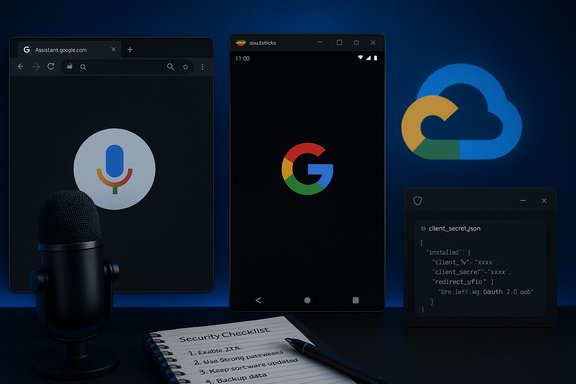
Google Assistant isn’t available as a first‑party, native Windows app — but there are tested, practical ways to run it on a PC, and each approach carries clear trade‑offs in convenience, security, and feature parity that every Windows user should understand before installing.
Google Assistant began life as a mobile‑first, cloud‑native virtual assistant tightly integrated with Android, ChromeOS, Nest hardware and Google’s ecosystem of cloud services. Its architecture routes voice and text queries to Google’s cloud for processing and relies on OAuth flows for authenticated access to personalized services like calendars, reminders and smart‑home controls. That design explains the company’s focus on phones and purpose‑built devices rather than a dedicated Windows distribution.
Because there is no official Google‑published Windows binary, the Windows community has developed practical workarounds: the web interface, Android emulation, Chrome extensions, and a mature open‑source “unofficial desktop client” that packages the Google Assistant SDK for Windows. Each route exposes the same backend Assistant service but differs in how authentication, audio I/O, and integration with Windows are handled.
The SDK is explicitly intended by Google for experimental and developer scenarios rather than as a consumer desktop runtime. That means Google could change API behavior, quotas or allowed usage patterns — an important consideration for anyone planning long‑term reliance on an unofficial client.
Community innovation is likely to continue — maintainers update clients and publish instructions, and new packaging (winget targets, signed releases) improves safety and convenience. Still, consider any unofficial install a hobbyist or power‑user project unless a vendor announces official Windows support.
Key SEO phrases used naturally: Download Google Assistant for Windows PC, Google Assistant on Windows, how to install Google Assistant on Windows, run Google Assistant on PC, Google Assistant unofficial desktop client.
Source: PrioriData Download Google Assistant for Windows PC | Priori Data
 Background / Overview
Google Assistant began life as a mobile‑first, cloud‑native virtual assistant tightly integrated with Android, ChromeOS, Nest hardware and Google’s ecosystem of cloud services. Its architecture routes voice and text queries to Google’s cloud for processing and relies on OAuth flows for authenticated access to personalized services like calendars, reminders and smart‑home controls. That design explains the company’s focus on phones and purpose‑built devices rather than a dedicated Windows distribution.Because there is no official Google‑published Windows binary, the Windows community has developed practical workarounds: the web interface, Android emulation, Chrome extensions, and a mature open‑source “unofficial desktop client” that packages the Google Assistant SDK for Windows. Each route exposes the same backend Assistant service but differs in how authentication, audio I/O, and integration with Windows are handled.
How Google Assistant works on non‑Google platforms
The technical essentials
At its core, Google Assistant uses a cloud API (the Assistant SDK) and requires OAuth 2.0 authentication to act on behalf of a Google account. Desktop and community projects typically implement a local front end that captures audio, forwards it to Google’s cloud, and plays back the response; authentication is handled by creating an OAuth client in Google Cloud, downloading a client secret JSON file, and completing the consent flow in a browser. That JSON is a sensitive credential and must be protected like a password.The SDK is explicitly intended by Google for experimental and developer scenarios rather than as a consumer desktop runtime. That means Google could change API behavior, quotas or allowed usage patterns — an important consideration for anyone planning long‑term reliance on an unofficial client.
Feature parity expectations
Many everyday Assistant tasks—questions, timers, reminders, calendar lookups and basic smart‑home commands—work reliably through community clients because they use documented endpoints. However, device‑specific integrations (deep Nest management, some streaming music flows or vendor‑locked routines) may behave differently or fail entirely because those features are optimized for official mobile and Nest clients. Expect partial parity, not a perfect clone of the phone experience.Proven ways to run Google Assistant on Windows
Below are the practical options Windows users choose, ranked roughly from easiest to most involved.Method 1 — Use the web: assistant.google.com
- How it works: Access Google Assistant’s web surface in Chrome, Edge or Firefox and use voice or text input. It connects to Google’s assistant service via your signed‑in Google account.
- Pros: Fast, low‑risk, no installer required; works across machines and updates automatically.
- Cons: Limited integration with local apps; microphone permission needed; offline or hotword detection is not supported the same way as native clients.
Method 2 — Android emulator (BlueStacks, NoxPlayer, LDPlayer)
- How it works: Install a mainstream Android emulator, sign into Google Play, download the official Google Assistant (or Google app) and run it inside the emulator.
- Pros: Uses the official mobile app and therefore gets closest to the Android experience; easy to remove.
- Cons: Resource‑heavy, runs inside a window (no tight shell integration), and still depends on Play Services inside an emulated environment.
Method 3 — Google Assistant Unofficial Desktop Client (community / open source)
- How it works: Community projects wrap Google’s Assistant SDK into a desktop application for Windows. Setup requires creating a Google Cloud project, enabling the Assistant API, creating OAuth credentials (a Desktop app client ID), downloading the client secret JSON and authorizing the client via a browser OAuth flow.
- Pros: Lightweight desktop integration, support for a hotword or press‑to‑talk, and native audio handling; often available as an installer, portable build, or even a winget package.
- Cons: Unofficial — you rely on community maintainers for security updates; you must protect OAuth credentials and accept that some Assistant features will differ from official devices.
Method 4 — Chrome extension or lightweight third‑party apps
- How it works: Browser extensions or small third‑party utilities forward text and voice to Google’s assistant endpoints or provide a shortcut to the web assistant.
- Pros: Extremely lightweight, convenient for heavy browser users.
- Cons: Limited capabilities; may not support hotwording or system‑wide voice capture; vet the extension’s publisher carefully.
Step‑by‑step: Installing the Unofficial Desktop Client (practical checklist)
This walkthrough condenses the verified, community‑recommended flow for Windows power users. Follow each step and pause on security checkpoints.- Prepare your PC: Windows 10 or 11, working microphone, and an account with admin rights for installation. Create a system restore point or backup if this is a primary machine.
- Create a Google Cloud project: Open Google Cloud Console, create a new project, and enable the Google Assistant API under APIs & Services → Library.
- Configure the OAuth consent screen: Set a product name; for testing you can use internal/test users. This step is visible during OAuth client creation and matters for scope prompts.
- Create OAuth credentials: APIs & Services → Credentials → Create Credentials → OAuth client ID. Choose Desktop app as the application type and download the client secret JSON (it will look like client_secret_xxx.json). Store it securely.
- Download the desktop client installer: Get the official asset from the project’s releases page (typically GitHub). Prefer direct release assets and avoid third‑party mirrors. Verify checksums if provided.
- Run installer and point it to the OAuth JSON: Launch the client, upload or point to your downloaded JSON when prompted, and complete the OAuth consent flow in the browser. Sign into the same Google account you intend to use with Assistant.
- Configure mic, hotword and preferences: In the client settings pick the correct input device, set up hotword or press‑to‑talk, and test simple queries. If hotword/continuous listening is enabled, understand the privacy implications.
- Test core commands: Ask for time, basic web queries, and smart‑home commands if your devices are linked to the same Google account. Document any missing behaviors and consult the project’s issue tracker for known limitations.
Security, privacy and maintenance — realistic assessment
Installing an unofficial Assistant on Windows introduces three main risk vectors: credential exposure, supply‑chain risk, and privacy of cloud processing.- Credential security: The OAuth client secret JSON must be treated like a password. If it’s leaked, revoke the credentials in Google Cloud Console and generate a new client. Always use a test project and non‑primary Google account for initial experiments.
- Supply‑chain risk: Download installers only from the project’s official release page (for example, GitHub releases) and check release notes or checksums when available. Avoid repackaged or mirrored EXE installers that add toolbars or bundled “optimizers.”
- Data transmission: Assistant queries (audio and text) are processed in Google’s cloud — that’s how the service operates on every platform. If you need to avoid sending voice or sensitive information to cloud services, choose first‑party, on‑device solutions instead (for Windows, Microsoft’s Copilot/Voice Access has a different privacy trade‑off).
Alternatives that may be a better fit for Windows users
Not every Windows user needs Google Assistant. Consider these first‑party or well‑supported alternatives where applicable:- Microsoft Copilot / Voice Access — Deep Windows and Microsoft 365 integration with first‑party support and enterprise controls. For OS‑level automation, accessibility and office workflows this is often the safer choice.
- Amazon Alexa (Windows app) — An official Alexa client is available via the Microsoft Store and supports many Alexa skills, smart‑home controls and media playback. Good if your home ecosystem is Alexa‑centric.
- Braina or Dragon NaturallySpeaking — If your primary need is dictation and local voice control for productivity, these commercial products offer higher accuracy and on‑device processing options (Dragon is a leader in professional dictation). Braina provides a hybrid model with offline features in its paid tiers.
Troubleshooting — common problems & fixes
- OAuth errors or failed consent: Verify the client secret JSON matches the Google Cloud project, ensure the consent screen has appropriate scopes and the signed‑in account is a listed test user (if using test mode). Recreate credentials if needed.
- Microphone not detected: Check Windows Sound Settings, test the mic in Voice Recorder, and ensure the app has permission in Settings → Privacy → Microphone. Try switching input devices inside the client settings.
- Hotword not working: Many community clients implement local wake‑word detectors differently. If hotword is flaky, switch to press‑to‑talk shortcuts while investigating device/driver compatibility and microphone sensitivity settings.
- Missing smart‑home controls or flaky media playback: These are known limitations. Confirm the smart devices are linked to the same Google account used for OAuth, and test equivalent commands on your phone to confirm whether the issue is client‑side or an API limitation.
Long‑term outlook and maintainability
The unofficial desktop client approach is community‑driven: it delivers practical value today, but it is not a substitute for a vendor‑supported product. Google’s Assistant platform continues to evolve, and API or policy changes could affect desktop workflows. For production, enterprise or critical use cases, rely on first‑party, vendor‑supported assistant solutions or keep strict operational controls (sandboxing, test accounts, and monitoring).Community innovation is likely to continue — maintainers update clients and publish instructions, and new packaging (winget targets, signed releases) improves safety and convenience. Still, consider any unofficial install a hobbyist or power‑user project unless a vendor announces official Windows support.
Clear recommendations (practical final guidance)
- If you want a zero‑risk, fast way to use Google Assistant features: start with assistant.google.com in your browser. It’s the least intrusive and requires no local credentials.
- If you want the closest official app behavior and are prepared for higher resource use: run the Assistant mobile app inside an Android emulator (BlueStacks, Nox). Allocate sufficient RAM and enable virtualization for best performance.
- If you want a lightweight desktop integration and are comfortable with the security checklist: use the community “Google Assistant Unofficial Desktop Client,” but follow the recommended mitigations (test project, secure OAuth JSON, monitor updates).
- If you need enterprise‑grade reliability, local processing and admin controls: evaluate Microsoft Copilot, Windows voice features, or commercial dictation/assistant tools instead of relying on an unofficial Google Assistant on Windows.
Conclusion
Bringing Google Assistant to Windows is straightforward in the sense that usable options exist — web access, emulators and a mature unofficial desktop client all deliver meaningful value. However, each path requires conscious trade‑offs: convenience versus security, feature parity versus maintainability, and community support versus vendor guarantees. The best approach depends on your priorities. For most users, the web assistant is the safe starting point; power users and tinkerers who accept credential management and supply‑chain vigilance will gain the most from the unofficial desktop client or an emulator‑based install. Treat any non‑official installation as an experiment: protect your credentials, use a disposable Google Cloud project when testing, and keep backups and a recovery plan before you modify a primary workstation.Key SEO phrases used naturally: Download Google Assistant for Windows PC, Google Assistant on Windows, how to install Google Assistant on Windows, run Google Assistant on PC, Google Assistant unofficial desktop client.
Source: PrioriData Download Google Assistant for Windows PC | Priori Data