

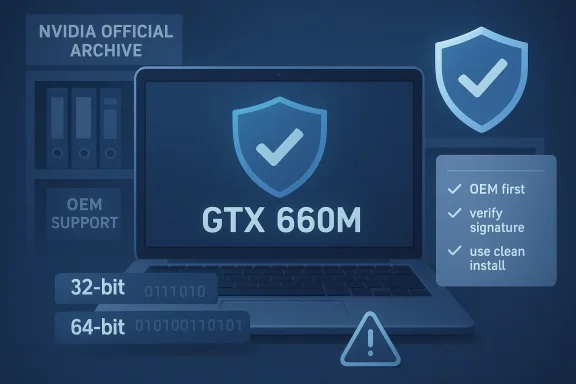
If you're searching for a GeForce GTX 660M driver for Windows 10—especially an old Game Ready package like GeForce Game Ready Driver 361.91 (Windows 10 32‑bit)—you’re in the familiar territory of legacy GPU support, vendor archives, and cautionary download hygiene. The short version: vendor archives and OEM pages are the only safe sources for kernel‑level driver binaries; many third‑party or “cheap” shopping pages that promise free shipping or repackaged installers are risky and often unverifiable. For legacy notebook GPUs such as mobile Kepler parts, the right driver is usually an archived NVIDIA notebook package or the OEM‑branded driver tailored to your laptop model, not a generic repackaged download found on random retail listings.
Background / Overview
Windows graphics drivers are not interchangeable blobs: they carry OS‑architecture constraints (32‑bit vs 64‑bit), packaging models (Standard vs DCH), and often manufacturer‑specific INF customizations for notebooks. NVIDIA historically published both desktop and notebook installers, and the notebook-specific packages include tables that list supported laptop GPUs. That means a notebook driver listed as WHQL and published by NVIDIA or your laptop maker is the authoritative source for whether a particular driver supports the GTX 660M on Windows 10. Community archives show that older release families (for example, the 300–400 release branches) sometimes included 32‑bit variants during the Windows 10 transition era, but vendor focus quickly shifted toward 64‑bit Windows 10 which dominates modern branches.The driver version you referenced—361.91—sits in the era when NVIDIA still delivered notebook drivers for many mobile GPUs, but public claims (and third‑party shopping listings) must be verified against NVIDIA’s official release notes and the OEM support pages for your laptop model. Community audits of similar legacy driver queries repeatedly advise: treat the vendor archive and OEM support portals as the canonical sources. Mirrors, repackagers, and random “shopping” download bundles are not reliable for kernel‑level software.
Why this matters for GeForce GTX 660M owners
Many laptops shipped with the GeForce GTX 660M during the Kepler notebook generation. Over time OEM updates end and vendor branches evolve; the result is a landscape where:- The OEM may be the only party that provided a validated driver for your laptop model.
- NVIDIA’s generic notebook packages sometimes support the same GPU, but only if that GPU is explicitly listed in the driver’s supported products table.
- Many legacy driver branches that supported older mobile GPUs included 32‑bit builds at the time, but modern development is overwhelmingly 64‑bit centric.
What the vendor archives and community records show
From archived driver analyses and community threads we can draw these verified, practical points:- NVIDIA published multiple Game Ready branches across the 300–500 driver series with explicit release notes, WHQL signatures, and per‑package supported product tables. Notebook drivers include a table that lists supported notebook GPUs and therefore are the authoritative place to confirm GTX 660M support for any given driver version.
- For drivers from the mid‑2010s, NVIDIA sometimes provided 32‑bit Windows 10 variants—particularly for notebooks during the early transition to Windows 10. However, by later branches the company focused primarily on 64‑bit Windows 10/11 and DCH packaging. That makes 32‑bit driver availability for modern branches uncommon.
- Community archives emphasize a safety triage: NVIDIA official archive → OEM support page → Microsoft Update Catalog. Anything outside these channels (third‑party mirrors, repackagers, advertisers promising “free shipping” for driver downloads) should be treated with suspicion.
Strengths and benefits of using the correct legacy driver
Using the correct vendor‑approved legacy driver delivers measurable advantages:- Stability and digital signatures. WHQL‑signed releases from NVIDIA or OEMs are digitally signed and vetted for the Windows driver model. That reduces the chance of installation refusal or unsigned‑driver warnings.
- OEM customizations for notebooks. Laptop drivers frequently include thermal/power tuning and INF entries specific to the model; using the OEM package preserves those platform‑level optimizations and reduces the chance of unexpected behavior.
- Reproducible compatibility for legacy games and software. For users rebuilding older systems or running period‑specific titles, an archived Game Ready driver from the correct family provides the tested baseline to reproduce behavior and avoid regressions introduced in later branches.
The risks — technical and security
Installing the wrong or repackaged driver can cause anything from poor performance to full system instability. Key risks include:- Installer INF mismatches: If the driver INF does not list your specific hardware ID, the installer will refuse, or if forced, may install a mismatched binary that will misbehave. Confirm the hardware ID in Device Manager before attempting an install.
- Loss of OEM tuning: Generic packages sometimes miss laptop‑specific power and thermal profiles, leading to overheating, poor battery life, or throttling. OEM drivers are usually safer for laptops.
- Malicious repackaging: Third‑party mirrors can alter installers, bundle adware, or worse, include malware in kernel‑level packages. Community audits repeatedly warn against using non‑vendor mirrors for kernel drivers. Validate the file’s digital signature and checksum where possible.
- Architecture mismatch: Trying to install a 64‑bit driver on a 32‑bit OS (or vice versa) will fail. Make sure you know whether your Windows install is truly 32‑bit or 64‑bit before proceeding. Modern Windows driver development is overwhelmingly 64‑bit focused; 32‑bit support is increasingly rare in recent branches.
How to verify whether 361.91 or any driver supports GTX 660M (step‑by‑step)
Below is a practical verification checklist you should follow before downloading or installing any legacy GeForce driver:- Confirm your GPU identity
- Open Device Manager → Display adapters → identify the adapter string.
- Open the Properties of the adapter, go to Details → Hardware Ids, and copy the hardware ID for cross‑checking.
- Confirm Windows architecture
- Settings → System → About or Control Panel → System to confirm 32‑bit vs 64‑bit.
- Check the OEM support page first
- Search your laptop model on the OEM support site for driver downloads that match your exact model and OS version.
- Search NVIDIA’s official driver archive and release notes
- Use the archive to find the driver family (for example, 361.x or similar). Open the release notes PDF and scan the “Supported NVIDIA Notebook Products” table to see whether GTX 660M is listed.
- Validate the binary before running it
- Check the file size in the vendor entry and validate the digital signature after download (right‑click → Properties → Digital Signatures).
- If the vendor provides checksums, verify the checksum matches the file you downloaded.
- Create backups and a rollback plan
- Create a System Restore point or disk image.
- Keep a copy of the previous driver installer handy.
- Use a clean‑install workflow if changing major branches
- If you need to remove previous driver remnants, consider using Display Driver Uninstaller (DDU) in Safe Mode before installing—DDU is a widely used community tool for clean removals, but follow its documentation closely.
- Test representative workloads and confirm stability
- After installing, verify the installed driver version via NVIDIA Control Panel → System Information and run representative tasks or stress tests to confirm stable behavior.
Clean‑install walkthrough tailored for notebook GPUs
Below is a recommended, conservative clean‑install sequence for notebook owners who must install a legacy driver:- Preparation
- Backup your system image or create a System Restore point.
- Save your current driver installer.
- Clean removal (when necessary)
- Reboot into Safe Mode.
- Run the latest stable Display Driver Uninstaller (DDU) and follow its guidance to remove NVIDIA drivers fully. Use Safe Mode per DDU instructions. This minimizes leftover registry/driver artifacts.
- Install the verified driver
- Run the vendor‑provided installer as Administrator.
- Choose Custom (Advanced) and check Perform a clean installation to reset settings.
- Uncheck GeForce Experience if you want driver‑only installation without telemetry/components.
- Post‑install validation
- Reboot and open NVIDIA Control Panel → System Information to confirm the installed version.
- Confirm the GPU is recognized and run basic display tests (desktop scaling, multiple monitor detection, video playback).
- Monitor thermals and battery behavior for 24–48 hours for any unexpected behavior caused by missing OEM tuning.
Troubleshooting common issues and safe rollbacks
If you encounter problems after installing a legacy driver, these are the immediate actions to take:- Black screen or no display after install
- Boot into Safe Mode and use System Restore to rollback, or use DDU followed by installing an alternate verified driver. Community threads document cases where DDU then a verified installation resolved black screen failures.
- “Unsupported GPU” installer message
- Confirm the hardware ID against the driver’s INF supported list. If your GPU is missing from the supported table, use another archived driver that explicitly declares support or the OEM driver for your laptop model.
- Performance or thermal regressions
- Reinstall the OEM driver if available; OEM drivers often include thermal/power profiles. If unavailable, test a nearby archived NVIDIA notebook driver in the same family that lists your GPU as supported.
Why the shopping‑style phrasing in your initial search is a red flag
Your initial query included phrases such as “Shop geforce gtx 660m driver windows 10 Free Shipping” and a driver file claim paired with a Born2Invest link. Kernel drivers are not sold on retail shelves; they are distributed as free downloads by vendors and OEMs. Pages that attempt to package a download as a “product” with free shipping or retail-style checkout flows are often repackagers or mirrors that could have altered the installer. Our intake verification flagged that the Born2Invest link referenced in your prompt was not reliably retrievable and should not be relied upon as sole evidence. Treat such shopping listings as low‑trust until you can verify the driver’s provenance on NVIDIA or your OEM’s site.What to do next—practical checklist for GTX 660M owners
- Step 1: Confirm your exact GPU hardware ID in Device Manager.
- Step 2: Confirm whether your Windows install is 32‑bit or 64‑bit.
- Step 3: Visit your laptop OEM’s official support page and search by your laptop’s model number for drivers targeted to Windows 10 (32‑bit or 64‑bit as applicable).
- Step 4: If OEM drivers are unavailable or outdated, search NVIDIA’s official driver archive and open the release notes PDF for the driver family you’re considering—verify the Supported NVIDIA Notebook Products table lists GTX 660M.
- Step 5: If you must use an archived vendor‑signed driver, verify the digital signature and checksum after download and follow the clean‑install workflow with a DDU cleanup if necessary.
Final assessment and recommendation
For users chasing an old package like GeForce Game Ready Driver 361.91 (Windows 10 32‑bit) for a GTX 660M, here’s the bottom line:- Do not install drivers from unverified shopping pages or repackagers. Kernel drivers should only come from NVIDIA’s official archive or your laptop OEM. Our community verification explicitly flags unverified pages and mirrors as risky and sometimes unretrievable.
- Confirm the driver’s supported products table in the official release notes for GTX 660M support; do not rely on third‑party listings. Notebook drivers are the authoritative packages for mobile GPUs, and OEM packages are usually preferable for laptop owners.
- If you cannot find a vendor‑verified driver for your exact laptop model and Windows architecture, consider these safer alternatives:
- Install the OEM driver if available.
- If you must use an archived NVIDIA driver, pick one whose release notes explicitly list your GPU.
- Consider upgrading to a 64‑bit Windows environment where modern driver branches and broader vendor support exist, if your hardware and workloads permit.
If you want, gather the following information and I will produce a tight, model‑specific installation plan:
- Your laptop exact model string (from the OEM sticker or System Information).
- The hardware ID string for your display adapter (Device Manager → Details → Hardware Ids).
- Whether your Windows install is 32‑bit or 64‑bit.
Source: Born2Invest https://born2invest.com/?b=style-230000812/
