

If you’re thinking about installing an AI app on your phone, treat the next few minutes as the most productive safety briefing you’ll read before diving in — the tools are powerful, easy to use, and surprisingly helpful for everyday tasks, but a few small setup choices and habits will protect your privacy, reduce mistakes, and make the technology useful rather than risky.
Smartphones are now portable AI workbenches: modern assistants combine text, voice, camera and file inputs so your phone can rewrite messages, summarize documents, plan trips, and turn meeting audio into action items — often faster than switching to a laptop. That shift changes how and where you do work: instead of “searching” for information, many AI assistants aim to synthesize it for you, like a librarian who not only points to a shelf but opens the right book and highlights the paragraph you need.
The practical advice boils down to three simple, repeatable steps: pick a general-purpose assistant and use it until you learn its quirks; prompt conversationally with relevant context; and lock down privacy and permissions before you upload anything sensitive. These steps are the safe on‑ramp for beginners and the minimum governance checklist for small teams.
Key risks to respect: hallucinations (models inventing facts), data exposure (consumer apps may use prompts for training unless you opt out), and permission‑driven attack surfaces (camera, mic, full‑access keyboards). Demand written vendor assurances when governance matters and treat any bold marketing claims as presumption — not fact — until independently verified.
Source: KTAR News 92.3 FM What to know before using an AI app on your phone
 Background / Overview
Smartphones are now portable AI workbenches: modern assistants combine text, voice, camera and file inputs so your phone can rewrite messages, summarize documents, plan trips, and turn meeting audio into action items — often faster than switching to a laptop. That shift changes how and where you do work: instead of “searching” for information, many AI assistants aim to synthesize it for you, like a librarian who not only points to a shelf but opens the right book and highlights the paragraph you need.The practical advice boils down to three simple, repeatable steps: pick a general-purpose assistant and use it until you learn its quirks; prompt conversationally with relevant context; and lock down privacy and permissions before you upload anything sensitive. These steps are the safe on‑ramp for beginners and the minimum governance checklist for small teams.
Which AI apps to try first (and why)
The market is crowded, but for beginners and Windows-focused users the sensible entry points are consistent across reviews and vendor pages:- ChatGPT (OpenAI) — best generalist for writing, iterative drafting, and cross‑device continuity. OpenAI lets users disable model training for personal accounts and offers temporary chats that won’t be used to train models if you toggle those settings.
- Google Gemini — strong for camera-driven creative tasks and image/video editing; Google provides controls for whether app activity is used to improve models via the “Apps Activity” setting.
- Anthropic Claude — useful for reasoned, long‑form work and document analysis; Claude’s mobile clients include voice and image inputs and a rapidly improving voice mode.
- Microsoft Copilot — the pick for enterprise and deep Microsoft 365 integration; Copilot’s mobile app syncs with OneDrive/SharePoint and provides admin controls for tenant grounding and document access.
- Perplexity — a citation‑forward research assistant that explicitly returns source links with many answers, useful when traceability matters.
Getting started: install, configure, and protect
Follow these short steps in order to create a safe sandbox for learning.- Install from the official app store (App Store or Google Play). Official stores reduce supply‑chain risk and make updates safer.
- Create a test account if you don’t want immediate cross‑device sync. This keeps your main inboxes, calendars, and cloud files out of the experiment while you learn.
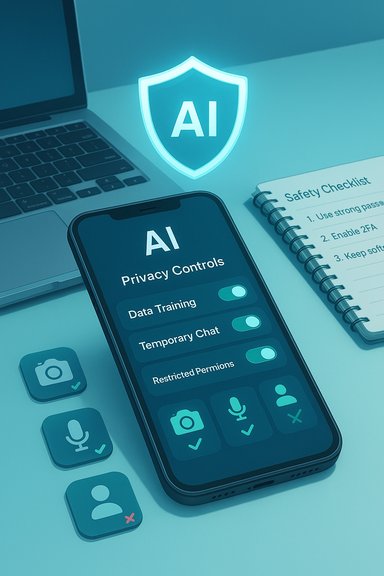
- Open app settings and look for “data controls,” “do not use my data to train,” or “temporary/ephemeral chat.” Major vendors now offer training opt‑outs or business tiers that default to non‑training; make this choice early if privacy matters. OpenAI documents how users can opt out and use temporary chats, and similar controls exist for other vendors.
- Audit permissions immediately: camera, microphone, storage, contacts and full‑access keyboard are the most consequential scopes. Grant these only when the feature requires them and consider “allow only while using the app” for sensitive permissions. Security guidance and enterprise studies underscore that excess permissions are a frequent attack vector.
- Start with low‑risk prompts and test file uploads in a temporary chat or sandbox folder before you send anything private. Export useful outputs to controlled Windows folders (OneDrive/SharePoint) for versioning and audit trails.
How to prompt: conversational prompts that get consistently useful answers
AI assistants reward natural conversation plus context. Think of prompt design as instructing a helpful colleague, not the old keyword search.- Use plain language and include constraints: tone, length, audience, and purpose.
- Give context: why you need the output, who will read it, and important facts you want preserved.
- Ask for verification: when the topic matters, have the assistant return a short checklist of claims to check.
- “Rewrite this message so it sounds clearer and friendlier and keep it under 120 words.”
- “I have chicken, rice, broccoli, and soy sauce. Give me an easy 30‑minute spicy dinner with step‑by‑step instructions.”
- “Explain this contract clause to a non‑lawyer, highlight 3 risks, and propose one plain‑English revision.”
Supercharge writing — but verify final drafts
AI shines at editing, tone‑shaping, summarization, and turning notes into emails or meeting follow‑ups. For many users the first measurable ROI is time saved on writing and mundane edits.- Use AI to produce a clean first draft.
- Run the draft through a verification step for dates, numbers, legal wording and names. For research tasks, combine a conversational assistant for drafting with a citation‑forward tool like Perplexity to validate claims.
Privacy and safety: clear rules you must follow from day one
AI apps change the data surface of your phone. The following are non‑negotiable rules.- Never paste or upload passwords, Social Security numbers, bank details, medical records, or client‑confidential documents into consumer AI chat windows. Treat AI like a public room.
- Confirm whether your chosen app uses conversations for training. Major vendors provide opt‑out controls, but the default may vary between personal and business tiers. OpenAI’s documentation explains how to disable training on personal accounts and use temporary chats.
- Prefer enterprise non‑training contracts or on‑device models for regulated data. If your organization must put client records into an assistant, insist on a written non‑training clause or use a local/offline model that never sends content to the cloud.
- Audit app permissions immediately and enforce least privilege. Camera, microphone and full‑access keyboard access materially increase attack surface and data exposure. Many security analyses show excessive permission grants as a common enterprise risk.
On‑device vs cloud: the privacy tradeoffs
On‑device models keep prompts and files on your handset and avoid server‑side processing and vendor training loops. They’re increasingly viable for text editing, OCR, and private note conversion, but they come with tradeoffs:- Advantages of on‑device models: local control, lower risk of data leaving the device, offline operation.
- Limitations: smaller models, slower performance on complex multimodal tasks, and weaker capabilities for high‑fidelity image analysis or long‑context reasoning compared with cloud giants.
Organizational rollout: pilot, policy, and MDM
Small businesses and IT teams should treat mobile AI the same way they treat any powerful cloud tool: pilot first, document controls, and scale only after validation.- Run a 2–4 week pilot with two assistants against your top mobile workflows (meeting notes, field support, social content). Measure accuracy, control options, and cost.
- Use mobile device management (MDM) to enforce least‑privilege permissions and to restrict camera/mic access when not needed. Block full mailbox access where possible and instead create a dedicated “AI” mailbox for summarization workflows.
- Require contractual protections (non‑training clauses, data residency) before sending regulated materials to a third‑party assistant. Export and archive AI outputs to managed Windows repositories (OneDrive, SharePoint) for audit trails.
- Mandate human approval for any AI output that will influence legal, medical or high‑value financial decisions. Keep humans in the loop.
Hallucinations and verification: practical verification steps
Because generative models can hallucinate, adopt a short verification workflow for any claim that matters.- Ask the assistant to list the key factual claims it made.
- Use a citation‑forward service (Perplexity, or a web search) to get clickable sources for those claims.
- Open primary sources on your Windows desktop, confirm the facts, and archive the verification steps.
Permission checklist for your phone (quick reference)
- Camera: Allow only if you will use image inputs; prefer “allow only while using the app.”
- Microphone: Allow for voice mode, but revoke when finished.
- Storage / Files: Use the OS file picker where possible; don’t grant blanket storage access if not necessary.
- Contacts / Calendar / Email: Avoid granting full mailbox access; create a dedicated AI mailbox if you need summarization.
- Accessibility / Full‑access keyboard: Treat as high risk — many leaked‑credential attacks abuse full‑access keyboards.
What to watch next: vendor behaviors and regulation
Expect vendors to segment features across subscription tiers and to expand enterprise non‑training contracts for regulated customers. Watch for regulatory moves: the FTC has signaled it will scrutinize companies that change privacy practices without clear consumer notice, and lawmakers continue to consider stronger privacy and AI disclosure rules. If a vendor makes a “zero‑access” claim, ask for a technical attestation or independent audit before trusting it for regulated data. Technical rollout highlights to confirm before procurement:- Does the app allow disabling model training for personal accounts or for tenant users? (OpenAI and other vendors now document opt‑outs.
- Can the vendor provide written non‑training clauses for enterprise customers?
- Are voice and camera features processed on device or in the cloud? (Feature gating and regional rollouts vary by vendor.
A one‑page starter checklist — 10 steps to begin safely
- Pick one generalist assistant (ChatGPT, Gemini, Claude, or Copilot) and download it from the official store.
- Create a test account if you don’t want sync enabled.
- Open Settings → Data Controls → Toggle “do not use my data to train” or enable Temporary Chat if available.
- Audit and revoke unnecessary permissions (camera, mic, storage, full‑access keyboard).
- Try three low‑risk prompts from your saved templates.
- Export and archive any useful output to OneDrive/SharePoint for traceability.
- If you’re an admin, run a 2‑week pilot with two assistants on your team’s top use cases.
- Require human sign‑off for legal/medical/financial outputs.
- For sensitive client data, insist on a written non‑training clause or use an on‑device model.
- Revisit subscriptions after one month and align paid plans to actual usage to avoid subscription creep.
Strengths, risks, and final verdict
The strengths are clear: immediate time savings, multimodal convenience (camera + voice + text), and direct cross‑device continuity that turns phone drafts into desktop production work. For Windows users the most practical pattern is hybrid: a privacy‑conscious, enterprise‑managed copilot for regulated work and a consumer assistant for ideation and research — always bringing final drafts and citations back to a Windows desktop for verification and archiving.Key risks to respect: hallucinations (models inventing facts), data exposure (consumer apps may use prompts for training unless you opt out), and permission‑driven attack surfaces (camera, mic, full‑access keyboards). Demand written vendor assurances when governance matters and treat any bold marketing claims as presumption — not fact — until independently verified.
Conclusion
Installing an AI app on your phone is a low‑friction move with high upside: better writing, faster research, and portable creativity. The real work is modest but essential — set privacy controls, limit permissions, use a test account, learn conversational prompting, and verify critical facts before acting. With those habits you get the productivity benefits without handing away control of your sensitive data or trusting a model to make high‑stakes decisions. Start small, govern deliberately, and treat every AI output as a draft that needs human review.Source: KTAR News 92.3 FM What to know before using an AI app on your phone
