

Safe Mode — the understated emergency exit for Windows 11 — remains the quickest, least-destructive route to diagnosing and repairing a system that refuses to behave, and understanding how to use it properly will save you hours of panic and potentially prevent a full reinstall.
Safe Mode is not a magic cure, but it is a crucial investigative environment: Windows starts with only core drivers and essential services, a minimal GUI, and without third‑party autostart programs. That stripped‑down runtime makes it far easier to determine whether a problem is caused by Windows itself, a hardware driver, or an add‑on application. When your PC won’t boot normally or keeps crashing during startup, Safe Mode lets you narrow the problem quickly and take targeted action such as rolling back drivers, running repair utilities, or restoring the system to a prior working state.
In practice, technicians and power users follow a conservative, least‑invasive first approach: try Safe Mode and non‑destructive repairs (uninstall offending updates or drivers, run DISM and SFC, check disk integrity) before escalating to in‑place repairs, Reset this PC, or a clean install. This triage sequence is widely recommended in community runbooks and Microsoft guidance because it preserves data and minimizes downtime.
Source: PCWorld Emergency mode for Windows 11: How to rescue a temperamental system
 Background / Overview
Safe Mode is not a magic cure, but it is a crucial investigative environment: Windows starts with only core drivers and essential services, a minimal GUI, and without third‑party autostart programs. That stripped‑down runtime makes it far easier to determine whether a problem is caused by Windows itself, a hardware driver, or an add‑on application. When your PC won’t boot normally or keeps crashing during startup, Safe Mode lets you narrow the problem quickly and take targeted action such as rolling back drivers, running repair utilities, or restoring the system to a prior working state.In practice, technicians and power users follow a conservative, least‑invasive first approach: try Safe Mode and non‑destructive repairs (uninstall offending updates or drivers, run DISM and SFC, check disk integrity) before escalating to in‑place repairs, Reset this PC, or a clean install. This triage sequence is widely recommended in community runbooks and Microsoft guidance because it preserves data and minimizes downtime.
How Safe Mode works in Windows 11
What actually loads (and what doesn’t)
In Safe Mode, Windows:- Loads the minimal kernel drivers required for core hardware (basic display, storage, keyboard, mouse).
- Disables third‑party services and autostart programs, preventing user‑installed drivers and tools from interfering with diagnostics.
- Uses a low‑resolution display driver and a basic shell so the desktop is functional but not full‑featured.
Why boot logging matters
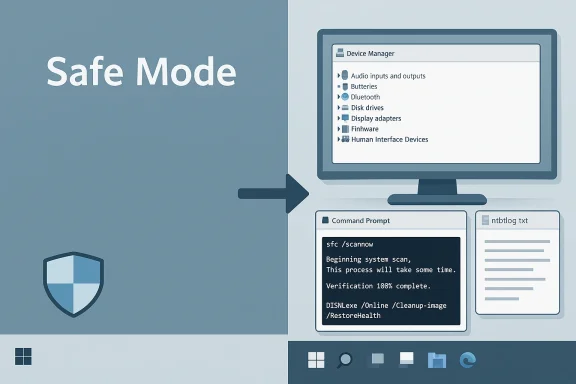
Safe Mode also gives you a cleaner environment for generating and reading diagnostic artifacts—boot logs, minidumps, and integrity checks—because fewer components create noise in logs. Enabling startup logging creates the file ntbtlog.txt in C:\Windows, listing drivers loaded during boot and making it easier to spot a third‑party driver that gets loaded immediately before a failure.Ways to start Safe Mode
If Windows still boots normally
- Open the System Configuration utility (
msconfig). - Under the Boot tab enable Safe boot and choose Minimal.
- Click OK and restart.
msconfig and restart. The msconfig path is simple and handy for controlled experiments.If Windows is unstable or won’t boot
- If Windows fails to start repeatedly, the system typically launches Windows Recovery Environment (WinRE) automatically after the third failed attempt. From WinRE choose Troubleshoot → Advanced options → Startup Settings → Restart. When the Startup Settings menu appears, press the appropriate key (for example, 4 to enable Safe Mode, 5 for Safe Mode with Networking). This is the standard recovery path when normal booting fails.
- You can also force WinRE by interrupting boot — power on, then force shutdown while Windows is loading — twice. On the next boot, WinRE appears and you can follow the same Troubleshoot → Advanced options path. This technique is commonly used when the desktop is unusable.
First things to do in Safe Mode: immediate triage
1) Check Device Manager and roll back or remove suspect drivers
Open Device Manager and look for yellow warning icons or devices that report failures. For suspect drivers:- Try Roll Back Driver (Driver tab) to restore the prior working driver if available.
- If rollback is not available, uninstall the device (select Delete the driver software for this device when prompted if you want Windows to fall back to a basic driver).
2) Disable or remove recently added software
Because Safe Mode doesn’t start third‑party autostart programs, it’s an ideal place to uninstall newly installed apps that coincide with the problem. Use Settings → Apps to uninstall typical apps. Note: the Windows Installer service is disabled in Safe Mode by default, which can block some MSI‑based uninstallers; in those cases, you may need to run the Microsoft Program Install and Uninstall Troubleshooter or uninstall via the program’s vendor uninstaller where possible.3) Limit startup items and services
- Open Task Manager (Ctrl+Shift+Esc) → Startup tab and disable non‑essential entries to test whether one of those autostart programs causes the instability.
- For background services not listed in Task Manager, run
msconfig, go to the Services tab, check Hide all Microsoft services and then disable third‑party services to test. Reboot normally; if stability returns, re‑enable services incrementally to find the offender.
System integrity and disk checks: SFC, DISM, and CHKDSK
When a problem looks like corruption rather than a driver or app conflict, these three utilities are your primary tools.System File Checker (SFC)
Run an elevated Command Prompt and execute:sfc /scannow
DISM (Deployment Image Servicing and Management)
If SFC reports errors it cannot fix, run DISM to repair the Windows component store that SFC uses as a source:DISM /Online /Cleanup-Image /RestoreHealth
sfc /scannow again. The sequence DISM → SFC is a widely recommended order in community and Microsoft guidance because DISM repairs the underlying store so SFC can obtain clean copies.CHKDSK (Check Disk)
To scan and repair file system and bad sectors on the system drive:chkdsk C: /f
Y when prompted and reboot. For deeper disk scans (recovering bad sectors), add /r but be prepared for much longer run times. Back up data first if you suspect physical disk failure.System Restore, uninstalling updates, and undo actions
System Restore
If the system started failing after a recent change, System Restore can roll Windows back to a prior working state without affecting personal files. In Safe Mode (or WinRE), runrstrui and follow the wizard to select a restore point. System Restore must have been enabled previously for points to exist, so it’s a preventative setting to adopt on stable systems.Uninstalling updates
If a feature update or quality update caused the problem, uninstalling the update via Settings → Windows Update → Update history → Uninstall updates can often fix the issue. If you cannot boot, the same uninstall operations are available from WinRE’s Uninstall updates option. After rolling back a bad update, pause updates temporarily to prevent immediate reinstallation while you verify stability.Crash analysis: minidumps and BlueScreenView
Blue screen (BSOD) stop codes and minidump files are highly diagnostic if read correctly. In Safe Mode you can:- Collect minidump files (usually in C:\Windows\Minidump).
- Use tools such as BlueScreenView to parse the minidumps and highlight the driver or module that likely caused the crash.
Advanced recovery options: in‑place repair, Reset, and clean install
When Safe Mode and repair utilities fail to restore stability, escalate carefully:- In‑place repair (Upgrade/Repair install): Run Windows Setup from an ISO or installer and choose “Keep personal files and apps.” This refreshes core system components and the component store while preserving your environment. Expect 30–90+ minutes depending on hardware, and ensure you have sufficient free space and backups before starting.
- Reset this PC: Settings → System → Recovery → Reset this PC offers “Keep my files” or “Remove everything” options. Reset reinstalls Windows and typically fixes deep corruption but removes installed apps (and with Remove everything, personal files). Backups beforehand are essential.
- Clean install: If WinRE is damaged, hardware is faulty, or corruption recurs after other attempts, perform a clean install from bootable media—but only after imaging the drive (if you want a fallback), backing up data, and collecting product keys/licenses.
SetupDiag, Update Catalog, and offline servicing
For update‑specific failures, use SetupDiag to analyze upgrade logs and pinpoint failing components. You can also manually download and apply specific KB packages from the Update Catalog when the automatic pipeline fails. These are advanced steps for power users and admins but can resolve stubborn upgrade regressions without reinstalling the OS.Practical checklist: a field‑proven sequence to follow
- Try a normal reboot (sometimes transient issues clear).
- Boot to Safe Mode (via
msconfigor WinRE) and see if the error persists. - In Safe Mode: roll back or uninstall suspect drivers in Device Manager.
- Disable startup programs (Task Manager) and non‑Microsoft services (
msconfig) to isolate third‑party interference. - Run
DISM /Online /Cleanup-Image /RestoreHealththensfc /scannow. Repeat if necessary. - Schedule and run
chkdsk C: /fif disk errors are suspected. - If the failure followed an update, try uninstalling the KB or use System Restore (
rstrui). - If unresolved, perform an in‑place repair (Keep files/apps) or Reset this PC. Image the drive before a clean install.
Prevention and hardening: reduce the chance you’ll need Safe Mode
- Keep full‑image backups and system‑image recovery USB media ready. Having a tested recovery image shaves hours off repair work.
- Prefer vendor drivers for GPU/chipset/storage over the generic drivers Windows Update may install. Vendor drivers are often more complete and less likely to regress after feature updates.
- Pause feature updates for mission‑critical machines for a few days after public rollout to watch for regressions; for security updates, balance delay with exposure risk. This is a pragmatic mitigation many administrators recommend. Note: pausing updates is a mitigation, not a permanent fix.
- Maintain at least a conservative free disk buffer (commonly recommended as ~20–30 GB) before major feature updates so the system has room for temporary servicing files. This is a widely cited heuristic rather than an official Microsoft requirement. Treat it as a guideline.
Critical analysis — strengths, limitations, and risks
Strengths
- Low‑impact first steps. Safe Mode and WinRE let you try conservative repairs (driver rollback, SFC/DISM) that preserve user data and installed apps when successful. This least‑invasive approach minimizes collateral damage and downtime.
- Reveals root causes quickly. If the problem evaporates in Safe Mode, you can confidently focus on drivers and third‑party software instead of chasing system corruption.
- Rich diagnostics. Boot logging, minidumps, SFC/DISM outputs, and tools like Autoruns or BlueScreenView give actionable evidence rather than guesswork.
Limitations and risks
- Rollback windows close. Windows retains rollback artifacts only for a limited time; once removed (cleanup utilities, space reclamation), some updates cannot be rolled back via GUI and require offline servicing or an in‑place repair. Keep that in mind before aggressive cleanup.
- Uninstalling security updates increases exposure. If you remove a security patch to regain stability, pause updates only briefly and plan to remediate properly (alternate patch, vendor guidance) because you have increased exposure to known vulnerabilities.
- Some repairs are destructive. Reset this PC (Remove everything) and clean installs are reliable but destructive to installed apps; always back up first.
- Hardware and firmware issues. Safe Mode cannot fix failing storage hardware, RAM faults, or corrupted firmware; if hardware is failing, software repairs offer only temporary relief and you should image the drive and replace the failing component.
Conclusion
Safe Mode is the single most reliable first step when Windows 11 becomes temperamental. It provides a controlled, low‑noise environment to isolate drivers and apps, run integrity tools like SFC and DISM, analyze crash dumps, and attempt safe rollbacks or uninstalls. Use the conservative workflow—Safe Mode triage → repair utilities → in‑place repair → Reset/clean install—to preserve data and minimize downtime. Keep backups and recovery media ready, prefer vendor drivers for critical subsystems, and treat uninstalling security updates or deep offline servicing as last resorts that require caution. By mastering Safe Mode and the companion tools outlined here, you’ll turn an emergency boot into a methodical troubleshooting session rather than a forced reinstall.Source: PCWorld Emergency mode for Windows 11: How to rescue a temperamental system
