

The recent Born2Invest pieces about Radeon drivers for Windows 10 — ostensibly a shopping/installation guide and a how‑to for the RX 5700 family — raise a familiar set of questions for Windows users: where to get drivers, how to install them safely, and how to handle legacy vs. modern AMD packages in a post‑Windows 10 support landscape. After reviewing the available material and cross‑checking it against multiple independent community guides and vendor‑style best practices, the bottom line is this: trust vendor and OEM sources first, use Windows Update as your lowest‑risk option, and treat third‑party “driver outlets” and repackagers with healthy skepticism.
AMD’s Radeon driver ecosystem has evolved through two major eras: the legacy Catalyst/Catalyst Control Center era and the modern AMD Software: Adrenalin Edition era. For current and recent GPUs — including RDNA‑based cards such as the Radeon RX 5700 family — Adrenalin is the primary distribution channel and offers the broadest feature set, WHQL signing where available, and the safest out‑of‑box experience. For very old cards where Adrenalin no longer includes the necessary support, archived Catalyst packages exist but should be treated as advanced, niche solutions.
Windows Update (Microsoft’s driver catalog) and OEM vendor pages (Dell, HP, Lenovo, ASUS, etc.) remain the lowest‑risk routes for most users. Microsoft‑signed drivers delivered via Windows Update are vetted for platform compatibility; OEM packages are tuned for hybrid graphics, hotkeys, and vendor power profiles on laptops and branded desktops. Use these first, and escalate to AMD’s Adrenalin packages only if you need the software features Adrenalin provides.
A final, important layer of context: Microsoft declared Windows 10 end of support on October 14, 2025. That lifecycle milestone shifts how vendors document compatibility — some Adrenalin release notes no longer list “Windows 10” prominently — but that does not automatically mean drivers stop working. Vendors may still publish Windows 10‑compatible installers for many cards, though long‑term validation and feature investment will increasingly prioritize newer OS versions. Plan accordingly for production systems.
Key, verifiable takeaways consistent across vendor guidance and community archives:
For users of the Radeon RX 5700 family specifically: use AMD Software: Adrenalin Edition builds that explicitly list support for your SKU when possible, verify digital signatures, and keep a rollback installer at hand. Try Windows Update first for a stable baseline and use OEM packages for branded systems. If the Born2Invest article points to a unique or singular download, verify that file against AMD or the OEM before proceeding.
Security and stability are not optional when modifying kernel drivers. Prioritize official sources, verify integrity, and treat third‑party driver outlets as last‑resort references to be cross‑checked. For production fleets or security‑sensitive endpoints still running Windows 10 after October 14, 2025, plan an OS migration or formal risk mitigation path sooner rather than later.
Conservative, verified practices remain the best defense when updating display drivers: trust the vendor, verify the file, back up the system, and keep a rollback plan ready.
Source: Born2Invest https://born2invest.com/?b=style-232016412/
Source: Born2Invest https://born2invest.com/?b=style-233121112/
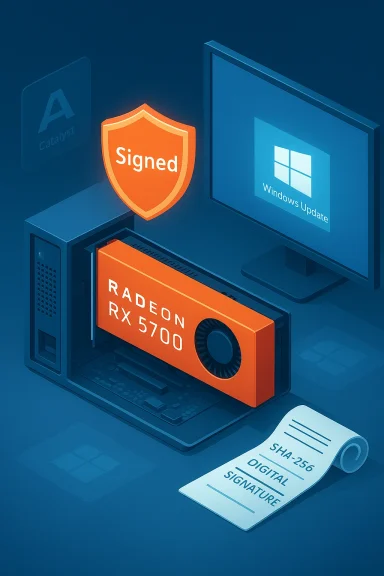 Background / Overview
AMD’s Radeon driver ecosystem has evolved through two major eras: the legacy Catalyst/Catalyst Control Center era and the modern AMD Software: Adrenalin Edition era. For current and recent GPUs — including RDNA‑based cards such as the Radeon RX 5700 family — Adrenalin is the primary distribution channel and offers the broadest feature set, WHQL signing where available, and the safest out‑of‑box experience. For very old cards where Adrenalin no longer includes the necessary support, archived Catalyst packages exist but should be treated as advanced, niche solutions.Windows Update (Microsoft’s driver catalog) and OEM vendor pages (Dell, HP, Lenovo, ASUS, etc.) remain the lowest‑risk routes for most users. Microsoft‑signed drivers delivered via Windows Update are vetted for platform compatibility; OEM packages are tuned for hybrid graphics, hotkeys, and vendor power profiles on laptops and branded desktops. Use these first, and escalate to AMD’s Adrenalin packages only if you need the software features Adrenalin provides.
A final, important layer of context: Microsoft declared Windows 10 end of support on October 14, 2025. That lifecycle milestone shifts how vendors document compatibility — some Adrenalin release notes no longer list “Windows 10” prominently — but that does not automatically mean drivers stop working. Vendors may still publish Windows 10‑compatible installers for many cards, though long‑term validation and feature investment will increasingly prioritize newer OS versions. Plan accordingly for production systems.
What the Born2Invest pieces said — and what we could verify
The Born2Invest items included shopping and installation language about Radeon RX 5700 drivers and older AMD driver bundles. Those articles mirror common, user‑facing concerns: how to download drivers, where to look for older packages, and whether third‑party “outlets” are safe. However, independent community archives and repository reviews caution that single‑site claims — especially those that assert exclusive availability or unique installer builds — must be independently verified against vendor pages and reliable archives before being treated as authoritative. In other words: Born2Invest’s practical tips reflect standard community guidance, but any unique claims in those pages should be validated before acting.Key, verifiable takeaways consistent across vendor guidance and community archives:
- Prefer AMD’s official downloads for Adrenalin and WHQL packages.
- Try Windows Update first for a Microsoft‑signed driver (lowest risk).
- Use OEM drivers for laptops and branded systems when available.
- Avoid repackaged installers from “cheap driver shops,” torrents, or unknown mirrors. Verify digital signatures and checksums.
Why source matters: trust, signatures, and checksums
Driver installers modify kernel‑level components and low‑level device stacks. That makes driver provenance and integrity checks non‑negotiable for safe installs.- Digital signatures: Right‑click a downloaded installer, view Properties → Digital Signatures, and confirm the signer (AMD or your OEM) before running the package. A valid signature indicates the package was signed by the vendor and has not been tampered with since signing.
- Checksums (SHA‑256): When AMD or an OEM publishes checksums, verify them against the file you downloaded. Absence of a checksum from a third‑party host is a red flag.
- Preferred sources (ranked):
- AMD official support & downloads — primary and authoritative.
- OEM vendor support pages — preferred for laptops and branded desktops.
- Microsoft Update / Windows Update — lowest risk for basic stability on Windows 10.
- Reputable archives (TechPowerUp, TechSpot) — useful for release notes and historical context, but treat downloads as secondary unless they point back to official binaries and checksums.
A practical, safe installation workflow for Windows 10 (step by step)
Below is a consolidated, field‑tested workflow that synthesizes AMD guidance, community best practices, and the procedural recommendations echoed in the Born2Invest coverage. Follow these steps in order; stop when you reach acceptable functionality.- Inventory and backup
- Record your GPU hardware ID: open Device Manager → Display adapters → right‑click your device → Properties → Details → Hardware Ids and copy the PCI\VEN_1002&DEV_xxxx string. This is essential for manual INF checks.
- Create a System Restore point and — for production or critical systems — a full disk image. Driver changes to the display stack can render systems unbootable.
- Try Windows Update (lowest risk)
- Settings → Update & Security → Windows Update → Check for updates → View optional updates → Driver updates.
- If Windows Update offers a Microsoft‑signed Radeon driver, install it and validate display, multi‑monitor behavior, and video playback before any further changes.
- Check OEM support for branded systems
- If you have a laptop or vendor‑branded desktop, use the OEM’s driver package for your exact model. These packages often include firmware, hotkeys, and hybrid‑graphics support that generic AMD packages omit.
- Use AMD Adrenalin only if you need its features
- If you require Radeon Software features (Overlay, WattMan-style controls, game profiles), download the WHQL‑recommended Adrenalin package that explicitly lists your GPU and Windows 10 compatibility. Keep the installer for rollback.
- Clean the driver state before switching
- If you’re switching from preview drivers or suspect leftovers, run AMD Cleanup Utility (vendor‑provided) or Display Driver Uninstaller (DDU) in Safe Mode to purge artifacts. The community consensus is that DDU minimizes partial‑install failures.
- Install, verify, and reboot
- Run the AMD installer as Administrator, select only the components you need (you can opt for a minimal install), and reboot when prompted. After installation, confirm Device Manager lists the AMD adapter (not Microsoft Basic Display Adapter) and that Radeon Software launches if supplied.
- Post‑install checks and rollback plan
- Verify the installer’s digital signature and, when available, checksum. Archive the working installer and keep DDU or AMD Cleanup Utility available in case you must roll back. If a new driver causes regressions, boot to Safe Mode, run DDU, and reinstall the last known‑good installer.
Special cases: legacy Catalyst, INF installs, and when to be very careful
- Catalyst is legacy. Catalyst/Catalyst Control Center packages exist for very old GPUs (HD 2000–7000 era). Use them only if AMD or your OEM explicitly lists a legacy Catalyst package for your exact product. These packages were built for older Windows kernels and may not behave correctly on modern Windows 10 builds.
- Manual INF install (advanced users only). The conservative approach for legacy packages is to extract the archived installer (many AMD installers self‑extract to C:\AMD), open Display.Driver*.inf, and verify your hardware ID is listed. If present, you can perform Device Manager → Update driver → Browse my computer → Let me pick from a list → Have Disk → point to the INF and install only the Display Driver component. Do not edit INF files to add IDs unless you fully understand driver signing implications — editing invalidates the signature and can open security and stability issues.
Common post‑install errors and how to handle them
The community has documented several recurring issues and practical remedies:- “Radeon software and driver versions do not match.” This often occurs when a store UWP app expects a different runtime than the Adrenalin driver you installed. Fix: uninstall the UWP store app, run DDU in Safe Mode, reinstall the correct Adrenalin build that matches the UWP, or use the OEM package that originally supplied the store app.
- Microsoft Store error 0x803FB005 when installing Radeon Settings Lite. This tends to happen when Adrenalin supersedes the store app runtime. Some users extracted and reinstalled the OEM UWP package from the OEM driver bundle’s packages\UWP folder with success — but this only works with the matching OEM bundle. Proceed cautiously.
- Error 182 / “This hardware is not supported.” Usually the wrong package (Adrenalin legacy vs modern) or the installer INF excludes your card. The workaround is to use the appropriate legacy installer or the optional combined package linked inside the release notes, or perform the INF match method described above.
- Game crashes or driver timeouts after a specific release (example: certain 24.2.1 regressions reported for RX 7000 cards). If you encounter regressions tied to a specific Adrenalin release, revert to the prior working driver and file a bug report with AMD including exact version strings and reproduction steps. Monitor AMD’s follow‑up WHQL builds for fixes.
The post‑Windows 10 reality — timeline, risk, and migration planning
With Windows 10 out of mainstream support as of October 14, 2025, several practical effects follow for driver management:- Documentation shifts: Some vendor release notes may omit “Windows 10” in short compatibility copy, causing confusion. That omission is often a documentation choice rather than a formal end of compatibility. Verify package contents and WHQL signing.
- Longer‑term risk: Over time, vendors will prioritize Windows 11 and later for engineering investments. This raises the long‑term risk for security and driver feature parity on older Windows 10 systems. For production fleets and high‑security endpoints, plan staged OS migration or enrollment in vendor/extended support options.
- Short‑term practicality: Most modern Adrenalin packages released through 2024–2025 remain usable on Windows 10 for many cards; they often include Windows 10 compatible binaries. But do not treat that as a guarantee for indefinite future support.
Why third‑party “driver outlets” are frequently a bad idea
The Born2Invest shopping language that points users toward “online outlets” for drivers echoes a common temptation: seeking archived or discounted files from third‑party hosts. That path carries measurable risks.- Repackaged installers sometimes modify INFs, bundle unsigned binaries, or inject adware. Community moderation logs show such packages causing both stability problems and security concerns. Always demand digital signatures and cryptographic checksums — absent those, treat the binary as suspect.
- One‑click driver updaters often pull incorrect packages or bundle extras. If you use them, ensure they reference vendor downloads and publish verifiable checksums. Prefer manual vendor downloads for any system where uptime and security matter.
A compact, printable checklist (straight to the point)
- Record GPU hardware ID (Device Manager → Details → Hardware Ids).
- Create a System Restore point and, if possible, a full disk image.
- Try Windows Update first (optional driver updates).
- If on a laptop, check OEM support pages; prefer OEM packages for hybrid graphics.
- Download Adrenalin (WHQL) from AMD only if you need its features; verify signature and checksum.
- If switching drivers, boot to Safe Mode and run DDU or AMD Cleanup Utility, then install.
- Archive the working installer on removable media for rollback.
Final analysis and recommendation
The Born2Invest articles touch on useful, real user needs: how to locate drivers, how to install them safely, and how to handle older packages. Those are valid user concerns, and the high‑level advice mirrors proven community practice: prefer vendor/OEM/Windows Update, verify signatures/checksums, and use DDU for clean installs. At the same time, Born2Invest’s shopping‑style claims and outlet recommendations should be treated as leads and validated — they are not substitutes for vendor archives and official checksums.For users of the Radeon RX 5700 family specifically: use AMD Software: Adrenalin Edition builds that explicitly list support for your SKU when possible, verify digital signatures, and keep a rollback installer at hand. Try Windows Update first for a stable baseline and use OEM packages for branded systems. If the Born2Invest article points to a unique or singular download, verify that file against AMD or the OEM before proceeding.
Security and stability are not optional when modifying kernel drivers. Prioritize official sources, verify integrity, and treat third‑party driver outlets as last‑resort references to be cross‑checked. For production fleets or security‑sensitive endpoints still running Windows 10 after October 14, 2025, plan an OS migration or formal risk mitigation path sooner rather than later.
Closing: an actionable plan you can follow today
- Back up your system and record the GPU hardware ID.
- Open Windows Update and check optional driver updates; install if suitable.
- If on a branded laptop/desktop, visit the OEM support page and install their driver first.
- If you need full Radeon Software features, download the WHQL Adrenalin build from AMD, verify the digital signature and any published checksum, run DDU if switching, then install.
- Archive the working installer and keep DDU or AMD Cleanup Utility on removable media for rollback.
Conservative, verified practices remain the best defense when updating display drivers: trust the vendor, verify the file, back up the system, and keep a rollback plan ready.
Source: Born2Invest https://born2invest.com/?b=style-232016412/
Source: Born2Invest https://born2invest.com/?b=style-233121112/
