

For many hobbyists and owners of older systems, the ATI/AMD Radeon HD 3000-era cards still represent a serviceable option for basic desktop work, legacy gaming, or refurbishing older laptops — but getting the right driver onto a modern Windows PC is no longer straightforward. Recent vendor policy changes, the legacy status of Terascale GPUs, and Windows 10’s shifting lifecycle mean users must follow a conservative, well-documented process to install drivers safely and reliably. This article explains what drivers exist for the Radeon HD 3000 family, why they behave differently on Windows 8.1 and Windows 10, and provides a step‑by‑step, risk-aware procedure for installing legacy ATI/AMD drivers — including manual INF installs, using Display Driver Uninstaller (DDU), and handling driver signature / Secure Boot issues.
AMD historically supplied Catalyst/AMD Catalyst legacy drivers that covered the Radeon HD 2000, HD 3000 and HD 4000 families. Those packages were last maintained for Windows 8-era kernels and typically implement the older WDDM 1.x driver models (for example, WDDM 1.1) rather than the newer WDDM versions used by later Windows releases. AMD’s own legacy support notices and archived driver guidance confirm that the company moved these families into a legacy support model and that driver updates beyond the Windows 8 timeframe are effectively frozen. Windows 8-specific legacy installers — historically known as Catalyst 12.6 / 13.x legacy builds — were distributed “as is” and often lacked Microsoft WHQL certification for modern driver model features. Those packages may install on Windows 8.1, and in some cases on Windows 10, but their compatibility is limited: expect WDDM 1.1 behavior, legacy driver versions, and no modern API support (DirectX 11/12 or Vulkan). Community archives and the historical release notes show these constraints clearly. Microsoft’s Windows 10 support lifecycle adds an extra layer of concern: Windows 10 reached end of mainstream support on October 14, 2025. After that date, Windows 10 no longer receives routine security and feature updates unless a device is enrolled in Extended Security Updates (ESU). That means running unsigned or homegrown legacy drivers on Windows 10 exposes systems to greater long‑term security risk and may reduce vendor supportability.
Community guides and archived AMD legacy release notes provide the historical context and the tools to succeed when necessary, but they also make clear that this is an advanced, somewhat fragile path. For any user who values stability and security over legacy features, the safest long-term solution is hardware that is still actively supported by vendors and by Microsoft’s current OS lifecycle.
For clarity: the small SEO-style phrase and privacy boilerplate you provided appear to come from an external aggregator page; those pages often summarize legacy driver availability but sometimes conflate or oversimplify variant-specific details. Treat such single‑page claims as starting points — always verify the exact driver build and whether the INF lists your PCI\VEN_1002&DEV_xxxx ID before proceeding.
Conclusion
Installing a legacy ATI/AMD Radeon HD 3000-era driver on Windows 10 is feasible but requires careful planning, the right package, and sensible safety measures. The community and vendor archives (Catalyst 12.6 / 13.x legacy branches), Windows Update’s Microsoft-supplied fallback drivers, and tools such as Display Driver Uninstaller provide the pieces — but the onus is on the user to combine them in a conservative workflow that prioritizes recovery options and system security.
Source: Born2Invest https://born2invest.com/?b=style-231407112/
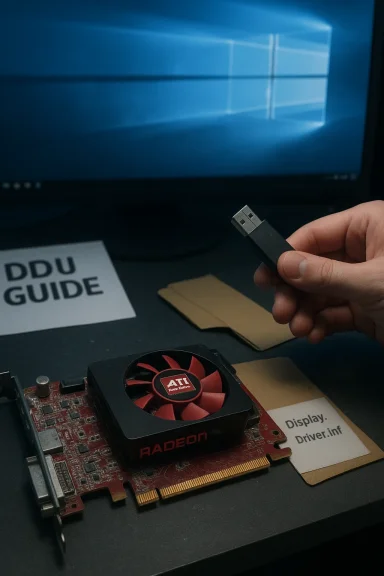 Background / Overview
AMD historically supplied Catalyst/AMD Catalyst legacy drivers that covered the Radeon HD 2000, HD 3000 and HD 4000 families. Those packages were last maintained for Windows 8-era kernels and typically implement the older WDDM 1.x driver models (for example, WDDM 1.1) rather than the newer WDDM versions used by later Windows releases. AMD’s own legacy support notices and archived driver guidance confirm that the company moved these families into a legacy support model and that driver updates beyond the Windows 8 timeframe are effectively frozen. Windows 8-specific legacy installers — historically known as Catalyst 12.6 / 13.x legacy builds — were distributed “as is” and often lacked Microsoft WHQL certification for modern driver model features. Those packages may install on Windows 8.1, and in some cases on Windows 10, but their compatibility is limited: expect WDDM 1.1 behavior, legacy driver versions, and no modern API support (DirectX 11/12 or Vulkan). Community archives and the historical release notes show these constraints clearly. Microsoft’s Windows 10 support lifecycle adds an extra layer of concern: Windows 10 reached end of mainstream support on October 14, 2025. After that date, Windows 10 no longer receives routine security and feature updates unless a device is enrolled in Extended Security Updates (ESU). That means running unsigned or homegrown legacy drivers on Windows 10 exposes systems to greater long‑term security risk and may reduce vendor supportability. Why the Radeon HD 3000 family is different (and what that means for you)
- Radeon HD 3000 GPUs are based on older Terascale architectures that predate AMD’s GCN architecture. AMD moved Terascale-era products to a legacy support model because they were considered functionally mature and had limited need for new optimizations. Expect fewer feature updates and fewer driver fixes going forward.
- Legacy drivers for HD 3000/2000/4000 often implement WDDM 1.1, not WDDM 1.2/1.3/2.x. This matters because newer Windows graphics features and many modern applications expect later WDDM functionality; legacy drivers can provide only baseline desktop and DirectX 9-era functionality.
- AMD’s official guidance for Windows 8-era support indicated that Windows Update would supply Microsoft-signed fallback drivers for Windows 8.1 and Windows Microsoft-supplied drivers aim for stability and correct desktop operation, but they intentionally omit legacy Catalyst control panel features. Where possible, prefer the Microsoft-signed driver from Windows Update for day-to-day stability.
What short inventory)
- AMD Catalyst 12.6 (legacy) — Windows 8-era support for HD 2000/3000/4000 series; not WHQL for many builds; implements WDDM 1.1. Community archives still list this as the canonical legacy branch.
- AMD Catalyst 13.1 / 13.x (legacy) — later legacy packages that AMD shipped as the last “feature-complete” legacy drivers; referenced in vendor and community archives.
- Microsoft-supplied “legacy” driver via Windows Update — frequently appears as an 8.970.x family binary (community reports cite versions like 8.970.100.9001); this is the safest option for Windows 10 machines because it is Microsoft-signed and maintained via Windows Update.
Safety-first installation strategy (recommended, high-level)
- Inventory the GPU hardware ID and system environment.
- Try the least‑risky option first: let Windows Update or the OEM vendor supply a Microsoft-signed driver.
Update path fails and you need legacy Catalyst features, use a clean driver state (DDU in Safe Mode). - Prefer a manual INF installation from an extracted, verified legacy package rather than forcing a GUI installer that aborts.
5: full disk image or system restore point; keep the working installer offline.
Step-by-step: conservative method for Windows 10 — recommended for most users
Use this sequence to minimize the risk of an unusable display stack.- Record your GPU hardware ID.
- Open Device Manager → Display adapters → right‑click the adapter → Properties → Details → Hardware Ids. Copy the PCI\VEN_1002&DEV_xxxx string. This identifies the exact device variant and is the key to whether an archived INF will match.
- Create recovery points.
- Make a System Restore point and, if possible, a full disk image. Driver changes at the kernel/display level can leave a system unbootable. Short of a full image, at least create a restore point.
- Try Windows Update first (lowest risk).
- Settings → Windows Update → Check for updates → Driver updates. If a Microsoft-signed Radeon driver is offered, accept it and validate. This is often the most stable path on Windows 10.
- Check OEM/vendor support pages.
- If you have an OEM laptop or prebuilt desktop, download the vendor-provided Windows 10 driver package for your exact model, if available. OEM packages are tailored for switchable graphics, hotkeys, and platform-specific quirks.
- If you must install a legacy Catalyst package (advanced):
- Download the legacy package that explicitly lists your GPU family (Catalyst 12.6 / 13.1 legacy packages are historically the ones that include HD 3000/2000 series).
- Let the installer extract its files (it usually self-extracts to C:\AMD or C:\ATI) and then fails or aborts; note the extraction path. Do not immediately run the GUI installer if it reports “device not supported.”
- Use Display Driver Uninstaller (DDU) in Safe Mode before attempting legacy installs.
- Boot to Safe Mode and run DDU to remove all traces of prior AMD/Windows drivers. This avoids partial-install leftovers that commonly break subsequent installs. The DDU author and community strongly recommend Safe Mode and creating a restore point beforehand.
- Manual INF install (the lower‑risk manual path).
- In Device Manager → Display adapter → Update driver → Browse my computer → Let me pick from a list → Have Disk → point to the extracted Display.Driver*.inf file in the extracted driver folder (look under Packages\Drivers\Display\W64 or W86).
- Only install the Display Driver component (avoid optional utilities that may fail). If the INF lists your PCI\VEN_1002&DEV_xxxx entry, Windows install. If not, do not modify the INF unless you can re-sign the driver — editing INFs and installing unsigned code increases kernel-level risk.
- If Windows blocks the unsigned driver:
- Test Mode (temporary): at an elevated Command Prompt run bcdedit /set testsigning on, then reboot. This disables signature enforcement until you revert it, but may be blocked on systems with Secure Boot enabled. Use it only on test machines. Revert with bcdedit /set testsigning off after success.
- Secure Boot: if Secure Boot isling Test Mode may fail; you might need to temporarily disable Secure Boot in firmware — but this is a security trade-off and should be a last resort.
- Validate and protect the working configuration.
- After install, confirm Device Manager shows an AMD/ATI driver (not Microsoft Basic Display Adapter). Test desktop resolution, multi-monitor behavior, video playback, and any specific applications you need. Pause Windows Update temporarily while validating to prevent automatic driver overwrites; re-enable it once you’ve confirmed stability.
Advanced: manual Igning, and the risks
Community threads show users sometimes edit legacy INF files to add OEM subsystem IDs for models that were never included in the original package. While this can sometimes make a legacy Catalyst driverates an unsigned or mismatched driver that Windows (and Windows Update) may later reject. Editing INF sections and installing the modified driver without re-signing it breaks the driver signing model and increases exposure to kernel-level vulnerabilities. For production or security-sensitive systems, do not edit INFs unless you understand driver signing and re-signing workflows and have a robust rollba use a modified INF in a lab or test machine, the safer approach is:- Keep Secure Boot disabled for the test session.
- Use Test Mode (bcdedit /set testsigning on) to allow unsigned drivers.
- Re-sign the driver properly if you want to re-enable Secure Boot and remove Test Mode; signing requires a certificate and additional tooling and is outside the scope of a quiubleshooting: common failure modes and fixes
- “This device is not supported” or Error 182: the package’s INF does not include your device’s PCI VID/PID. Fix: locate a package that lists your device, or use the manual INF approach only if the INF already lists the hardware ID. Avoid arbitrary INF edits without re-signing.
- Windows reverts the manual driver after a reboot: Windows Update is replacing the driver. Pause automatic driver updates during validation or set the policy to prevent driver auto-updates. Re-enable updates once stable.
- Partial installs (Catalyst UI present but Device Manager shows Microsoft Basic Display Adapter): Run DDU in Safe Mode and reinstall the driver manually from the extracted INF.
- Black screen / unbootable after an install: Boot to Safe Mode and use Device Manager to uninstall the driver, or restore from the system image or restore point created earlier. Always have a recovery plan.
Security, legal and support considerations
- Security: Installing unsigned or repackaged kernel drivers increases exposure to root-level compromise. After Windows 10’s end of mainstream support, running aging kernels and unsigned drivers heightens risk further, so prefer Microsoft-signed drivers or secure vendor-provided packages.
- Warranty / OEM limitations: Laptop manufacturers frequently ship vendor-signed, modified drivers to support hotkeys, power management, and switchable graphics. Replacing tcy drivers may break OEM features and could void support. Prefer OEM packages where available.
- Legal / license: AMD’s legacy drivers wibuted “as is” under license. Community-compiled archives and third‑party “outlet” download pages may not carry explicit vendor endorsement; validate checksum and provenance before use. If a download seems to be a repackaged third‑party archive, treat it with extra caution.
Alternatives and recommendations
- Best option for most users: Acceied legacy driver via Windows Update for stability. This minimizes kernel-level risks and avoids signature problems.
- If you need Catalyst features (Control Center): Use a secondary test machine or a virtual machine for experimentation. If a laptop requires legacy Catalyst functionality for specific workflows, consider using the OEM-provided driver image for that model.
- Upgrade the GPU or system: For users dependent on modern APIs, performance, or security, upgrading to a supported GPU or moving the workload to a Windows 11-capable device is the lo’s legacy policy and Microsoft lifecycle both point to hardware refresh as the durable path.
- Preserve working drivers offline: If you succeed with a legacy installer on one machine, create a zip of the extracted driver folder and store it offline (on a USB stick or backup device). That lets you reapply the same working package if Windows Update or a later change overwrites it.
Quick reference: safe manual install checklist (condensed)
- Capture GPU Hardware ID (Device Manager → Details → Hardware Ids).
- Create System Restore point and/or full didows Update → Check for optional driver updates. If a Microsoft-signed legacy driver appears, install it first.
- If not satisfied, download OEM driver or the specific AMD legacy package that explicitly lists your product family. Note extraction folder (C:\AMD).
- Boot Safe Mode → run DDU → reboot.
- In Device Manager use Update driver → Have Disk → point to extracted Display.Driver*.inf (Packages\Drivers\Display\W64). Install only the display driver.
- If blocked by driver signature: consider Test Mode or temporarily disable Secure Boot only on a test machine. Re-signing is the secure long-term approach.
Critical analysis: strengths, trade‑offs and risks
- Strengths:
- Legacy Catalyst packages can restore older features and control panels that Microsoft-supplied drivers omit, which matters for enthusiasts and legacy application compatibility. Community documentation and archived builds make this possible for those who need it.
- Where an OEM provides a Windows 10 driver for a particular model, that route often preserves switchable-graphics and power management.
- Major risks:
- Installing unsigned or edited INF drivers undermines Windows kernel protections and increases the attack surface. After Witream support (October 14, 2025), running legacy drivers without ESU or on unsupported systems raises security exposure.
- Edited INF files and repackaged downloads published on third‑party sites may be tampered with — always verify file provenance and checksums. Community threads document many cases where INF edits were used as a workaround, but those are not recommended for production machines.
- Practical trade-offs:
- The user must weigh the desire for Catalyst control features against the security benefits of a Microsoft-signed driver. For most users, the Microsoft-signed Windows Update driver is the correct compromise between functionality and safety.
Final words: a cautious, pragmatic path
The technical reality is simple: Radeon HD 3000-era GPUs are legacy hardware, and modern Windows ecosystems have moved on. If you need basic desktop functionality on Windows 10, prefer the Microsoft-signed Windows Update driver or the OEM package for your system. If you need to install an archived Catalyst package to recover a feature, follow a conservative, test-first workflow: inventory hardware IDs, back up the system, use DDU in Safe Mode to clean the driver stack, install manually from extracted INFs only when the INF explicitly lists your hardware, and avoid editing INF files for production machines.Community guides and archived AMD legacy release notes provide the historical context and the tools to succeed when necessary, but they also make clear that this is an advanced, somewhat fragile path. For any user who values stability and security over legacy features, the safest long-term solution is hardware that is still actively supported by vendors and by Microsoft’s current OS lifecycle.
For clarity: the small SEO-style phrase and privacy boilerplate you provided appear to come from an external aggregator page; those pages often summarize legacy driver availability but sometimes conflate or oversimplify variant-specific details. Treat such single‑page claims as starting points — always verify the exact driver build and whether the INF lists your PCI\VEN_1002&DEV_xxxx ID before proceeding.
Conclusion
Installing a legacy ATI/AMD Radeon HD 3000-era driver on Windows 10 is feasible but requires careful planning, the right package, and sensible safety measures. The community and vendor archives (Catalyst 12.6 / 13.x legacy branches), Windows Update’s Microsoft-supplied fallback drivers, and tools such as Display Driver Uninstaller provide the pieces — but the onus is on the user to combine them in a conservative workflow that prioritizes recovery options and system security.
Source: Born2Invest https://born2invest.com/?b=style-231407112/
