

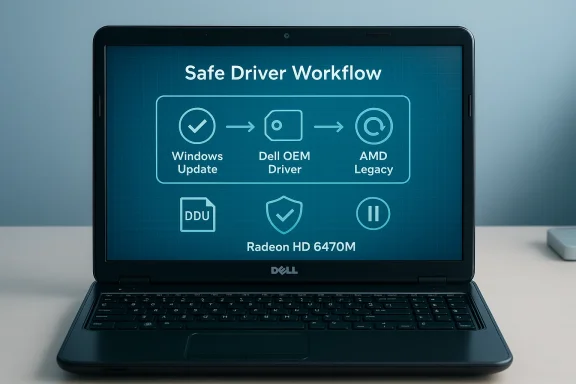
The Radeon HD 6470M is effectively a legacy part at this point, and the practical “best” driver for a Dell Inspiron N5110 running Windows 10 is not a single, shiny downloadable package — it’s a conservative, documented workflow that prioritizes stability, provenance, and a clear rollback plan. Multiple vendor and community sources confirm that AMD moved the HD 6000‑series mobile GPUs into a legacy support model years ago, leaving the last official options as the Catalyst 15.7.1 WHQL and the Radeon Software Crimson 16.2.1 beta packages; for branded laptops such as the Inspiron N5110, OEM drivers and Microsoft’s WiWindows Update catalog frequently provide the safest and lowest‑risk results.
The AMD Radeon HD 6470M was released in the early 2010s as a mobile discrete GPU option in many midrange laptops. AMD formally moved HD 6000‑series mobile GPUs to a legacy support model, meaning the company will not issue new feature or performance drivers for modern Windows 10 builds; instead, AMD published final “as‑is” installers (for example, Catalyst 15.7.1 and Crimson 16.2.1 beta) that remain the canonical archived packages for this family. Community archives, vendor forums and third‑party driver trackers echo that position and show repeated community guidance to treat AMD archives as advanced/manual options rather than the default path.
Dell’s support for the Inspiron N5110 reflects the same complexity. The Inspiron 15R (N5110) shipped in multiple configurations — Intel integrated graphics, switchable Intel/AMD arrangements, and in some SKUs an NVIDIA option. That variety, plus older Dell driver pages that swapped or mis‑labelled driver packages, has created confusion: some Dell pages and community threads show drivers that omit the HD 6470M or list other mobile chips, while community posts document repeated failures when users try to install generic AMD packages on the N5110 without checking the exact hardware ID or OEM INF entries. For branded systems, the OEM download matching the laptop’s service tag often provides the most compatible binary because it includes laptop‑specific power, hybrid‑graphics and hotkey support.
Key takeaways on risk:
Conclusion
For Dell Inspiron N5110 owners with an AMD Radeon HD 6470M, the immediate priority is stability and provenance: try Microsoft’s signed driver via Windows Update first, prefer Dell’s OEM package for laptop‑specific features, and treat AMD’s archived Catalyst/Crimson installers as an advanced option only after careful INF checks and a clean driver state. Keep a full rollback plan, avoid repackaged driver shops, and weigh a hardware or OS upgrade if modern features, long‑term security, and reliability matter. The carefully documented, conservative workflow above gives the best chance of restoring or maintaining functional graphics on this legacy platform while minimizing the risk of a broken display stack.
Source: Born2Invest https://born2invest.com/?b=style-231724712/
 Background: why the HD 6470M situation is messy
The AMD Radeon HD 6470M was released in the early 2010s as a mobile discrete GPU option in many midrange laptops. AMD formally moved HD 6000‑series mobile GPUs to a legacy support model, meaning the company will not issue new feature or performance drivers for modern Windows 10 builds; instead, AMD published final “as‑is” installers (for example, Catalyst 15.7.1 and Crimson 16.2.1 beta) that remain the canonical archived packages for this family. Community archives, vendor forums and third‑party driver trackers echo that position and show repeated community guidance to treat AMD archives as advanced/manual options rather than the default path. Dell’s support for the Inspiron N5110 reflects the same complexity. The Inspiron 15R (N5110) shipped in multiple configurations — Intel integrated graphics, switchable Intel/AMD arrangements, and in some SKUs an NVIDIA option. That variety, plus older Dell driver pages that swapped or mis‑labelled driver packages, has created confusion: some Dell pages and community threads show drivers that omit the HD 6470M or list other mobile chips, while community posts document repeated failures when users try to install generic AMD packages on the N5110 without checking the exact hardware ID or OEM INF entries. For branded systems, the OEM download matching the laptop’s service tag often provides the most compatible binary because it includes laptop‑specific power, hybrid‑graphics and hotkey support.
What “best” means for HD 6470M on Windows 10
“Best driver” depends on what you need. For the HD 6470M on a Dell Inspiron N5110 running Windows 10, the primary tradeoffs are:- Stability risk): Use the Microsoft‑signed driver delivered through Windows Update. It provides a signed, compatible fallback for basic desktop, display output and video playback with the least chance of leaving the display stack in an unusable state. Community and vendor guidance rank Windows Update at the top of the trust hierarchy for legacy GPUs.
- System‑specific compatibility (recommended for laptops): Use Dell’s OEM driver for your exact service tag and Windows build. OEM packages often include switchable‑graphics support and vendor tuning not present in AMD’s generic installers. Dell community threads show these packages sometimes fix switchable‑graphics problems that generic AMD drivers cannot handle.
- Maximum legacy features (advanced / riskiest): Use AMD’s archived Catalyst/Crimson packages (Catalyst 15.7.1 WHQL or Radeon Software Crimson 16.2.1 Beta). These can re‑enable legacy utilities (Catalyst Control Center, UVD features) but often require manual extraction, INF verification and a clean driver state beforehand. AMD explicitly classifies this hardware as legacy, and warns that these are the final, “as‑is” builds.
Where the definitive files come from (and why provenance matters)
Trust and provenance are critical when updating display drivers: graphics drivers run at kernel level and a d driver carries real security and stability risk.- Primary, authoritative sources: AMD official support pages and Dell OEM support for your service‑tagged Inspiron N5110. AMD’s product pages list the last legacy installers for HD 6000‑series mobile GPUs and explicitly mark the family legacy.
- Safe fallback: Microsoft Update / Microsoft Update Catalog, which often supplies a Microsoft‑signed compatibility driver appropriate for legacy hardware and prioritized for system stability.
- Secondary archives: reputable technical archives (TechPowerUp, Guru3D, Driver repositories) — useful when official channels can’t provide a working installer, but downloads must be verified (checksums/digital signatures) and used only as last resorts. Community threads warn about repackagers editing INFs or bundling unsigned kernel binaries.
Step‑by‑step: a safe installation workflow for Radeon HD 6470M on Dell Inspiron N5110
This is a conservative, tested workflow drawn from vendor guidance and community best practices. Perform each step in order, and stop when you reach acceptable functionality.- Inventory & recovery (do this first)
- Record the GPU Hardware Id: Device adapters → right‑click the Radeon device → Properties → Details → Hardware Ids. Copy the PCI\VEN_1002&DEV_xxxx string to a safe note.
- Create a System Restore point and, ideally, a full disk image. Driver changes to the display stack can render a system non‑bootable; a snapshot saves hours of recovery time.
- Try Windows Update (lowest risk)
- Settings → Update & Security → Windows Update → Check for updates → View optional updates → Driver updates.
- If Windows Update offers a Microsoft‑signed Radeon driver, install it and validate resolution, multi‑monitor support and video playback. Stop here if satisfied. Microsoft’s signed driver is the safest fallback for legacy hardware.
- Check Dell OEM support for your Service Tag (recommended for N5110)
- Visit Dell’s support and enter your laptop’s service tag to find the driver bundle Der exact configuration and Windows 10 build. Install the Dell package and validate. Dell’s OEM package is typically the best compromise on laptops because it includes hybrid‑graphics and power management components that generic AMD installers omit. Community threads show Dell packages sometimes resolve switchable graphics issues that generic AMD drivers do not.
- If you must use AMD’s archived packages (advanced users)
- Boot to Safe Mode and run Display Driver Uninstaller (DDU) to remove residual AMD/ATI driver traces. Community threads strongly recommending driver stacks to prevent partial installs and leftover files.
- Download the AMD legacy package that explicitly lists HD 6470M (Catalyst 15.7.1 WHQL or Crimson 16.2.1 beta) from AMD’s official site and extract it (AMD installers often self‑extract to C:\AMD). Do not run that you verify the INF.
- Open the extracted Display.Driver.inf and search for your recorded Hardware Id. If the INF includes your VID/PID, you can use Device Manager → Update driver → Browse my computer → Let m Have Disk → point to the extracted INF and install only the display driver. If the INF does not list your device, do not edit the INF unless you can sign drivers and accept the security risk.
- Pause Windows Update ndows Update may automatically reapply a Microsoft‑signed driver and overwrite your manual install. Pause updates or use the “Show or hide updates” tool (wushowhide) while validating a manual driver; re‑enable updates after confirmation.
- Validate and stabilize
- Reboot to normal mode and test graphics behavior: display resolution, hardware acceleration in video playback, multi‑monitor setups and stability under driver problems recurr, boot to Safe Mode, run DDU and reinstall the Microsoft/OEM driver. Keep the working installer on removable media for quick rollback.
- Rollback plan
- Keep DDU logs, the working installer archived, and a system image available. If the display stack becomes unusable, Safe Mode + DDU + reiOEM driver is the usual recovery path.
Common failure modes and practical fixes
The community has settled on a set of predictable failure scenarios and fixes. Here are the most common and the practical remedies.- Symptom: Device shows “My Adapter” after install.
- Cause: Partial/failed install or leftover driver remnants.
- Fix: Boot to Safe Mode, run DDU, and reinstall either the Microsoft‑signed driver or the OEM package.
- Symptom: Installer aborts with “This device is not supported.”
- Cause: The package INF lacks your GPU’s VID/PID.
- Fix: Extract the installer and inspect Display.Driver*.inf. If your hardware ID isn’t listed, do not edit the INF unless you can re‑sign drivers. Use Windows Update or the OEM package instead.
- Symptom: Windows Update keeps replacing a manual driver.
- Cause: Windows Update prefers Microsoft‑signed drivers.
- Fix: Pause updates while testing and use the wushowhide tool to hide the driver update. Re‑enable updates after validation.
- Symptom: Radeon utilities appear but the card has limited VRAM or misreported identity.
- Cause: Generic legacy installers sometimes map older mobile devices to a broader family entry, producing functionality regressions.
- Fix: Use the OEM driver or manually verify INF entries before installing AMD archived packages.
Security and lifecycle risks: the Windows 10 end‑of‑support context
Windows 10 reached end of support on October 14, 2025. After that date Microsoft stopped delivering free cumulative security updates, feature updates and standard technical assistance s 10 editions — which changes the calculus for continuing to run legacy drivers on older hardware. Without ongoing OS security patches, running unsigned or repackaged kernel‑level components increases system risk. The practical consequence: prefer Microsoft‑signed binaries and OEM packages where possible; for long‑term security consider migrating to a supported OS (Windows 11) or enrolling eligible devices in Extended Security Updates (ESU).Key takeaways on risk:
- Legacy AMD drivers were never designed for ongoing compatibility with future kernel and platform updates; they are “as‑is” packages.
- Repackaged drivers from unverified third‑party sites sometimes include modified INFs or unsigned kernel code — a common community red flag. Always verify digital signatures and checksums where provided.
- If long‑term security and modern codec acceleration matter, investing in a hardware refresh (or a supported Windows 11 machine) is usually more cost‑effective and safer than patching a decade‑old driver stack.
Practical recommendations for Dell Inspiron N5110 owners
- Start with Windows Update. If Windows Updoft‑signed Radeon driver that meets your needs, accept it and stop. This is the lowest‑risk route.
- Use the Dell support page for your machine’s service tag and model; prefer the Dell download if it lists a Windows 10 driver for your configuration. Dell’s OEM packages often contain the hybrid‑graphics glue that generic AM D installers lack. Community posts document that service‑tag‑matched Dell drivers can resolve switchable graphics problems.
- If you must use AMD archived installers, follow the conservative workflow above: DDU → verify INF → manual “Have Disk” install only when your hardware ID is explicitly present. Keep a rollback image and test with Windows Update paused.
- Avoid one‑click driver updaters and unknown driver marketplaces. If you use a third‑party archive, verify the file’s digital signature and check SHA256 hashes when available. Community moderation logs show repackaged drivers sometimes introduce stability or security issues.
When to consider hardware refresh or OS migration
If your needs include modern video codecs (HEVC/AV1 hardware acceleration), reliable gaming performance, or long‑term security on a supported OS, the reality is that the HD 6470M and Windows 10 legacy driver model are a bottleneck. Microsoft’s Windows 10 end‑of‑support amplifies this: without OS security updates, running older kernel drr risk than before. The practical thresholds for replacement are:- You require stable driver support for current applications, modern codecs or DirectX features.
- You rely on a secure, supported OS for business or sensitive workloads and cannot enroll in ESU.
- Repeated driver troubles (black screens, recurring rollbacks) cause more downtime than the cost of a replacement device.
Final verdict: the pragmatic “best” driver approach for HD 6470M on Inspiron N5110
There is no single magic driver file that will simultaneously be the fastest, most feature‑complete and most secure for the HD 6470M on Windows 10. The responsible, “best” answer for most users is a tiered approach:- 1) Try Windows Update (Microsoft‑signed driver) first — lowest risk.
- 2) If you need OEM features or have a switchable graphics machine, use Dell’s service‑tag driver for the Inspiron N5110. Validate carefully.
- 3) Only as an advanced, last resort, use **AMD’s legacy Catalyst 15.7.1 / Crimson 16.a DDU cleanup and INF verification; expect limited support and accept the security implications of using legacy binaries.
Conclusion
For Dell Inspiron N5110 owners with an AMD Radeon HD 6470M, the immediate priority is stability and provenance: try Microsoft’s signed driver via Windows Update first, prefer Dell’s OEM package for laptop‑specific features, and treat AMD’s archived Catalyst/Crimson installers as an advanced option only after careful INF checks and a clean driver state. Keep a full rollback plan, avoid repackaged driver shops, and weigh a hardware or OS upgrade if modern features, long‑term security, and reliability matter. The carefully documented, conservative workflow above gives the best chance of restoring or maintaining functional graphics on this legacy platform while minimizing the risk of a broken display stack.
Source: Born2Invest https://born2invest.com/?b=style-231724712/
