

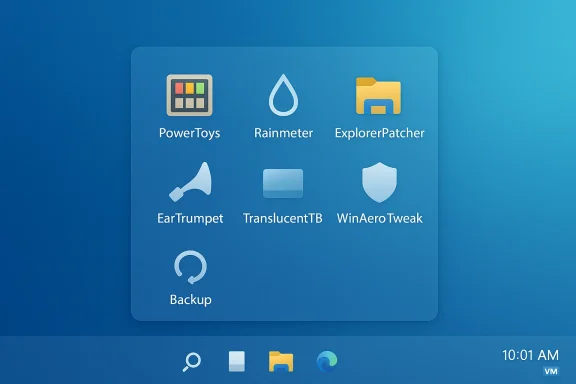
Customization is no longer a niche pastime for a handful of power users — it’s a practical way to shape Windows into a faster, clearer, and more productive workspace. The Habr piece you provided sketches a pragmatic toolbox of utilities — Microsoft PowerToys, WinAero Tweaker, ExplorerPatcher, Rainmeter, TranslucentTB, and EarTrumpet — and warns correctly about the trade-offs of modifying system files and registry keys without a reliable backup. That compact guide is a good starting point, but the real decision every tinkerer must make is not “Can I?” but “How do I do it safely, and which tool delivers value without excessive maintenance?” / Overview
Windows ships with many personalization options, but recent versions (especially Windows 11) intentionally hide or remove controls that used to be common. That gap created an ecosystem of community and commercial tools that restore lost behavior, add productivity features, or let designers and hobbyists re-skin the desktop. These tools fall into two practical categories:
PowerToys is Microsoft’s official, open-source collection of productivity utilities for Windows. It is actively developed on GitHub, modular by design, and intentionally safe for mainstream use. Treat PowerToys as the low-risk foundation for customization: it gives immediate productivity wins with small, reversible changes.
Source: Хабр Utilities for Customizing Windows / Habr
Windows ships with many personalization options, but recent versions (especially Windows 11) intentionally hide or remove controls that used to be common. That gap created an ecosystem of community and commercial tools that restore lost behavior, add productivity features, or let designers and hobbyists re-skin the desktop. These tools fall into two practical categories:
- Official or vendor-backed modular utilities that add features while minimizing system intrusion.
- Community-driven “tweakers” and shell patchers that change registry keys or hook the shell to restore legacy behaviors.
 Microsoft Pne every power user should try
PowerToys is Microsoft’s official, open-source collection of productivity utilities for Windows. It is actively developed on GitHub, modular by design, and intentionally safe for mainstream use. Treat PowerToys as the low-risk foundation for customization: it gives immediate productivity wins with small, reversible changes.What PowerToys gives you (practical highlights)
- FancyZones — a flexible window-tiling manager that goes far beyond the built-in Snap Layouts; ideal for multi-monitor and ultrawide setups.
- PowerToys Run — a fast Alt+Space launcher for apps, files, calculations and plugins (Spotlight-style).
- PowerRename — a context-menu bulk-renaming tool that supports regular expressions and metadata-based patterns.
- Always On Top — a one-key way to pin a window above others.
- Other utilities: Color Picker, Image Resizer, Keyboard Manager, Mouse Without Borders, Text Extractor, etc.
Strengths and practical guidance
- Low barrier + modularity: Enable only the modules you need to reduce background resource use.
- Official project + open source: Safer supply chain and clear update path via GitHub and the Microsoft Store.
- Quick wins: FancyZones and PowerToys Run are productivity multipliers for many workflows.
Caveats
- Some modules use global hooks and run background services — on low-RAM machines this matters. Confirm memory/CPU footprint before enabling many modules at once. Also, follow release notes after Windows feature updates; occasional incompatibilities appear and are typically resolved with a PowerToys update.
WinAero Tweaker — depth and responsibility
WinAero Tweaker is a long-standing Windows customization toolkit that exposes hundreds of hidden settings by editing registry keys and toggling system behaviors. It’s powerful — and therefore potentially dangerous if used blindly. The tool’s official pages advertise broad capabilities (from restoring classic UI elements to disabling telemetry and update policies), but the community discussion and incident reports show that some options can break update functionality or leave a system in a fragile state. Use extreme caution.What WinAero does well
- Uncovers obscure system switches: themes (Aero-like options), font changes across shell components, context-menu additions, and a wide range of UI and convenience toggles.
- Fast and lightweight: changes apply quickly without heavy background processes.
Risks you must accept (real-world examples)
- Persistence across reinstalls: Registry edits can survive application uninstall — leaving a machine with inconsistent or unsupported configuration.
- Windows Update & Store breakage: Community threads show cases where disabling update services or related policies resulted in inability to use Windows Update or the Microsoft Store until manual registry cleanup. Always test in a non-critical environment first.
- Security trade-offs: Options that disable Defender, UAC, or automatic updates dramatically increase attack surface. Avoid those settings unless you have compensating controls and a strong reason.
Practical safety checklist for WinAero Tweaker
- Create a full system image (not just a file backup). Registry changes are broad; a disk image is safer.
- Create a System Restore point and export any registry keys you change.
- Make changes incrementally: one tweak, reboot, evaluate.
- Keep a record of every tweak you apply (the tool offers export options — use them).
- Reserve WinAero for personal or test machines only; avoid production corporate endpoints.
ExplorerPatcher — shell-level changes, big payoffs, bigger care
ExplorerPatcher targets the Windows shell: taskbar, Start menu, File Explorer and system tray. It re-implements or restores older behaviors (for example, a Windows 10-style taskbar) by intercepting or replacing parts of the shell. The project’s wiki and documentation are explicit: it’s powerful but not intended for work-critical systems without backup.Where ExplorerPatcher shines
- Restore old taskbar behavior: Move taskbar to top/side, ungroup icons, re-enable labels, or restore the Windows 10 ribbon in File Explorer.
- Start menu flexibility: Switch between Windows 11 and Windows 10 styles.
- Compatibility with other mods: Works alongside some aesthetic tools like TranslucentTB and RoundedTB.
Risks and rollback
- ExplorerPatcher modifies the shell. If something goes wrong you can end up with a missing or frozen taskbar. The project strongly recommends not using its reimplemented taskbar on mission-critical machines and provides explicit recovery steps (restart explorer.exe, boot to Safe Mode, uninstall the patch). Follow those instructions before experimenting.
Recommended rollout plan
- Test ExplorerPatcher on a VM or secondary machine first.
- Export its configuration after you achieve a good setup.
- Keep an unmodified original installer copy and know how to start explorer.exe manually (Task Manager → Run new task → explorer.exe).
- After major Windows updates, verify compatibility notes on the project’s GitHub issues and releases.
Rainmeter — the artist’s toolbox for functional desktops
Rainmeter is the de facto desktop-skin engine for Windows. It’s not a shell patcher — it runs user-created “skins” that display telemetry, clocks, launchers, audio visualizers and more. Rainmeter is low-risk because it primarily draws on the desktop layer and runs as a user process with configurable plugins. The official documentation is well-maintained and the community is vast.Why designers and power users love Rainmeter
- Highly customizable: skins are plain-text INI files with Lua scripting and plugin hooks.
- Community-driven: thousands of themes and suites available that can be adapted.
- Practical utility: system monitors, weather, RSS, clipboard managers, shortcuts and launchers.
Practical tips for using Rainmeter
- Choose reputable skin suites and inspect the INI files before installing. Skins can run scripts and make web requests; verify what a skin does.
- Keep only the skins you need active to avoid redundant timers or plugins that may consume CPU.
- Combine Rainmeter with PowerToys’ FancyZones for a highly productive and beautiful desktop layout.
TranslucentTB — small, efficient, focused
If your primary goal is a polished taskbar — translucent, acrylic, or fully transparent — TranslucentTB is a battle-tested, lightweight utility with options for dynamic states (maximized windows, start open, etc.). It’s open-source, low-overhead, and compatible with ExplorerPatcher and RoundedTB. For purely cosmetic taskbar tweaks, it’s a clean option.Strengths
- Minimal RAM/CPU usage — intended to be unobtrusive.
- Multiple dynamic modes provide context-aware styling (e.g., blurred when a window is maximized).
- Works on Windows 10 and Windows 11; available in portable and Store versions.
Practical considerations
- Keep it updated after Windows UI changes — major WinUI updates can temporarily affect behavior.
- If you use ExplorerPatcher or other shell mods, test combinations; the projects note compatibility but warn that interactions can cause visual glitches early on.
EarTrumpet — real per-application audio control
EarTrumpet replaces the built-in volume flyout with a modern mixer that exposes per-application sliders, device switching, hotkeys and more. It’s a focused, safe utility and a must-install for anyone who juggles multiple audio endpoints or needs precise app-level control. The app is open-source and widely recommended by reviewers.Why EarTrumpet is useful
- Immediate, visual per-app volume sliders in the system tray.
- Move apps between playback devices without digging into Settings.
- Works with hotkeys and supports light/dark themes, with active Store support for auto-updates.
Caveats
- EarTrumpet surfaces Windows’ underlying audio behaviors; occasional OS-level bugs (reported historically) may appear unrelated to the app itself. Use EarTrumpet to visualize and work around those issues, but monitor for Windows-side updates that may fix underlying quirks.
Cross-referencing claims: what we verified
- The Habr article’s list and short feature descriptions match the public documentation and community consensus for these utilities. The PowerToys feature list and ongoing updates are explicit in the Microsoft PowerToys GitHub repository and recent release notes.
- ExplorerPatcher’s ability to restore taskbar and File Explorer behaviors is well-documented in its GitHub wiki and on the project website; the project warns explicitly about using its reimplemented taskbar on work-critical machines.
- Rainmeter’s architecture, use of skins, and scripting model are documented in its official manual.
- Community reports and vendor notes confirm that deep registry tweakers like WinAero can break update functionality and produce persistent changes; user reports and official guidance advise careful backups and incremental changes.
- TranslucentTB and EarTrumpet are lightweight, focused apps documented and distributed via GitHub/Microsoft Store; both are widely used and safe when downloaded from official sources.
Safety-first workflow: how to customize Windows responsibly
This is the practical playbook you can follow to minimize surprises:- Start with a snapshot
- Make a full disk image (system image) using built-in or third-party imaging tools.
- Create a named System Restore point and export registry keys you plan to change.
- Baseline + one-at-a-time
- Install PowerToys first and evaluate the benefits of FancyZones, PowerToys Run and PowerRename.
- If you want audio control, add EarTrumpet next and validate behavior.
- Isolate bigger changes
- Test WinAero Tweaker and ExplorerPatcher on a VM or a secondary, non-essential machine.
- If using ExplorerPatcher’s reimplemented taskbar, follow the project’s recovery steps and keep USB recovery media handy.
- Keep installers and versioned configs
- Save the exact installers you used (especially before major Windows updates).
- Export and store configuration files (PowerToys and ExplorerPatcher both support config export/import).
- Maintain an update and rollback plan
- After any major Windows feature update, check each tool’s GitHub Issues or release notes for compatibility notes.
- If a Windows update breaks a patcher, roll back using your image or follow the tool’s documented recovery steps. Community threads and project docs usually cover the common break/fix scenarios.
Recommended toolset profiles (examples)
- Minimal productivity user (low risk)
- PowerToys (FancyZones, PowerToys Run, Color Picker)
- EarTrumpet for audio mixing
- TranslucentTB for taskbar polish
- Visual/creative user (balanced risk)
- PowerToys + Rainmeter (select lightweight skins)
- TranslucentTB + RoundedTB for aesthetics
- Keep WinAero Tweaker for safe UI-only tweaks; avoid disabling security features.
- Tinker/heavy customizer (higher risk, high reward)
- PowerToys + Rainmeter + ExplorerPatcher (for a Windows 10-style shell)
- WinAero Tweaker for deep tweaks — apply one change at a time and keep backups.
Troubleshooting quick reference
- Taskbar or Explorer crashes after a patcher: press Ctrl+Shift+Esc, Run new task → explorer.exe. If unresponsive, boot Safe Mode and uninstall the offending utility. ExplorerPatcher’s wiki provides explicit recovery steps.
- Registry change gone wrong: use System Restore or your full image to revert. If you documented the keys you modified, import the registry exports to undo.
- Unexpected antivirus flags: only install from official GitHub or vendor pages. Community projects sometimes trigger false positives; verifying the checksum and building from source are options to be extra-safe. WinAero’s official site and community pages emphasize using official mirrors.
Critical analysis — value vs. long-term maintenance
Customization tools provide real value: faster window management, better launch flows, per-app audio control, and a desktop that reflects your workstyle. But not all customization is equal.- PowerToys is the best risk-to-reward ratio. Official backing, modular design, easy rollback and fast feature iteration make it a first-choice tool for nearly everyone.
- Rainmeter is a creative, low-risk way to amplify productivity and aesthetics because it operates primarily at the user level and can be inspected and edited by users.
- ExplorerPatcher offers the biggest functional gains for Windows 11 users who miss Windows 10 behavior — but it operates at shell-level and therefore demands a disciplined backup strategy.
- WinAero Tweaker provides unmatched depth but with the clearest potential to break update/store behavior or security features; it’s a tool for experienced users who document changes and accept responsibility for system integrity.
- TranslucentTB and EarTrumpet are low-risk, high-value single-purpose apps that modernize appearance and audio control with minimal footprint.
Final verdict and practical next steps
Customization should solve a problem — not create a support ticket. Start with PowerToys and EarTrumpet for immediate productivity gains. Add Rainmeter for visual telemetry and productivity skins if you enjoy desktop design. Treat ExplorerPatcher and WinAero Tweaker as advanced tools: test on non-critical machines, keep full system images, and adopt a strict one-change-at-a-time approach.- Immediate actions:
- Image your system and create a restore point.
- Install PowerToys from the official repository, enable FancyZones and PowerToys Run, evaluate for a week.
- If audio control is needed, add EarTrumpet next.
- For taskbar or Explorer visual polish, add TranslucentTB and test with your ExplorerPatcher settings if you use it.
Source: Хабр Utilities for Customizing Windows / Habr
