

If you’re hunting for a working NVIDIA driver to revive an older GeForce GT 620 or a GeForce 6200-era card on Windows 10, you’re not alone — but the path from a tempting “free shipping” vendor listing or an old driver filename like 353.62 to a safe, stable installation requires care. This feature walks through the facts, verifies the relevant driver history, gives a step-by-step safe-install workflow, and evaluates the risks of third-party downloads and “discount” driver packs so you can make an informed decision and get a dependable Windows 10 desktop back in service.
The GeForce GT 620 (and earlier GeForce 6200 family members) were entry-level cards of their eras: low-power, minimal external power requirements, often shipped with 1 GB DDR3 and a 64-bit memory bus, and targeted at basic desktop acceleration, multi-monitor setups, and HD video playback rather than modern AAA gaming. The same practical description applies to many GT 620 boards sold today on secondary markets: compact single‑slot boards with VGA/DVI/HDMI outputs and modest performance expectations.
NVIDIA and OEMs published a variety of driver branches in the 300–400 series era that included Windows 10-targeted packages for many legacy GPUs. Specific packages mentioned in community archives include drivers in the 352.x and 353.x families, and later stable legacy packages in the late 300s that were explicitly packaged for Windows 10 64‑bit on certain products. However, because these releases span a transition era in NVIDIA packaging (desktop vs. notebook branches, DCH vs. Standard, WHQL-signing differences), choosing the right installer requires more than matching a filename — you must confirm the supported-products list and the OS variant on the vendor release page.
Note: The Born2Invest listing you referenced in your message was treated as unverified in community scans and should not be treated as provenance for a driver package unless you can corroborate it on NVIDIA’s or your OEM’s site. Treat third‑party claims cautiously.
NVIDIA’s installer historically offers optional components like GeForce Experience that provide convenience but also enable telemetry and background services. If you are privacy-conscious or running a resource‑constrained older PC, use the Custom / Clean Install option and opt out of GeForce Experience to keep the install lean.
Finally, older drivers may not receive modern security fixes. NVIDIA’s policy changes over the years reduced active development for legacy and 32‑bit branches; running a legacy driver is a maintenance decision that should come with an awareness of these risks. If the machine is used on sensitive networks, weigh the security trade-off or plan for hardware replacement.
Source: Born2Invest https://born2invest.com/?b=style-230003512/
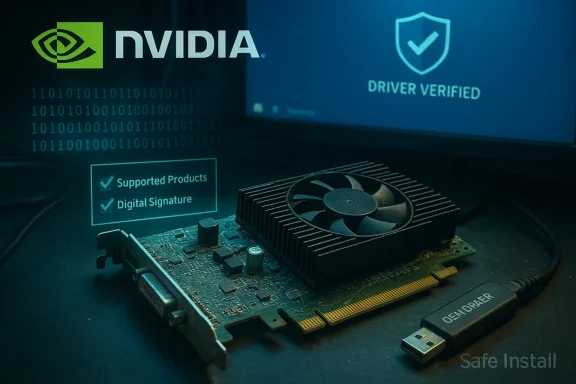 Background / Overview
The GeForce GT 620 (and earlier GeForce 6200 family members) were entry-level cards of their eras: low-power, minimal external power requirements, often shipped with 1 GB DDR3 and a 64-bit memory bus, and targeted at basic desktop acceleration, multi-monitor setups, and HD video playback rather than modern AAA gaming. The same practical description applies to many GT 620 boards sold today on secondary markets: compact single‑slot boards with VGA/DVI/HDMI outputs and modest performance expectations.NVIDIA and OEMs published a variety of driver branches in the 300–400 series era that included Windows 10-targeted packages for many legacy GPUs. Specific packages mentioned in community archives include drivers in the 352.x and 353.x families, and later stable legacy packages in the late 300s that were explicitly packaged for Windows 10 64‑bit on certain products. However, because these releases span a transition era in NVIDIA packaging (desktop vs. notebook branches, DCH vs. Standard, WHQL-signing differences), choosing the right installer requires more than matching a filename — you must confirm the supported-products list and the OS variant on the vendor release page.
What the “353.62” (and similar) claims actually mean
- NVIDIA released many drivers in the 300 series around 2014–2016; some releases had separate desktop and notebook builds and distinct Windows target labels. The mid-300 family includes releases that were republished with Windows 10-targeted notebook builds such as the 353.x family; one example frequently cited in archives is GeForce Driver 353.62 as a Windows 10-targeted package for notebook branches in late July 2015.
- Separately, the 352.x family included a WHQL build (352.84) documented as a Windows 10 32‑bit package published in May 2015. That package is a historical record, but running 32‑bit Windows 10 with legacy drivers involves long-term security and lifecycle trade-offs because 32‑bit driver development was curtailed in later years. Treat claims of 32‑bit Windows 10 drivers as plausible historically but requiring provenance verification today.
- Important caveat: driver filename alone is not proof of suitability. The authoritative compatibility indicator is the manufacturer’s release notes and the “Supported Products” table on the official NVIDIA (or OEM) driver page. Before you install, confirm that the driver page explicitly lists your GPU (GT 620 or equivalent) and that the OS selector matches your Windows build (Windows 10 64‑bit or 32‑bit).
Verify hardware & identity first
Before you download anything, identify exactly what’s in the machine:- Open Settings → System → About to confirm whether your Windows is 64‑bit or 32‑bit. This is non-negotiable because installing a 32‑bit driver on 64‑bit Windows (or vice versa) will fail.
- In Device Manager → Display adapters, note the exact adapter string. If the entry is generic (e.g., “Microsoft Basic Display Adapter”), open Properties → Details → Hardware Ids and copy the VEN and DEV identifiers. That hardware ID is the definitive mapping to INF entries in driver packages.
Where to download — trust the vendor first
Always prefer these sources in order:- OEM support page for branded cards/laptops: manufacturer-supplied packages sometimes contain vendor-signed INFs or hardware-specific tweaks and are the safest choice for notebooks.
- NVIDIA official driver archive/download center: the canonical location and the one that contains the release notes and supported-products tables you need to confirm compatibility.
- Microsoft Update Catalog for signed WHQL packages if the above options are not available; this is a slow but safe fallback.
Note: The Born2Invest listing you referenced in your message was treated as unverified in community scans and should not be treated as provenance for a driver package unless you can corroborate it on NVIDIA’s or your OEM’s site. Treat third‑party claims cautiously.
Which driver is “best” for GT 620 on Windows 10?
There’s no single universal answer; the best driver is the most recent WHQL or vendor-provided package that explicitly lists your GT 620 (or GF108/GeForce 600-series) in its supported products list and is stable on your hardware. For many GT 620 owners:- If your board is a branded PNY VCGGT620XPB (a common retail SKU), check PNY’s support page first for a Windows 10 package tuned for that board. Board-specific installers sometimes include fixes for HDMI audio or output behavior.
- If OEM offers no Windows 10 package, use NVIDIA’s archive to find a Game Ready / GeForce driver release that includes GT 620 in the supported-products list — many mid‑300-series drivers and later legacy releases historically included such entries. Confirm the package is WHQL‑signed for simpler installation on modern Windows builds.
Step-by-step safe installation workflow (recommended)
Follow these steps to minimize risk and create rollback paths:- Prepare backup and restore point. Create a System Restore point or a full disk image before changing kernel drivers. This is essential.
- Confirm OS architecture and GPU hardware IDs. Make sure you know 64‑bit vs 32‑bit and your exact VEN/DEV IDs.
- Download the appropriate installer from NVIDIA or the OEM, confirm the file size and that the EXE/DLL carries an NVIDIA digital signature in File Properties → Digital Signatures. If the digital signature is missing or the file size differs from published metadata, stop and re-download from a different safe source.
- Optional but recommended: perform a clean uninstall with Display Driver Uninstaller (DDU) in Safe Mode if you’re switching driver branches or encountering persistent problems. DDU removes leftover INF/driver remnants that can block the installer. Use DDU carefully and follow official instructions.
- Run the installer as Administrator. Choose Custom (Advanced) and select Perform a clean installation. Uncheck GeForce Experience if you prefer a driver-only install and want to avoid optional telemetry.
- Reboot and validate. Check Device Manager and NVIDIA Control Panel (System Information) to confirm the installed driver version and that the GPU is recognized. Test video playback, multi‑monitor behavior, and any real‑world apps you rely on.
Troubleshooting common errors and recovery
- “Installer cannot find compatible hardware” or Error 182: this typically indicates an INF/device-ID mismatch or that an OEM-signed INF is blocking the generic installer. Check hardware IDs and prefer the OEM driver for notebooks. Manual INF editing is a last‑resort and risky.
- Windows Update keeps reinstalling a different driver: use Microsoft’s “Show or hide updates” troubleshooter (wushowhide.diagcab) to hide the driver while you test a candidate, or temporarily pause Windows Update.
- Black screen or boot hang after install: reboot to Safe Mode, run DDU to remove the drivers completely, then reinstall a prior known-good WHQL package. If recovery fails use your restore point or disk image.
- HDMI audio not present: during installation ensure NVIDIA HD Audio is selected, then set the HDMI audio device as default in Windows Sound settings. Board-specific drivers can also affect HDMI audio handling.
Security, privacy, and telemetry considerations
GPU drivers are kernel-level components. Installing drivers from untrusted sources risks serious consequences — instability, data loss, or malicious code operating with high privileges. Always verify digital signatures and download only from trusted vendor sources.NVIDIA’s installer historically offers optional components like GeForce Experience that provide convenience but also enable telemetry and background services. If you are privacy-conscious or running a resource‑constrained older PC, use the Custom / Clean Install option and opt out of GeForce Experience to keep the install lean.
Finally, older drivers may not receive modern security fixes. NVIDIA’s policy changes over the years reduced active development for legacy and 32‑bit branches; running a legacy driver is a maintenance decision that should come with an awareness of these risks. If the machine is used on sensitive networks, weigh the security trade-off or plan for hardware replacement.
Buying a used GT 620 (or 6200-era card): checklist for shoppers
If your search started with a marketplace listing that promises “free shipping” and references a driver filename, use this checklist:- Confirm the exact SKU/part number (e.g., PNY VCGGT620XPB) and verify the pictured outputs (DVI/HDMI/VGA) match your needs.
- Ask the seller whether the card was tested and whether HDMI audio works (if you need it). Some boards list DVI but lack HDMI audio by design.
- Prefer sellers with a returns window and clear photos. New-old-stock or lightly used cards with seller testing are better than unknown provenance.
- Treat heavily discounted “bundled drivers” or repackaged installers as red flags. If a listing links to a third‑party driver mirror rather than an OEM/NVIDIA page, request the official source or verify hashes/signatures yourself.
Practical expectations: what the GT 620 will (and won’t) do on Windows 10
The GT 620 is adequate for:- Smooth desktop composition and multiple-display setups.
- HD video playback and light multimedia workloads.
- Older or indie games at low settings and modest resolutions.
What to do if a vendor page or news item claims “353.62 Windows 10 64 bit NVIDIA” (or similar)
- Don’t use the driver filename itself as the source of truth. Go to the OEM support page or NVIDIA’s official archive and find the release notes for 353.62 or the stated driver. Confirm “Operating System: Windows 10 64‑bit” and that your GPU is in the supported-products table.
- If a third-party article or marketplace post repeats a driver claim without linking to NVIDIA/OEM release notes, treat it as unverified. The Born2Invest-style claim in your original message was flagged as unverified until corroborated on vendor pages. Always cross-check.
Final recommendations (short checklist)
- Confirm your Windows architecture (64‑bit vs 32‑bit) and GPU hardware IDs before downloading.
- Prefer OEM driver packages for notebooks and the NVIDIA archive for desktop boards; verify the supported-products table and digital signature.
- Back up and create a System Restore point; use DDU in Safe Mode for a clean uninstall when switching branches.
- Avoid third‑party, repackaged driver bundles unless you can verify checksums and signatures. Treat third‑party claims (including Born2Invest-style posts) as unverified until confirmed on vendor pages.
- If security and long-term support matter, consider upgrading hardware rather than relying on a heavily aged GPU and driver ecosystem.
Conclusion
The quest to “shop NVIDIA GeForce 6200 driver Windows 10” and install a file such as 353.62 is a very common one — and entirely solvable — but it requires discipline: identify your hardware exactly, download from OEM/NVIDIA archives, use clean‑install techniques, and keep rollback options ready. Legacy drivers like the 352.x/353.x families do exist and were published with Windows 10 variants, but filenames alone don’t prove compatibility and third‑party mirrors are a risk. Follow a conservative, evidence‑based path (verify supported-products lists and digital signatures) and you’ll maximize your chances of a stable Windows 10 experience with an older GeForce GT 620.Source: Born2Invest https://born2invest.com/?b=style-230003512/
