

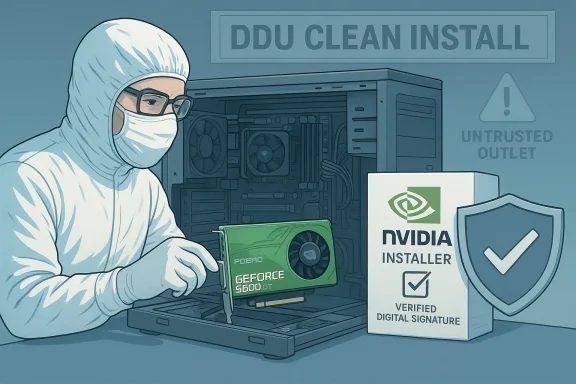
The short version: the GeForce 341.x legacy driver family (often referenced by builds like 341.74 and the less-common 341.95/341.96 mentions) is an archival NVIDIA compatibility branch intended for older GeForce hardware, and you should never install a kernel‑mode driver from an unverified “outlet” or advertorial landing page — prefer NVIDIA’s official archive or your OEM’s support site, inspect the installer’s INF for your hardware IDs, and follow a disciplined, DDU‑first clean‑install workflow when working with legacy packages.
NVIDIA published legacy driver branches in the 340/341 family to provide baseline 2D/3D acceleration and the NVIDIA Control Panel on older GeForce cards during the Windows 10 transition era. One canonical vendor package from that timeframe is GeForce Windows 10 Driver 341.74 (released July 29, 2015), and community records show later 341.x builds (including references to 341.95 and 341.96) as maintenance or security‑updated variants for legacy components. These packages are archived compatibility builds — not actively maintained modern drivers — and must be treated as such.
Two immediate, practical facts change the risk picture for using archived drivers:
If you want, the next practical step is to capture your system’s Display adapter hardware IDs and OEM model, and I can produce a tailored checklist and INF verification walkthrough so you can safely confirm whether a 341.x package will claim your device — and which exact vendor/OEM package to download.
Source: Born2Invest https://born2invest.com/?b=style-231028212/
 Background / Overview
NVIDIA published legacy driver branches in the 340/341 family to provide baseline 2D/3D acceleration and the NVIDIA Control Panel on older GeForce cards during the Windows 10 transition era. One canonical vendor package from that timeframe is GeForce Windows 10 Driver 341.74 (released July 29, 2015), and community records show later 341.x builds (including references to 341.95 and 341.96) as maintenance or security‑updated variants for legacy components. These packages are archived compatibility builds — not actively maintained modern drivers — and must be treated as such.Two immediate, practical facts change the risk picture for using archived drivers:
- Microsoft ended mainstream support for Windows 10 on October 14, 2025, altering the security and lifecycle calculus for running legacy drivers on that OS.
- Third‑party “outlet online” landing pages that advertise old GeForce packages (the kind of advertorial results you’ll sometimes see for “GeForce 341.95 Windows 7 64 bit” or “Outlet Online GeForce driver 341.95”) are routinely flagged by community audits as unverified and potentially dangerous for kernel‑mode software. Treat any unique installer hosted only on those pages as untrusted until proven otherwise.
Why this matters: kernel drivers, provenance and the risk model
Kernel‑mode display drivers (nvlddmkm.sys and associated modules for NVIDIA packages) run with high privilege on Windows. That makes them an attractive target for malware or a single point-of-failure for system stability.- If a driver package is repackaged or altered, INF entries may be changed, digital signatures removed or broken, or additional unwanted binaries bundled into the installer.
- If nvlddmkm.sys is tampered with, you can see recurring VIDEO_TDR_FAILURE blue screens (bugcheck 0x116) or worse: a compromised system that looks normal but carries persistence. Community audits warn explicitly against “clearance” or mirrored installer pages that appear as cheap outlet storefronts.
What the 341.x family provides — and what it does not
What you get with a 341.x legacy package
- Basic 2D/3D acceleration and the NVIDIA Control Panel features that existed at the time of release.
- Compatibility support for older GPUs (GeForce 200/300/400/500 series and some GeForce 9/8 family parts depending on the INF).
- A standalone vendor installer that allows a driver‑only install (skip GeForce Experience) for minimal footprint.
What you should not expect
- Modern decode/encode stacks (AV1, modern HEVC improvements) or the DRM and security hardening added in recent drivers.
- Ongoing security patches — these builds are archived and not actively maintained for present‑day threat models. Treat them as compatibility artifacts, not current software.
Compatibility: Windows 7 64‑bit and Windows 8.1 64‑bit considerations
Historically, NVIDIA released variants of the 340/341 series for multiple OS targets. However:- The precise supported OS list and the per‑card compatibility table are encoded in the driver’s Supported Products table and the package INF. Do not assume a Windows 10‑labeled 341.x build will install cleanly on Windows 7 or 8.1 without checking the INF.
- For laptops and OEM systems, vendor‑specific INF entries are common. OEM packages may include custom power/thermal/Optimus entries that the generic NVIDIA installer does not provide. Prefer OEM drivers for laptops.
Safe, technician‑grade workflow to install a legacy NVIDIA driver (DDU-first)
This is a conservative, step‑by‑step sequence used by repair techs and IT pros. Follow it exactly when you must install any archived NVIDIA package.- Backup first.
- Create a full disk image if the machine is important. At minimum create a Windows System Restore point.
- Keep your recovery media and a plan to restore the image quickly.
- Capture hardware identifiers.
- Open Device Manager → Display adapters → Properties → Details → Hardware Ids. Copy VEN and DEV strings.
- You will use these to confirm the installer INF claims your GPU.
- Verify source and download.
- Use NVIDIA’s official driver archive or your OEM’s support page. Do not use third‑party “outlet” pages or repackagers. Confirm the vendor’s supported products table and file size.
- Boot to Safe Mode and run DDU.
- Use Display Driver Uninstaller (DDU) in Safe Mode to remove old driver remnants. DDU is community standard and minimizes the chance of leftover artifacts causing conflicts.
- Install the verified package as Administrator.
- Run the NVIDIA installer → Custom (Advanced) → check Perform a clean installation. Optionally uncheck GeForce Experience to keep the driver-only footprint.
- Reboot and validate.
- Device Manager → driver tab and NVIDIA Control Panel → System Information should reflect the expected build.
- Compare the installed nvlddmkm.sys timestamp and file path with the vendor’s binary metadata if available.
- Test representative workloads.
- Test desktop switching, video playback, and the legacy applications that triggered issues.
- If you see VIDEO_TDR_FAILUREs again, capture minidumps at C:\Windows\Minidump for analysis.
Troubleshooting frequent failure modes
“This hardware is not supported by this driver package”
- Cause: INF/device‑ID mismatch.
- Fix: Extract the installer (7‑Zip) and inspect the INF for your VEN/DEV string. If missing, prefer OEM drivers or Microsoft Update Catalog packages.
Persistent VIDEO_TDR_FAILURE (nvlddmkm.sys)
- Possible causes: leftover driver artifacts, mismatched INF, GPU hardware faults (silicon/VRAM/PCIe power), PSU instability, or a tampered installer.
- Action sequence:
- Re-run DDU in Safe Mode and reinstall the vendor/OEM package.
- If crashes persist, shift to hardware diagnostics: memtest for RAM, GPU stress (FurMark/MSI Kombustor) while monitoring temps, swap PSU or test the card in a known‑good system.
- If the installer you used came from an untrusted mirror, treat the machine as potentially compromised — restore your image or reinstall Windows from trusted media before reapplying only vendor/OEM drivers.
Security and supply‑chain analysis: why “Outlet Online” pages are high risk
Community audits and forum incident reviews repeatedly show the same patterns with advertorial or “clearance” driver pages:- They present old installers as a convenience, but hosts may be unstable, the binaries unverified, and the pages may not preserve the vendor metadata that security teams rely on.
- When kernel drivers are downloaded from untrusted sources, the practical consequences include persistent BSODs, broken OEM features (Optimus, thermal control), warranty complications, or — in the worst case — malware and backdoors embedded in elevated installers.
- The Born2Invest landing snippets tied to “driver outlet” queries were flagged as unreachable or unverifiable during automated checks; any claims or binaries hosted only there should be treated as suspect until validated against vendor archives.
- Use NVIDIA’s official archive or the OEM support site.
- Check Microsoft Update Catalog for signed legacy driver packages.
- Keep the system offline during driver surgery and apply least‑privilege controls where possible.
Alternatives: when to avoid installing legacy drivers entirely
Consider these safer alternatives instead of forcing an archived driver onto a modern environment:- Upgrade the OS and/or hardware so you can run current, maintained drivers.
- For single‑purpose legacy systems (lab equipment, test benches), isolate the machine from networks, apply strict access controls, and document the driver provenance carefully.
- If the system contains sensitive data or is part of a corporate network, treat legacy installations as unacceptable — either perform a hardware refresh or isolate the device physically and network-wise.
Practical checklists
Quick pre‑install checklist (minimum)
- [ ] Full disk image or System Restore point.
- [ ] Hardware IDs (VEN/DEV) captured from Device Manager.
- [ ] Official vendor or OEM package identified and file size/signature noted.
- [ ] DDU downloaded from authoritative source and tested.
Post‑install validation checklist
- [ ] Driver version matches expected installer in Device Manager and NVIDIA Control Panel.
- [ ] Run basic stress / playback tests and monitor temps.
- [ ] Confirm Windows Event Viewer for any new nvlddmkm.sys entries or repeated TDRs.
Real‑world case notes and community findings
- Community threads and forum analyses consistently recommend a conservative sequence: backup → DDU → clean install → test. Many observed failure modes that look like driver bugs end up being hardware faults (PSU, VRAM, silicon) once drivers are validated and reinstalled cleanly.
- For older desktop GPUs like the GeForce 210 or 9800 GT, the 341.x family was the canonical compatibility branch during the Windows 10 transition. If you must revive such hardware, the archive packages are the right starting point — but treat them as short‑term compatibility measures and plan hardware/OS migration for anything you cannot isolate.
- Born2Invest and similar advertorial results were specifically flagged by automated checks in community audits; treat such pages as unverified until you can produce a vendor archive link or an OEM page to corroborate their claim.
Final analysis: strengths, limitations and recommendations
Strengths of using an official 341.x package
- Restores baseline compatibility for older hardware that otherwise lacks modern driver support.
- Vendor‑signed official packages (when obtained from NVIDIA or OEM) provide the best possible provenance for legacy support.
Limitations and risks
- No ongoing security maintenance for these archived builds — they are compatibility artifacts, not current drivers. Running them on an internet‑connected, sensitive system increases risk.
- Third‑party mirrors and outlet pages are high risk. Advertorial downloads can break digital signatures or introduce malicious components and have been flagged as unverified by community audits.
- Laptop OEM caveats. Generic installers may break Optimus or power/thermal profiles — prefer OEM packages for notebooks.
Recommendations (short)
- Download legacy drivers only from NVIDIA’s official archive or your OEM’s support portal, not from “outlet” pages. Verify file size and digital signature.
- Use the DDU → clean install workflow, keep a full disk image, and capture hardware IDs to validate INF compatibility.
- If your machine is used for sensitive work or is networked in a corporate environment, plan for hardware or OS migration rather than relying on archived drivers long term.
Conclusion
Legacy NVIDIA builds like the 341.x family can be a pragmatic short‑term solution to revive very old GeForce hardware on Windows 7, Windows 8.1 or Windows 10, but they carry measurable operational and security risk — especially when obtained from unverified “outlet online” pages. The correct approach is conservative and evidence‑driven: verify the installer’s provenance and signature, check the INF for your hardware IDs, use DDU for a clean slate, and prefer OEM or official vendor archives over any advertorial mirror. When in doubt — and especially if the system stores or transmits sensitive data — avoid third‑party drivers entirely and plan an OS/hardware upgrade. Community audits repeatedly flagged Born2Invest‑style landing pages as unverified; any unique download claims from such pages should be treated as suspect until matched with vendor archives.If you want, the next practical step is to capture your system’s Display adapter hardware IDs and OEM model, and I can produce a tailored checklist and INF verification walkthrough so you can safely confirm whether a 341.x package will claim your device — and which exact vendor/OEM package to download.
Source: Born2Invest https://born2invest.com/?b=style-231028212/
