

If you still rely on an ATI/AMD Radeon HD 5650 and want it to behave sensibly under Windows 10, there is a reliable, risk‑aware path that works in most cases — but it’s not the same as running a modern Adrenalin driver. The practical reality: try the Microsoft‑signed driver or your OEM’s Windows 10 package first; only if you need legacy Catalyst features should you attempt an archived AMD installer and a manual INF installation — and only after full backups and careful validation.
The Radeon HD 5000‑series (which includes the HD 5650) is a legacy family in AMD’s product lineup. AMD moved many pre‑GCN products into a legacy support model years ago, and the company’s archived Catalyst/Crimson installers remain available for enthusiasts and recovery scenarios. Those packages were primarily written for Windows 7/8 era kernels and are not actively updated for modern Windows 10 feature sets. Expect limited feature parity compared with modern AMD Software (Adrenalin) releases.
Microsoft’s Windows Update often supplies a Microsoft‑signed compatibility driver for legacy Radeon hardware. That fallback driver gives a stable desktop experience (correct resolution, multi‑monitor support, and basic video playback) without exposing you to unsigned kernel code or repackaged installers. For many users this is the safest, lowest‑effort path.
At the same time, there are archived AMD Catalyst/Crimson packages (for example, community references point to final legacy builds like Catalyst 15.7.1 and Crimson 16.2.1 Beta for some HD 5000 family parts). These archived installers can restore Catalyst utilities and legacy features in a few cases — but they require a manual, advanced installation method and a strict preflight checklist.
Drivers operate at kernel level and can enable or break system security features such as Secure Boot, driver signature enforcement, and Memory Integrity (Core Isolation). Legacy installers often lack the modern signing metadata expected by Secure Boot and may trigger Windows to refuse installation or revert to Microsoft’s fallback driver. Disabling these protections is only acceptable in short, isolated test scenarios and should never be used on production or network‑connected systems without full risk assessment.
If you must use an untrusted archive as a last resort, validate every binary with a clean‑room checksum process and, ideally, perform the install in an isolated test environment first. Community veterans repeatedly warn that unsigned or modified drivers expand the kernel attack surface.
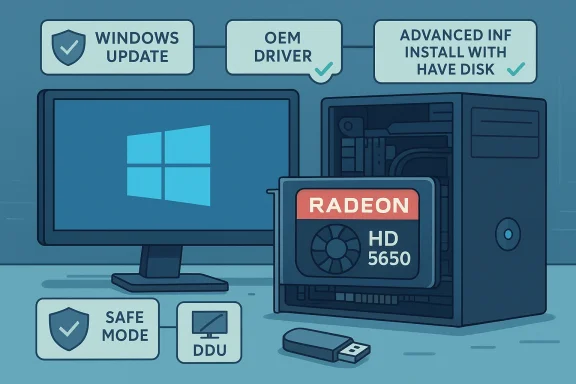
If you must recover legacy Catalyst features — and you are comfortable with advanced troubleshooting — then follow the strict preflight checklist: record hardware IDs, image the disk, use DDU in Safe Mode, inspect the archived AMD INF for an exact device match, perform a manual “Have Disk” install, pause Windows Update while validating, and never leave signature enforcement disabled on a production machine. This advanced path can work, but it is a specialist workflow with measurable security and compatibility trade‑offs.
Finally, treat random bargain pages or one‑click driver ads with skepticism. Born2Invest and similar non‑vendor pages are not authoritative driver sources and should not be used as a primary download location without cross‑checking the file against AMD’s official archives or your OEM. When uncertainty remains, the safest path is a small hardware upgrade — it eliminates long‑term maintenance headaches and restores modern driver support.
Conclusion
Installing a legacy ATI/AMD Radeon HD 5650 driver on Windows 10 is feasible, but it requires discipline: start with Microsoft and OEM options, verify INF entries before attempting archived Catalyst installs, use DDU, protect your backups, and never accept unsigned kernel code on production systems. For enthusiasts who follow these rules the HD 5650 can remain useful for basic desktop tasks; for anyone who needs modern features or long‑term stability, an upgrade to a supported GPU is the pragmatic choice.
Source: Born2Invest https://born2invest.com/?b=style-237470512/
 Background / Overview
The Radeon HD 5000‑series (which includes the HD 5650) is a legacy family in AMD’s product lineup. AMD moved many pre‑GCN products into a legacy support model years ago, and the company’s archived Catalyst/Crimson installers remain available for enthusiasts and recovery scenarios. Those packages were primarily written for Windows 7/8 era kernels and are not actively updated for modern Windows 10 feature sets. Expect limited feature parity compared with modern AMD Software (Adrenalin) releases.Microsoft’s Windows Update often supplies a Microsoft‑signed compatibility driver for legacy Radeon hardware. That fallback driver gives a stable desktop experience (correct resolution, multi‑monitor support, and basic video playback) without exposing you to unsigned kernel code or repackaged installers. For many users this is the safest, lowest‑effort path.
At the same time, there are archived AMD Catalyst/Crimson packages (for example, community references point to final legacy builds like Catalyst 15.7.1 and Crimson 16.2.1 Beta for some HD 5000 family parts). These archived installers can restore Catalyst utilities and legacy features in a few cases — but they require a manual, advanced installation method and a strict preflight checklist.
Why this matters now: security, compatibility, and lifecycle
Windows 10’s lifecycle and modern security expectations change the calculus for legacy drivers. Windows 10 reached end of mainstream support on October 14, 2025, which affects how vendors and Microsoft prioritize signed drivers and compatibility on new cumulative updates. Running unsigned or repackaged kernel drivers on an OS no longer in mainstream servicing increases exposure and long‑term maintenance risk. If you value stability and security, prefer signed drivers from Microsoft or your OEM.Drivers operate at kernel level and can enable or break system security features such as Secure Boot, driver signature enforcement, and Memory Integrity (Core Isolation). Legacy installers often lack the modern signing metadata expected by Secure Boot and may trigger Windows to refuse installation or revert to Microsoft’s fallback driver. Disabling these protections is only acceptable in short, isolated test scenarios and should never be used on production or network‑connected systems without full risk assessment.
The recommended, conservative workflow (summary)
- First line: Try Windows Update — install any Microsoft‑provided display driver from Optional Driver Updates. This is the lowest‑risk path.
- Second: Check the OEM/vendor support page for your exact model. OEM packages are best on laptops or branded desktops (they handle hybrid graphics and power management).
- Third (advanced): Use AMD’s legacy archive only if the extracted INF lists your GPU’s hardware ID (PCI\VEN_1002&DEV_xxxx). If it does, perform a clean uninstall with Display Driver Uninstaller (DDU), then install via Device Manager using the “Have Disk…” method. Validate and then re‑enable updates.
Preparatory checklist — do not skip these steps
Before you touch driver installers, perform these preparatory steps. They are small investments that massively reduce downtime risk.- Record your GPU hardware ID: open Device Manager → Display adapters → right‑click the adapter → Properties → Details → Hardware Ids. Copy the string that looks like PCI\VEN_1002&DEV_xxxx. This ID is the single most important verification item for any manual INF install.
- Create a full system backup or at least a system image. At minimum create a System Restore point. Driver changes to the display stack can render a system temporarily unbootable.
- Make note of the current driver version (Device Manager → Driver tab → Driver Version). Save working installers and keep a recovery USB ready.
- If the machine is used for sensitive work, consider that a modest GPU upgrade may be both cheaper and safer than ongoing legacy‑driver maintenance. Community consensus and archived guidance emphasize that in many cases a hardware refresh is the most practical long‑term solution.
Step‑by‑step: Safe method #1 — Windows Update (recommended)
- Open Settings → Update & Security → Windows Update.
- Click “Check for updates.”
- Expand “View optional updates” and look for Driver updates. If a Radeon or “Microsoft Display Adapter” update is listed, install it.
- Reboot and validate resolution, multi‑monitor behavior, and video playback.
- If satisfied, leave Windows Update enabled and skip the more invasive steps.
Step‑by‑step: Safe method #2 — OEM/vendor driver (preferred on laptops)
- Visit your PC vendor’s support page and search by service tag or exact model. Download the Windows 10 driver package that matches your system configuration.
- Use the vendor package instead of a generic AMD installer if you have a branded system (this is especially important for hybrid/switchable graphics systems).
- Install, reboot, and validate power management and hotkey behavior if applicable.
Step‑by‑step: Advanced method — manual install from AMD archived drivers
Use this sequence only if Windows Update and OEM drivers fail to provide features you need (Catalyst Control Center, legacy 3D features) and if you are comfortable with driver surgery.1) Acquire the AMD archive and extract it
- Download an AMD archived package that lists support for Radeon HD 5000 family parts. Many AMD legacy installers will self‑extract into C:\AMD when run; cancel the GUI if necessary to inspect extracted files. Community posts identify archived builds such as Catalyst 15.7.1 and Crimson 16.2.1 Beta as final legacy builds for some HD 5000 family parts — but confirm the INF on disk before proceeding.
2) Inspect the INF files
- Open the extracted folder and open any Display.Driver*.inf files with a text editor. Search for your recorded PCI\VEN_1002&DEV_xxxx string.
- If the INF contains your exact hardware ID, the package is a candidate for a manual INF install. If it does not, do not proceed. Editing INF files and installing unsigned drivers without signing them is a high‑risk operation and not recommended for typical users.
3) Clean the driver state
- Reboot to Safe Mode and run Display Driver Uninstaller (DDU) to remove all AMD traces. DDU in Safe Mode minimizes partial installs and leftover files that can cause conflicts. Keep the DDU logs. Reboot to normal mode.
4) Manual “Have Disk” installation via Device Manager
- Device Manager → right‑click the display adapter → Update driver → Browse my computer → Let me pick from a list → Have Disk… → point to the extracted Display.Driver*.inf.
- Select only the Display Driver components; avoid optional runtime/installer extras. Reboot and validate.
5) Handle driver signing and Secure Boot
- If Windows refuses the INF because of driver signature enforcement, you can run a temporary test with signature enforcement disabled on a sacrificial/test machine only. Do not leave signature enforcement off on production machines. After testing, re‑enable signature enforcement and, if applicable, re‑enable Secure Boot and Memory Integrity. Community guidance strongly warns against permanently disabling these protections.
6) Pause Windows Update while validating
- Windows Update may attempt to replace your manual driver with a Microsoft‑signed driver automatically. Pause or hide the offending driver update while you validate the manual driver, and re‑enable updates after you’re satisfied with stability. Re‑enabling updates restores OS security maintenance.
Troubleshooting: common failure modes and fixes
- Symptom: Device Manager shows Microsoft Basic Display Adapter after attempted install.
Fix: Boot to Safe Mode, run DDU to clean remnants, and retry a manual INF install — only if the INF actually listed your hardware ID. If no INF match exists, accept the Microsoft‑signed driver as the stable fallback. - Symptom: Installer aborts with “This device is not supported.”
Fix: The package’s INF doesn’t list your VID/PID. Do not edit the INF unless you can re‑sign drivers and accept the security risk. - Symptom: Windows repeatedly requests you disable driver signature enforcement.
Fix: Accept this only as a temporary, isolated test on a non‑critical machine. Don’t permanently leave signature enforcement disabled. - Symptom: Windows Update keeps replacing your manual driver.
Fix: Pause Windows Update or hide the driver update during validation; re‑enable updates after validation. Keep a rollback plan (system image) in case you need to revert.
Realistic expectations: what a legacy driver will (and won’t) deliver
- You will likely regain a usable desktop, correct resolution, and basic 2D acceleration. Multi‑monitor setups typically work.
- You should not expect modern codec acceleration (HEVC/AV1 hardware decode), up‑to‑date power management, or optimizations for modern AAA games. Catalyst Control Center features may be partial or nonfunctional.
- Performance will lag modern GPUs. If your use case includes modern gaming, hardware video transcoding, or intensive 3D work, a modest modern GPU or system upgrade is a better investment than continued driver workarounds.
Security and supply‑chain cautions
Avoid third‑party, repackaged “one‑click” driver updaters and shady driver marketplaces. These often bundle unsigned kernel modules, modified INFs, and extraneous software — and they lack the provenance and checksums you need to trust kernel‑level code. Prefer AMD’s archived packages or OEM downloads and verify digital signatures and checksums where available. Born2Invest and similar general‑interest pages are not authoritative driver sources; treat them as unverified unless they point back to AMD or an OEM.If you must use an untrusted archive as a last resort, validate every binary with a clean‑room checksum process and, ideally, perform the install in an isolated test environment first. Community veterans repeatedly warn that unsigned or modified drivers expand the kernel attack surface.
Verification checklist after installation
After completing any driver install, confirm the following before returning the machine to daily use:- Device Manager shows a non‑Microsoft display driver and correct driver version. Check the Driver Provider and Driver Version fields.
- Resolution, refresh rate, and multi‑monitor arrangement operate as expected.
- Play a short HD video to confirm hardware video acceleration and decoding behavior (as applicable).
- Monitor Event Viewer for driver‑related errors (System → Windows Logs → System) for 24–48 hours after install.
- Re‑enable Windows Update and confirm no automatic driver replacement occurs, or hide the specific driver update if necessary while keeping other updates active.
When not to attempt a legacy install
- The system is used for sensitive work where security must be maintained at all times.
- The machine is critical to business operations and downtime is unacceptable.
- You cannot create a full disk image or have no ability to recover the system if the display stack becomes unusable.
- You cannot tolerate disabling Secure Boot, Memory Integrity, or driver signing even temporarily.
Practical case: HD 5650 — concrete notes
- Candidate legacy packages that enthusiasts have used for HD 5000 family parts include Catalyst 15.7.1 and related legacy installers. If you download an AMD archive, don’t run the GUI blindly — extract and inspect Display.Driver*.inf and confirm your PCI\VEN_1002&DEV_xxxx entry before proceeding.
- Many community threads and archived guides recommend DDU as the standard first step for legacy driver installs on Windows 10; this prevents partial installs and leftover registry/binary remnants. Keep the DDU logs for postmortem if anything goes wrong.
Final assessment and recommendation
For the majority of HD 5650 owners, the correct approach is conservative: try Windows Update first, then your OEM’s package, and stop if either provides acceptable functionality. These options preserve signature enforcement, Secure Boot, and the OS security posture while giving you a usable desktop.If you must recover legacy Catalyst features — and you are comfortable with advanced troubleshooting — then follow the strict preflight checklist: record hardware IDs, image the disk, use DDU in Safe Mode, inspect the archived AMD INF for an exact device match, perform a manual “Have Disk” install, pause Windows Update while validating, and never leave signature enforcement disabled on a production machine. This advanced path can work, but it is a specialist workflow with measurable security and compatibility trade‑offs.
Finally, treat random bargain pages or one‑click driver ads with skepticism. Born2Invest and similar non‑vendor pages are not authoritative driver sources and should not be used as a primary download location without cross‑checking the file against AMD’s official archives or your OEM. When uncertainty remains, the safest path is a small hardware upgrade — it eliminates long‑term maintenance headaches and restores modern driver support.
Conclusion
Installing a legacy ATI/AMD Radeon HD 5650 driver on Windows 10 is feasible, but it requires discipline: start with Microsoft and OEM options, verify INF entries before attempting archived Catalyst installs, use DDU, protect your backups, and never accept unsigned kernel code on production systems. For enthusiasts who follow these rules the HD 5650 can remain useful for basic desktop tasks; for anyone who needs modern features or long‑term stability, an upgrade to a supported GPU is the pragmatic choice.
Source: Born2Invest https://born2invest.com/?b=style-237470512/
