

Microsoft Store apps live inside a heavily protected folder — C:\Program Files\WindowsApps — and while Windows intentionally hides and locks this location, there are safe, supported ways to view a single app’s installation folder, and riskier options for full access when absolutely necessary. This feature unpacks the methods, verifies the technical details against independent documentation, highlights the real dangers of changing system ownership or ACLs, and gives clear, step-by-step guidance you can follow — plus fallback and recovery advice if something goes wrong.
Windows stores UWP (Store) apps and many modern Microsoft-distributed packages in a special folder named WindowsApps located under C:\Program Files. The folder is hidden by default and owned by the system service account TrustedInstaller; this design prevents accidental modification that could break apps or Windows itself. The community and how‑to coverage (including the tutorial you supplied) present three practical approaches:
This is the fastest, safest way to open a Microsoft Store app’s installation folder — and it does not change system permissions.
Changing the owner of the entire WindowsApps folder gives your account complete read/write access to all store app folders. This can be necessary for forensic work, modding an app’s non‑protected assets, or when an app is corrupted and you must inspect files that can’t be launched. But changing ownership is a major, potentially destructive action — one misapplied permission or deleted file can prevent the Store from updating apps, break app registration, or destabilize the OS.
The tutorial you provided walks through this GUI-based approach; here’s the same flow with explicit safety checks and optional command-line alternatives:
Prepare and warnings (must‑read)
Restoring the original owner is mandatory. The canonical owner string for the TrustedInstaller service is exactly:
NT SERVICE\TrustedInstaller
Use the GUI to put ownership back:
If you only need to list contents or find where a specific package lives, PowerShell is the least risky route because it does not change ACLs or ownership.
This article synthesizes the practical how‑to steps from the WinBuzzer tutorial with community experiences and Microsoft Q&A guidance, and underscores a simple maxim: prefer read‑only discovery whenever possible, and always re‑secure the system when finished.
Source: WinBuzzer How to Access Microsoft Store App Folders in File Explorer - WinBuzzer
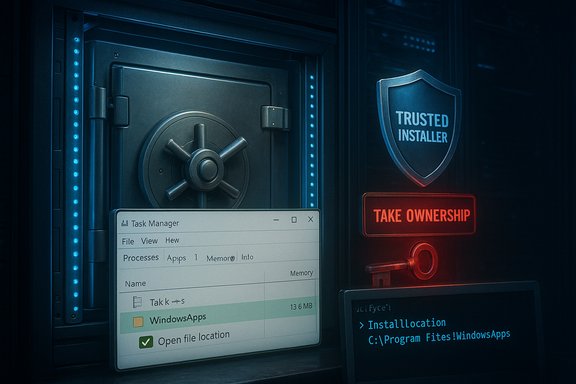 Background / Overview
Windows stores UWP (Store) apps and many modern Microsoft-distributed packages in a special folder named WindowsApps located under C:\Program Files. The folder is hidden by default and owned by the system service account TrustedInstaller; this design prevents accidental modification that could break apps or Windows itself. The community and how‑to coverage (including the tutorial you supplied) present three practical approaches:- A safe method for opening the active app’s folder using Task Manager.
- An advanced method that temporarily takes full ownership so you can inspect or edit contents.
- A read‑only approach using PowerShell to list and identify package folders without altering permissions.
Why WindowsApps is protected (short technical primer)
The WindowsApps folder is treated as a protected system area for several reasons:- It houses app package files, manifests, and runtime assets that Windows and the Microsoft Store expect to be immutable unless updated through the Store or Windows Update.
- The folder’s default owner is the TrustedInstaller service account (NT SERVICE\TrustedInstaller). That account holds permissions that let system processes manage packages securely.
- Changing ownership or ACLs can break app registration, updates, or the Store itself; community and Microsoft Q&A threads show that altered permissions frequently lead to installation/update failures.
Method 1 — Safely open a specific app’s folder with Task Manager (recommended)
Difficulty: Beginner | Time: 2–5 minutes | Risk: LowThis is the fastest, safest way to open a Microsoft Store app’s installation folder — and it does not change system permissions.
- Launch the Store app you want to inspect (for example, Calculator or Spotify).
- Open Task Manager (right‑click Start → Task Manager, or press Ctrl + Shift + Esc).
- On the Processes or Details tab, locate the running process for that app. Some Store apps appear as a grouped process you can expand.
- Right‑click the app’s main process and choose Open file location.
- You only need to inspect a config file, log file, or asset belonging to a running app.
- You want to avoid any risk to system-wide permissions or update behavior.
Method 2 — Take full ownership of C:\Program Files\WindowsApps (advanced, risky)
Difficulty: Intermediate to Advanced | Time: 10–20 minutes | Risk: HighChanging the owner of the entire WindowsApps folder gives your account complete read/write access to all store app folders. This can be necessary for forensic work, modding an app’s non‑protected assets, or when an app is corrupted and you must inspect files that can’t be launched. But changing ownership is a major, potentially destructive action — one misapplied permission or deleted file can prevent the Store from updating apps, break app registration, or destabilize the OS.
The tutorial you provided walks through this GUI-based approach; here’s the same flow with explicit safety checks and optional command-line alternatives:
Prepare and warnings (must‑read)
- Work from an administrator account.
- Make a full backup or at least a System Restore point before starting.
- Plan to immediately restore ownership to TrustedInstaller after you finish (instructions below).
- Log your exact steps so you can reverse them if necessary.
- Open File Explorer (Win + E) and navigate to C:\Program Files.
- Show hidden items (View → Options → View → Show hidden files, folders, and drives). The WindowsApps folder will become visible.
- Right‑click WindowsApps → Properties → Security → Advanced.
- Click the blue Change link next to Owner (you may be prompted by UAC).
- Enter your account name (or email for a Microsoft account), verify via Check Names, and click OK.
- Crucially, check Replace owner on subcontainers and objects before Apply — that propagates ownership to subfolders and files.
- If you still get access denied when opening files, go back to Properties → Security → Edit and grant your account Full control.
- takeown /f "C:\Program Files\WindowsApps" /r
- icacls "C:\Program Files\WindowsApps" /grant YourUserName:F /t
- Letting a user account remain the owner leaves Windows with files that are no longer under TrustedInstaller control. This can prevent automatic security updates, Store updates, or proper app re-installation. After finishing your inspection or edits, follow the re‑securing steps below.
Restore default permissions and re‑secure WindowsApps (mandatory after Method 2)
Difficulty: Intermediate | Time: 5–10 minutesRestoring the original owner is mandatory. The canonical owner string for the TrustedInstaller service is exactly:
NT SERVICE\TrustedInstaller
Use the GUI to put ownership back:
- Right‑click WindowsApps → Properties → Security → Advanced.
- Click Change next to Owner.
- Enter NT SERVICE\TrustedInstaller, click Check Names, then OK.
- Check Replace owner on subcontainers and objects, Apply, and wait for propagation.
icacls ... /reset /t /c /q can remove the folder’s special conditional ACEs and cause issues; others report it successfully repaired ACL problems. If you altered ACLs, the safest action after changing owner back is to validate app behavior, then run Windows Store repair/re-registration commands if needed (examples below). If apps misbehave after restoring TrustedInstaller- Run wsreset.exe to clear the Store cache.
- Re-register built-in apps (PowerShell, elevated):
Get-AppxPackage -AllUsers | ForEach-Object { Add-AppxPackage -DisableDevelopmentMode -Register "$($_.InstallLocation)\AppXManifest.xml" }
This re-registration command is commonly used to repair broken app registrations but can encounter “resource in use” errors for running packages. Ensure problematic apps are closed before running it.
Method 3 — View contents safely with PowerShell (read‑only)
Difficulty: Advanced | Time: 2–5 minutes | Risk: Very lowIf you only need to list contents or find where a specific package lives, PowerShell is the least risky route because it does not change ACLs or ownership.
- To list everything (including hidden items):
Get-ChildItem -Path "C:\Program Files\WindowsApps" -Force - To find a specific app’s package and installation folder:
Get-AppxPackage partOfAppName | Format-List Name, PackageFullName, InstallLocation
- Get-AppxPackage calculator | Select Name, PackageFullName, InstallLocation
- You want a complete inventory of installed packages.
- You need the package full name for scripting, diagnostics, or re‑registration.
- You do not want to alter file ACLs.
Common recovery and repair commands (what works and what’s risky)
- Re-register apps (repairs broken app registrations):
Get-AppxPackage -AllUsers | ForEach-Object { Add-AppxPackage -DisableDevelopmentMode -Register "$($_.InstallLocation)\AppXManifest.xml" }
This is widely used but may fail if packages are in use. Close related processes first. - Reset WindowsApps ACLs (controversial):
icacls "C:\Program Files\WindowsApps" /reset /t /c /q
Some community advisors and Microsoft community posts recommend this to restore default ACLs after an accidental change; others warn it removes special conditional ACL entries and can be destructive. Use as a last resort and only with backups. Test on non‑production machines first. - Take ownership (if GUI fails):
takeown /f "C:\Program Files\WindowsApps" /r
Then grant admin full control via icacls if needed:
icacls "C:\Program Files\WindowsApps" /grant Administrators:F /t
FAQs, verification and contentious points (what to believe — and what to double‑check)
- Does taking ownership permanently break Windows? No — taking ownership alone is reversible, but actions performed while you own the folder (deleting, moving, editing files) can irreparably harm apps. Community troubleshooting threads repeatedly show that the dangerous move is changing or deleting files, not the act of changing owner itself — though changing ownership without a recovery plan is still unwise.
- Is icacls /reset safe? Conflicting reports exist. Some community experts and Microsoft Q&A responders recommend it when ACLs are corrupted; others warn that
/resetstrips special conditional entries that Windows expects. Treat icacls /reset as a recovery action that must be taken with a backup and after careful research. Where possible, prefer reapplying the original ACLs or restoring from a known good configuration. - Can I move WindowsApps to another drive manually? No. Windows manages Store app locations. You should use Settings → System → Storage → Change where new content is saved to change where future apps install, or move individual apps through Settings → Apps → Installed apps. Manually moving the WindowsApps folder will break registrations.
- Will copying the folder back up apps? No. Simply copying folders does not capture registration entries and dependencies (registry, per‑user package registration, capability grants, etc.; copying WindowsApps is not a reliable backup for reinstallation on another machine. Use the Store, MSIX packaging tools, or official backup procedures where available.
- Can I delete certain app folders? Not safely. Windows and the Store protect core packages; even with ownership you may be blocked from deleting system-protected entries. Doing so can cause missing icons, broken start menu entries, or failed app updates.
Practical scenarios — when to use each method
- You just need a config file or an image from the app: use Task Manager → Open file location.
- You want a read-only inventory or are automating diagnostics: use PowerShell and Get-AppxPackage to fetch InstallLocation.
- You’re a developer or support tech who must patch a package and you understand the fallout: consider temporary ownership changes — but plan to restore TrustedInstaller immediately and be ready to re-register affected packages.
- You accidentally changed permissions and apps fail: follow documented recovery steps, consider icacls reset only after researching the exact consequences, and prepare for a potential Windows reset if recovery cannot restore a correct ACL set. Community threads document real cases where icacls fixed permissions and others where it caused trouble — treat this as a last-resort tool.
Safety checklist before you touch WindowsApps
- Back up your user data and create a System Restore point.
- Note current owner and ACLs (screenshot the Security → Advanced page).
- Close all Microsoft Store apps and services (consider booting to Safe Mode for safer file operations).
- Work on a copy first where possible (copy to an external drive) rather than editing the original.
- Have a recovery plan: a) reassign TrustedInstaller as owner, b) re-register apps, c) run Windows Store troubleshooters, and d) be prepared to perform an in‑place system repair if needed.
Alternatives and safer workflows
- Use Settings → Apps → Installed apps to Move or Uninstall applications supported by the Store.
- Use the per-user AppData packages for user‑scoped data (C:\Users\YourUser\AppData\Local\Packages\PackageFullName) when you need per-user settings or caches — those folders are generally accessible without changing WindowsApps ACLs.
- For developers, prefer MSIX packaging and the store ingestion flow rather than hacking installed package folders.
- Where file access is needed for debugging, run the app in a developer-targeted environment (a test VM or a Dev Channel Insider build) rather than on a production machine.
Conclusion — a measured approach
The WindowsApps folder is intentionally protected for stability and security. For most users and most tasks, the safe options — using Task Manager to open a running app’s folder or using PowerShell to enumerate packages — are sufficient and recommended. Taking ownership of the entire WindowsApps directory can be done, but it should only be performed by experienced users with backups and a clear plan to restore ownership to TrustedInstaller afterward. Conflicting guidance exists around blanket resets of ACLs (icacls /reset), so treat those commands as powerful, last‑resort tools and validate their effects on a test system first.This article synthesizes the practical how‑to steps from the WinBuzzer tutorial with community experiences and Microsoft Q&A guidance, and underscores a simple maxim: prefer read‑only discovery whenever possible, and always re‑secure the system when finished.
Source: WinBuzzer How to Access Microsoft Store App Folders in File Explorer - WinBuzzer
