

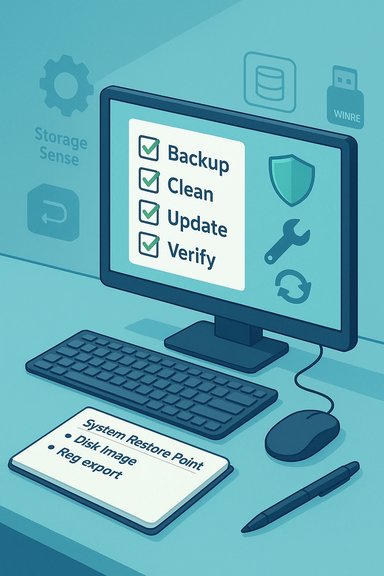
Windows can survive a lot of mistreatment, but many otherwise well‑meaning maintenance moves quietly chip away at the health and recoverability of an installation — sometimes until the system won’t boot or requires a full reinstall. The MakeUseOf piece that spawned this discussion lists five everyday habits that commonly degrade Windows installations: careless registry edits, over‑tweaking privacy/telemetry controls, deleting system files (including recovery partitions), unsafe driver updates, and neglecting routine performance hygiene. Those are solid observations, but each one deserves a deeper technical check, a reality‑checked risk assessment, and clear, practical alternatives that protect both stability and privacy.
Background / Overview
Windows is a complex, layered platform: user files, applications, services, scheduled tasks, drivers, the kernel, firmware interactions (UEFI/BIOS), and the Registry all interact in subtle ways. Small changes that look harmless — removing a scheduled task, toggling a service, deleting a directory, or running a “cleanup” script — can cascade into missing dependencies, failed updates, or broken recovery paths. The common thread in the mistakes described by MakeUseOf is doing irreversible changes without adequate backups, understanding, or a safe rollback plan.This article validates the main claims, points out where the original advice is especially strong, flags where nuance matters, and supplies step‑by‑step safer alternatives and recovery strategies for each category. The guidance is cross‑checked against Microsoft guidance and independent Windows troubleshooting sources so readers can act with confidence.
Careless Registry Edits
Why the Registry is high‑risk
The Windows Registry is a hierarchical database that stores configuration settings for Windows and most installed applications. Changing, adding, or removing keys can immediately alter how services start, how devices behave, and how features are enabled. Microsoft explicitly warns that registry‑cleaning utilities and indiscriminate modifications are unsupported and can cause system breakage; the safest rule is to only change registry values you fully understand and to back up first. Community experience reinforces that indiscriminate “registry cleaning” delivers little or no performance improvement while carrying real risk: aggressive cleaners have been known to remove needed COM registrations, file association pointers, or service configuration entries that prevent apps from launching or cause OS components to fail.Safer alternatives and best practices
- Prefer official tools first: Use Settings, the Group Policy Editor (gpedit.msc on Pro/Enterprise), or documented vendor utilities instead of registry hacks. Group Policy writes its settings in a controlled way and produces easier‑to‑revert policy files.
- Back up before you touch anything:
- Create a System Restore point (quick and reversible).
- Export the registry (regedit → File → Export → All) or create a full disk image (Macrium Reflect, Acronis, etc..
- If possible, snapshot a VM or use a test machine for risky changes.
- Targeted edits only: If a vendor support article instructs a registry change to fix a known defect, follow their exact keys and keep a copy of the exported .reg file so you can re‑import it.
- Avoid “cleaners” unless solving a narrow problem: If you must use a reputable tool, run it in the least aggressive mode, review every proposed deletion, and ensure you have a current image before proceeding. Community guidance favors manual, targeted cleanup over sweeping automated cleans.
Recovery checklist if the Registry edit breaks things
- Try System Restore to the point before the change.
- Boot to WinRE → Command Prompt and import the exported .reg file if needed.
- Use an offline image restore if the registry is corrupted and the machine won’t boot.
- Reinstall or perform an in‑place repair if other options fail.
Over‑tweaking Windows Features (Privacy optimizers and “telemetry killers”)
The tradeoff: privacy vs integrity
Privacy optimizers and “debloat” scripts often try to disable telemetry, scheduled tasks, services, and components to reduce data collection or slim the OS. That can help privacy, but many telemetry/privacy settings are entangled with functional components: search indexing, Update delivery, Windows Spotlight, and some enterprise management features rely on scheduled tasks and services. Aggressively disabling these can break features (Search, Windows Update, OneDrive integration) or prevent key maintenance tasks. The MakeUseOf advice to understand changes and prefer built‑in or vetted tools is well placed.Microsoft documents Group Policy and Settings approaches as the standard ways to configure telemetry and privacy; removing services or deleting scheduled tasks outside of supported guidance risks instability. If you need more control than Settings offers, use a trusted tool and audit what it changes before applying.
Practical, safe approaches
- Start with Settings and Group Policy: Use Settings → Privacy & Security and gpedit.msc (Pro/Enterprise) to apply supported privacy changes.
- Read the change list: A trusted third‑party utility is acceptable only if it publishes a precise changelog. Prefer tools that offer undo or that operate in “non‑destructive” mode first.
- Test first: Apply changes on a non‑critical device or VM to observe side effects over a few days before rolling them into your daily machine.
- Keep management features for recovery: Avoid disabling WinRE, telemetry components needed for update diagnostics, or essential update services unless you have an alternate recovery plan. Microsoft’s recovery environment and update path rely on these components.
Example: When privacy tweaks go wrong
- Disabling search indexing services can make File Explorer and Start menu search unresponsive.
- Preventing telemetry/diagnostic services may also stop the automatic uploading of update‑related diagnostics that Microsoft uses to deliver fixes for broken updates; that can prolong a problem and complicate support.
Deleting System Files (and the Recovery Partition)
The reality of “freeing space”
It’s tempting to delete large folders that look redundant or delete the recovery partition to reclaim gigabytes. But many Windows system folders and the recovery partition contain tools used by the Windows Recovery Environment (WinRE), system reset, or rollback mechanisms. Microsoft and community guidance both advise caution: don’t delete recovery partitions unless you have a tested alternative recovery media and a verified image. Storage cleanup should start with built‑in tools that understand which files are safe to remove. Storage Sense and Disk Cleanup are designed to remove safe categories of files (temporary files, update leftovers, Recycle Bin contents) and can be configured to automate maintenance.Safer cleanup workflow
- Run Settings → System → Storage → Temporary files and review what Windows proposes to delete.
- Use Storage Sense for ongoing automation; configure its cadence and exclusions.
- For large wins (Windows.old, Delivery Optimization cache), prefer Disk Cleanup → Clean up system files. This preserves recovery options while freeing space.
- If you must remove the recovery partition:
- Create a bootable recovery USB with a copy of WinRE or Windows installation media (Media Creation Tool) and verify it boots on the target machine.
- Create a full disk image to external storage.
- Only then delete the partition; keep copies of installers and driver packages.
Why the recovery partition matters
WinRE contains diagnostics (Startup Repair, System Restore, Command Prompt, Reset) that can be vital when Windows won’t boot. Deleting it forces you to rely on external media or cloud reinstall, which may be slow or unavailable on metered/slow connections. Microsoft community replies and support notes consistently recommend keeping the recovery partition or making a tested recovery USB before removal.Bad Driver Installs
The “if it’s working, don’t touch it” principle — with exceptions
Drivers directly control hardware behavior. Updating an unproblematic driver can introduce regressions; numerous community threads and Microsoft guidance echo the axiom: if it isn’t broken, don’t update it for the sake of updating. Critical exceptions exist: GPU drivers for gaming and some security‑related driver updates can deliver important fixes and performance gains. Microsoft’s forums and independent guides recommend getting drivers from device or OEM makers rather than random third‑party utilities, and treating Windows Update driver offerings cautiously.Recommended driver update process
- Diagnose first: Confirm that a hardware problem (audio, Wi‑Fi, display) is driver‑related (Device Manager errors, known regression after an update).
- Prefer vendor downloads: Get GPU drivers from NVIDIA/AMD, and laptop/motherboard drivers from the OEM support site. These packages often include vendor‑specific fixes and installer safeguards.
- Create a fallback: Make a System Restore point or full image before a risky driver installation.
- Use Device Manager rollback: If an update breaks things, Device Manager allows a roll‑back to the previous driver (when available).
- Avoid third‑party driver updaters: Those tools can install incorrect or unsigned drivers; they are a common source of problems.
Special case: GPU drivers
Graphics drivers are updated frequently and can carry large performance and compatibility improvements for games and GPU‑accelerated workloads. For gamers and content creators, staying current with NVIDIA/AMD releases is often worth the small risk — again, with backups and the ability to roll back if the new driver causes problems.Neglecting Good Performance Hygiene
Small slippages add up
Long‑term maintenance is more about consistency than big interventions. Dust buildup, clogged cooling, running a machine near full disk capacity, and never rebooting properly can all contribute to slow boots, freezes, and data corruption. MakeUseOf’s point that “building up” changes over time causes fragility is mirrored in community diagnostic threads: systems used as long‑running sandboxes quickly collect cruft that resists repair without a clean start.Practical hygiene checklist
- Physical maintenance: Keep fans and vents clear of dust; check airflow and thermal paste for older machines.
- Free up space safely: Use Storage Sense and Disk Cleanup; avoid deleting system folders manually.
- Safe shutdowns: Use normal shutdowns; avoid hard power cycles unless the system is unresponsive to avoid filesystem and state corruption.
- Periodic health scans: Run Windows Security scans and occasionally SFC/DISM to catch and repair corrupted system files:
- DISM /Online /Cleanup-Image /RestoreHealth
- sfc /scannow
- Reinstall cadence: For machines that have accumulated years of installs/uninstalls, a fresh clean install or Reset is often the fastest way to return to a known good baseline; keep images of your “golden” configuration for faster rebuilds.
When to do a clean install
A clean install is justified when repeated troubleshooting (SFC/DISM, driver rollbacks, Safe Mode triage) doesn’t restore stability, or when a machine has been used as a long‑term test bed and accumulated unfixable cruft. It provides a clean baseline, removes latent configuration problems, and restores predictable update behavior. If BitLocker is enabled, save recovery keys before any image/partition work.Practical Recovery and Prevention Playbook
Short, high‑value checklist you can do in 20–30 minutes
- Create a full backup or at least a System Restore point.
- Run Storage → Temporary files → Cleanup or run Disk Cleanup (system files).
- Run DISM then SFC: DISM /Online /Cleanup-Image /RestoreHealth; sfc /scannow.
- Disable nonessential startup items via Task Manager → Startup.
- Check Device Manager for flagged devices; only update drivers for failing devices or GPU updates from the vendor.
- Enable Storage Sense or set a monthly manual cleanup cadence.
If you’ve already broken something
- Boot into WinRE (Shift + Restart) and try Startup Repair.
- Use System Restore to roll back to a prior state.
- From WinRE → Command Prompt, run chkdsk and use DISM /RestoreHealth if system files are corrupt.
- If the bootloader is broken, use bootrec/bcdboot steps (careful with EFI partitions; follow exact vendor instructions).
- If all else fails, restore a disk image or perform Reset this PC (Keep my files if you need to salvage data).
Critical Analysis: Strengths, Gaps, and Risks in the Original Advice
- Strengths:
- The MakeUseOf checklist correctly highlights everyday, low‑skill mistakes that cause outsized harm: registry edits, system file deletions, and untrusted driver installs. These are common real‑world failure modes.
- The emphasis on using built‑in tools (Disk Cleanup/Storage Sense) and preferring vendor drivers is sound and aligns with Microsoft guidance.
- Gaps and nuances to add:
- Not all registry edits are uniformly bad; targeted, supported edits and vendor‑instructed fixes are valid when backed by proper backups. The critical missing step in many articles is the concrete backup workflow (System Restore + exported .reg + full image).
- “Don’t update drivers” is too absolute. The right nuance is: update drivers when they fix a problem or when updates provide clear benefits (GPU drivers, security patches). Always prepare a rollback.
- Deleting the recovery partition is sometimes reasonable for space‑constrained devices, but only if a tested recovery USB and image are prepared — that nuance needs emphasis because cloud reinstall options are not always practical on slow connections.
- Risks:
- Following “privacy tweak” scripts blindly can reduce observability and hamper recovery — making post‑update diagnostics and vendor support harder.
- Using multiple aggressive “cleaners” in sequence multiplies risk; each may remove different items that together break dependencies.
Quick Reference — Safe Defaults
- Registry: Back up (export + system image) before edits; prefer GPEDIT or Settings.
- Drivers: Vendor site for GPU/critical drivers; keep a rollback option; avoid random updaters.
- Storage: Use Storage Sense / Disk Cleanup first; only remove recovery partitions after creating verified recovery media and an image.
- Privacy tools: Use built‑in options first; test third‑party changes on a secondary machine.
- Hygiene: Keep 10–20% free space, clean dust, run SFC/DISM quarterly, and image a “golden” configuration after setup.
Conclusion
Many of the subtle ways people “destroy” Windows aren’t dramatic — they’re slow accumulation and a few irreversible mistakes: an overzealous registry scrub, the deletion of recovery assets, a bad driver pushed by a convenience tool, or a privacy tweak that removes a service Windows needs. The antidote is simple: prefer supported interfaces (Settings and Group Policy) over hacks, make backups and test changes on spare machines, use built‑in cleanup utilities for routine housekeeping, and keep recovery media and images ready. Follow a deliberate workflow — diagnose, backup, change, verify — and Windows will reward your restraint with years of stable service. The original MakeUseOf guidance is a useful wake‑up call; pairing it with the conservative, verifiable practices outlined here prevents the small mistakes that become catastrophic.Source: MakeUseOf 5 ways you're accidentally destroying your Windows installation
